


Part 1. Why Is My Google Forms Not Working?
Before we fix the problem, it helps to know why it is happening. Usually, when Google Forms stops working, it is because of one of these simple reasons.
❌ Browser Confusion: Your web browser (like Chrome, Safari, or Edge) saves old data to load pages faster. Sometimes, this old data gets mixed up and stops the form from working. Also, tools that block ads can sometimes block the form by mistake.
❌ Sign-in Rules: The person who made the form might have set special rules. For example, they might require you to sign in to a Google account first, or they might only allow people from their own school or company to see it.
❌ Full Storage Space: If the form asks people to upload pictures or files, those files go directly into the creator's Google Drive. If their Google Drive is completely full, the form will break and stop taking new answers.
Knowing these reasons makes it much easier to find the right fix.
Part 2. How to Fix Google Forms Not Working
Here are the best ways to fix the problem. We have split them into three groups so you can find the exact answer you need.
Cannot Open or Load the Form
If you click a link and the page is blank, or if you find the Google Forms link not working, try these steps.
Check Your Internet Connection
First, open a new page and try to visit a different website, like a news site. If that site does not load either, your internet is the problem. Turn your Wi-Fi off and back on again.
Clear Your Web Browser
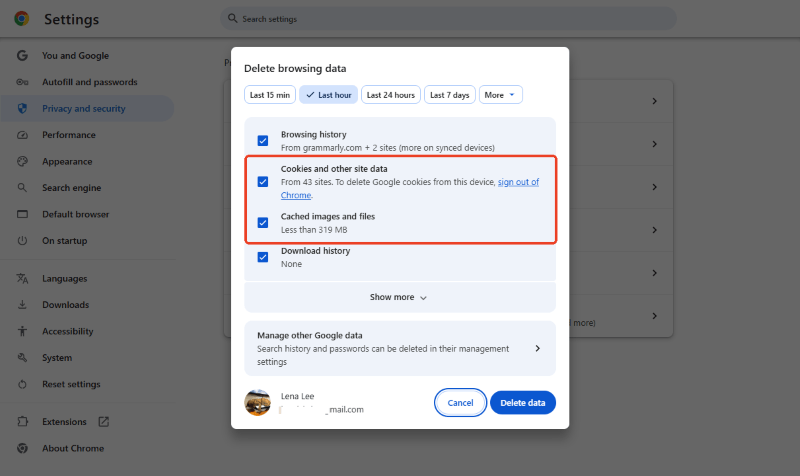
Over time, your web browser collects junk files. These caches and cookies may affect your browser. Go to your browser's settings, find "History" or "Privacy," and choose to clear your "Cache and Cookies." After that, try opening the form again.
Use a Private Window
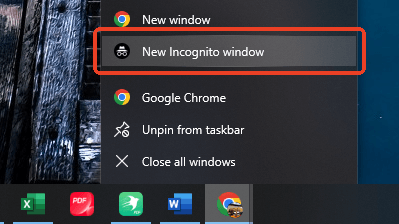
Some extensions, like ad blockers, can stop pages from loading. You can test this by opening an "Incognito" or "Private" window. If you find the Google Forms link not opening in a normal window, but it works in a private window, an ad blocker is likely causing the issue.
Try a Different Device
If you are using a computer, try opening the link on your phone instead. Or, if you are using Google Chrome, try opening the link in Microsoft Edge or Apple Safari.
Cannot Submit Your Answers
If the form opens perfectly fine, but you cannot click the final "Submit" button, look for these common mistakes:
Find the Red Stars
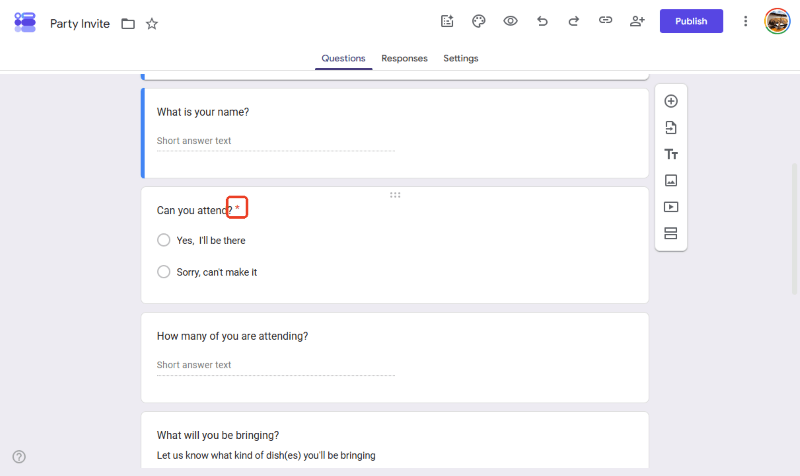
Scroll up and look at every question. Do you see a small red star (*) next to any of them? That star means the question is required. You cannot finish the form until every starred question has an answer.
Check Your Typing
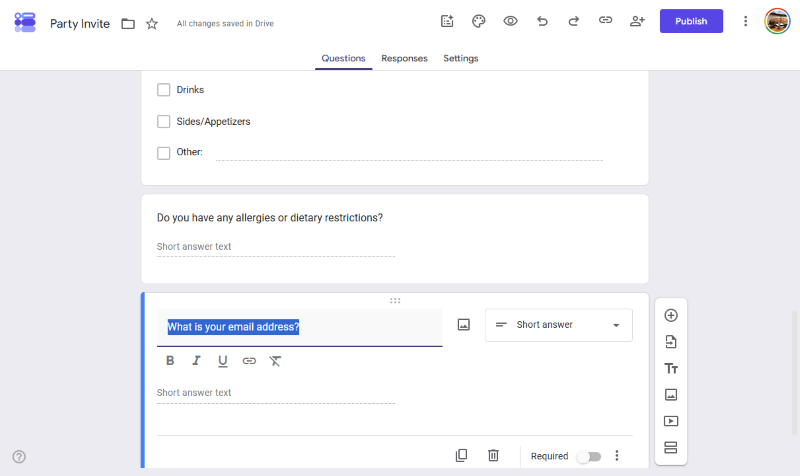
Sometimes, a question asks for a specific type of answer. For example, if it asks for an email address, you must type it perfectly (like [email protected]). If you forget the "@" sign, the form will show an error and will not let you submit.
Log Into Google
Does the form ask you to upload a file or a picture? If yes, Google needs to know who is sending the file. You must sign in to your Gmail or Google account before it will let you submit.
Check If You Already Answered
The creator might have turned on a rule called "Limit to 1 response." This means you can only fill it out once. If you have already done it earlier, it will not let you send a second one.
Created the Form and It Is Broken
What if you are the person who made the form, and people are telling you it is broken? Here is what you need to check:
Turn the Switch On
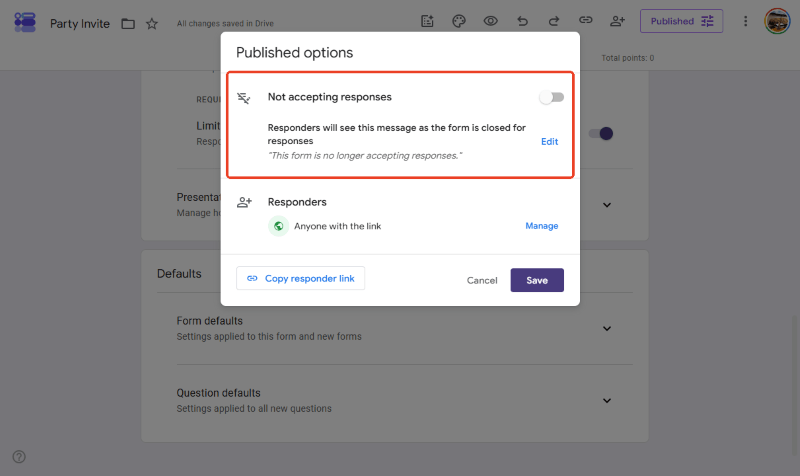
Open your form and click the Published button. Look for a switch. If the switch says "Not accepting responses," people cannot answer it. Click the switch so it turns on and shows that your Google Forms is not accepting responses by mistake.
Check Your Google Drive Storage
All the answers and files people send go to your Google Drive. Go to your Google Drive account and see if it is 100% full. If it is full, you must delete some old files or buy more space.
Change the Rules
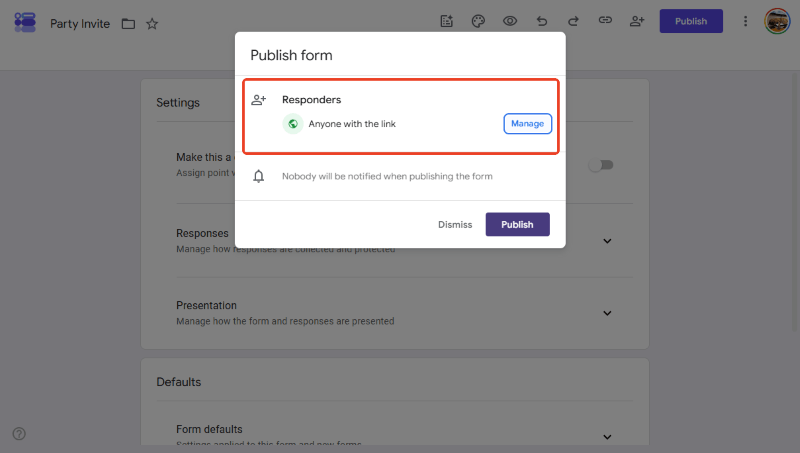
If people say they need "Permission" to open your form, you should check the settings. Go to Published and click Manage to edit the permission.
Check All Your Data
Google Forms not showing all responses right away? Usually, this just takes a minute to update. Refresh your page, or click the little green spreadsheet icon on the Responses tab to see every single answer neatly lined up.
Part 3. Bonus Tip: How to Easily Fill Out a PDF Offline
You can also download Google Forms as PDF so you can print it or fill it out later without needing an internet connection. This is where SwifDoo PDF can help.
SwifDoo PDF is a smart and easy-to-use PDF form filler. It lets you read, edit, and fill out documents fast. It is great because it works perfectly even when your internet is down.
Why use SwifDoo PDF?
✅ If someone sends you a normal PDF that does not have clickable typing boxes, SwifDoo PDF can fix it. It allows you to easily fill out a PDF form that is not fillable by letting you add your own text anywhere on the page.
Here is how to use SwifDoo PDF:
- Launch SwifDoo PDF and open your document.
- If it is a normal form, just click on the form field and start typing.

- If the document will not let you type, click the Edit button at the top, then click Insert Text. Now you can put a typing box anywhere you want.

- When you are done, click Save. You can then send the finished file to anyone in an email.
If you often work with school assignments or work forms, download SwifDoo PDF today. It will save you a lot of time and headaches!
Conclusion
That’s all about how to fix Google Forms not working. Most of the time, all you need to do is clear your internet browser, check for skipped questions, or change a setting. Save this guide so you always know what to do next time!



