


What Does “Access Denied” Mean in Adobe Acrobat
When using Adobe Acrobat or Adobe Acrobat Reader, the alert “There was an error opening this document. Access denied” appears when access to a PDF is blocked due to restrictions, encryption, or insufficient user permissions.
When this error appears, users might not be able to open, view, print, or edit the PDF, effectively preventing access to its contents. This error can slow down work processes, block the distribution of important files, and lead to setbacks if urgent documents are needed.
This message signals that the file is currently inaccessible, even if it appears to be present on the system.
Common Causes of the Adobe Access Denied Error
This Adobe Access Denied error occurs when a PDF file is blocked from opening because of restrictions or technical issues with the system or document. This can keep users from viewing, editing, or printing crucial documents, causing workflow delays. Understanding the main causes of this error can help you spot the problem early and take effective steps to restore access.
Here is a list of common causes for the Adobe Access Denied error.
- Password-Protected PDF. The file is protected by a password, blocking unauthorized access.
- Restricted Permissions. The PDF has security settings that block viewing, printing, or editing.
- Corrupted PDF File. Access errors in Adobe Acrobat can occur when a file is damaged or incomplete.
- Outdated Adobe Acrobat. Running an older version may prevent opening newer PDF formats.
- Insufficient User Permissions. The account used by the system may not have the rights to open the file or folder.
- File Location Issues. Keeping PDFs on network drives, external devices, or secured folders can result in access denial.
How to Fix “Adobe There Was an Error Opening This Document”
Now that you know the common causes, it’s easier to apply the right solution. Here are seven useful fixes to correct the error and get full access to your PDF documents. These instructions can save time and keep you from feeling frustrated when managing restricted or problematic PDFs.
Fix 1. Disable Protected Mode at Startup in Adobe
Adobe Acrobat and Reader include Protected Mode, a security feature that can occasionally stop access to certain PDFs, resulting in the “Access Denied” error. Disabling this mode at startup can help resolve the issue, allowing the program to open PDFs smoothly while maintaining control over other security settings.
Remember, it slightly lowers security, so only keep it disabled if needed.
This is how you can turn off Protected Mode at startup in Adobe Reader or Acrobat.
Step 1. Open Adobe Acrobat Reader or Adobe Acrobat on your device.
Step 2. Click on the Edit menu (or the Menu icon in newer versions).
And select Preferences (or Settings).
Step 3. In the Preferences window, choose Security (Enhanced) from the Categories list.
Step 4. In the Sandbox Protections section, uncheck the box for Enable Protected Mode at startup.
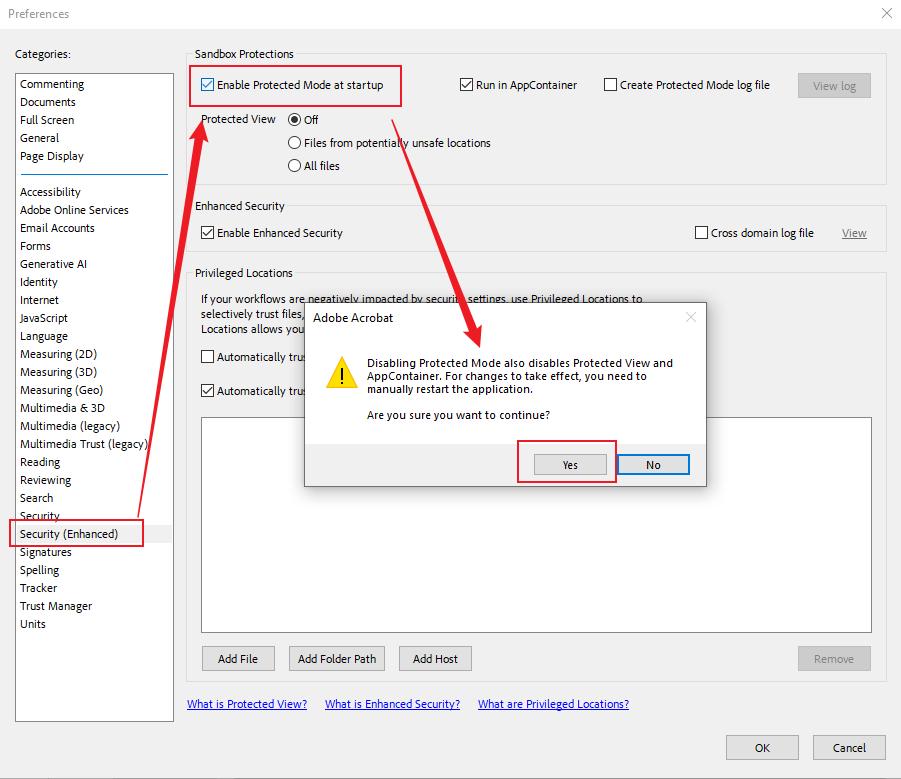
Note. If you see "Run in AppContainer" (or a similar option under Sandbox Protections), uncheck that too.
A warning will appear; click Yes or OK to confirm, then click OK again to close Preferences.
Step 5. To apply the changes, restart Adobe Acrobat or Reader before opening any PDF files.
Fix 2. Add the File to Privileged Locations
Adding a PDF file to Adobe’s trusted locations allows the program to treat it as safe and prevents access denial. Following this approach is advised for long-term use, so you can work with trusted files without repeatedly seeing the “Access Denied” error.
This is how you can add a PDF file to Privileged Locations in Adobe Reader or Acrobat.
Step 1. Launch the Adobe Reader or Adobe Acrobat application on your device.
Step 2. On Windows, go to Edit > Preferences; on macOS, select Acrobat/Reader > Preferences.
Then, navigate to Security (Enhanced) in the Preferences dialog box.
Step 3. Within "Privileged Locations," choose the Add File button or the Add Folder Path button.
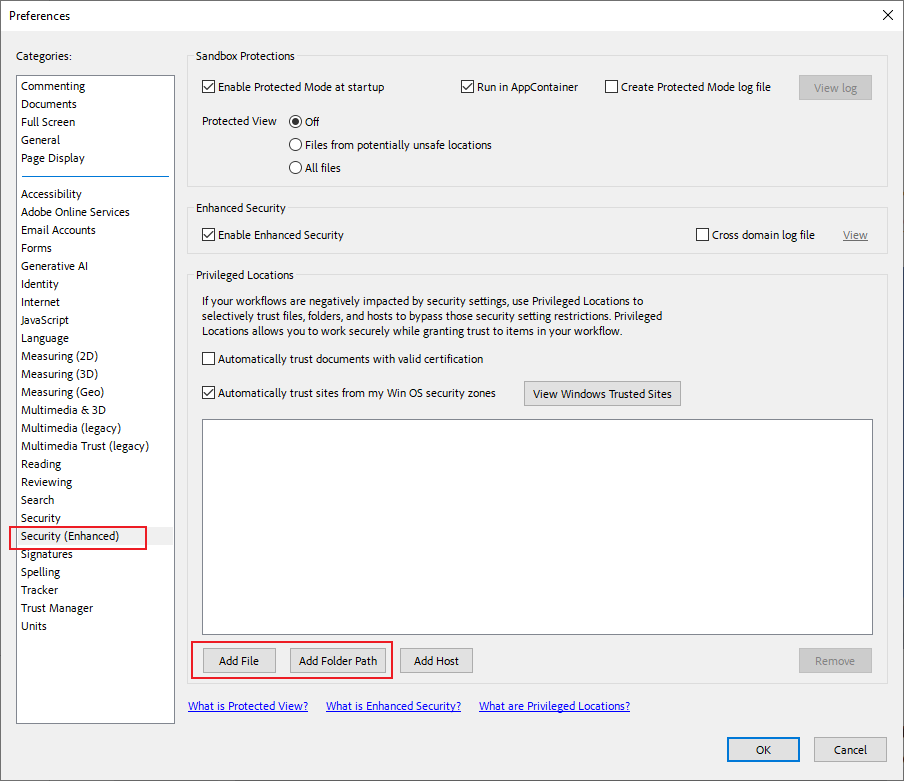
Step 4. Browse to the folder containing your problematic PDF file, or to the entire folder or drive it’s in, and select it.
Click OK to confirm the addition. Then tap OK again in the main Preferences window.
Step 5. Finally, exit and reopen Adobe Acrobat/Reader, then check to ensure the issue is gone.
Fix 3. Unblock the PDF File (Windows)
Occasionally, Windows restricts files downloaded online or obtained via email to safeguard your system. This can result in the “Access Denied” error showing up in Adobe Acrobat or Reader. By unblocking the PDF, this restriction is removed and the program can open it normally. Applying this quick solution makes Windows recognize the file as safe, granting full access once more.
Learn the steps to unblock the PDF file in Adobe on Windows.
Step 1. Right-click the PDF file and select Properties.
Step 2. Navigate to the General tab.
Step 3. Look for a security message at the bottom stating, "This file came from another computer and might be blocked..."
Step 4. Check the Unblock box.
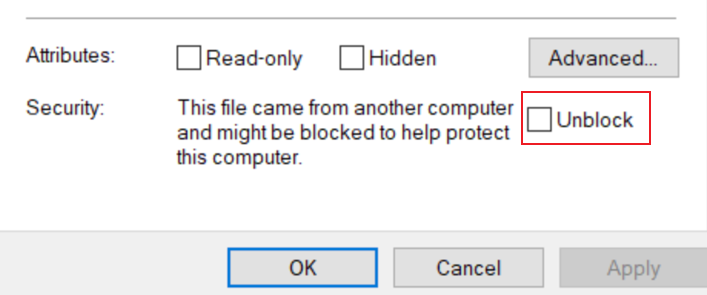
Step 5. Click Apply and then OK.
Fix 4. Run Adobe Acrobat as Administrator
Running Adobe Acrobat or Acrobat Reader as an administrator gives the program elevated permissions to access files that may be restricted under standard user accounts. This can fix the “Access Denied” error by letting the software bypass specific system-level restrictions. It’s a quick and effective way to open PDFs that are otherwise inaccessible.
Find out the steps to run Adobe Acrobat as an administrator.
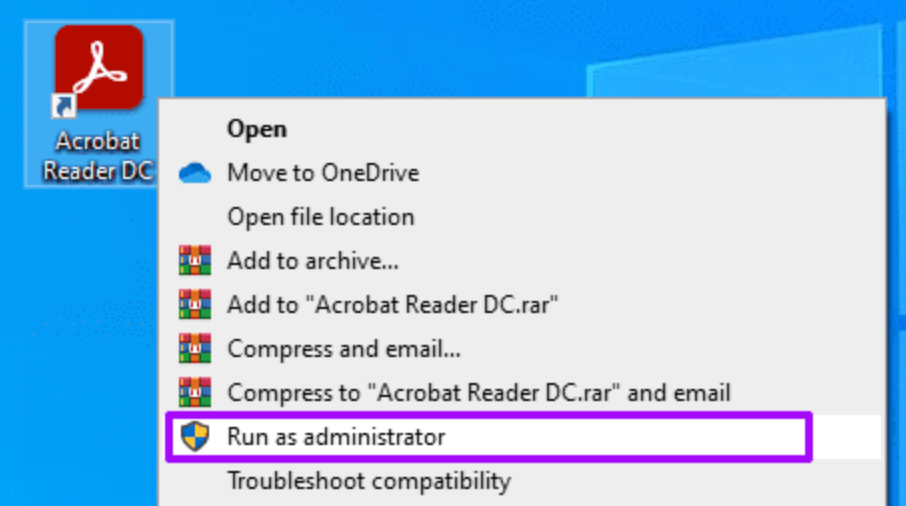
Temporary Administrator Run:
Step 1. Locate the Adobe Acrobat shortcut, then right-click it.
Or browse to C:\Program Files\Adobe\Acrobat DC\Reader to right-click the executable file.
Step 2. Press “Run as administrator.”
Permanent Administrator Run:
Step 1. Right-click the application icon, then choose Properties.
Step 2. Then, move to the Compatibility option. And check the icon labeled Run this program as an administrator.
Step 3. Press Apply or OK.
Fix 5. Update or Repair Adobe Acrobat
Outdated or corrupted Adobe Acrobat software can cause errors when opening PDF files. Updating to the newest version guarantees compatibility with current PDF formats, and repairing the installation fixes any damaged program files. This combination helps eliminate the “Access Denied” error and restores smooth functionality for viewing and editing PDFs.
Check out how to update and repair Adobe Acrobat in a few clicks.
Update Adobe Acrobat:
Step 1. Access Adobe Acrobat/Reader.
Step 2. Click Help in the top menu bar.
Step 3. Select Check for Updates.
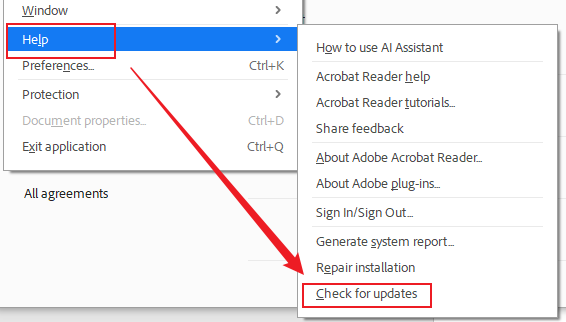
Step 4. If an update is available, click Download.
Step 5. Follow the on-screen instructions and restart your computer if prompted.
Repair Adobe Acrobat:
Step 1. Open the Control Panel and go to Programs and Features.
Step 2. Locate and select Adobe Acrobat.
Step 3. Click Change (or Modify).
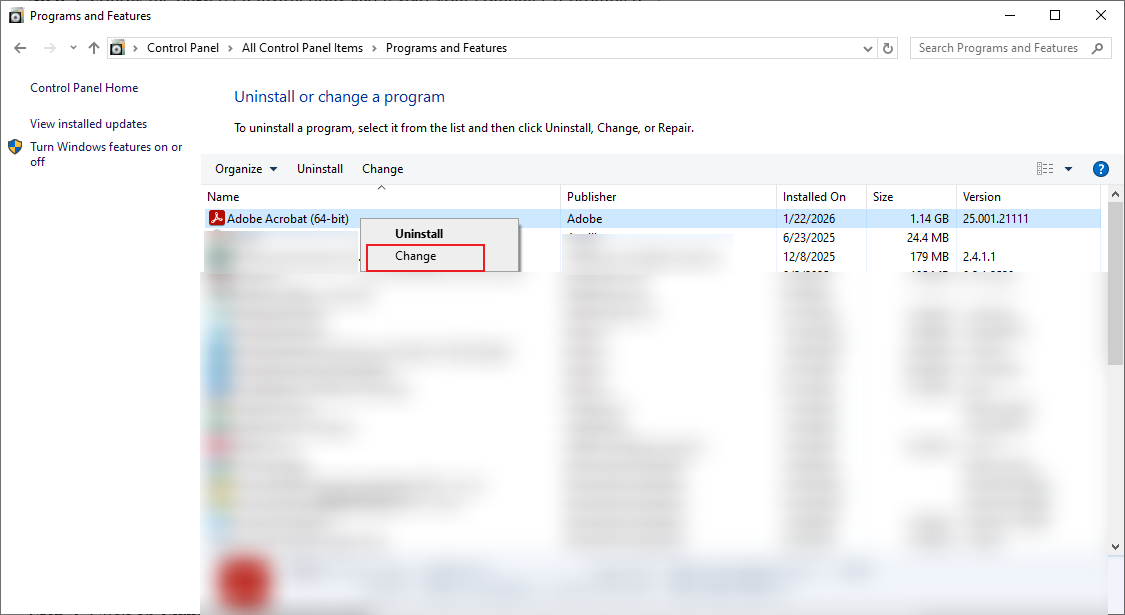
Step 4. From the Setup dialog box, select Repair.
Step 5. Complete the repair by following the on-screen instructions.
Fix 6. Temporarily disable Antivirus/Real-time Protection and Test
Antivirus programs or real-time security features can occasionally block Adobe Acrobat from opening particular PDF files, resulting in the “Access Denied” error. Temporarily disabling these security features lets you see if they are causing the issue. If the PDF opens correctly, you can modify your antivirus settings to avoid future conflicts while keeping your system safe.
Discover the process to disable antivirus and solve the “Access Denied” error in Adobe Acrobat.
Disable Windows Security (Defender):
Step 1. Open the Start Menu. Type "Windows Security," then select it.
Step 2. Click on Virus & threat protection.
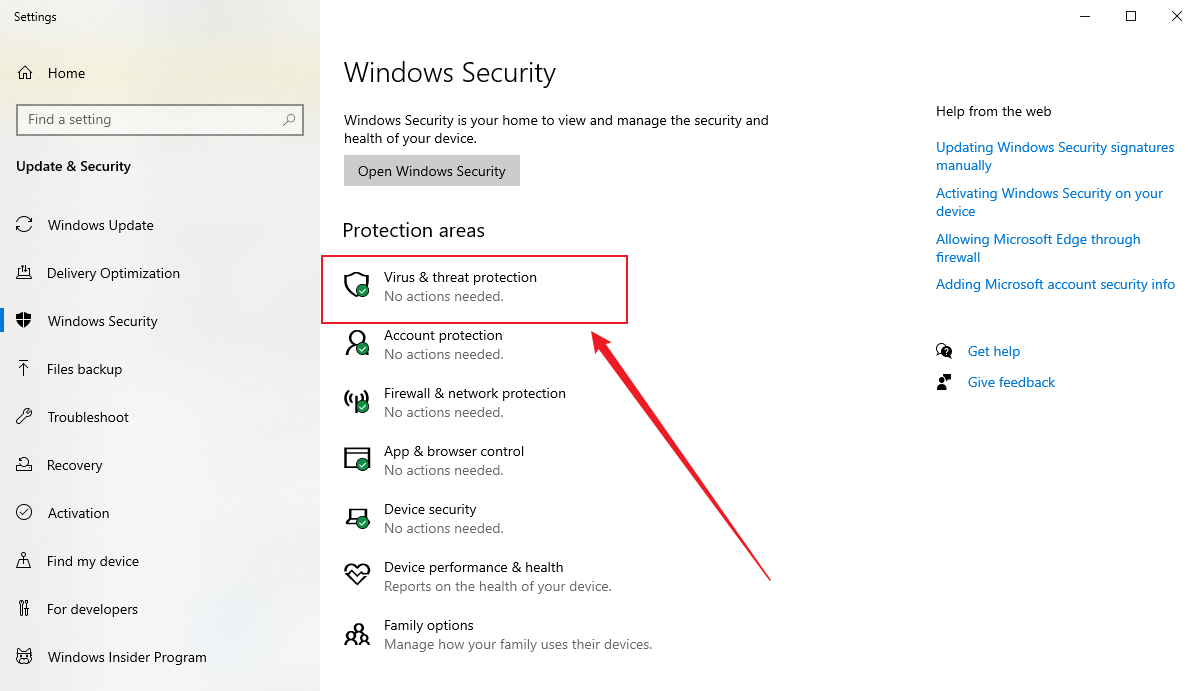
Step 3. Click Manage settings under "Virus & threat protection settings".
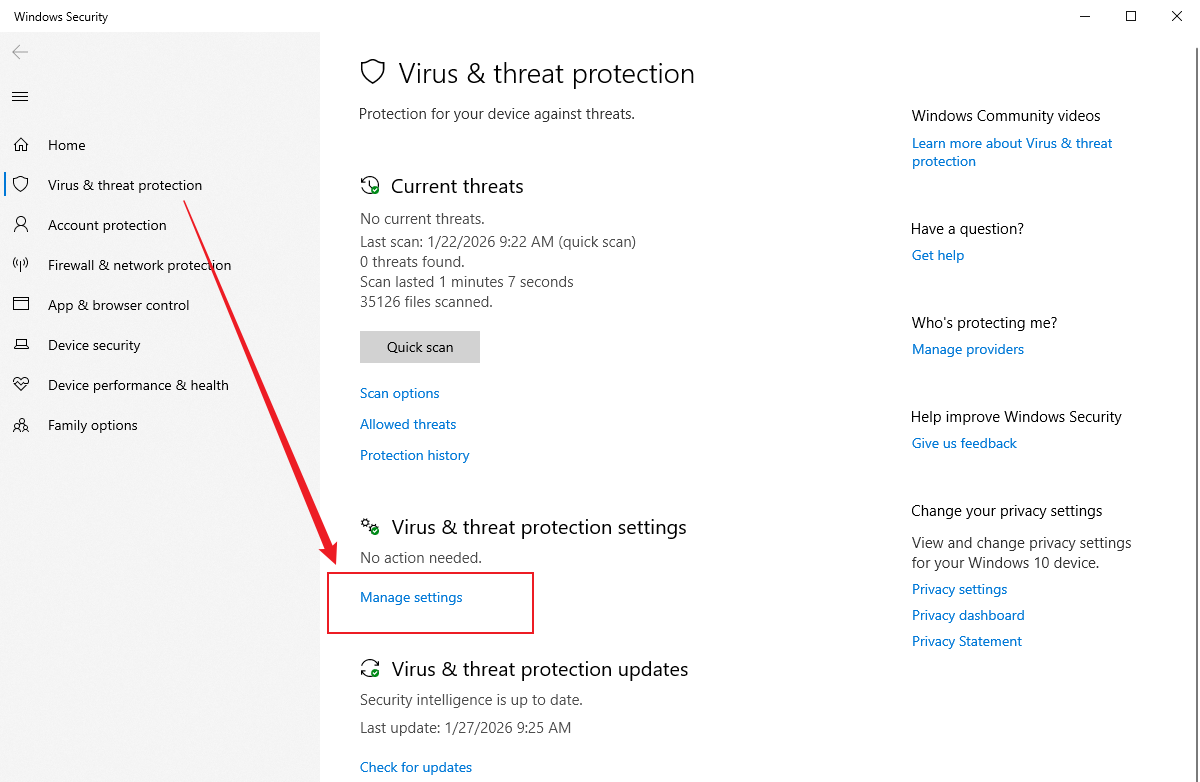
Step 4. Toggle Real-time protection to Off.
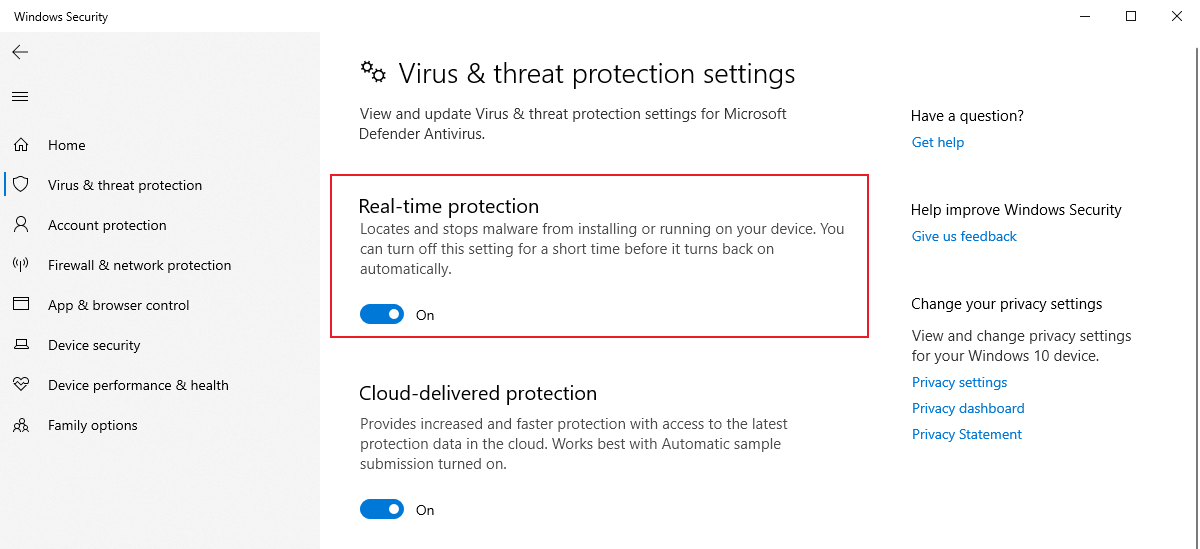
Step 5. Select Yes when prompted by User Account Control (UAC).
Note. Real-time protection automatically re-enables after a restart.
Disable Third-Party Antivirus:
Step 1. Locate the antivirus icon in the bottom-right corner of the system tray.
Step 2. Right-click the program icon and pick “Pause protection,” “Disable,” or other similar choices.
Fix 7. Try Opening the File in a Different PDF Viewer
If Adobe Acrobat keeps displaying the “Access Denied” error, switching to another PDF viewer may resolve it. Many alternative PDF readers help bypass restrictions or compatibility issues in Adobe Acrobat, giving you the ability to view, edit, and handle documents without delays.
Below is a list of several reliable PDF viewers you can use.
- SwifDoo PDF
- Preview/Microsoft Edge
- Foxit PDF Reader
- Google Chrome
- Nitro PDF
- PDF-XChange Editor
- Sumatra PDF Reader
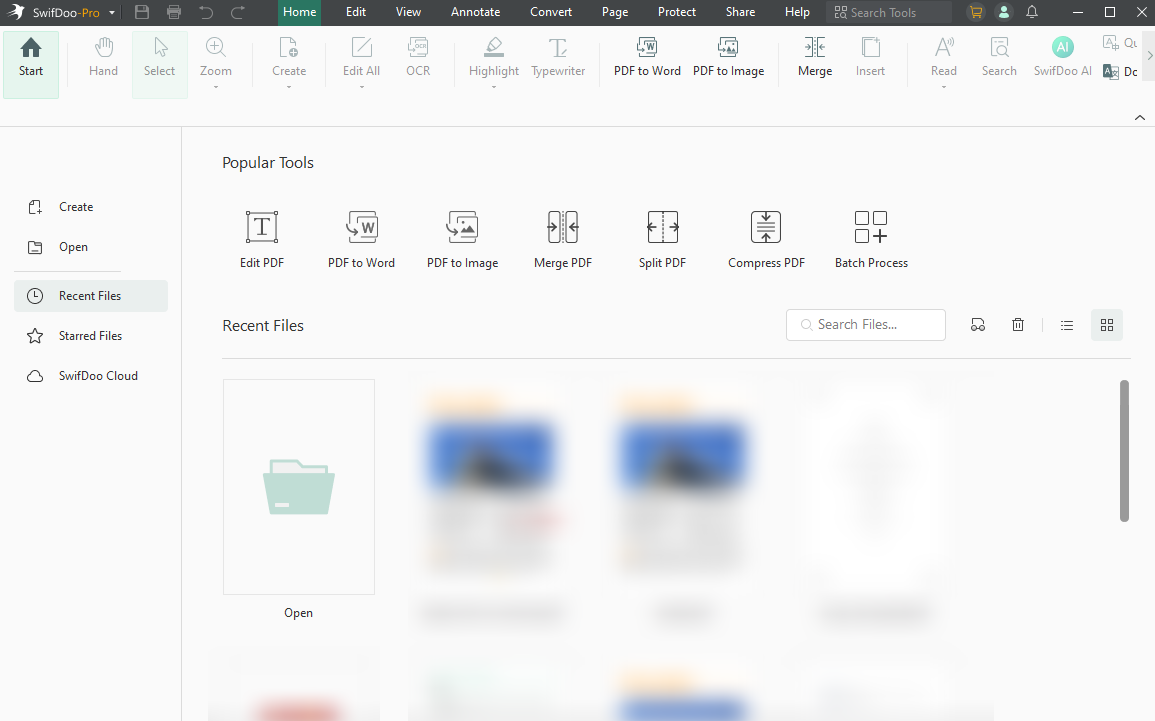
Among the numerous PDF viewers on the market, SwifDoo PDF stands out as one of the best PDF readers, providing a smooth and intuitive experience for viewing and reading your documents.
SwifDoo lets you open PDFs without Adobe, making it a convenient alternative for anyone who frequently works with PDF files.
With features such as fast page navigation, read-aloud mode, customizable viewing modes, and a clean, user-friendly interface, SwifDoo PDF makes reading and managing your documents simple, efficient, and hassle-free. The program also allows you to search, find, and translate PDF content into different languages. Plus, it allows you to carry out a PDF word count if required.
Final Thoughts
The Adobe there was an error opening this document issue can appear for multiple reasons, such as permission restrictions, corrupted files, or conflicts with software. Although the error can be frustrating, it is generally fixable by using the appropriate solutions depending on the cause. You can restore access by using alternative PDF tools like SwifDoo PDF, updating your software, and changing security settings. Thanks to the solutions discussed in this article, you should now be able to open and work with your PDF files without problems.



