


Adobe Acrobat Reader provides many essential PDF functions for free, including viewing, printing, commenting, filling forms, and signing PDFs. However, some of you may need capabilities beyond those basic tasks or prefer a lightweight PDF reader. In the following content, we’ll compare 8 Adobe Acrobat Reader alternatives, including free desktop applications, built-in PDF viewers, and PDF utilities. Now, let’s get started!
Quick Comparison of the Best Adobe Reader Alternatives
Before learning each alternative one by one, you can read the table below to have a quick overview.
|
PDF Reader |
Supported Platforms |
Pricing |
Best For |
|
JOPDF |
Windows, macOS, Linux |
Free |
Free desktop PDF viewing and editing |
|
SwifDoo PDF |
Windows, macOS, Linux, Android, iOS |
Free trial with paid plans |
Combines document editing with OCR and format conversion |
|
SumatraPDF |
Windows |
Free, open source |
Lightweight PDF viewing |
|
PDF-XChange Editor |
Windows |
Free with paid features |
Advanced annotation and PDF tools |
|
Okular |
Windows, Linux, macOS availability varies |
Free, open source |
Open-source document viewing |
|
Apple Preview |
macOS |
Free, included with macOS |
Basic PDF viewing and annotation |
|
Microsoft Edge PDF Reader |
Windows, macOS |
Free, built into Edge |
Reading and marking up PDFs in a browser |
|
PDF24 Creator |
Windows |
Free |
Offline PDF utilities and document management |
8 Best Adobe Reader Alternatives in Detail
In this section, I will introduce you to 8 reliable alternatives to Adobe Acrobat Reader in detail. Here, let’s check them one by one.
1. JOPDF – Best Free Desktop Adobe Reader Alternative
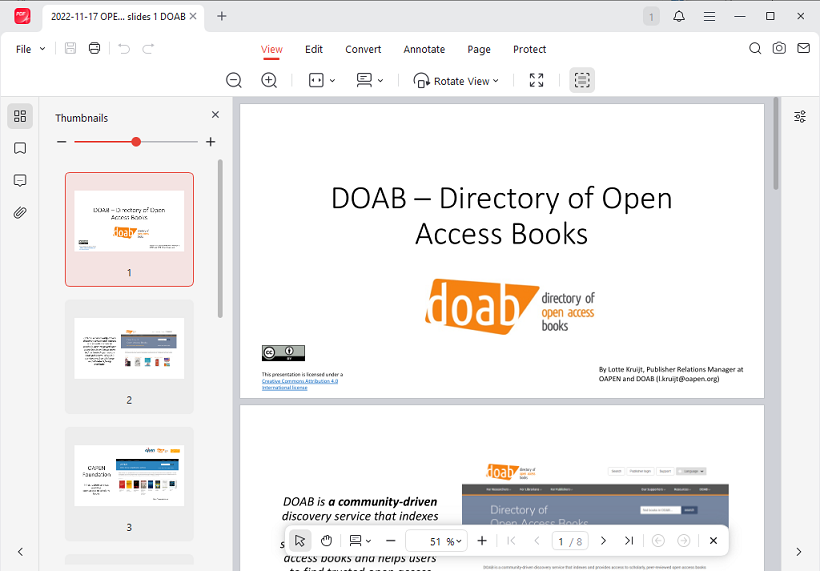
JOPDF is a free offline PDF tool for Windows, macOS, and Linux. It is worth considering if you want an alternative to Adobe Reader that combines PDF viewing with document editing, annotation, protection, and page management.
Key features:
- Open and read PDF documents on a desktop computer with several read modes.
- Edit and annotate PDFs by editing text and links as well as highlighting important information.
- Password-protect PDFs and watermark PDFs.
- Organize PDFs by merging, splitting, or extracting PDF pages.
- 100% free PDF viewer with a range of editing features.
- Available on Windows, macOS, and Linux.
- Useful for users who want more than a basic PDF viewer.
- Intuitive interface.
- Some advanced features are not supported.
Pricing: Free
Best for: Students, office workers, and individuals who want a free desktop PDF solution for everyday reading, editing, annotation, and document management.
2. SwifDoo PDF – Best Adobe Reader Alternative for PDF Editing and Conversion
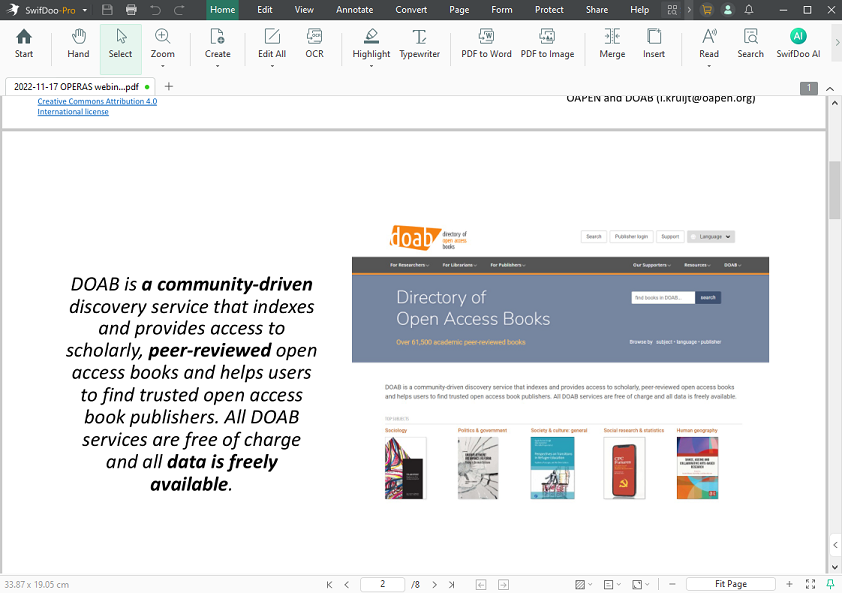
SwifDoo PDF is a cross-platform PDF editor available on Windows, macOS, Linux, Android, and iOS. It is a good choice if you need more than basic document viewing. It combines PDF reading with editing, annotation, conversion, OCR, and document management features. More importantly, its AI-powered feature, SwifDoo AI, can enhance your reading experience.
Unlike Adobe Acrobat Reader, SwifDoo PDF provides a broader set of tools for modifying and processing documents. To some degree, SwifDoo PDF is also a good alternative to Adobe Acrobat.
Key features:
- Edit PDF text and images with various features.
- Provide OCR to recognize text in scanned PDFs and make them searchable and editable.
- Use SwifDoo AI to read PDFs aloud and translate PDFs into a familiar language for smooth reading.
- Annotate PDFs via highlighting text, adding comments, or inserting shapes.
- Convert PDFs to Word, Excel, CAD, and other supported formats.
- Fill out and sign PDF forms.
- Rich reading modes and related features for an improved reading experience,
- Combines OCR and conversion with everyday PDF workflows.
- Available on both desktop and mobile devices.
- Suitable for users who regularly work with complex or scanned documents.
- Some advanced features require a paid license.
- Its Mac version has fewer features than its Windows version.
Pricing: Offers a 7-day free trial. For detailed pricing information, refer to: https://www.swifdoo.com/pricing
Best for: Students, office workers, and professionals who need PDF editing, OCR, conversion, and document management in one application.
3. SumatraPDF – Best Lightweight Adobe Reader Alternative
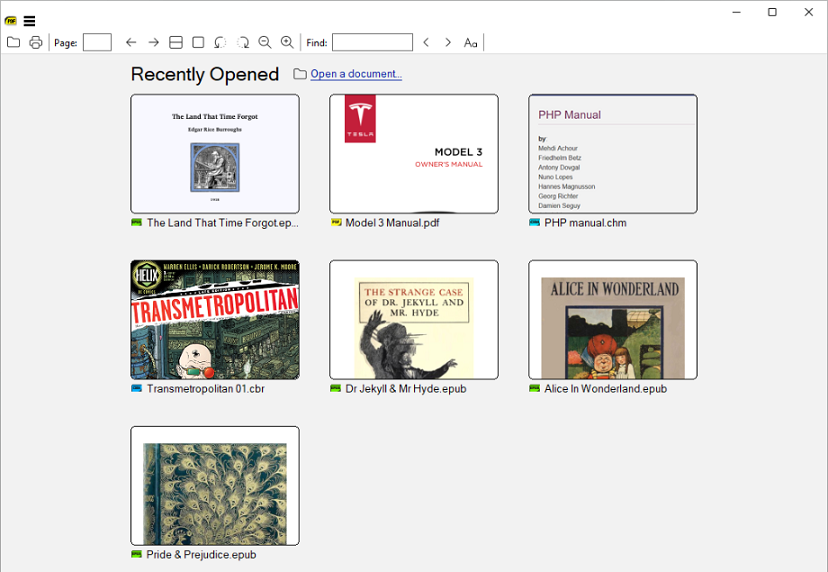
SumatraPDF is a lightweight, open-source document reader for Windows. If you value speed and simplicity rather than an extensive collection of editing tools, it is a good choice. In addition to reading PDFs, SumatraPDF also supports several other document formats, making it useful if you frequently open ebooks or technical documents alongside PDFs. What’s more, its minimalist interface is particularly appealing if you want to open a file and start reading without navigating a large toolbar.
Key features:
- Offers lightweight PDF viewing.
- Provides page navigation and zoom controls.
- Supports text searching and document navigation.
- Supports multiple document formats
- Lightweight and straightforward to use.
- Free, open source software with a simple interface.
- Suitable for opening and reading documents quickly.
- Windows-focused, with no standard native macOS version.
- Not designed for comprehensive PDF editing.
Pricing: Free and open source
Best for: Windows users who primarily read PDFs and want a lightweight application.
4. PDF-XChange Editor – Best for Advanced PDF Tools on Windows
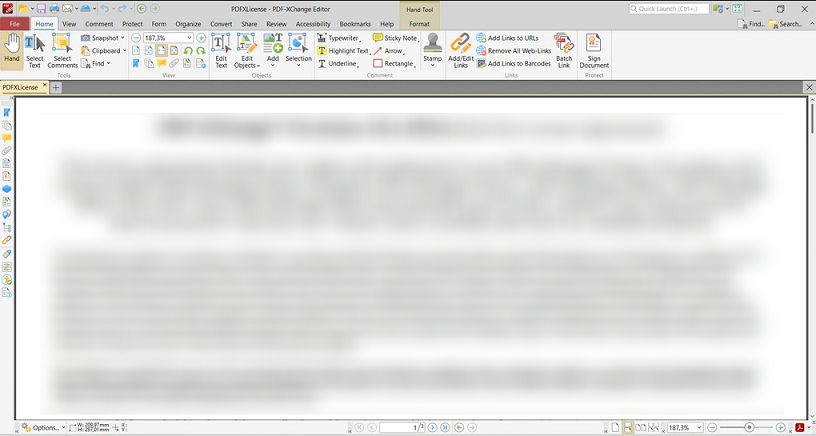
PDF-XChange Editor is a Windows PDF application with viewing, annotation, and document-processing capabilities. When you need detailed control over document review and want access to a larger set of tools than a basic reader provides, PDF-XChange Editor is particularly useful. If you are looking for an Adobe Reader alternative for advanced PDF tools, PDF-XChange Editor is worth considering.
Key features:
- PDF viewing and navigation.
- Includes highlighting, commenting, and other annotation tools.
- Provides OCR and text-recognition functions for scanned PDFs.
- Offers document editing and page-related tools.
- Broad range of tools for document review.
- Offers both free functionality and paid upgrades.
- Useful for users who need detailed annotations.
- Only available on Windows.
- Some advanced features require a license.
Pricing: A single license for 1 year is $62; for more pricing information, refer to: https://www.pdf-xchange.com/product/pdf-xchange-editor/pricing
Best for: Windows users who need advanced PDF annotation and document tools.
5. Okular – Best Open-Source PDF Reader
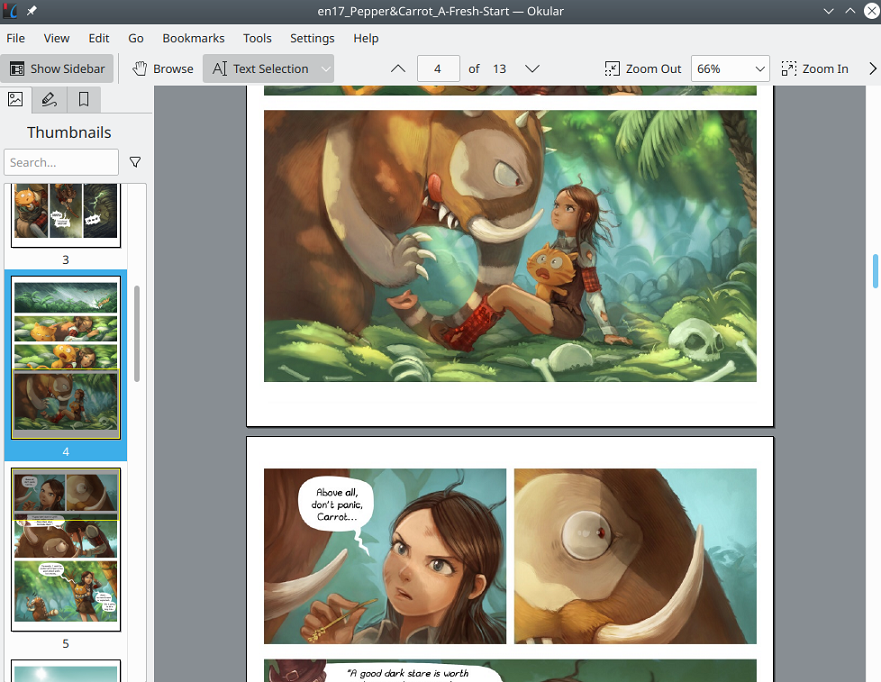
Okular is an open-source document viewer associated with the KDE software ecosystem. It is particularly relevant to Linux users. Here, you need to note that Okular's availability on other desktop platforms depends on the distribution and the current release. For detailed information, you can refer to: https://okular.kde.org/download/
Additionally, Okular's annotation features are useful for reading research papers, reviewing course materials, and adding notes to documents.
Key features:
- Read PDFs with useful navigation tools.
- Offers tools to select and search text.
- Supports annotation and markup.
- Supports additional document formats in addition to PDF.
- Free and open source.
- A useful option for the Linux desktop environment.
- Supports document review and annotation.
- Installation and availability vary by operating system.
- Not a full replacement for advanced commercial PDF editors.
Pricing: Free and open source
Best for: Linux users and people who prefer open-source document software.
6. Apple Preview – Best Built-in PDF Reader for Mac
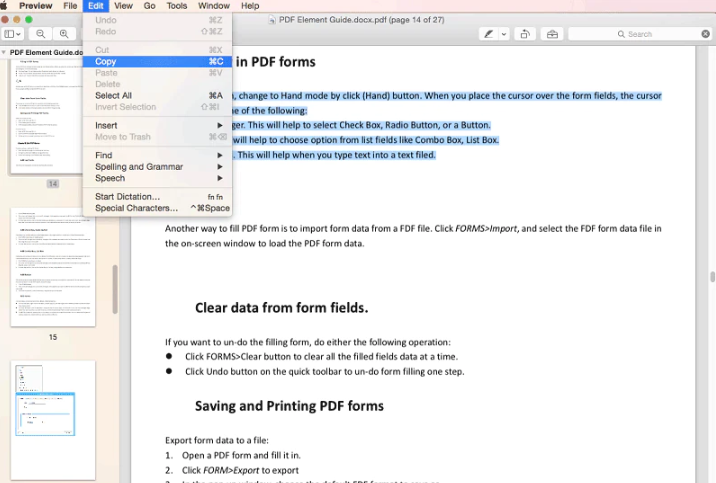
Apple Preview is a PDF viewer built into macOS. You can use it to open and work with PDFs without installing another application. In addition, Preview supports document viewing, markup, annotation, form filling in supported PDFs, and electronic signatures.
Key features:
- Open and read PDF documents.
- Highlight, annotate, and mark up PDF files.
- Fill out PDF forms and add electronic signatures to a PDF.
- Perform selected page-management tasks.
- Included with macOS.
- Does not require a separate PDF reader installation.
- Convenient for everyday reading and annotation.
- Available as a native macOS application rather than a Windows or Linux solution.
- Lacks the full editing capabilities of a dedicated professional PDF editor.
Pricing: free
Best for: Mac users who need basic PDF reading, markup, and form-filling functions.
7. Microsoft Edge PDF Reader – Best for Reading PDFs in a Browser
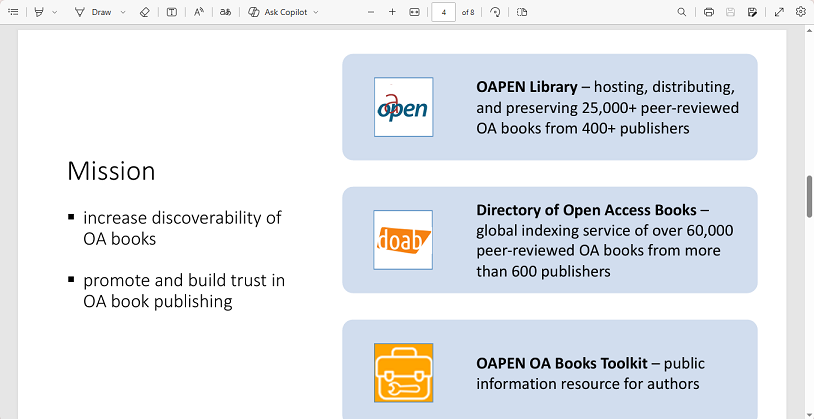
Microsoft Edge includes a built-in PDF viewer, allowing you to open PDF files directly in the browser. This is convenient when you need to read a downloaded document or view a PDF from a website without installing additional software. Additionally, you can also edit PDFs in Edge.
Key features:
- Open and read PDFs directly in the browser.
- Navigate pages and search for text.
- Includes highlighting and markup functions.
- Integrates PDF viewing into an existing browser workflow.
- Doesn’t require any PDF reader installation.
- Convenient for occasional PDF viewing.
- Reduces the need to switch between applications.
- Not designed to replace a comprehensive PDF editor.
Pricing: Free as part of Microsoft Edge
Best for: Users who read PDFs occasionally and prefer working in a browser.
8. PDF24 Creator – Best Free Offline PDF Utilities
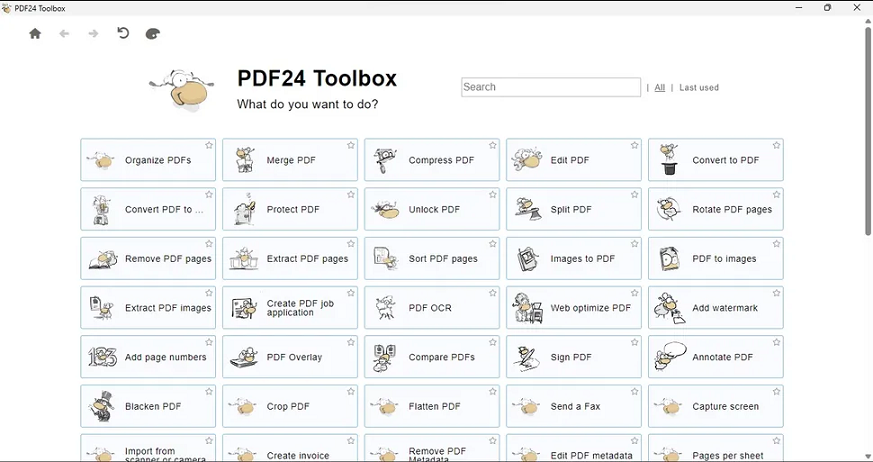
PDF24 Creator is a free Windows PDF tool that offers a collection of PDF utilities. If you want to perform document-management tasks regularly in addition to reading PDFs, it is quite useful. For instance, you can use it to merge PDFs, split PDF pages, compress PDFs, and carry out other common PDF operations.
Key features:
- Merge and split PDF files.
- Reduce PDF file size.
- Perform page-management tasks.
- Handle PDFs for free on Windows.
- Offers more processing tools than a basic PDF viewer.
- Only available on Windows.
- Not primarily designed as a full PDF text editor.
Pricing: Free
Best for: Windows users who need free PDF utilities for routine document processing.
How to Choose the Best Adobe Reader Alternative
When you make the final choice, you need to consider the tasks you perform most. Here’s a quick choice table for your reference.
|
Your primary need |
Recommended option |
Why it fits |
|
Lightweight PDF reading on Windows |
SumatraPDF |
Minimal interface and reading-focused design |
|
Free desktop PDF viewing and editing |
JOPDF |
Combines multiple PDF tasks in a desktop application |
|
PDF editing, OCR, and conversion |
SwifDoo PDF |
Combines document editing with OCR and format conversion |
|
Advanced Windows annotation tools |
PDF-XChange Editor |
Provides extensive markup and document functions |
|
Open-source document viewing |
Okular |
Free and open-source software |
|
Basic PDF tasks on Mac |
Apple Preview |
Already included with macOS |
|
Reading PDFs in a browser |
Microsoft Edge or Chrome |
Convenient for occasional viewing |
|
Offline PDF management on Windows |
PDF24 Creator |
Offers utilities such as merging, splitting, and compression |
Conclusion
No matter what reason you have for needing a suitable alternative to Adobe Reader, this article can meet your needs. If you mainly read documents, SumatraPDF, Apple Preview, and built-in browser viewers can be convenient choices. If you need more annotation, editing, or document-management features, consider a dedicated PDF tool, such as SwifDoo PDF, JOPDF, or PDF-XChange Editor. Finally, I hope this article is helpful to you.


