


In Adobe Acrobat, “An Internal Error Occurred” often shows the application encountered an unexpected problem it can’t process. The problem can be caused by multiple factors, such as corrupted files or faulty installations, interrupting regular functions. If left unfixed, it can prevent you from opening, editing, or saving PDFs and may cause repeated crashes. Fixing the issue without delay is necessary to avoid workflow disruptions, data loss, and lower efficiency.
Why Does “An Internal Error Occurred” Happen in Adobe Acrobat
Like other software errors, this problem doesn’t appear without cause and usually stems from technical conflicts, configuration, or compatibility issues. It indicates that Adobe Acrobat encountered an internal error and cannot process the document properly. Identifying the root cause is the first step toward a solution.
Typical reasons are listed here:
- Permission Issues: Inadequate file or system permissions can deny Acrobat access to necessary resources.
- Corrupted Acrobat Preferences: Internal errors or odd behavior in Acrobat can stem from damaged preference files.
- Protected Mode Conflicts: At times, Acrobat's security restricts proper operations, leading to conflicts.
- Outdated Adobe Acrobat Version: Previous releases can include flaws or fail on newer systems.
- Windows Explorer Preview Pane Integration Problems: The preview function can hinder Acrobat's method of opening PDFs.
- Plug-ins or Extensions Conflicts: Conflicting plug-ins often disrupt the core functionality of Acrobat.
8 Fixes for Adobe Acrobat “An Internal Error Occurred”
The next logical step is to focus on actionable and practical resolutions. To restore normal functionality, the following methods counteract the primary causes of the Adobe Acrobat internal error. Implementing these solutions will resolve the error promptly and prevent further interference with your workflow.
Solution 1. Update Adobe Acrobat to the Latest Version
Using an outdated version of Adobe Acrobat can expose you to unresolved bugs and compatibility issues. Upgrading to the newest version guarantees you receive vital bug fixes, essential security updates, and important performance enhancements. This simple step often resolves the internal error and keeps Acrobat running smoothly. Check how to update Adobe Acrobat to the latest version.
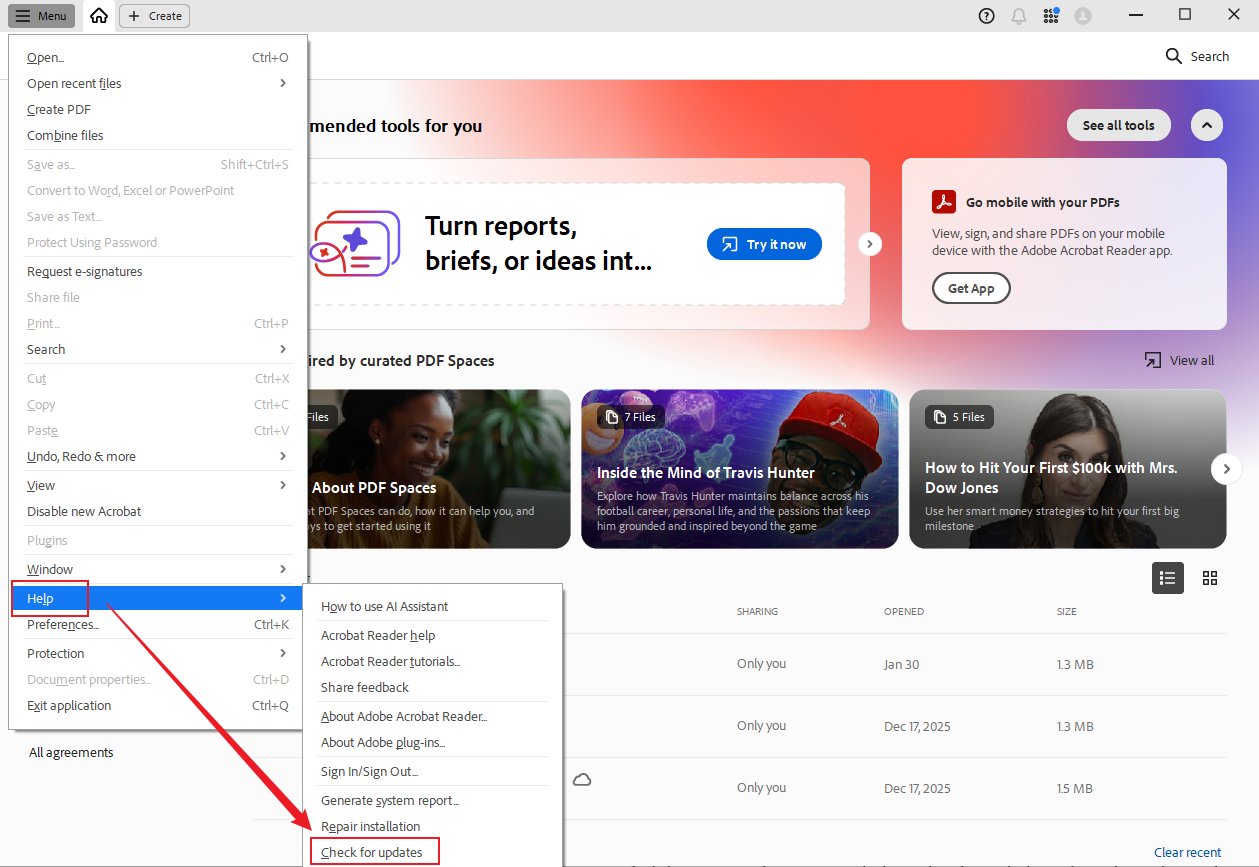
Step 1. Select the Menu icon in the upper left corner.
Step 2. Select Help and click Check for updates.
Solution 2. Run Adobe Acrobat as Administrator
To access specific system files and functions, Adobe Acrobat may need administrative rights. Running the program as an administrator can bypass permission-related restrictions that trigger internal errors. If this solution works, it strongly indicates that insufficient permissions were the root cause. Here’s how.
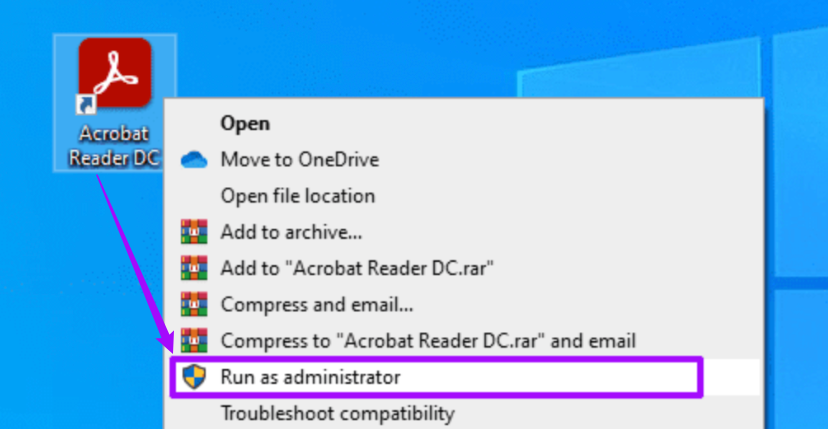
Step 1. From the desktop, right-click on the Adobe Acrobat Reader shortcut.
Select Run as Administrator.
Step 2. Check if the file opens without any issues. If the error is resolved, right-click on the Adobe Acrobat Reader shortcut again.
Step 3. Open the Compatibility tab. Under Settings, check the ‘Run this Program as an administrator’ box.
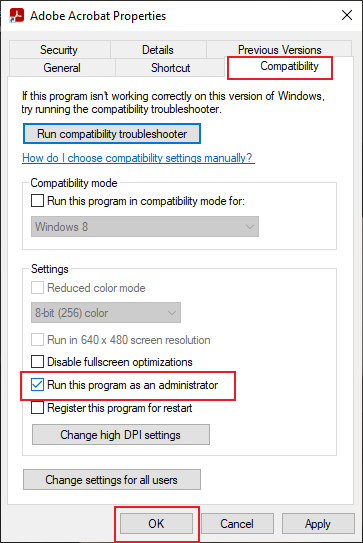
Step 4. Click Apply, and then OK to save the changes.
Solution 3. Fix Permissions: Remove “Account Unknown” Entries
The "Account Unknown" permission error, among others, can prevent Acrobat from accessing necessary files. The internal error is often corrected and file access restored by cleaning up these specific entries. Let's see how to fix permissions.
Step 1. Launch File Explorer and go to C:\Users\YourUsername\AppData\Local\Adobe.
Step 2. Locate the Adobe folder, right-click it, and select Properties from the context menu. After that, go to the Security tab and choose Advanced.
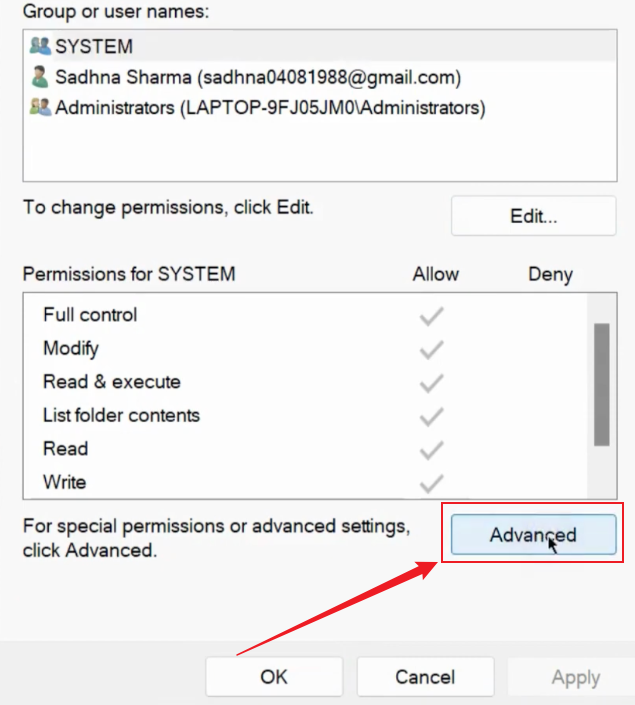
Step 3. In the Advanced Security settings, look for entries labeled "Account Unknown (S-1-...)" or "invalid SIDs".
Step 4. Select each > Remove > Apply/OK. If prompted, confirm inheritance changes.
Close windows, restart your computer, and test Acrobat/Explorer preview.
Note. If entries reappear, temporarily disable inheritance on the folder.
Solution 4. Disable Protected Mode at Startup (For Download/Open Errors)
Adobe Acrobat’s Protected Mode is a security feature that can sometimes block PDFs from opening properly. Disabling it temporarily can resolve internal errors related to file downloads or access issues. Find out how.
Step 1. Launch Adobe Reader X and go to Edit.
Step 2. Select Preferences and in the new window, select the General tab.
Step 3. Scroll to the end of the page. And uncheck the “Enable Protected Mode at Startup”.
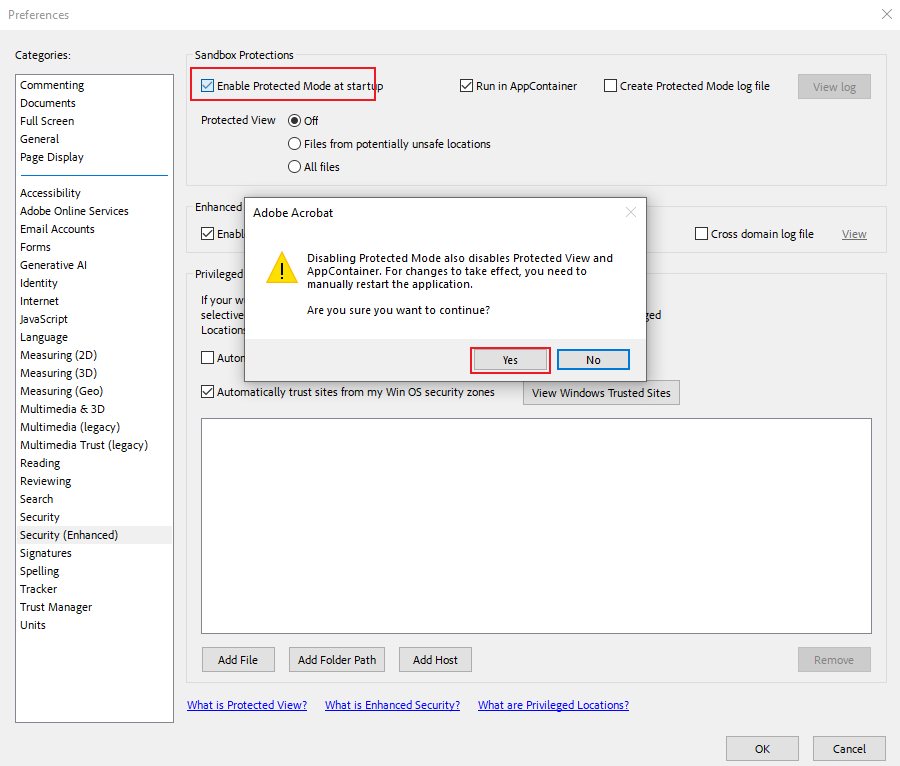
Step 4. Hit OK to save the changes.
Next, launch Adobe Acrobat Reader again and test by opening the PDF.
Using this solution, you can also fix the Adobe “there was an error opening the document” error.
Solution 5. Clear Adobe Preferences and Cache
Faulty preference files or cached data are common sources of malfunctions and internal errors in Adobe Acrobat. Clearing this configuration resets the app to factory defaults, often eliminating crashes and access issues. This basic corrective step can resolve performance issues while safeguarding your PDFs. Check out how.
Step 1. Close Adobe Acrobat completely before making changes.
Then, locate the preferences folder:
- On Windows: C:\Users\[YourUsername]\AppData\Roaming\Adobe\Acrobat\[Version].
- On Mac: ~/Library/Preferences/Adobe/Acrobat/[Version].
Step 2. Rename the folder (e.g., add _old at the end) to back it up.
Step 3. Then restart Adobe Acrobat; the program will create a new preferences folder automatically.
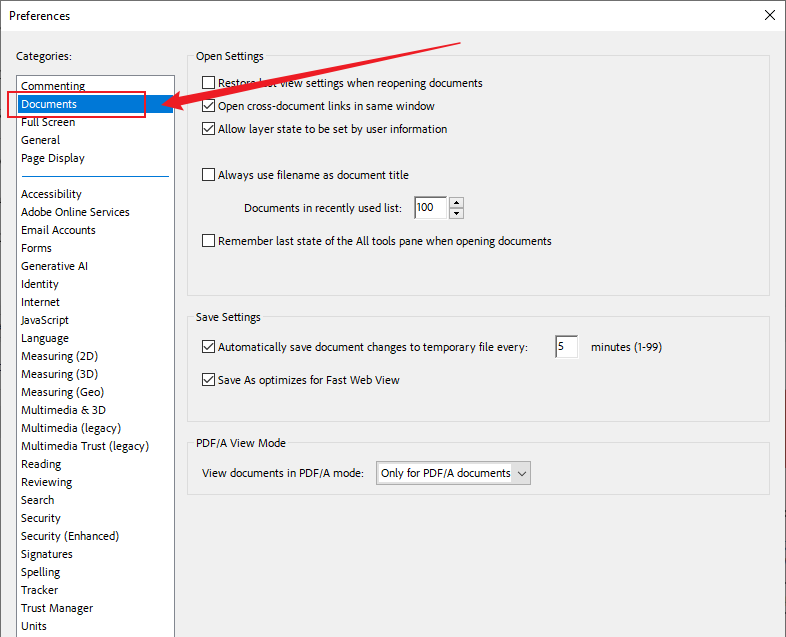
Step 4. Clear the cache by going to Edit > Preferences > Documents, then uncheck or clear any cached data settings, if available. Test Acrobat to see if the internal error is resolved.
Note. This process refreshes Acrobat's configuration and commonly resolves errors from corrupt preferences or cache.
Solution 6. Repair or Reset Acrobat Installation
When Adobe Acrobat's core files are damaged or missing, it often causes disruptive internal errors. Employing the built-in repair function or a fresh installation can recover corrupted files and revert settings. This guarantees correct software operation while preserving your PDFs, often solving stubborn problems other methods miss. The following steps explain how to conduct a repair or reset of the Adobe Acrobat installation.
Step 1. Launch the Adobe Acrobat Reader app installed on your system.
Step 2. Click Help, then select Repair Installation.
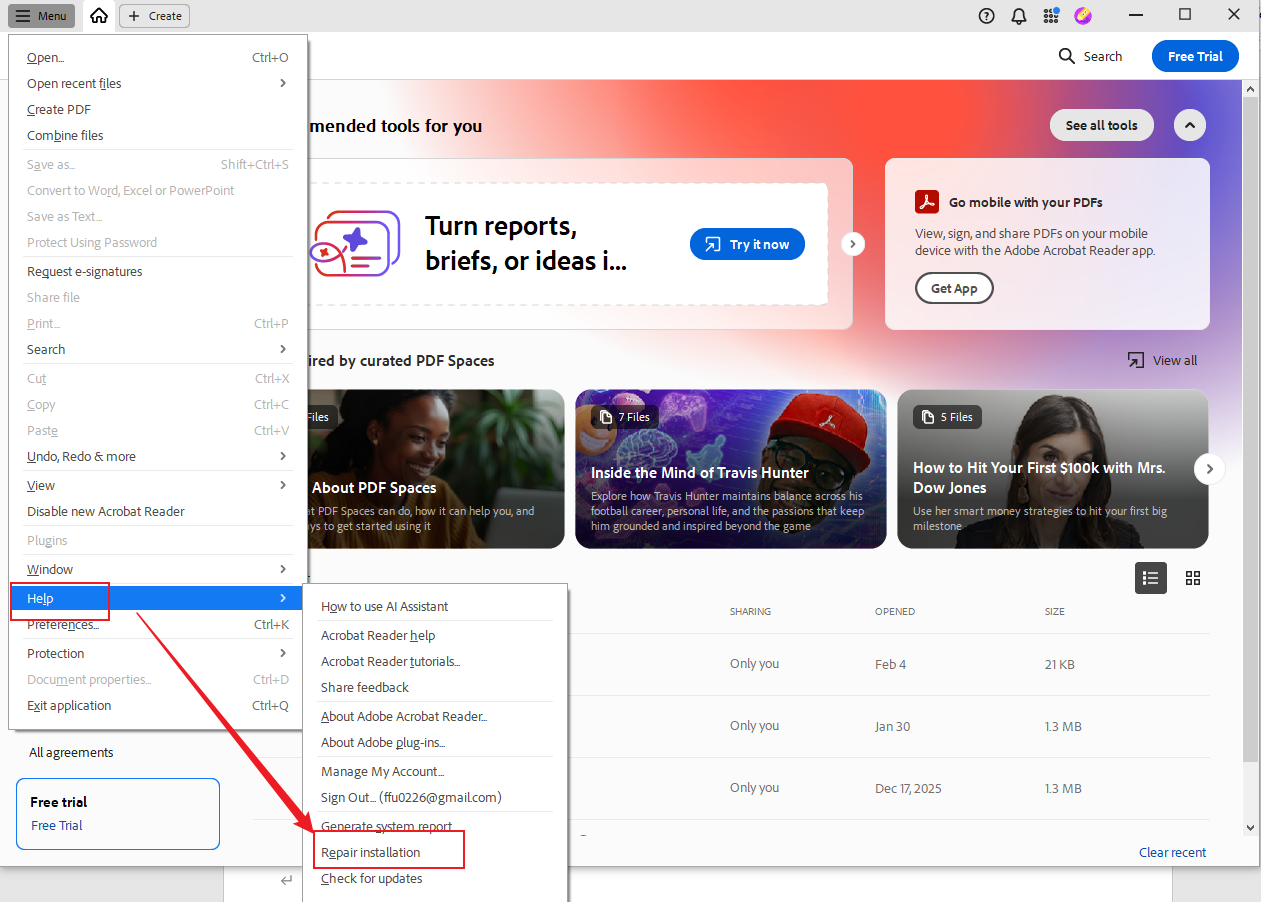
Step 3. Click Yes when the confirmation box appears.
The repair tool will scan for and resolve any software issues.
Step 4. After the process, reopen Acrobat Reader to verify the error has been resolved.
Solution 7. Disable Windows Explorer Preview Pane (If Error on File Check)
Occasionally, the Windows Explorer preview feature interferes with Acrobat opening PDFs and generates internal errors. Disabling the preview pane prevents these conflicts and allows Acrobat to access files without interruption. Let us see how.
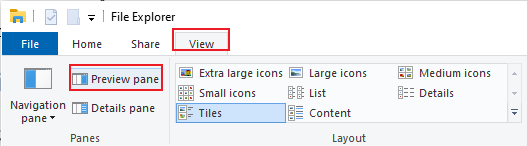
Step 1. Access Windows Explorer (File Explorer).
Step 2. Go to the View tab in the toolbar.
Step 3. Click the Preview pane button to turn it off; it should no longer be highlighted.
Alternatively, press Alt + P to quickly disable the preview pane.
Step 4. Relaunch Adobe Acrobat and make another attempt to open the PDF.
Note: If disabling the preview pane stops the error, applying the permissions fix from Solution 3 will usually resolve it permanently.
Solution 8. Try an Adobe Acrobat Alternative
If the internal error lingers after every attempted fix, a proven Adobe Acrobat alternative lets you open, edit, and manage PDFs continuously. This solution keeps your workflow running smoothly and helps avoid future Acrobat errors.
Let's see the list of some alternatives to Adobe Acrobat:
- SwifDoo PDF
- Foxit PDF Editor
- Nitro PDF Pro
- PDFelement
- PDF-XChange Editor
- Sejda PDF
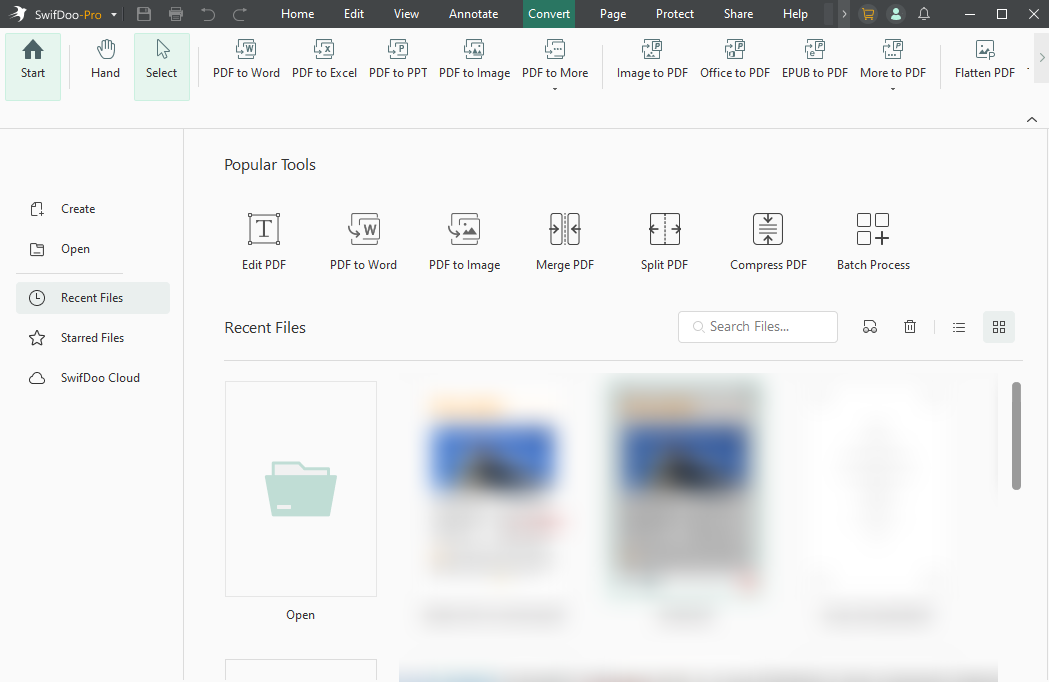
As one of the best PDF editors available, SwifDoo PDF is a top alternative that combines rapid performance with a user-centric design. Unlike Adobe Acrobat, it does not have a steep learning curve, making it easy for beginners to fill and sign PDFs, edit, and annotate documents. This tool is fast, lightweight, packed with PDF features, and delivers consistent performance without crashes, making it perfect for any user.
Final Thoughts
Receiving the Adobe Acrobat an internal error occurred message is frustrating, yet it is generally fixable with the proper method. From updating the software and repairing permissions to clearing the cache or trying another option, there are several effective ways to fix it. Adhering to the steps in this guide can help maintain smooth PDF workflows and prevent problems later. For those in search of a trustworthy option without complex configurations, tools like SwifDoo PDF deliver a user-friendly and robust alternative.



