


What is a Gmail Group?
A group email in Gmail allows you to send a single message to multiple recipients at the same time. In short, it is a contact label inside Google Contacts that collects multiple email addresses under one name. This helps communication become quicker and more organized, especially for teams or regular contacts. If you need to know how to make a group email in Gmail, it generally requires managing and creating labels in Google Contacts.
Here are the key benefits of setting up a group in Gmail.
- Reduces time spent by emailing multiple contacts in a single message.
- Reduces the risk of missing important recipients.
- Keeps communication organized and consistent.
- Makes it easier to organize extensive contact lists.
How to Create a Group in Gmail
Mastering how to create a group in Gmail is simple and helps keep your communication organized. This part explains how to create a group in Gmail step by step, helping you organize contacts and email several people at once.
Learn how to use step-by-step instructions to create a Gmail group and manage your contacts efficiently in a few clicks.
Step 1. Open Google Contacts.
Go to Google Contacts from your browser. You can also access it through Gmail to organize and manage your contact list.
Alternatively, tap the Google Apps icon (which resembles a three-by-three grid of dots) next to your profile icon in the top-right corner. Then click Contacts.
Note. You can find any contacts you or your organization have added or with whom you often communicate.
Step 2. Create a New Label.
In the left side menu, navigate to the bottom and click the + icon against “Labels.” A “Create label” window will automatically open where you can name your new group. Once you have entered the label name, press Save.
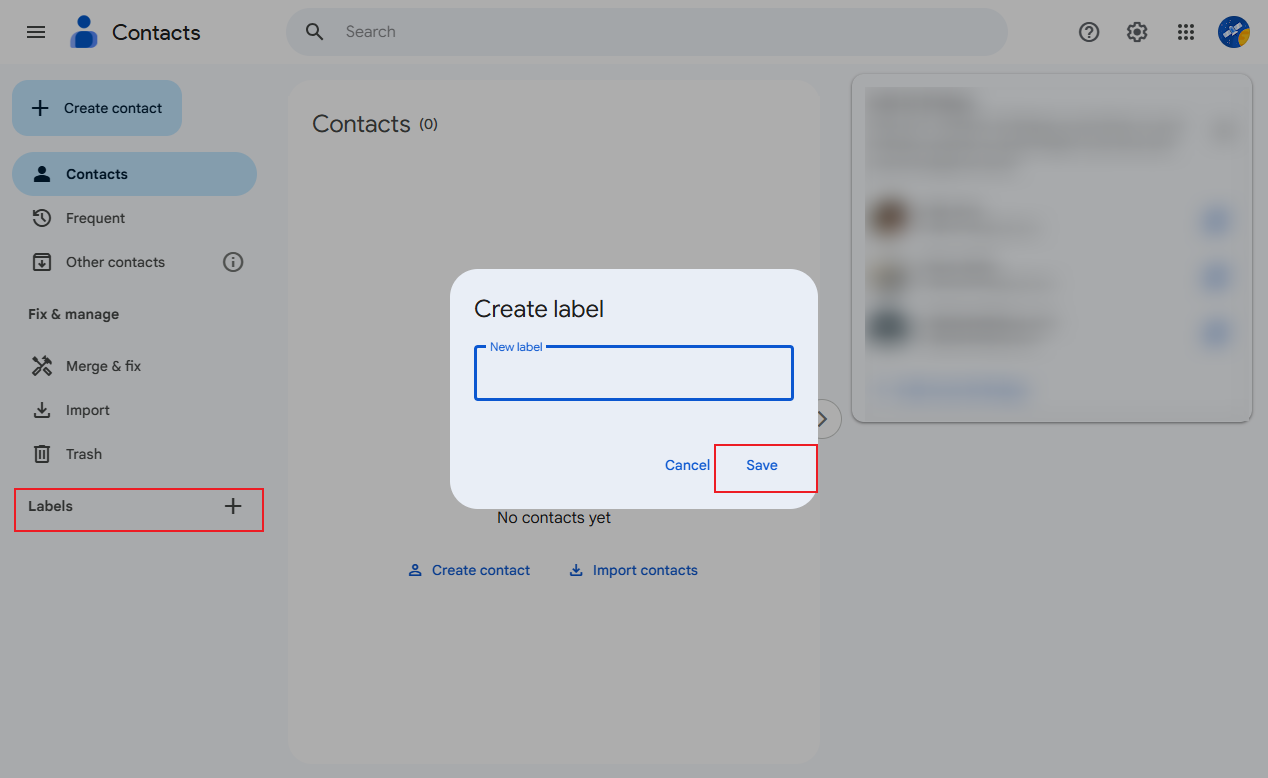
Note. This label will act as your Gmail group.
Step 3. Add Contacts to Your New Group.
You can add people in two ways: select existing contacts and assign them to the label, or create new contacts and include them directly in the group.
Locate the Contacts, Frequent, or Other Contacts options in the side menu. To add a contact to your email group, hover over that contact's icon and click the checkbox next to their name.
Step 4. Verify Your Group.
After selecting all the desired contacts, tap the Manage labels icon above the contact list. It will display any labels you’ve already created and give you the option of creating a new one on the go. Select your label and tap Apply.
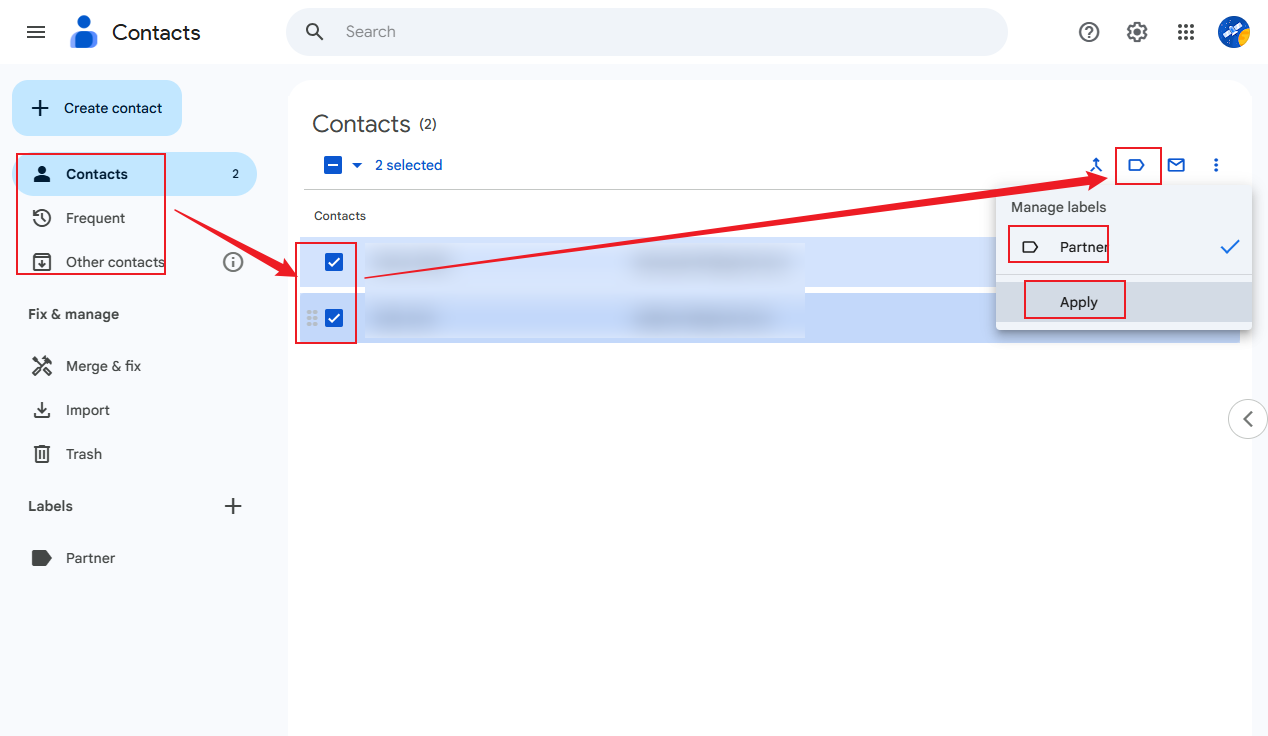
Review your label in Google Contacts to confirm every intended member is included before using it in Gmail.
How to Send Group Emails in Gmail
Learning how to send a group email in Gmail helps make communication quicker and more efficient. After setting up your group, you can quickly email multiple contacts at the same time. This section will guide you through two options for sending a group email in Gmail, step by step.
Option 1. Type the Label Name in the “To” Field (Easiest)
Step 1. Open Gmail. After that, click on “Compose” to create a new message.
Step 2. Type the name of your Google Contacts group label into the “To” field when composing an email.
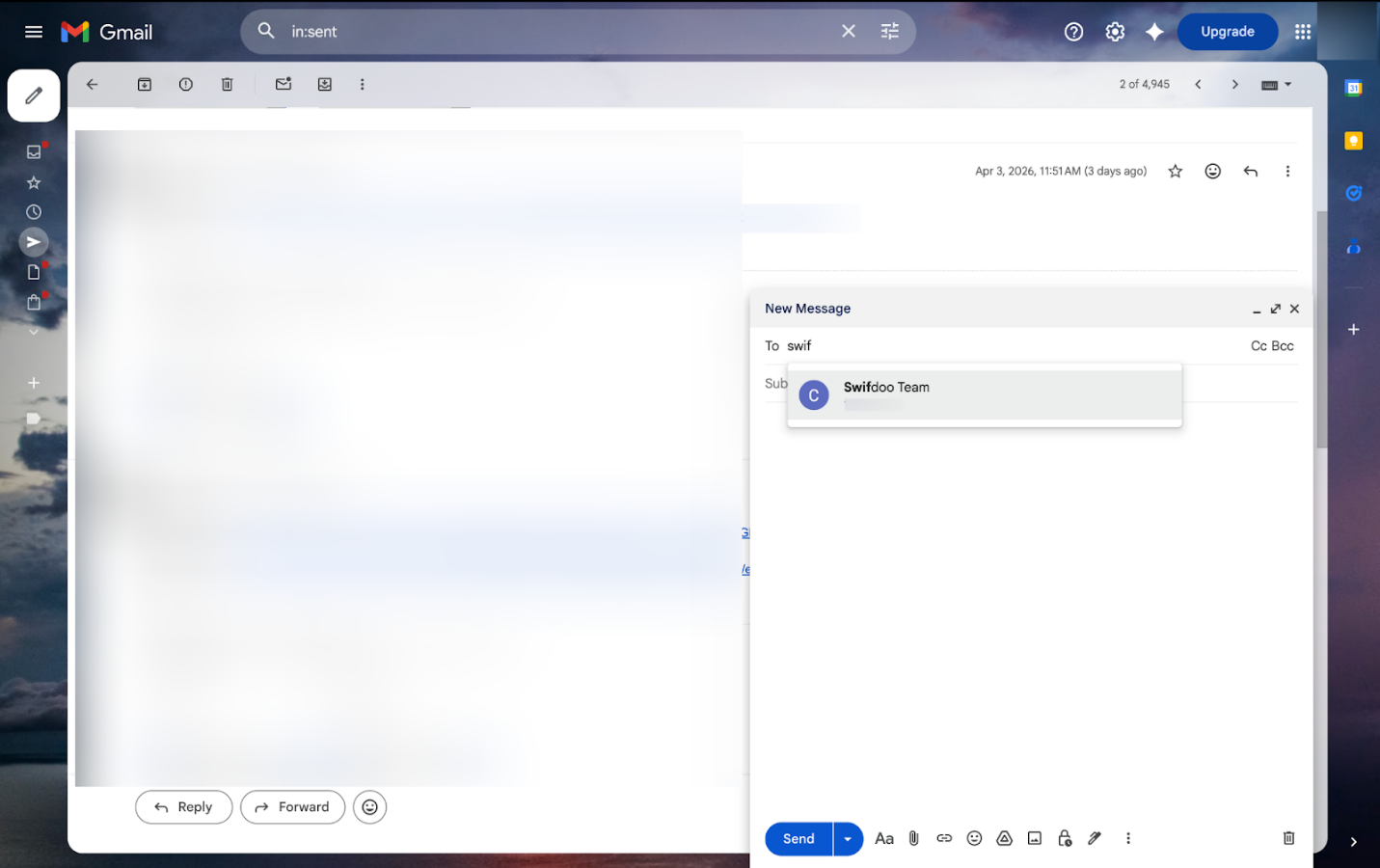
Step 3. Select the label from the dropdown list. Gmail automatically populates the email with every group member.
Step 4. Compose your message and press “Send” to deliver it quickly to every member of the group.
Option 2. Use the Contacts Icon
Step 1. Open Gmail. After that, select “Compose” to bring up a blank email window for composing your message.
Step 2. Select the “To” field. After that, click the address book icon to access and browse all your contacts.
Step 3. Open your saved labels and choose the group you plan to send a message to.
Step 4. Press “Insert.” Or pick all contacts within the group to automatically fill the recipient field. When finished, draft your message and select “Send” to send it out.
Helpful Tips for Managing Your Groups
Managing your groups in Gmail effectively ensures smooth communication and keeps your contact lists organized. By using a few straightforward methods, you can maintain accuracy, safeguard privacy, and prevent common mistakes.
Below are some practical tips to make managing Gmail groups easier.
#Adding or Removing Members.
Keep your group up to date by adding new contacts and removing inactive ones in Google Contacts. This keeps your group relevant and prevents sending emails to the wrong recipients.
#Using BBC for Privacy.
When sending emails to many people, place addresses in BCC to hide them from recipients. This protects privacy and avoids unnecessary reply-all chains.
#Export and Back Up Your Groups.
Regularly export your Google Contacts to keep a backup of your contacts. This makes sure you don’t lose key group information and can restore it whenever required.
#Respect Email Limits.
Be mindful of Gmail’s sending limits to avoid temporary restrictions. Too many emails sent at once can lead to spam filtering or temporary account blocks.
Final Words
Organizing and managing your email lists is effortless once you understand how to create a group in Gmail. After setting it up properly, you can efficiently send group emails in Gmail without repeating steps. Whether organizing contacts or keeping your groups updated, these techniques can enhance how efficiently you communicate. Start applying these methods to save time and stay better connected.



