


Part 1. Why Is Gemini Not Working?
Many users wonder, “Why is Gemini not working?” Several reasons may underlie the problems. However, server-side outages are the primary cause of this issue. Developers often encounter configuration or setup issues in the Google Cloud environment that can interfere with Gemini’s proper functioning. In a broader aspect, some other causes limiting the full functioning of the Gemini app include:
- Application-specific problems within the Gemini app
- Tremendous strain (overload) on Google’s servers
- General bugs or glitches within the Gemini software
- Weak and unstable internet connection problems
- Over-aggressive safety filters to prevent unethical or inappropriate content
- Community-reported issues without official solutions
- You have reached the maximum token limit (output length)
- The request is complex, broad, or one with multiple parts
How to Get Gemini Pro Student Offer: All Things to Know
Interested in Gemini Pro student offer? That offer has expired, but this guide shows you the new way to get a free trial Pro plan for your studies.
READ MORE >Part 2. Common Fixes for Gemini Not Working
Knowing the potential reasons helps apply the proper fix promptly. If you are a casual user looking for ways to make the most of Gemini AI, here are some of the best fixes to address the issue.
Ask Gemini to Continue:
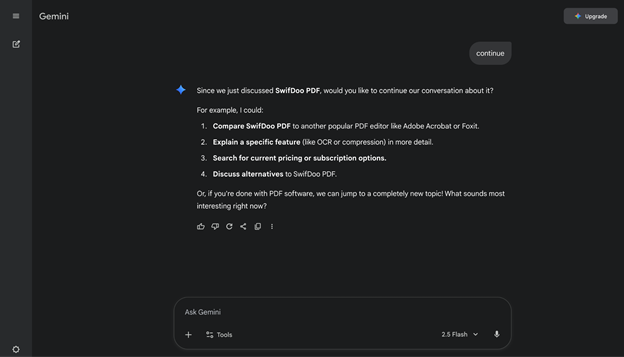
If Gemini stops in between your sentence, try a simple follow-up prompt. Try any of these:
“Continue”
“Finish Your Thought”
“Keep Going”
“Done?”
Sometimes, a gentle nudge can prompt the AI models to complete the response within the specified context.
Clear Your Internet Connection:

Ensure you use a stable internet connection (whether WiFi or cellular data). Toggle it on and off, or switch from your existing WiFi to a wired connection.
Clean Cache and Browser Cookies:

Clear all cookies and cache from your web browser or mobile device to resolve the issue.
Use a Different Browser:
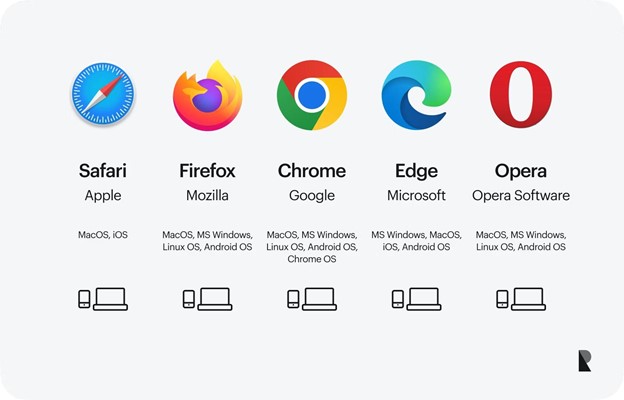
You can also try using a private (Incognito) window or a different browser to see if the issue with Gemini not working on Safari/Chrome is browser-specific.
Verify the Google Account Status:
Ensure that your Google account status is active. Confirm this by checking the other apps integrated with the Google account. If the other apps are functioning, try different methods to resolve the issue.
Check for Service Outages:
Gemini or its linked services might be temporarily inaccessible due to high demand or technical issues. Visit sites like Downdetector or the official Google AI Status page to check for any ongoing issues.
Update and Restart the Google App:
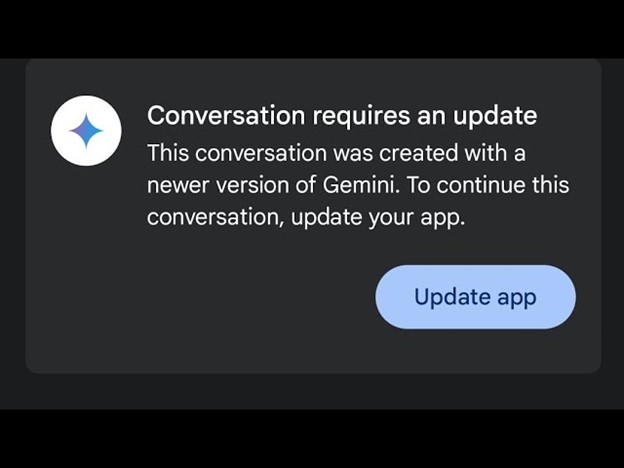
Make sure your Google and Gemini apps are up to date. Alternatively, make sure to update them.
Restart Your Device:
System-level errors can also cause the Google Gemini not to work. Restart your phone/tablet/computer to get rid of such errors.
Contact Google Support:
If the problem persists, try contacting Google Support for more detailed help. They will help you resolve the issue instantly. Here’s what you can do.
- Head to Google One on your laptop or desktop
- Subscribe to the Google One plan
- Click “?” on the top-right corner
- Select Get Support > Ask a Google Expert
- Leave your query/issue
By doing so, the Google Support team will contact you with appropriate solutions.
Part 3. Fix Gemini Not Working on Mobile Phone
Follow these steps on your mobile devices to fix Google Gemini not working.
Check the Internet Connection:
Step 1. Open your mobile Settings > Network and Internet or Connections.
Step 2. Navigate to Mobile Data or Cellular Data and enable them.
Step 3. If your mobile data is turned on, turn it off and then turn it back on again after a few seconds.
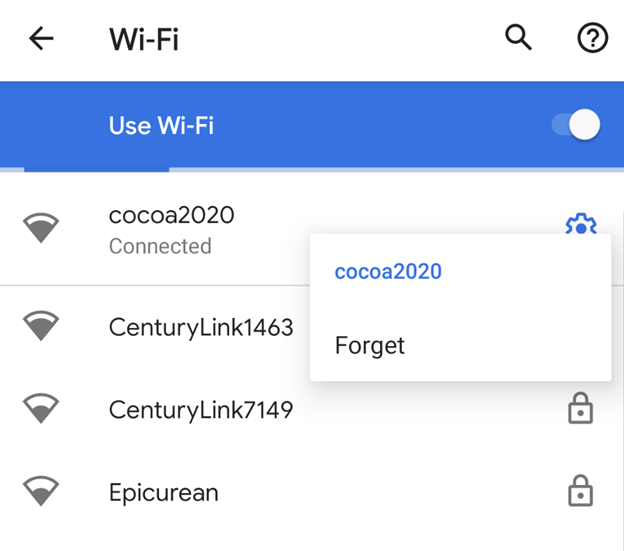
To switch to a powerful WiFi network, do the following:
Step 1. Go to Settings > WiFi.
Step 2. Tap the name of a high-speed data network.
Step 3. Enter the password.
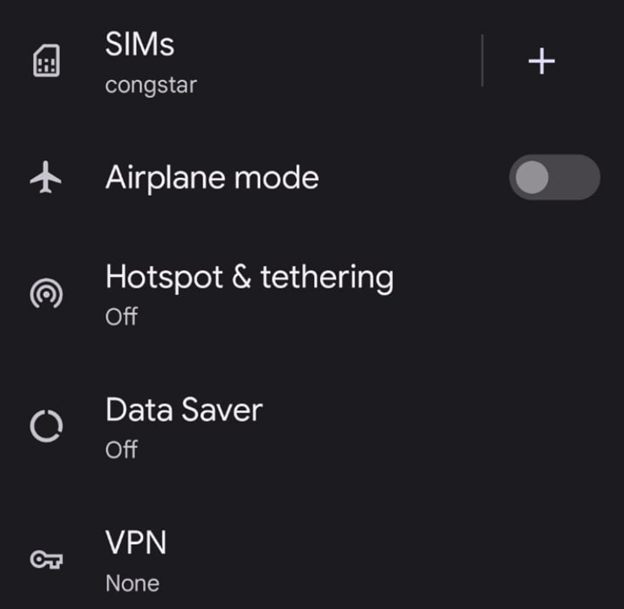
Turn the Airplane Mode On or Off:
Step 1. Open the Settings on your device.
Step 2. Toggle Airplane Mode on and off.
Step 3. Restart the Gemini app.
Check for Google Gemini App Permissions:
Step 1. Launch the Settings app and tap Apps. iPhone users must click Privacy and Security under Settings.
Step 2. Locate the Gemini app and tap Permissions > Allow.
Update the Gemini App:
Step 1. Go to the Google Play Store or App Store.
Step 2. Navigate to the profile icon at the top of the screen.
Step 3. Tap Manage Apps and Device > Manage.
Step 4. Search for the Gemini app and hit Update.
Close and Reopen the Google Gemini App:
Step 1. Open the Google Gemini app and go to the side menu.
Step 2. Tap the side menu bar, then tap Account Options.
Step 3. In the account settings, locate your account name or profile picture.
Step 4. Tap the profile picture, then tap Log Out. Then log in again with your correct credentials.
The 5 Best Gemini Alternatives You Should Try
Many users seek Gemini alternatives for a more intuitive UI and affordable price plans. This post will discuss the top 5 paid and free alternatives to Gemini.
READ MORE >Bonus Tip: The Best AI PDF Reader and Editor
We’ve looked at potential reasons and solutions to answer the question, Why is my Gemini not working. Aside from the usual app issues or connectivity problems, Gemini may not be working because of its limited PDF-handling capabilities. When you need a reliable solution that allows you to chat with PDF files smoothly, turning to a dedicated AI-powered PDF tool becomes essential.

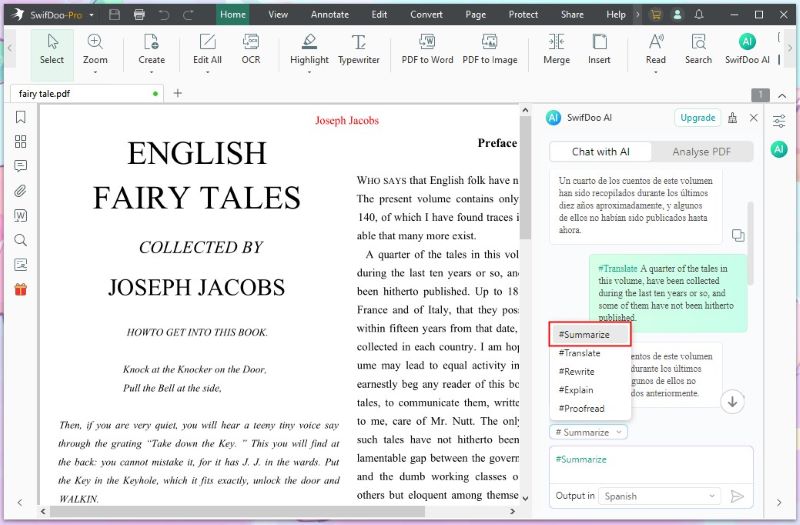
SwifDoo PDF is a comprehensive reader, editor, and AI assistant built to simplify your document management tasks. With its built-in AI, you can chat with PDFs, summarize information, extract data, and answer questions on the spot, positioning it as a reliable ChatGPT alternative for fast and accurate PDF management.
Main AI Features of SwifDoo AI
- Accurately summarize PDF from lengthy documents
- Explain complex concepts to understand any reports or other material
- Rewrite and proofread documents to improve productivity
- Precisely translates PDF documents in multiple languages
- Analyze PDF documents to interact better with the content
Try It NOW!
Final Wrap Up
Not being able to encounter Gemini can be annoying. But most issues stem from simple glitches, connectivity problems, or outdated settings. The right solutions can get everything back to normal performance in minutes. Be patient and follow the suggested steps, and your Google Gemini will be running smoothly again in no time. You can also use SwifDoo AI to ensure a smooth, consistent workflow.



