


What Is Google Sites?
Google Sites is a web-based platform by Google that enables simple, code-free website creation. It is commonly used for team hubs, documentation, portfolios, and internal project pages. Seamless integration with Google Workspace lets users embed Docs, Sheets, Slides, and Drive files.

While Google Sites is ideal for online sharing, users often need to save webpage as PDF in Chrome. This is typically used for offline access, records management, printing, secure cross-platform distribution, and long-term archiving in professional and educational environments worldwide.
Can You Save Google Sites as a PDF?
Many users often wonder, “Can I convert Google Sites to PDF?” The answer is yes. You can save Google Sites as a PDF.
While Google Sites does not provide a direct “Export to PDF” feature, you can export Google Sites to PDF. You can either opt for your browser’s Print > Save as PDF option or go for trusted third-party tools.
How to Save Google Sites as PDF
Before you attempt to download Google Sites to PDF, ensure every page is published and the site is available online. This process works best when the site is live. When saving a draft of your site, you must publish it temporarily for accurate results.
Check out the detailed steps on how to convert Google Sites to PDF.
Step 1. Access and Open Your Google Site.
First, navigate to your Google Site. After that, finalize signing in with your email address and password. After a successful sign-in, select the specific site you wish to convert into a PDF. From your Google Sites dashboard, click on the site you’re interested in.
Step 2. Publish Your Google Site.
Once you are in the editing mode of your site, locate and click the Publish button in the top-right corner of the screen. By doing so, your Google site will be publicly accessible.
Step 3. View the Published Version of Your Site.
Next to the Publish button, click a small dropdown arrow and tap the View published site option. This action will open a new tab in your browser displaying your site as it appears publicly on the web.
Step 4. Open the Browser Print Options.
Now, with the published site open, click your browser’s menu (three dots) at the top-right corner. Find the Print command in the menu, then click it to open printing options.
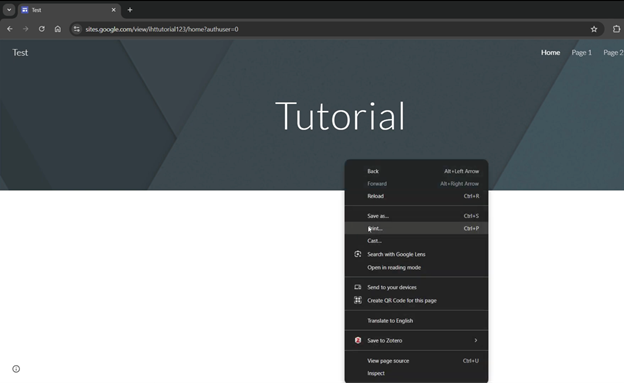
Step 5. Print and Save Your Google Site as a PDF.
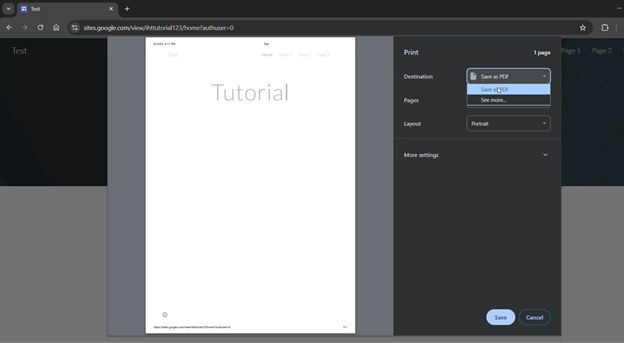
When the Print window opens, verify that the Destination is set to Save as PDF. You can also adjust other settings as needed. After you are satisfied with the settings, click the Save button below.
Select where you want to save your PDF file. Also, enter a file name and click the Save button again. The new file will be saved automatically to your computer.
Bonus Tip: How to Edit and Manage PDFs Easily
Now you’ve seen the detailed steps for converting Google Sites to PDF. However, you may find it complex to manage or edit PDF in Chrome. To accomplish this, using a reliable PDF editor and management solution, such as SwifDoo PDF, is highly effective.
SwifDoo PDF is a leading, comprehensive PDF management solution available today. It lets you effortlessly edit and manage PDFs, including those from your converted Google Sites. You can modify text, include annotations, highlight key points, or combine PDFs into one for easier management and a more organized workflow.
In addition to editing, SwifDoo PDF includes powerful tools for splitting, compressing, securing, and converting PDFs, making it a complete, efficient platform for handling all your PDF tasks seamlessly.

Download and start using one of the best PDF editors to streamline your workflow instantly!
Final Verdict
Being familiar with how to save Google Sites as PDF allows you to preserve, share, or document site content. By following a few simple steps, you can quickly and efficiently convert your published site to a PDF.
After conversion, you can use SwifDoo PDF to efficiently edit and manage PDF files, including annotating, combining, or organizing documents for easier access, improved workflow, and more streamlined PDF handling.



