


Important Setup: Check Your Page Orientation First
Before we start the main steps, we need to discuss the page layout. This is a very important step.
Sometimes, an Excel spreadsheet is very wide. It might have lots of columns across the screen. If you try to squeeze a very wide table onto a normal, upright piece of paper, it causes a big problem. The computer will try to fit everything, and it will make the text tiny. It will be so small that no one can read it!
How do you fix this? You need to convert Excel to PDF in landscape. Landscape means turning the paper sideways. This gives your wide data much more room to stretch out.
Here is how you do it before you save your file:
- Open your Excel file.
- Go to the top of your screen and click on the Page Layout tab.
- Find the button named Orientation and click on it.
- A small list will drop down. Change the setting from Portrait to Landscape.
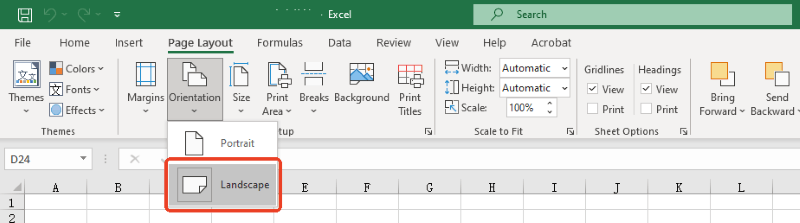
By doing this simple step, your text will look much bigger and better when you save it!
Way 1. Adjust Layout Settings to Fit Excel Sheet on One Page PDF
This is the first way to get the whole Excel sheet on one page in a PDF. You will use the Page Layout tab to tell the computer what to do.
This method is great because it locks your settings in place. You can keep working on your document, adding numbers or words, and it will remember to stay on one single page. You do not have to worry about it messing up later.
Here is how to fit Excel sheet on one page PDF:
- Open your Excel spreadsheet on your computer. Go to the menu bar and click Page Layout.
- Look for a group of buttons named Scale to Fit. This is the area that controls the size of your sheet.
- You will see a box named Width. Click the small arrow next to it to open the drop-down menu. Change the choice to 1 page.
- Right below that, you will see a box named Height. Click the drop-down menu and change this choice to 1 page as well.

- Next, go to the top left corner of the screen and click File. Choose Save As or Export from the list on the left side.
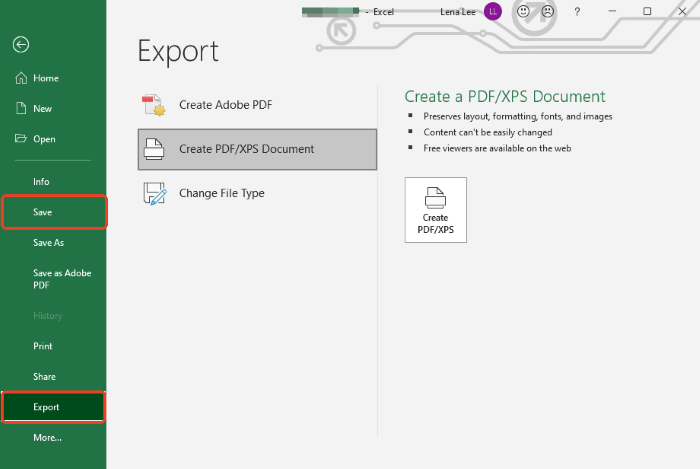
- Choose PDF as your file format, name the file, select a folder, and click the Save or Publish button.
Way 2. Print Excel Sheet on One Page PDF
You can use the Print menu to get the job done. This is a quick trick. It forces everything onto one page right before you create the new file.
If you want to know how to convert Excel to PDF and fit on one page using the Print menu, just follow these simple steps:
- Open the Excel spreadsheet that you want to save. Click on the File button and go to Print.
- Look at the settings at the very bottom of the Print menu. Click the No Scaling button to open a new menu.
- A list of choices will pop up. Choose the Fit Sheet on One Page option.
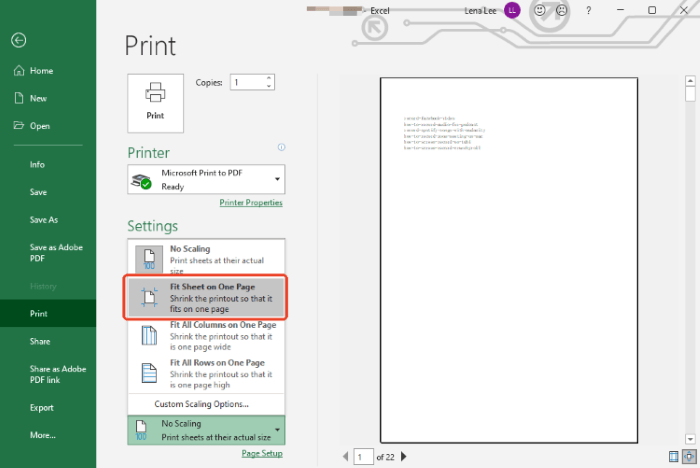
- Now, look at the top of the screen where it says "Printer". Choose Microsoft Print to PDF. If you are using a Mac computer, look at the bottom of the print box. Click the PDF button and choose Save as PDF.
- Finally, click the big Print (or Save) button. Select a location to save it.
Now you have a perfect one-page document ready to share with your friends or coworkers!
Bonus Tip: Convert Excel to PDF in High Quality
Using Excel to make a PDF is not always the best choice. The final document might look a little fuzzy. Or, the cell lines might look broken and weird. If you want to convert Excel to PDF without losing formatting, it’s better to use a professional PDF tool.
In this case, you can try SwifDoo PDF. It is a professional, easy-to-use PDF converter that ensures your final document is clear and high-quality. Just a few clicks are needed to complete the conversion, which is extremely fast.
Plus, SwifDoo PDF is not just a basic tool. It is a full PDF editor. What does this mean? It means after you make the PDF, you can still change things inside it. For example, if you notice a spelling mistake, you can change text in PDF files easily. It can also help you merge multiple PDFs into a single PDF. It gives you total control over your documents.
Here are the easy steps to use SwifDoo PDF:
- Download the program and install it on your computer.
- Open the SwifDoo PDF program. Go to Convert and choose Office to PDF.
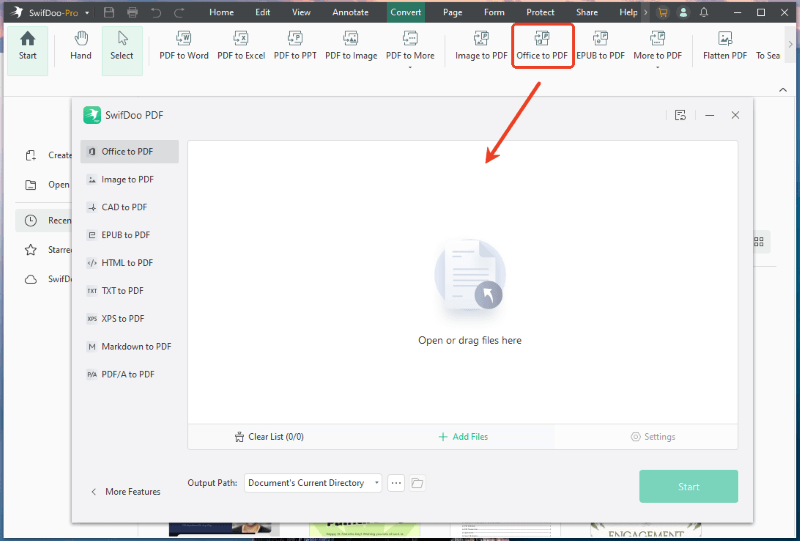
- A new window will open. Upload your Excel file into this window.
- Select the output path, and click the Start button.
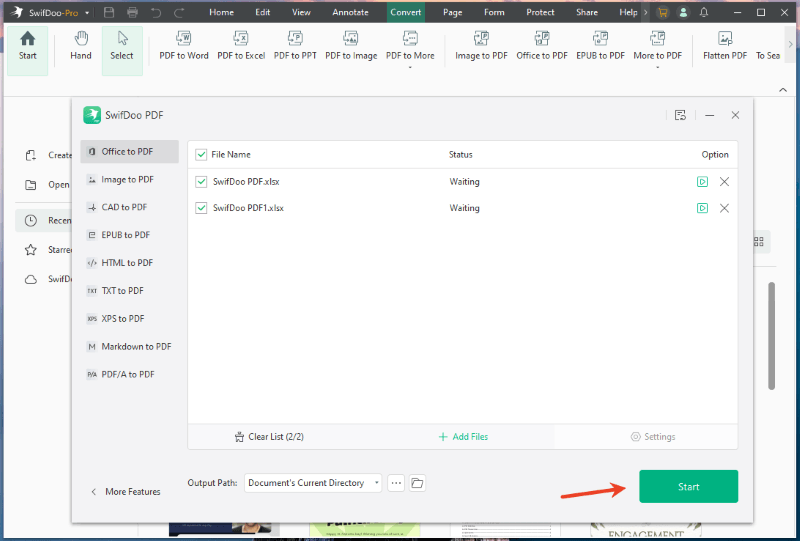
In just a few seconds, you will have a beautiful, clear PDF file. Everything will look exactly the way you want it to look. After that, you can continue editing the document to perfect it. Just give SwifDoo PDF a try today!
Conclusion
That’s all about how to fit Excel sheet on one page PDF. You can adjust the layout settings or use the quick Print trick as needed. Or, you can use a professional PDF converter like SwifDoo PDF for the best quality. Just remember our top tip: if your spreadsheet is wide, always change your page orientation to Landscape first!



