
Way 1: Change PDF from Landscape to Portrait Using SwifDoo PDF
SwifDoo PDF is a lightweight, reliable PDF editor built to handle your everyday document tasks. It provides an easy landscape-to-portrait converter for PDF documents. This lets you change the orientation of a PDF for one page, a selection, or the entire document with ease.
Beyond rotation, it provides powerful options to rearrange PDF pages, merge, split, and organize your documents with ease. The printing and layout settings provide extra precision, and SwifDoo PDF can also straighten crooked scanned pages for sharper, more polished results. Overall, SwifDoo PDF is a one-stop solution for organizing and handling all PDF-related queries.
Find out how to change a PDF from landscape to portrait using SwifDoo PDF’s intuitive tools.
Step 1: Download and open the SwifDoo PDF program on your Windows PC.
Step 2: Drop your PDF document directly into the workspace to get started. Alternatively, click the Open icon to import your PDF.
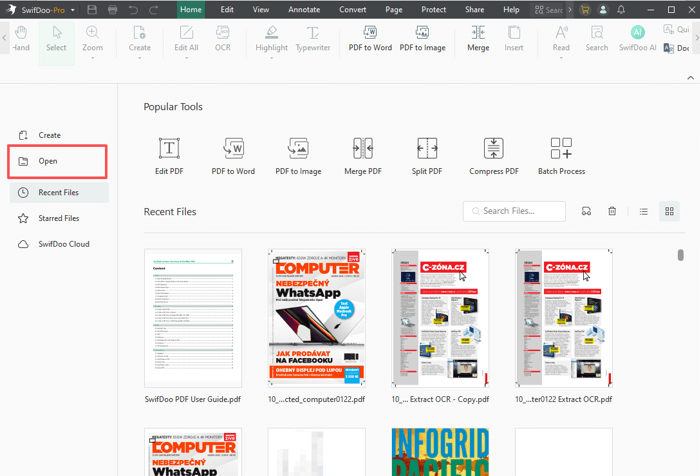
Step 3: Select the Print button in the upper-left corner to proceed. Or, click Ctrl + P. Select the PDF page you'd like to change from landscape to portrait.
Step 4: In the print window, modify the settings and choose Vertical under the Paper Size and Orientation section.

Step 5: Preview the PDF file/document to be printed and tap the Print button. Save the edited PDF file after you convert the PDF from landscape to portrait.
- If you need to change the page orientation only for viewing but not for printing, click the Page menu, select all the pages (hold Shift down to click the 1st and last page), and then click the Rotate Left or Rotate Right option in the secondary top bar.

Way 2: Convert Landscape to Portrait in PDF Using Adobe Acrobat Pro
Adobe Acrobat Pro stands out as a PDF landscape-to-portrait converter. Adobe lets you print a PDF in landscape or rotate the file to your target horizontal orientation to alter the document’s layout for easier reading. Depending on your preference, adjust the PDF orientation for a temporary or permanent effect. These options are great if you’re trying to read, share, or present a PDF, but its pages are the wrong way.
Check out the steps to change a PDF from landscape to portrait in a few clicks.
Step 1: Download and open Adobe Acrobat Pro on your device.
Step 2: Navigate to the Tools menu and select Organize Pages.
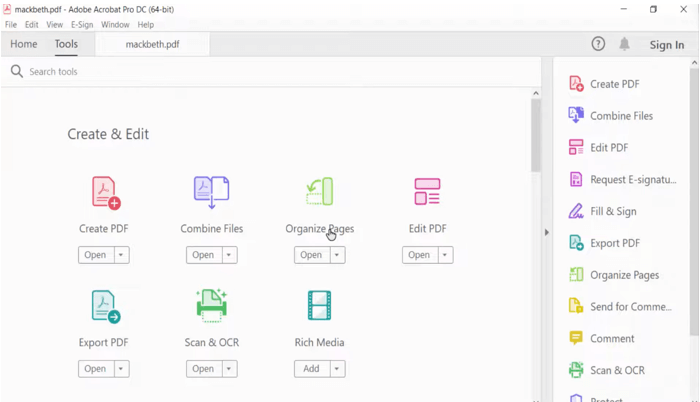
Step 3: Select all the pages you want to rotate. To do so, you can either select their thumbnails or enter a page range.
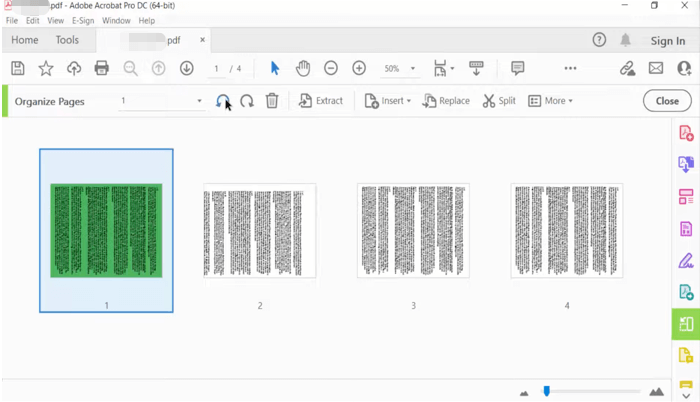
Step 4: Use the buttons to rotate in 90-degree increments.
Step 5: Save your PDF after you’ve rotated the selected pages.
Way 3: Convert Landscape PDF to Portrait Using Google Chrome
Google Chrome also emerges as a free landscape PDF to portrait PDF converter. However, Chrome’s built-in viewer does not let you permanently change a PDF from landscape to portrait. You can use the Rotate icon in the toolbar to rotate the PDF for temporary viewing. You must use an external tool, such as online services or dedicated PDF software, to permanently change the orientation. Such tools can also extract or delete pages from a PDF without Acrobat.
Here’s how to use Google Chrome to convert landscape to portrait in a few clicks.
Step 1: Open the PDF in Chrome browser.
Step 2: Look for the toolbar at the top of the PDF viewer.
Step 3: Tap the Rotate icon to change the page orientation and turn the page 90 degrees.
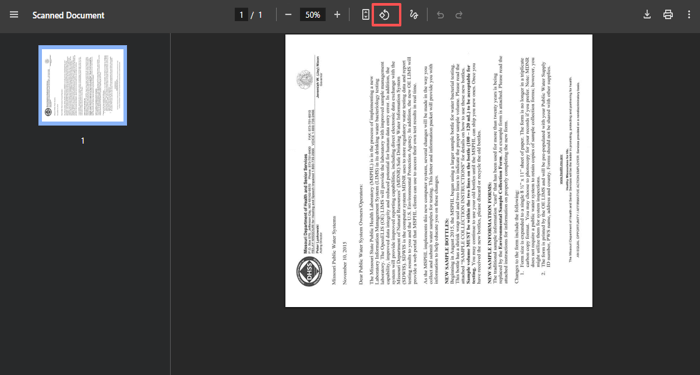
Step 4: Continue clicking until the page is in the desired orientation.
Step 5: Read your PDF after you change the landscape PDF to portrait.
Way 4: How to Change Landscape to Portrait in PDF Using iLovePDF
iLovePDF is a free, web-based landscape to portrait PDF converter. This browser tool lets you convert a PDF file from landscape to portrait online for free. Its Rotate PDF feature enables you to rotate PDFs as needed. Drop your PDFs directly, or import them from Google Drive or Dropbox. You can even rotate multiple PDFs at once to boost your workflow and improve productivity.
Explore the simple and detailed steps to change a landscape PDF to portrait with iLovePDF.
Step 1: Open the official iLovePDF website in your web browser.
Step 2: Choose Rotate PDF from the interface.
Step 3: Tap Select PDF files or drag your PDFs directly into the working area.
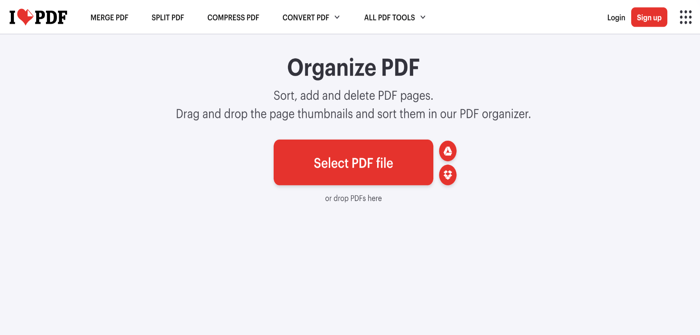
Step 4: Click the Rotate icon. iLove PDF will automatically rotate it.

Step 5: After you make the PDF portrait instead of landscape, click Download rotated PDFs.
Quick Wrap Up
Changing page orientation doesn’t have to be difficult, and the methods above make it easy to change a PDF from landscape to portrait based on your needs. Whether you prefer online tools, built-in features, or complete PDF editors, each option ensures more precise reading and smoother printing. With these straightforward solutions, you can adjust layouts effortlessly and keep your documents organized, professional, and easy to work with.