Can You Password Protect a PDF in Chrome
Chrome includes a built-in PDF viewer that lets you open, read, download, print, and perform some basic actions on PDF files. However, it doesn’t currently provide a direct feature for adding password encryption to an existing PDF.
How can you password protect a PDF when Chrome is your preferred browser? The easiest way is to use an online PDF protection tool that works directly in Chrome. If your PDF file contains confidential information, you can instead use a desktop PDF editor such as SwifDoo PDF to protect the document without uploading it to an online service.
In the following content, let’s learn how to encrypt a PDF in Chrome.
How to Password Protect a PDF in Chrome
Since Chrome cannot encrypt a PDF itself, the easiest browser-based solution is to use an online PDF password protector. Those tools can work directly in Chrome. Here, I prepare two options for you.
Option 1. Password Protect a PDF with Smallpdf
Smallpdf is a web-based PDF tool accessible in Chrome, Edge, and other browsers. It provides an online Protect PDF tool that lets you add password protection to a PDF directly from your browser. Below are the steps to password protect a PDF with Smallpdf in Chrome.
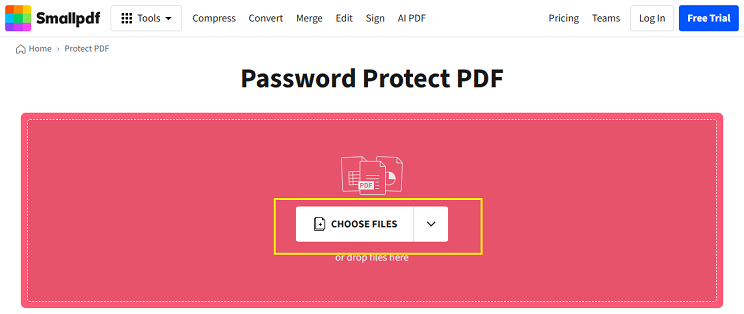
Step 1. Open Chrome and visit Smallpdf’s Protect PDF tool.
Step 2. Click CHOOSE FILES and select the PDF you want to protect.
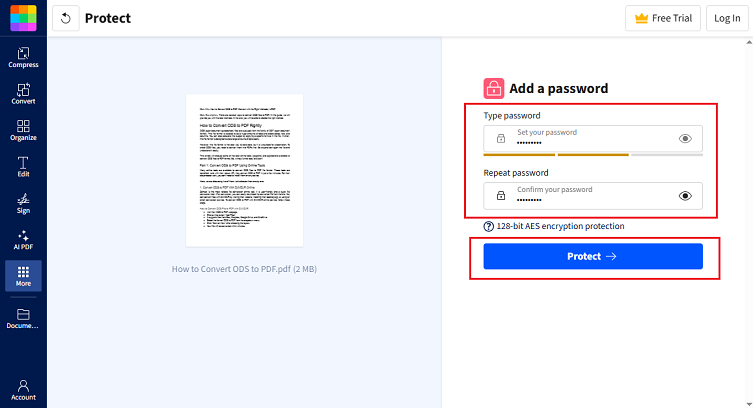
Step 3. Then, type the password for the PDF and repeat the password again. Next, click Protect. Finally, click Download to save the protected PDF file.
Option 2. Secure a PDF with PDF24 Tools
PDF24 Tools is another browser-based option for adding password protection to a PDF. It enables you to add an opening password to a PDF. Additionally, it lets you configure permissions for actions such as printing, copying, commenting, and modifying the PDF. Here, let’s learn how to protect a PDF in Chrome with PDF24 Tools.
Step 1. Visit PDF24 Tools’ Protect PDF in Chrome and click “Select files” to upload the target PDF.
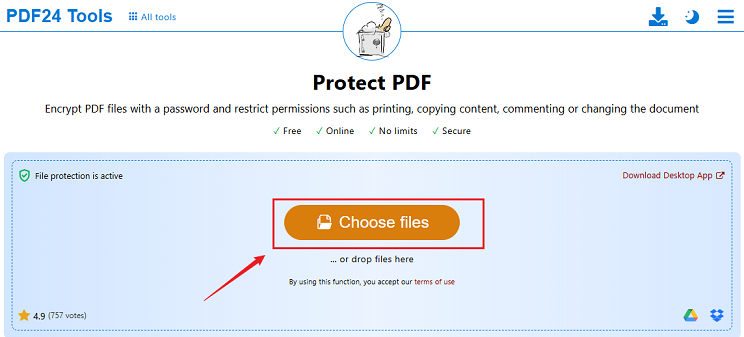
Step 2. Once the PDF is uploaded, enter a password for opening the PDF. If needed, click the Settings icon to configure additional permissions for printing, copying, commenting, or modifying the PDF.
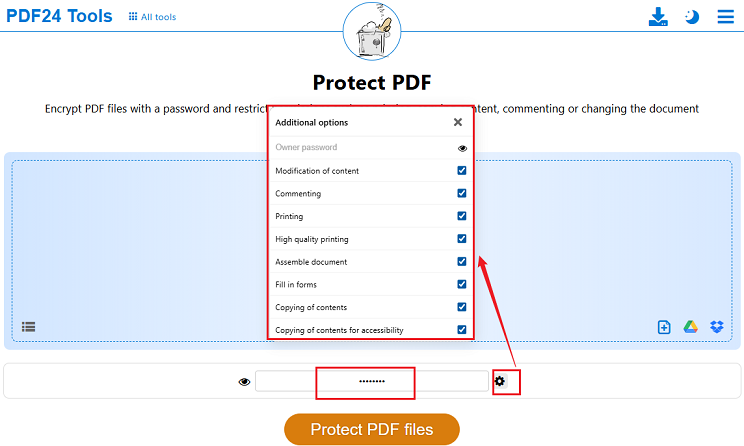
Step 3. Next, click “Protect PDF files”. Once the process is over, download the protected PDF.
Smallpdf or PDF24 Tools: which one should you choose for PDF protection? Here’s a quick comparison table for your reference.
|
Feature |
Smallpdf |
PDF24 Tools |
|
Works in Chrome |
Yes |
Yes |
|
Software installation |
No |
No |
|
Add opening password |
Yes |
Yes |
|
PDF encryption |
AES-128 |
AES-256 |
|
Restrict printing |
— |
Yes |
|
Restrict copying |
— |
Yes |
|
Restrict editing |
— |
Yes |
|
Registration required |
No |
No |
Things to Consider When Using an Online PDF Protector
Though online tools are convenient, you need to upload your PDF to a third-party service. Hence, before protecting a sensitive document online, consider the following things:
- Privacy: Check how the service handles uploaded files.
- File retention: Find out when uploaded and processed files are deleted.
- File size: Some online tools impose upload limits.
- Encryption: Check what type of encryption the tool uses.
- Permissions: If necessary, make sure the tool supports restrictions on editing, copying, or printing.
- Internet connection: You need an internet connection to upload and download the PDF.
How to Password Protect Confidential PDFs with SwifDoo PDF
If your PDF contains confidential or sensitive information, you may prefer not to upload it to an online PDF service. In this situation, a desktop PDF editor can provide a more suitable workflow. SwifDoo PDF is a good choice.
SwifDoo PDF is a lightweight PDF editor that combines features for viewing, editing, annotating, organizing, and protecting PDFs. It supports protecting PDFs with both Open Password and Permission Password. In other words, you can use it to protect PDFs from editing, copying, printing, or opening. What’s more, SwifDoo PDF enables you to batch encrypt PDFs. Here, let’s learn how to password-protect a PDF with SwifDoo PDF.
Step 1. Click the button below to download and install SwifDoo PDF on your PC. Then launch this application.
Step 2. Now, click Open to import the target PDF file and go to Protect > Encryption.
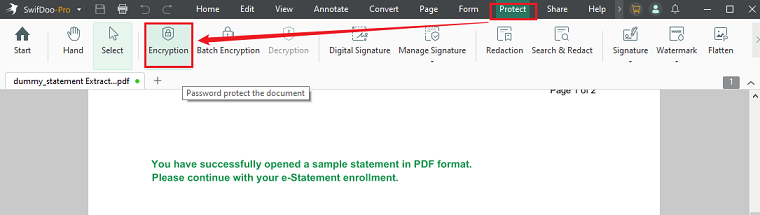
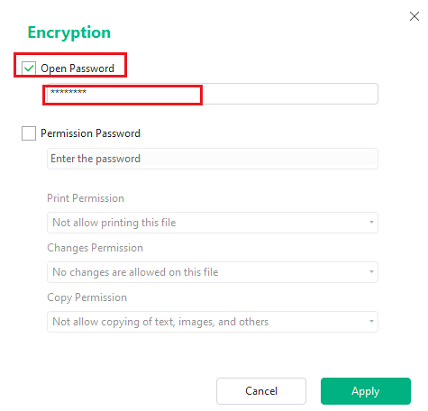
Step 3. The Encryption window will pop up. Select the encryption type: Open Password or Permission Password. If you tick the Open Password option, enter the password.
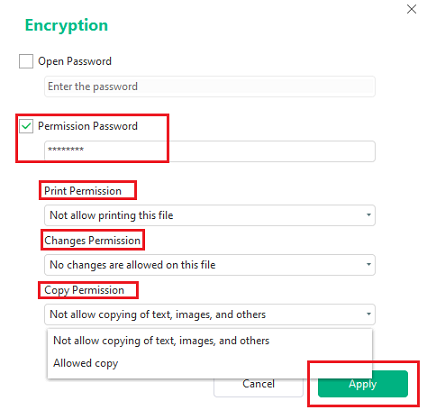
If you select the Permission Password option, enter the password and customize the Print, Change, and Copy Permissions. Then, click Apply to save the security settings.
How to Open a Password-Protected PDF in Chrome
Once you have encrypted a PDF, you can still use Chrome to open it. You can refer to the steps below to open a password-protected PDF in Chrome.
- Right-click the protected PDF file and go to Open With > Google Chrome.
- Then Chrome will display a password prompt. Here, you need to enter the correct PDF password.
- Next, press Enter. Chrome will display the PDF if the password is correct.
If you get a protected PDF from others and don’t know the password, SwifDoo PDF can give you a hand. It enables you to unlock a PDF even though you don’t know or have forgotten the password.
Final Words
Google Chrome offers a built-in PDF viewer to view PDFs with several basic annotation features. Can you encrypt a PDF in Chrome? Unfortunately, its built-in PDF tool doesn’t include the feature for protecting PDFs. To password-protect a PDF in Chrome, you can use online PDF tools, such as Smallpdf and PDF24 Tools. If you need to handle sensitive documents, a desktop PDF tool, such as SwifDoo PDF, is the better choice.