Can You Add Page Numbers in Bluebeam?
Does Bluebeam Revu support adding page numbers to PDFs? Of course! As a professional PDF editor, Bluebeam offers built-in features for numbering PDF pages. They are Header & Footer and Page Labels.
Both features allow you to number PDF pages. What are the differences between them? Here’s a quick trick to distinguish them:
- Header & Footer, which adds visible page numbers to the document.
- Page Labels, which changes the page numbering shown in Bluebeam's navigation pane without displaying numbers on the actual PDF pages.
How to Add Page Numbers in Bluebeam
From the above, we know that Bluebeam Revu offers features for adding page numbers. If your goal is to add page numbers that readers can see on every page, use Header & Footer. If you only need to organize pages inside Bluebeam Revu, Page Labels are the better choice. Now, let’s learn how to number PDF pages in Bluebeam Revu.
Option 1: Add Page Numbers Using Header & Footer
The Header & Footer feature is the best option if you need to make PDF page numbers visible when viewing, printing, or sharing the PDF. It enables you to insert page numbers directly into the PDF.
Additionally, it enables you to customize their appearance and apply them to specific pages or the entire document. Here, you can refer to the steps below to add page numbers in Bluebeam.
Step 1. Launch Bluebeam Revu and open the target PDF that you want to add page numbers to.
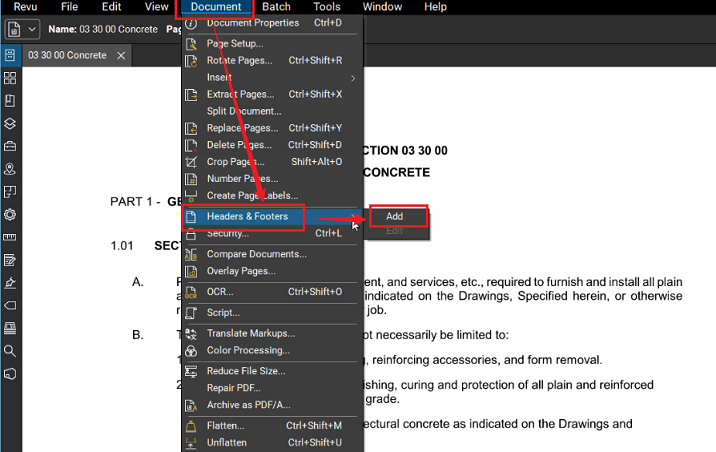
Step 2. Click Document on the top menu, select Header & Footer, and click Add.
Step 3. In the Header & Footer dialog box, select pages to apply to. Here, you can select All Pages, Current, or Custom as needed. Next, click one of the available placement boxes like Top Left or Top Center.
Then, click Insert and select Page Number. After that, you can customize the Page Number options, such as start number, font settings, margins, and more. Meanwhile, you can use the preview to check appearance across pages.
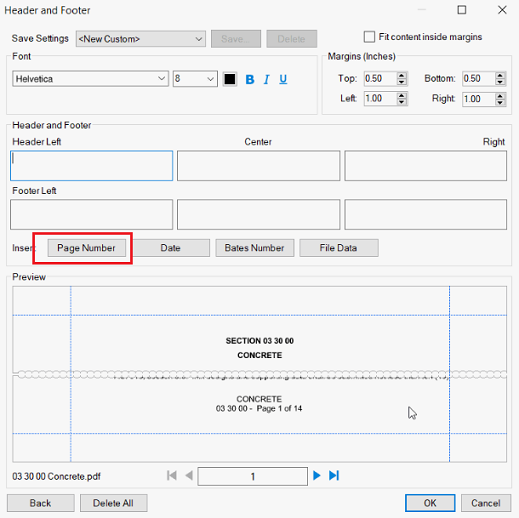
Step 4. Once you are satisfied with the page numbers, click OK to apply. Then, Bluebeam will update all selected pages at once. Finally, save the PDF file with page numbers.
Option 2: Add Page Labels in Bluebeam
If you don’t need visible page numbers, Page Labels provide another way to organize your PDF. Instead of printing page numbers on each page, Page Labels rename pages with Bluebeam’s navigation or thumbnail pane. For instance, you can label pages as:
- A-001
- A-002
- A-003
This feature is especially useful for architectural, engineering, and construction projects. How to add page labels in Bluebeam Revu? Below are the exact steps.
Step 1. Open your PDF in Bluebeam Revu, go to Document, and click Number Pages.
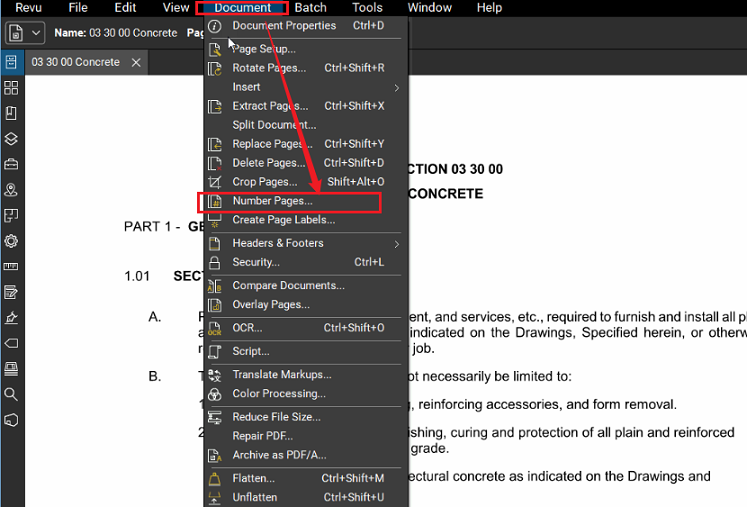
Step 2. Here, you can see the Page Numbering and Labeling dialog. Then configure the following options:
- Style: select the preferred numbering style
- Prefix: enter text before the page number
- Start: specify the first page number
- Page Range: choose which pages receive the labels
Step 3. At last, click OK. Bluebeam will immediately update the page labels.
If you are still unsure which option to use, you can refer to the following comparison:
|
Feature |
Header & Footer |
Page Labels |
|
Display page numbers on the PDF |
Yes |
No |
|
Appear when printed |
Yes |
No |
|
Improve navigation |
Limited |
Yes |
|
Support custom prefixes |
Limited |
Yes |
|
Best for reports and contracts |
Yes |
No |
|
Best for drawing sets |
Yes |
Yes |
How to Add Page Numbers to Multiple PDFs
What’s more, the batch processing feature of Bluebeam Revu allows you to work with multiple PDFs. In other words, you can use it to add page numbers to multiple PDFs at once. Below are the exact steps for your reference:
Step 1. Launch Bluebeam Revu and go to Batch > Header & Footer.
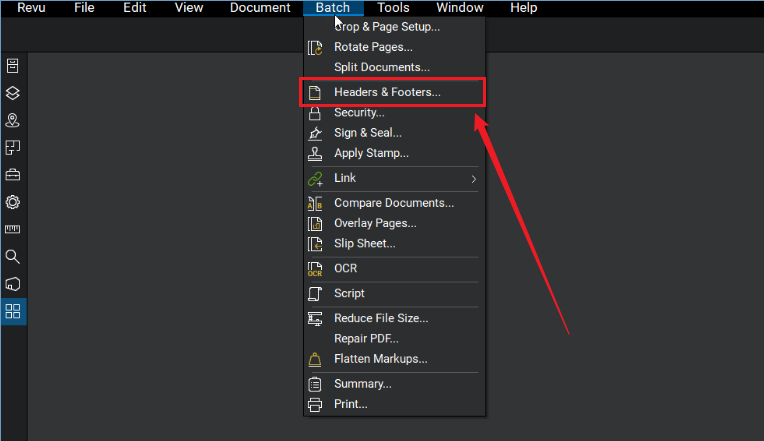
Step 2. Click Add and hit Files to upload the target PDF files.
Step 3. By default, Bluebeam Revu numbers all PDF pages. Alternatively, you can specify the page range as needed. Then, click OK to open the Header and Footer settings. Here, select where you want the page number to appear.
Next, click the Page Number button and adjust the page number formatting as needed.
Step 4. Finally, preview the result. Once you are satisfied, click OK. Then, Bluebeam will apply the same page numbering format to each file in the batch.
Alternative Way to Add Page Numbers to PDFs
Some of you may only need a simple way to number pages in a PDF. Bluebeam Revu may not be the best choice. SwifDoo PDF is a lightweight PDF editor for Windows, Mac, and Linux. Owing to its simple, user-friendly interface, SwifDoo PDF is an easy-to-use yet reliable PDF editor for beginners. You can use it to add page numbers to PDFs. Also, it enables you to remove PDF page numbers. Additionally, it lets you add headers and footers to PDFs.
Here, I prepared a tutorial for you to add page numbers to a PDF using SwifDoo PDF.
Step 1. Click the button below to download and install SwifDoo PDF on your PC.
Step 2. Run this PDF editor, click Open to import your target PDF file, and switch to the Page tab.
Step 3. Click the Page Number option and select Add Page Numbers. On the Add Page Number dialog, you can customize the following settings:
- Page range
- Number format
- Position
- Alignment
- Margin
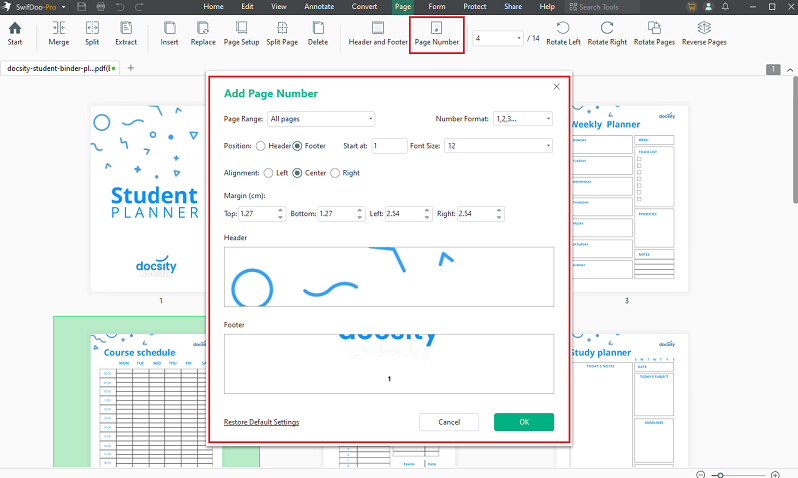
Step 4. You can preview the page numbers in the preview window. Then, you can click OK when you are satisfied. Finally, click the Save icon to save the PDF file with page numbers.
In addition to adding page numbers, SwifDoo PDF also has the following wonderful capabilities:
- Extract pages from PDFs
- Fill in and sign PDF forms
- Password-protect PDFs
- Add, edit, and remove PDF backgrounds
- OCR or flatten PDFs
- Add electronic signatures to PDFs
- …
Conclusion
Adding page numbers to PDFs is an effective way to make PDFs easier to navigate, reference, and print. How to add page numbers in Bluebeam Revu? You can use the Header & Footer and Page Labels tools. For most of us, the Header & Footer feature is the better choice to insert visible page numbers. If you only need to manage architectural or engineering drawing sets, Page Labels should be your choice. If you don’t use Bluebeam Revu, you can also try SwifDoo PDF.