


Can You Create a PDF in Google Docs?
Yes. You can easily create a PDF in Google Docs. Google Docs lets you convert files into PDF format without losing layout, fonts, or design, making it ideal for sharing and work use. You can even create a fillable PDF using add-ons for more interactive form features.
Google Docs is convenient for sharing professional-looking documents, maintaining consistent layouts, and ensuring your content can be opened on almost any device.
However, when advanced functions such as editing, batch processing, annotations, or file protection are needed, SwifDoo PDF becomes a better alternative. It offers a more comprehensive set of tools for managing PDFs than just basic creation.
Give SwifDoo PDF a try to streamline your workflow and take full control of your PDF documents.
The Simple Steps to Create a PDF in Google Docs
Creating a PDF in Google Docs is straightforward. You may upload an existing Word file and convert it to PDF or create a new document.
Let’s go through how to create a PDF in Google Docs using both available options.
Method 1. Upload a Word Document and Convert to PDF
Step 1. Launch Google Docs on your device. And log in to your account.
Step 2. Then click + Blank Document, and tap File > Open in the top-left menu bar. Go to Upload and click Browse to upload your Word document (.doc or .docx). You can also drag a file directly to import.
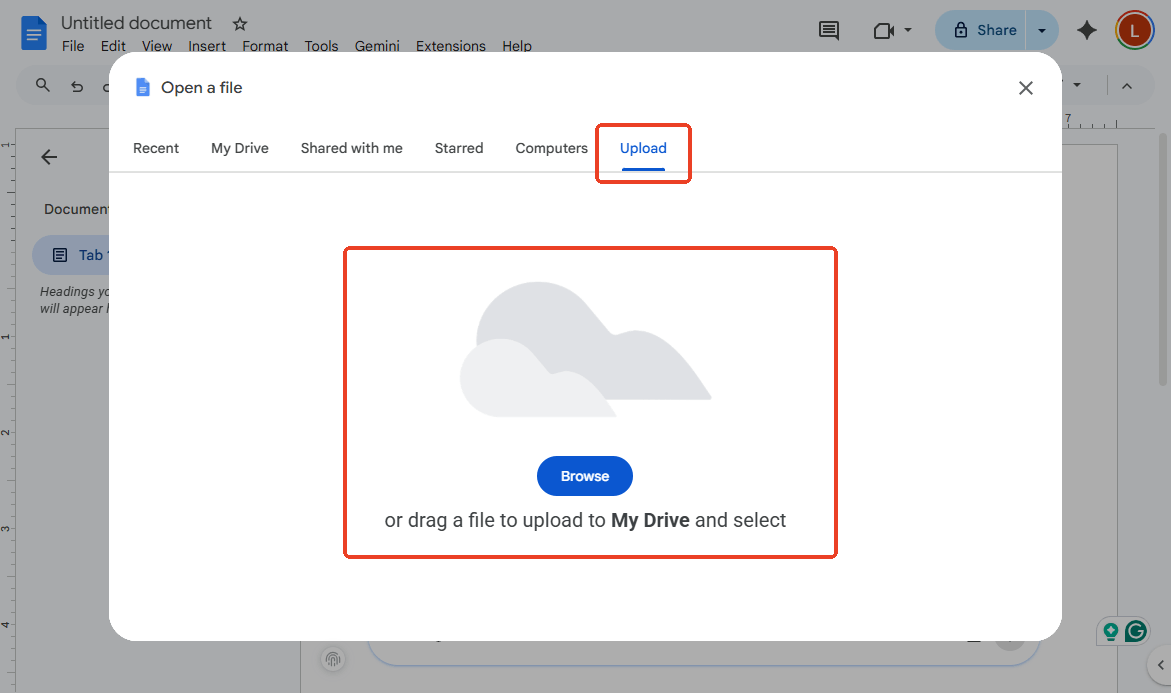
Step 3. Once the file opens in Google Docs, review and edit it if needed.
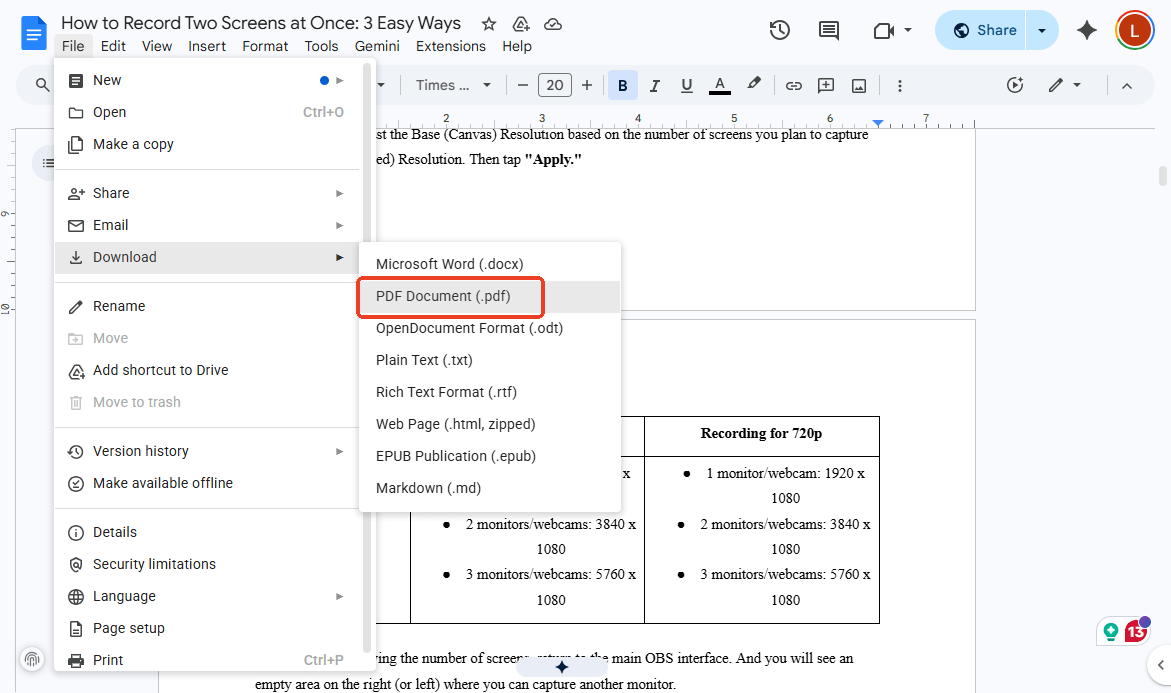
Step 4. Then, click File in the top menu. And select Download > PDF Document (.pdf). Your file will be downloaded to your device as a PDF.
Method 2. Create a New Document and Save as PDF
Step 1. Open Google Docs and sign in to your account.
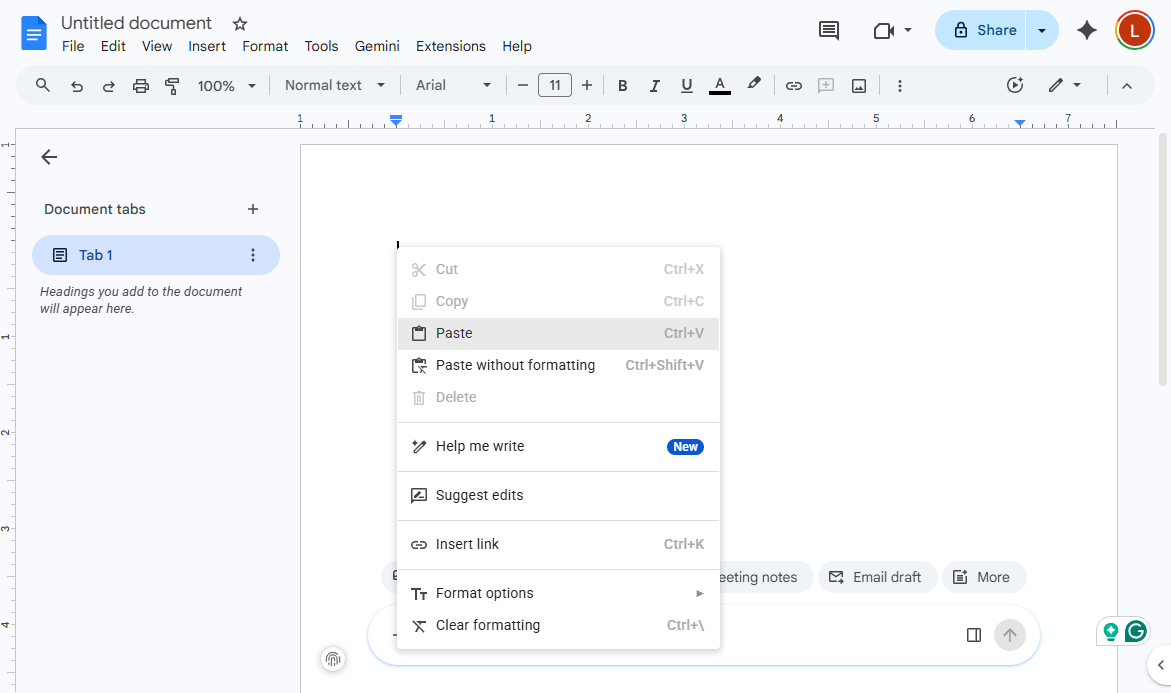
Step 2. After that, click + Blank Document and insert your content into the page.
Step 3. Format and edit the content as required.
Step 4. Next, hit File in the top-left menu bar. And choose Download > PDF Document (.pdf). Your file will be automatically downloaded as a PDF to your device.
How to Make a Fillable PDF in Google Docs
Although Google Docs lacks built-in fillable PDF functionality, extensions like Fillable Document and Formswrite make it possible. You can also easily create a PDF from text in Google Docs by typing your content and exporting it through the download option or add-ons.
These add-ons let you turn a regular document into a fillable form by adding fields such as text inputs, checkboxes, and dropdowns. After setting up the fields, you can generate a fillable version of your document and then download or share it as a PDF.
Below is how to make a fillable PDF in Google Docs using its Fillable Document extension.
Step 1. Open your document in Google Docs.
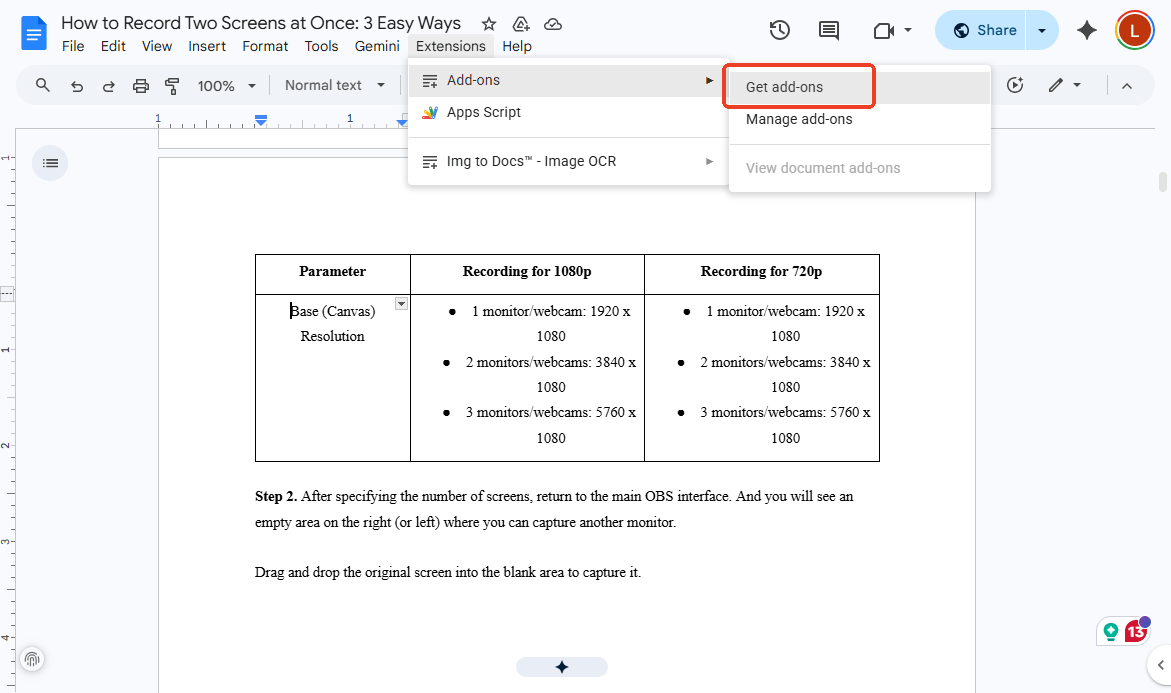
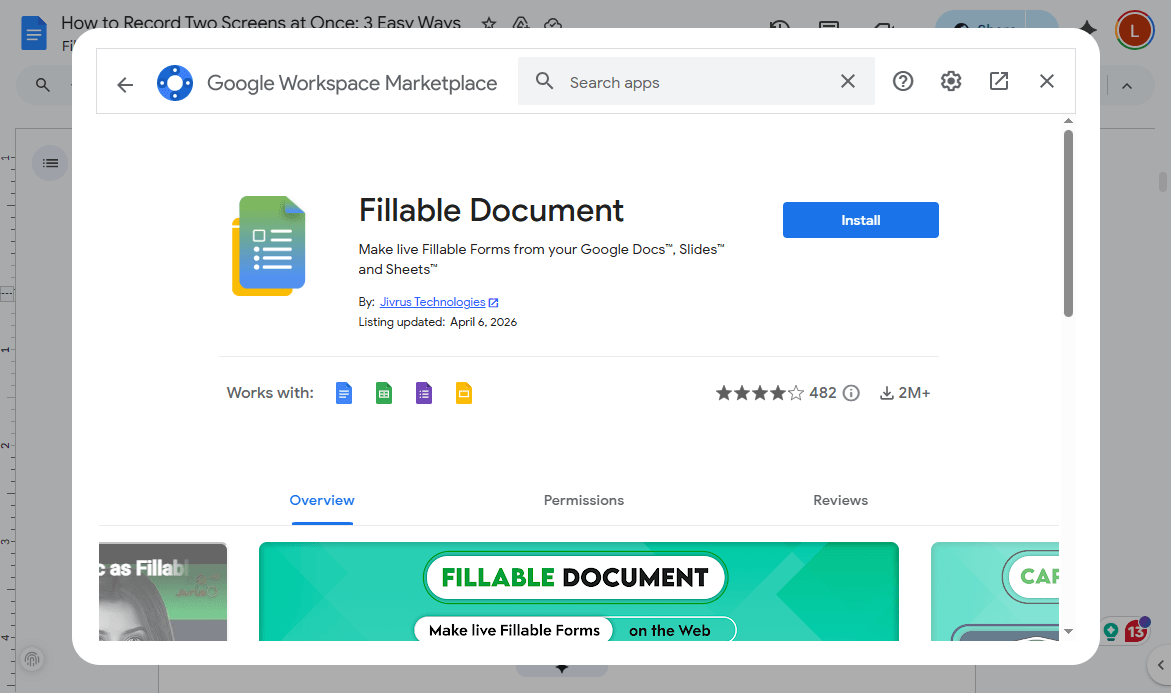
Then click Extensions, choose Add-ons, and select Get add-ons. Look up Fillable Document and proceed with installation.
Step 2. Then select Extensions, open Fillable Document, and click Start. Insert placeholders (e.g., {{Name}}, {{Date}}) in the user-input fields.
Step 3. Use the add-on panel to assign field types like text fields or paragraphs. Then, generate the fillable form using the add-on.
Step 4. Download or export the completed file as a PDF.
Another Easy Way to Create a PDF: SwifDoo PDF
Now, since the steps for creating simple, fillable PDFs using Google Docs are covered, it is clear that the process is easy to follow. However, Google Docs has limited PDF editing features. If advanced functionality and flexibility are required, SwifDoo PDF makes a great alternative.
SwifDoo PDF is an all-in-one PDF solution that makes it easy to create PDFs in multiple ways. You can generate a PDF from scratch, convert formats such as Word, Excel, or images, and efficiently convert Word resume to PDF with no formatting loss. It also supports batch conversion, making it perfect for efficiently managing multiple documents.
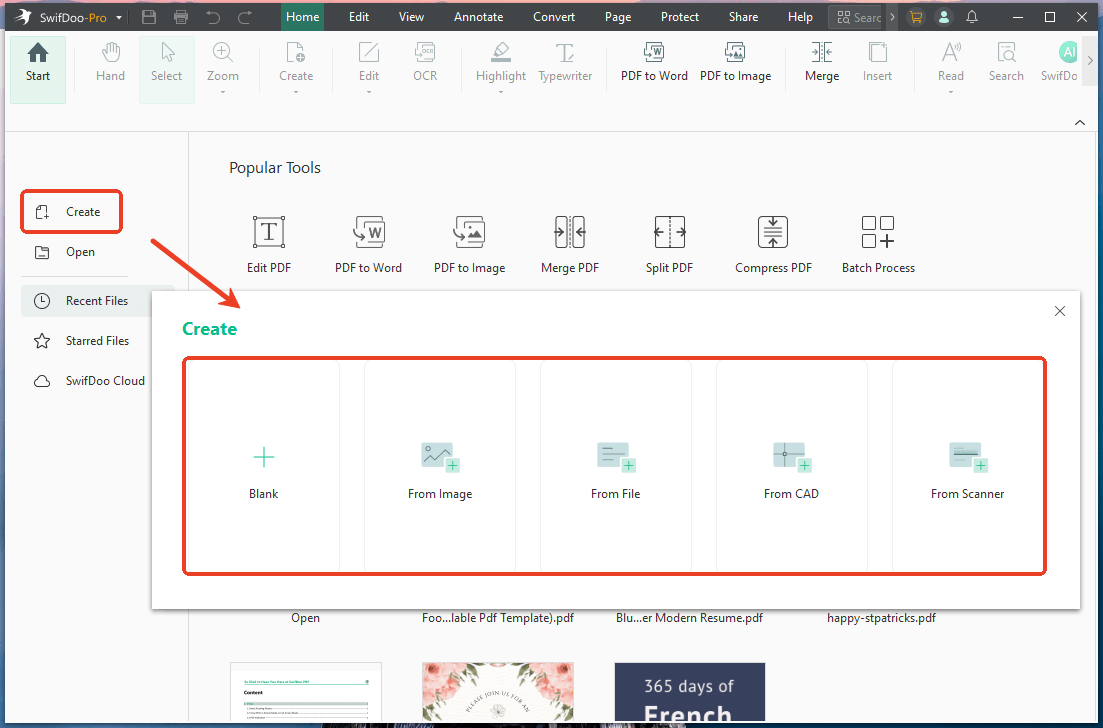
Apart from creation, SwifDoo PDF includes powerful editing tools. You can edit text and images directly in your PDF, annotate with comments or highlights, merge or split files, and also make a multi-page PDF with ease. It also includes features for adding passwords and protecting sensitive documents.
If you’re looking for a more complete and professional PDF solution, give SwifDoo PDF a try and gain full control of how you create, convert, and manage your PDF files.
A Quick Wrap Up
Figuring out how to create a PDF in Google Docs is easy and fast, whether you begin with a file or create one from scratch. Google Docs makes PDF creation simple for everyday tasks, making it a reliable option for basic needs.
If your work involves editing, converting, or managing several PDF files, SwifDoo PDF delivers a more capable and flexible solution. Choosing the right tool makes your workflow smoother and boosts PDF productivity.



