


What Is an AZW File?
AZW is an eBook file format developed by Amazon for its Kindle ecosystem. It is based on the MOBI format and is designed to store digital books that can be read on compatible Kindle devices and applications.
AZW3 is generally preferable when creating a new Kindle eBook because it supports more advanced formatting, including improved typography and layout features.
Before You Convert: Check If Your PDF Is Text or Image
If your PDF contains scanned pages, unnecessary content, or formatting issues, converting it directly into AZW3 may produce an unsatisfactory result.
Just check if your PDF can be converted directly to AZW. You can open your PDF and try to select a sentence. If the text highlights and you can copy it, the file has a text layer and you can convert it directly. If nothing selects, the PDF is a scan or an image, and scanned PDF to AZW conversion won't work without OCR.
A useful alternative is to prepare the PDF with SwifDoo PDF before using Calibre for ebook conversion.
SwifDoo PDF supports PDF-to-EPUB conversion, OCR, PDF editing, and page management. Although it does not directly export AZW or AZW3, its PDF preparation and EPUB conversion features can form part of a practical PDF-to-Kindle workflow.
How to Prepare Your PDF for AZW Conversion?
Step 1: Download and install SwifDoo PDF and launch it.
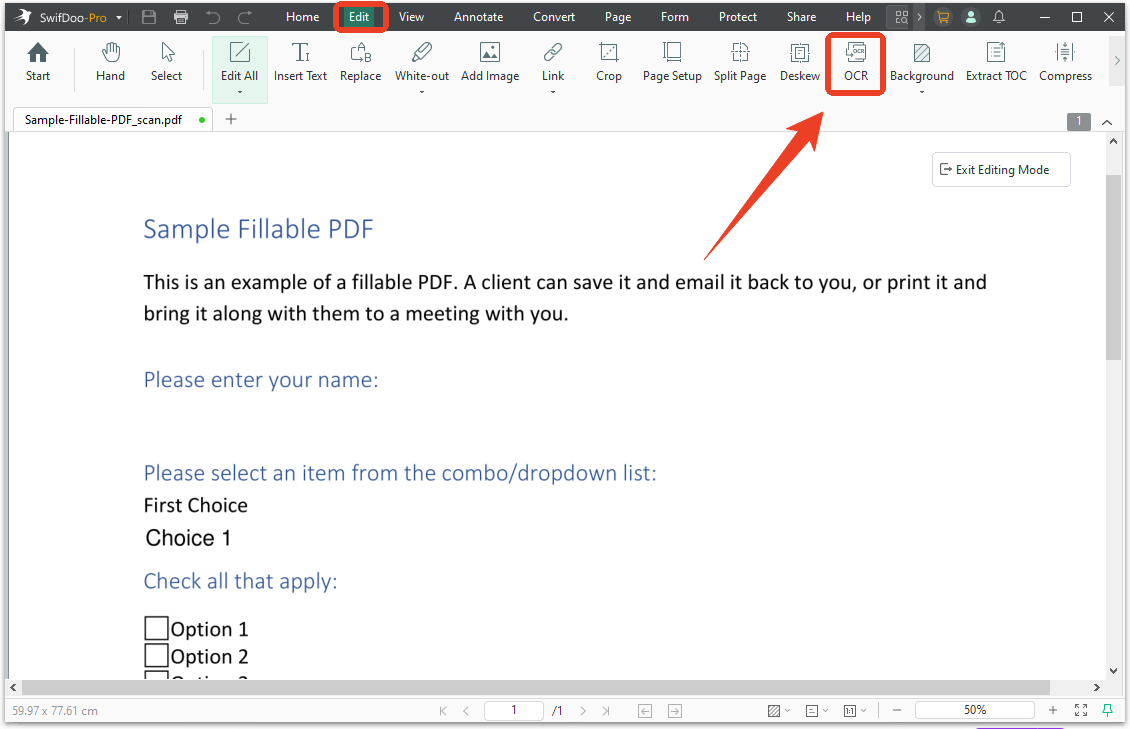
Step 2: Open the scanned PDF and switch to the Edit tab.
Step 3: Choose OCR from the top menu.
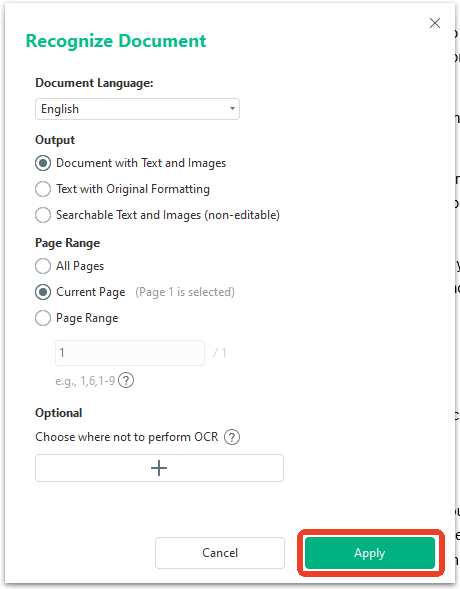
Step 4: Choose the document language, output settings, and page range, and then click Apply to start the OCR.
After that, you can also try these steps to prepare your PDFs.
- Remove unnecessary pages.
- Rearrange pages into the correct order.
- Edit text and images where needed.
- Correct obvious formatting issues.
- Extract relevant sections from a long document.
This preparation can help reduce unnecessary content and improve the quality of the resulting eBook.
Method 1: Convert PDF to AZW3 with Calibre
Calibre is a free, open-source eBook management program that supports converting PDF files into AZW3 and other eBook formats.
It is particularly useful if you regularly manage digital books or need to convert multiple eBooks into different formats. Calibre also provides conversion settings for adjusting metadata, page layout, structure detection, and other eBook properties.
How to convert PDF to AZW3 using Calibre:
Step 1: Visit the official Calibre website and download and install it.
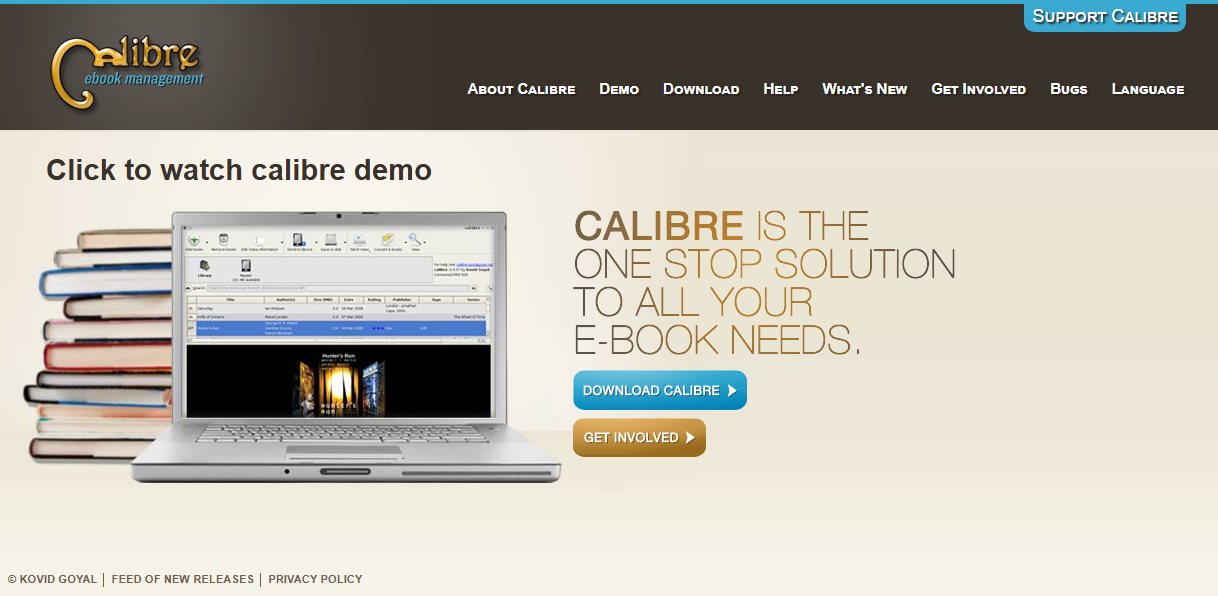
Step 2: Click Add books in the Calibre toolbar and select the PDF file you want to convert.
Step 3: Select the imported PDF and click Convert books in the toolbar.
Step 4: Select AZW3 as your output format, and you can also adjust additional settings.
Step 5: Click OK to start the conversion. Calibre will process the PDF and generate an AZW3 eBook.
Method 2: Convert PDF to AZW3 Online Using CloudConvert
CloudConvert is an online file conversion service that supports many document, eBook, image, audio, and video formats. It provides an online PDF-to-AZW3 conversion option, making it useful if you don't want to install desktop software.
How to convert PDF to AZW3 using CloudConvert:
Step 1: Visit the CloudConvert PDF to AZW3 converter.
Step 2: Click Select File to upload your PDF file and make sure the output format is AZW3.
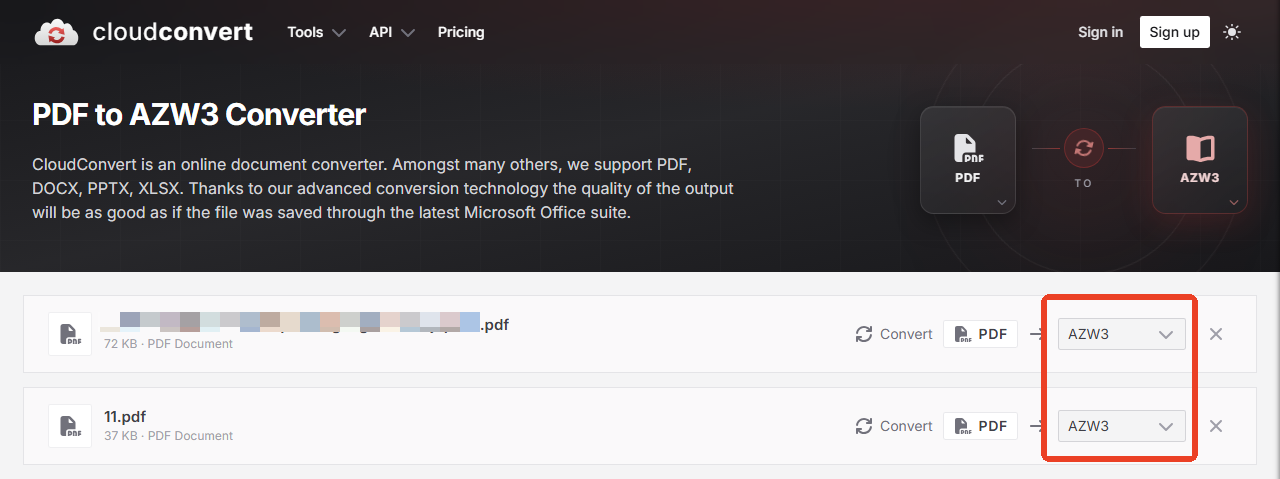
Step 3: Click Convert to convert PDF to AWZ.
Once the conversion is complete, click Download to save the resulting eBook to your computer.
Method 3: Convert PDF to AZW3 Online Using Convertio
Convertio is another browser-based file converter that supports a wide range of formats, including documents, eBooks, images, and multimedia files. It provides a dedicated PDF-to-AZW3 conversion workflow and is suitable for users who prefer a straightforward online solution.
How to convert PDF to AZW3 using Convertio:
Step 1: Open Convertio's PDF to AZW3 converter and sign in to your account.
Step 2: Click Choose Files to upload your documents.
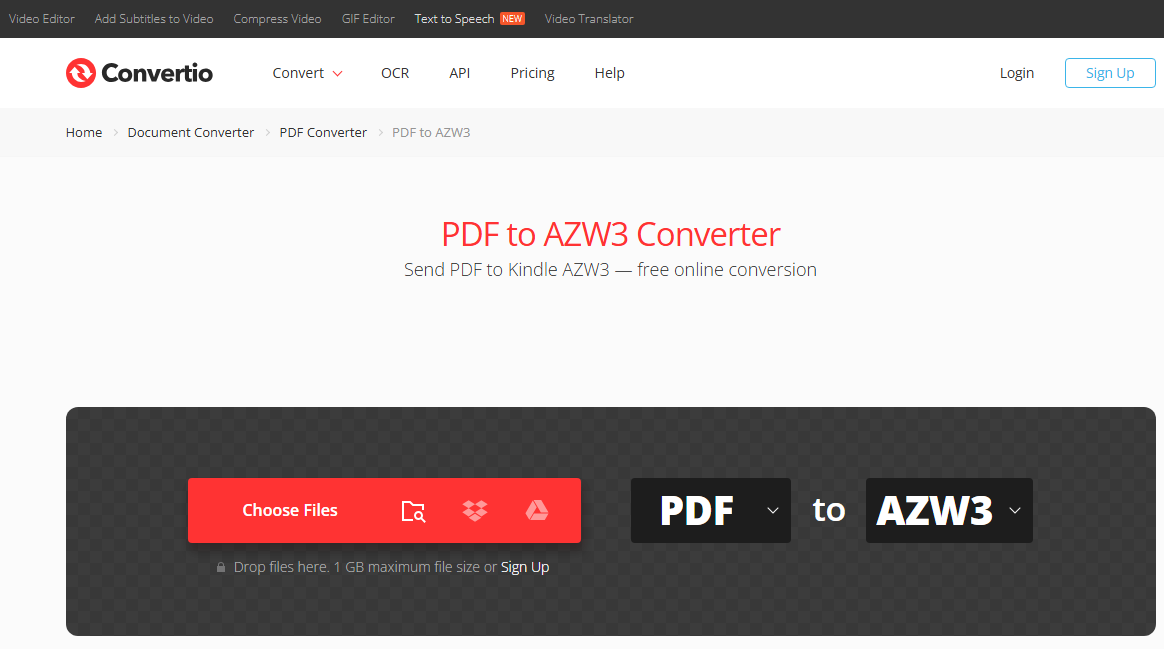
Step 3: Make sure the output type is AZW3, then click Convert to finish.

When the PDF to AZW3 conversion is complete, click Download to save the AZW3 eBook.
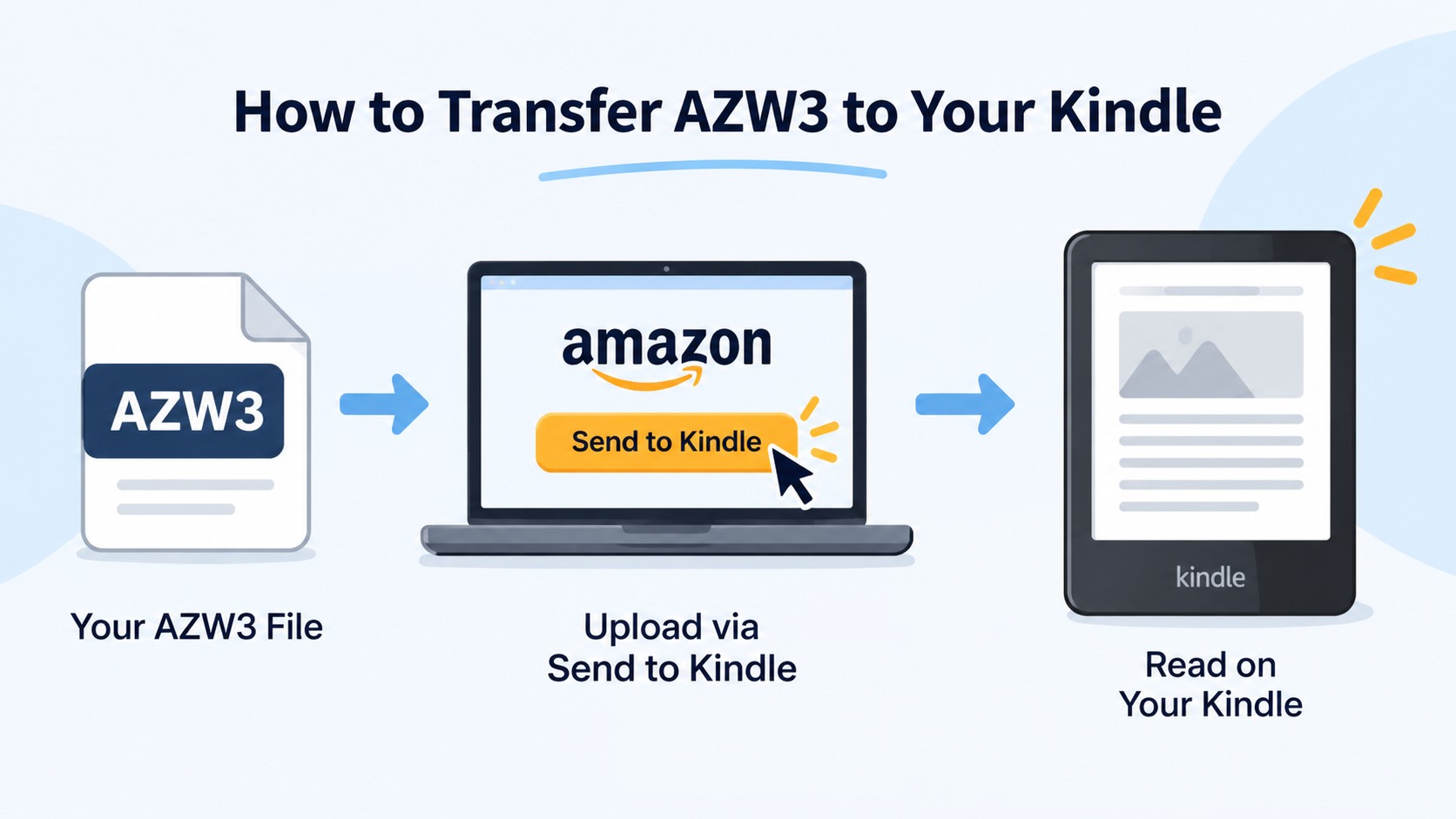
How to Transfer AZW3 to Your Kindle
After converting PDF to AZW3, the next step is transferring the eBook to your Kindle device or reading application. You can use several approaches, depending on your device and the available transfer options.
Option 1. Transfer AZW3 with a USB Cable
If your Kindle supports the AZW3 file, you can transfer it directly from your computer.
Step 1: Connect your Kindle to your computer using a USB cable and open File Explorer.
Step 2: Locate your Kindle device and open its Documents folder.
Step 3: Copy the AZW3 file into the folder.
Then you can safely eject the Kindle and disconnect it.
Option 2: Use Calibre to Send the eBook to Kindle
Calibre also provides a device management feature. It’s convenient if you already use Calibre to manage your eBook collection.
Step 1: Connect your Kindle to your computer and open Calibre.
Step 2: Select the eBook in your library and click Send to device.
Option 3: Use Amazon Send to Kindle
Amazon's Send to Kindle service allows you to send supported documents to your Kindle library. You can upload supported documents through the website or use other available Send to Kindle options.
Prepare Your PDFs for Better eBook Conversion with SwifDoo PDF
Before converting a PDF into an eBook format, it is often worth preparing the original document. Scanned pages, unnecessary sections, and formatting problems can all affect the final reading experience.
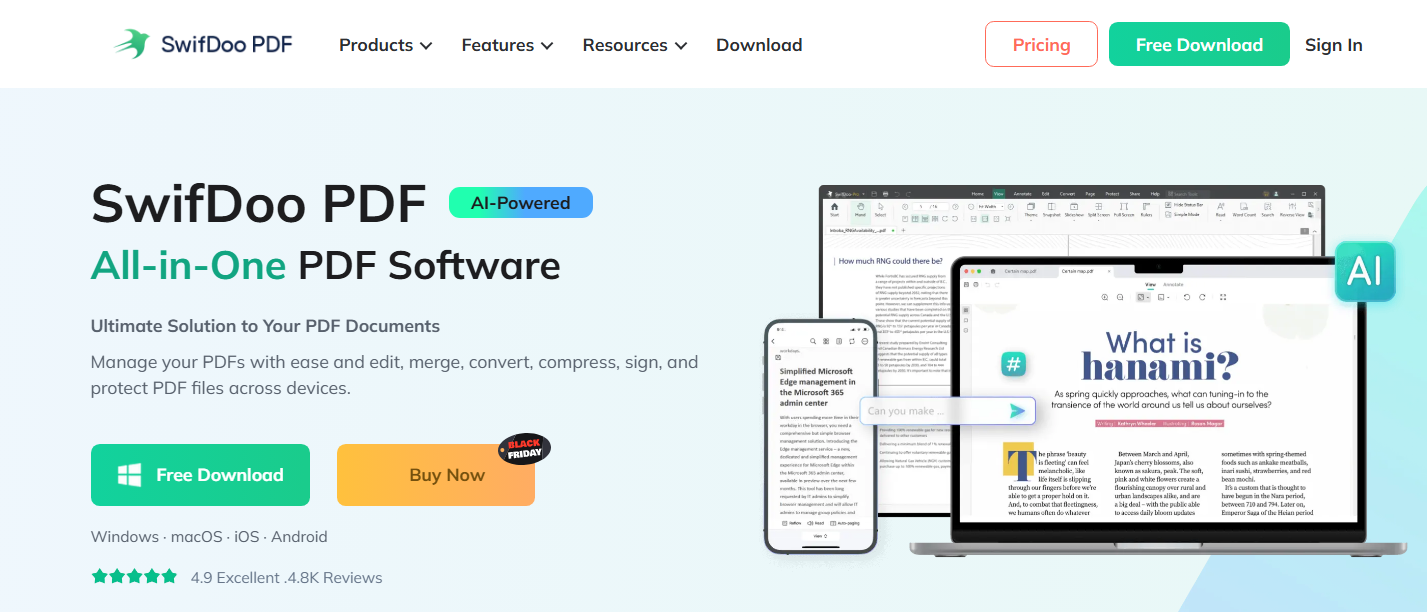
SwifDoo PDF provides a range of PDF tools that can help you prepare documents before eBook conversion.
With SwifDoo PDF, you can:
- Recognize scanned text: Use OCR to make scanned PDFs searchable and, where supported, editable.
- Edit PDF content: Modify text and images before converting the document.
- Organize PDF pages: Reorder, extract, rotate, or delete pages to create a cleaner source document.
- Convert PDF to EPUB: Create an EPUB version of your PDF, which can then be converted into AZW3 using Calibre.
- Compress PDF files: Reduce file size when working with image-heavy documents.
Although SwifDoo PDF does not directly export AZW or AZW3, its PDF editing, OCR, and EPUB conversion features can simplify the preparation process.
If you regularly work with PDF documents and need more than a basic eBook converter, visit SwifDoo PDF to explore its PDF editing and conversion tools.
Conclusion
Converting PDF to AZW3 can make text-heavy documents easier to read on Kindle devices by allowing text to adapt to the screen and supporting customizable reading settings.
Calibre is a good free option for direct PDF-to-AZW3 conversion, while CloudConvert and Convertio are convenient alternatives for online processing.
If your PDF needs editing, OCR, or page organization before conversion, SwifDoo PDF can be a useful part of the workflow. You can prepare the original document, convert it to EPUB, and then use Calibre to generate the AZW3 file.
Ultimately, the best method depends on the quality and structure of your original PDF. Always review the converted ebook before transferring it to your Kindle.