


Can You Change Your Gmail Address?
Can you change your Gmail address? The question is frequently asked, and the answer is No. Once created, a @gmail.com address cannot be edited or renamed by Google. Your Gmail address is permanently linked to your Google account and everything connected to it. This restriction helps reduce security risks, impersonation, and unauthorized access.
That said, you aren’t forced to stick with an old or unprofessional email address. There are dependable methods from Google to transition to a new address without losing emails, data, or account access.
How to Change Gmail Address
Although you can’t change your Gmail address directly, clever workarounds make switching simple. These methods let you move to a fresh, updated email while keeping your old messages, contacts, and connected services intact. Here are four top ways to get started.
1. Use a Different Address to Send Emails
Managing several email addresses gets complicated, especially if you need to keep personal and professional emails distinct. Knowing how to use a different address to send emails helps you manage all messages from one Gmail inbox. Gmail allows adding addresses from Yahoo, Outlook, or other email services. Use this process to complete the configuration:
Step 1: Open Gmail, go to Settings > See all settings, then select the Accounts and Import tab. In the Send mail as section, select Add another email address.
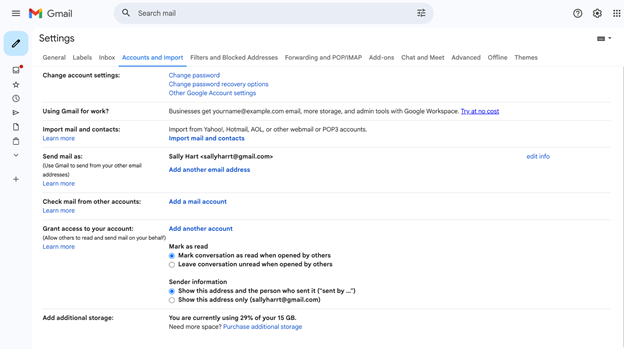
Step 2: Type your name and the email address you wish to send from, then click Next and send the verification.
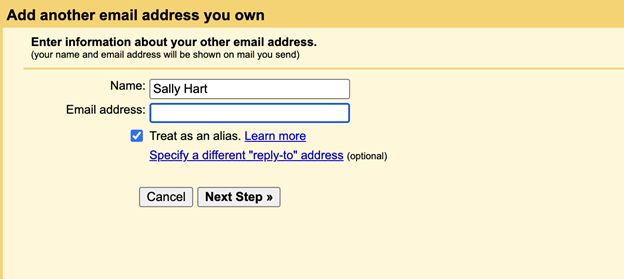
Step 3: To add a work or school email, provide the SMTP details and select Add account.
Step 4: Confirm the setup by clicking the verification link sent to that email address.
2. Insert Dots in Your Email Address
Even tiny improvements to your email can boost clarity and keep things organized. Learning how to change your email address in Gmail by adding dots lets you create variations of your current address without creating a new account.
For instance, no matter which of these addresses you use—[email protected], [email protected], or [email protected]. They reach the same inbox. Using this trick allows you to handle filters, track emails, and stay on top of your inbox.
However, this is a small adjustment and not recommended for professional purposes—better for signing up for services or newsletters without using your primary email.
3. Sign Up for a New Account
Occasionally, your email address may no longer suit your purposes, whether for professional use, improved organization, or a clean slate. For those asking is there a way to change your Gmail address, setting up a new account is the simplest way to start fresh and manage your email fully. It might take a bit of time, but these steps will help you create a fresh email identity.
Step 1: Sign out of Gmail and click Continue, then select Use another account.
Step 2: From the sign-in screen, select Create account, pick an account type, and enter your name and new email address.
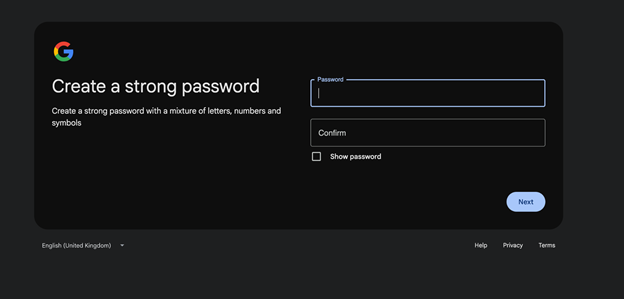
Step 3: Create a password, confirm it, and move forward by clicking Next.
Step 4: Include a recovery email, complete the remaining details, accept the terms, and click Create Account.
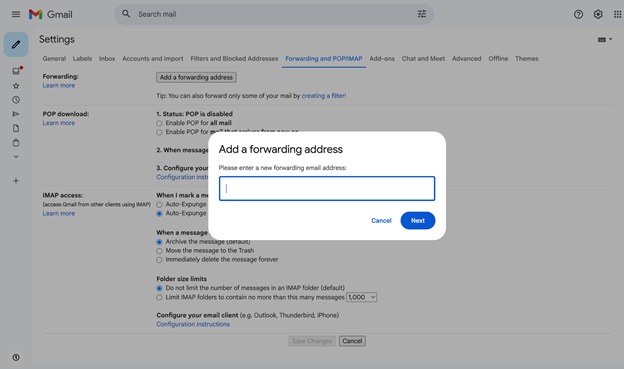
After creating your new email, enable forwarding to avoid missing messages. Sign in to your old Gmail, go to Settings > Forwarding and POP/IMAP, and add your new email address.
Verify the confirmation link sent to the new inbox, then select Forward a copy of incoming mail to, choose to keep a copy for backup, and save the changes.
4. Use the Plus Sign to Create an Email Alias
Handling emails from newsletters, subscriptions, and important contacts is much simpler when you understand how to change your Gmail address using the plus sign trick. Instead of creating a new account, you can add a “+” and a keyword to your username, like [email protected], to create quick aliases.
This method helps sort emails, monitor sign-ups, and keep messages organized. However, these aliases are only for receiving emails, and some websites may reject addresses that include the plus symbol.
How to Change Gmail Address Name
Your email address often shapes first impressions before you ever send a message—it can signal professionalism, purpose, and credibility the moment someone sees it. Learning how to change Gmail address names helps your messages look more professional without creating a new account. This Gmail setup is simple and done in no time.
Step 1: Log in, go to Settings, and access the Accounts and Import section.
Step 2: In Send mail as, choose Edit info and enter the new display name.
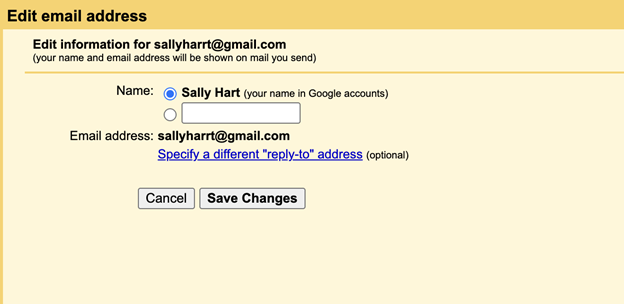
Step 3: Hit Save Changes to finish updating.
Bonus Tip: How to Back Up Important Email in Gmail
Before switching accounts or making major changes, backing up your emails is a smart, often-overlooked step. Important conversations, invoices, legal documents, travel confirmations, and personal messages should always be stored securely outside your inbox.
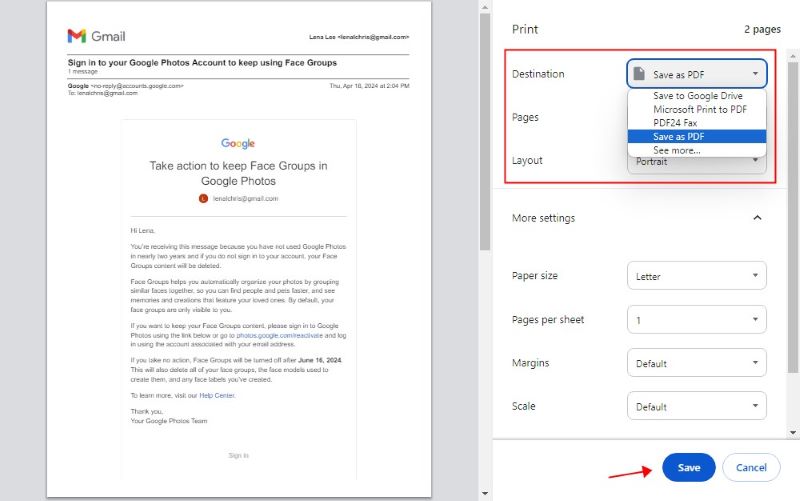
To preserve important messages, export them and save Gmail as email files, or convert them into PDFs for long-term storage. PDFs are easy to organize, searchable, and accessible across devices—even without internet access. Simply go to Print and choose Save as PDF.
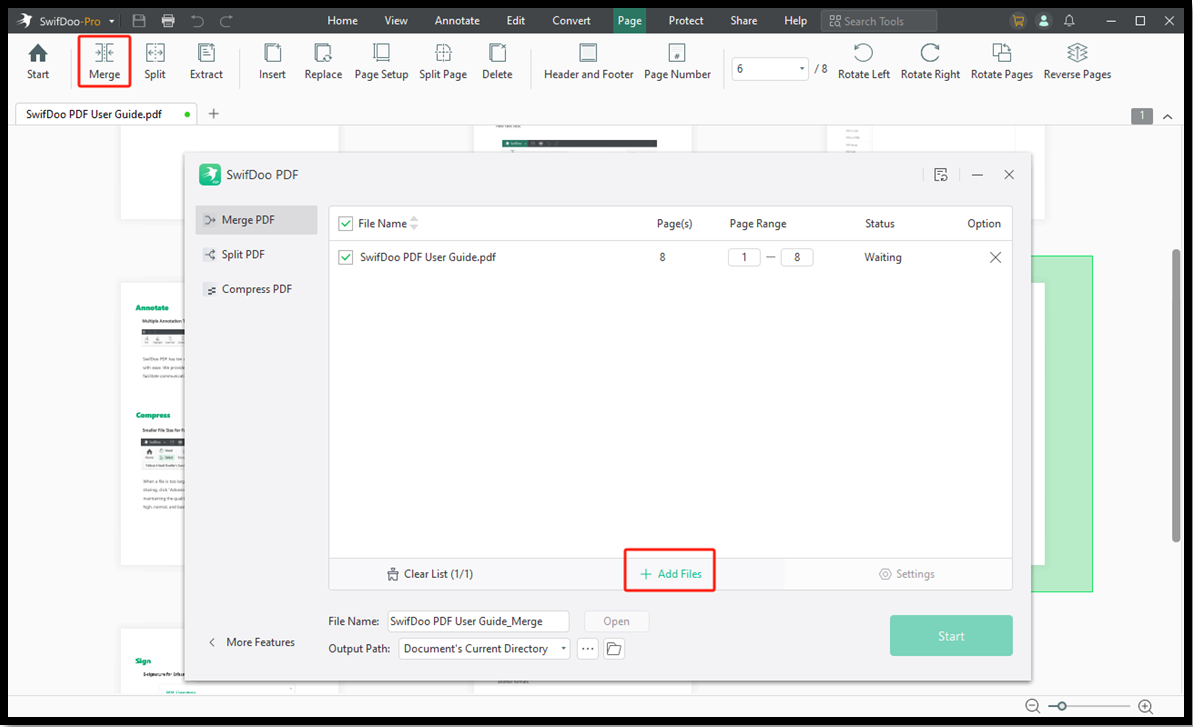
If you have multiple email PDFs, tools like SwifDoo PDF let you combine PDFs into one organized document. It’s especially handy for keeping conversations together, such as emails about projects, agreements, or customer interactions.
You can also reduce PDF file size to free up storage without losing any content. This arrangement works great for cloud storage, external backups, and safe file handling.
Download SwifDoo PDF and give it a try!
Conclusion
Our email choices matter more than we think, particularly as our needs change over time. Understanding how to change Gmail addresses helps you make informed decisions without losing access to important data. This guide highlights actionable choices, effective workarounds, and safe approaches. Use these insights to choose the best solution and update your Gmail setup with confidence.



