


Why is Google Translate Not Working?
Using translation tools for work, travel, or routine communication makes any minor glitch feel disruptive. And since many people depend on Google Translate daily, issues with it can quickly disrupt plans. As a result, you may sometimes see the error, “This page could not be translated.”
So if you wonder why is my Google Translate not working? Here are some common reasons.
- The translation feature is disabled.
- Incorrect language settings.
- Chrome or app version is outdated.
- Conflicting extensions.
- Insufficient storage space.
- Faulty or damaged cache and cookies.
- Interference of malware and adware.
- Unsuuported webpage content.
How to Fix Google Translate Not Working in Chrome
After seeing the common causes of Google Translate not working in Chrome, it becomes much easier to apply the right fix. Now, let’s move forward and look at practical fixes you can apply to restore functionality and translate a PDF in Chrome smoothly.
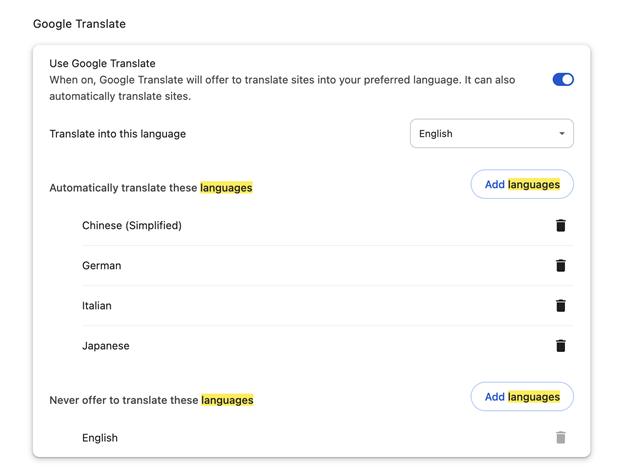
Fix #1. Enable Translation Feature
Verify that Chrome’s built-in translator is on, so it can seamlessly detect and translate web pages or PDF content. Let's see how.
Step 1. Select the three-dot menu in the upper-right corner.
Step 2. From Chrome’s Settings, open Advanced and then go to Languages.
Step 3. Turn the switch ON for “Offer to translate pages that aren’t in a language you read” in settings.
Fix #2. Check Language Settings
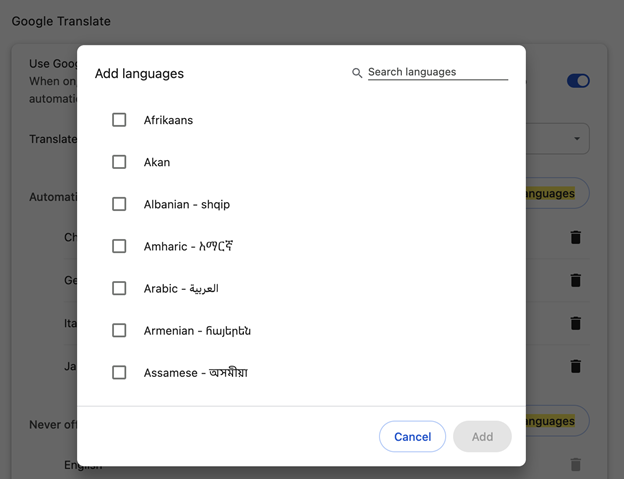
Verify that your preferred languages are correctly set in Chrome’s language settings so Google Translate recognizes the page or PDF content you want to translate. Here’s how.
Step 1. Access Settings, expand Advanced > Languages, and tap Add languages.
Step 2. Select the language you want to translate from and ensure it is added.
Fix #3. Disable Extensions and Plugins
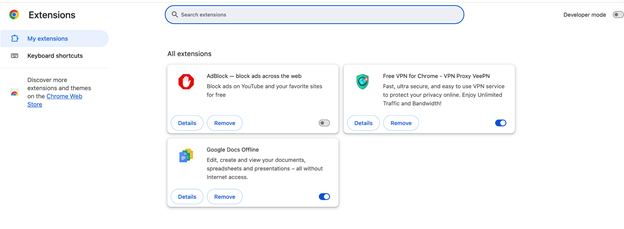
Since Chrome extensions or plugins can interfere with Google Translate. Temporarily disabling them helps identify conflicts and restores proper translation functionality. Find how.
Step 1. Open Chrome’s address bar, enter “chrome://extensions/.” And press Enter.
Step 2. Disable all extensions by toggling them off.
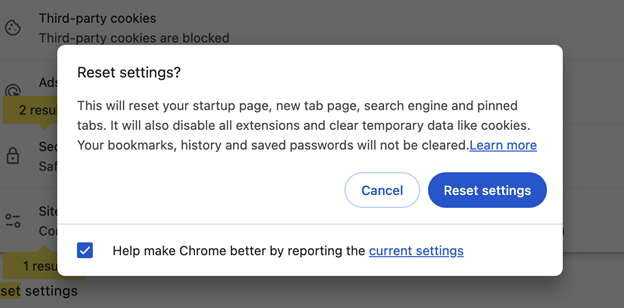
Fix #4. Reset Chrome Settings
Resetting Chrome restores default settings, removes misconfigurations, and resolves issues that may prevent Google Translate from working properly. Check how.
Step 1. Go to Settings > Advanced > Reset Settings.
Step 2. Click Reset settings to confirm.
Fix #5. Other Fixes
When none of the above solutions work, try any of the following solutions to resolve Google Translate not working on website.
- Check your internet connection.
- Clear browser cache and cookies.
- Check malware and adware.
- Update Google Chrome.
- Submit a bug report to Google.
How to Fix Google Translate Not Working Offline on Android/iPhone
Another common issue users face is Google Translate not working offline. To fix the problem, please ensure languages are fully downloaded in Settings > Offline translation while connected to the network.
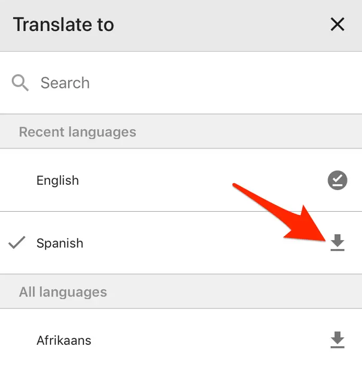
If you have problems downloading the language, follow the steps below.
Fix #1. Switch to Mobile Data or Use a Hotspot
When Google Translate not working offline, issues with your Wi-Fi network or DNS settings may be responsible. Switching to mobile data or a hotspot can quickly confirm whether the issue is network-related rather than app-related. Let's see how.
Step 1. Exit the Google Translate app completely.
Step 2. Turn the WiFi off.
Step 3. Enable mobile data to connect to your carrier’s network.
Step 4. Reopen Google Translate and try again.
Similarly, you can turn on your phone’s hotspot and use Google Translate to see whether the error is resolved.
Fix #2. Enable Network Settings
When Google Translate’s network permissions are disabled, it won’t use your WiFi or mobile data. Ensure access to both is allowed, including background data usage. Here’s how.
Step 1. Go to Settings > Apps > Translate.
Step 2. Click Data Usage.
Step 3. Make sure Mobile Data, Wi-Fi, and Background Data are enabled for smooth operation.
Step 4. Restart your phone or tablet to implement the settings.
Fix #3. Clear App Cache
Damaged or outdated cache data can stop Google Translate from connecting to its servers correctly. Clearing the cache removes corrupted data, allowing the app to generate fresh, updated files and restore normal functionality. Here’s how.
Step 1. Close the Google Translate app.
Step 2. Go to Settings > Apps > Translate.
Step 3. Click Storage > Clear cache.
Step 4. Restart your device. And try Google Translate again.
Fix #4. Troubleshooting Steps for iOS Users
Here’s what iOS users can try to resolve the error.
Step 1. Open Settings > Translate and ensure Cellular Data is permitted.
Step 2. If the issue remains, go to Settings > General > Transfer. Or go to Reset iPhone > Reset > Reset Network Settings. Performing this will clear saved Wi-Fi passwords.
Bonus Tip: How to Translate PDF Documents Easily
You’ve seen the common causes and fixes for Google Translate not working. However, if Google Translate still fails, switching to SwifDoo PDF lets you translate entire PDF documents efficiently. It is a powerful PDF tool capable of performing translation tasks that Google Translate cannot handle.
Google Translate fails with images or scanned content, so using a PDF tool guarantees more accurate translations. SwifDoo PDF is the best solution. Unlike Google Translate, it can translate scanned PDFs, images, and intricate layouts without altering formatting. OCR technology within the tool recognizes text from scanned PDFs, enabling accurate translation while keeping the original structure.
Key Features
- Efficient AI PDF translator for context-aware and intelligent translations
- Compatible with multiple languages and file formats
- Retains fonts, formatting, and overall layout as in the original
- Provides complete PDF management functions, including editing, conversion, and compression
Let’s see how to translate PDF text in SwifDoo PDF.
Step 1. Install and start SwifDoo PDF on your computer.
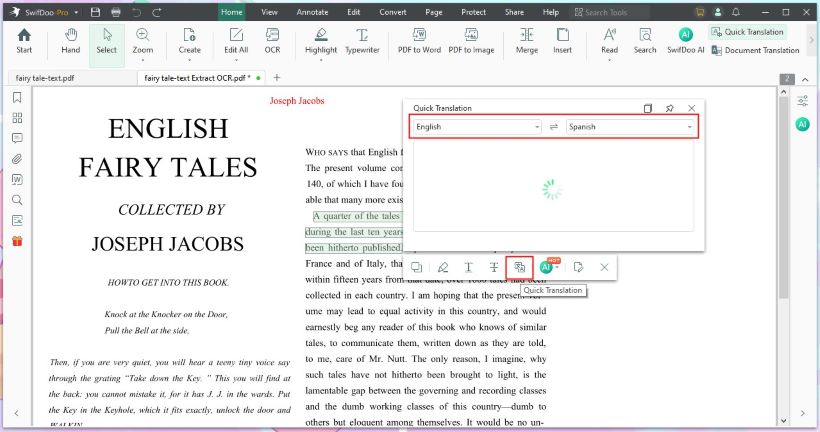
Step 2. Open the PDF document and select the text you wish to translate. Then choose Quick Translation. You can also go to Home/View > Quick Translation. To translate the entire PDF, choose Document Translation under the Home tab.
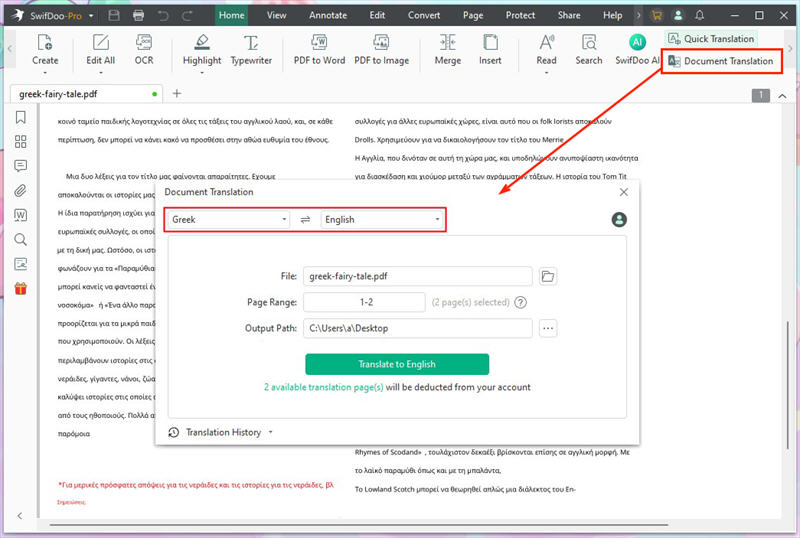
Step 3. Select the Original and Target language.
When you select text in a PDF, SwifDoo PDF will translate it immediately.
Ready to simplify your PDF translations? Don’t let language barriers slow you down. Use SwifDoo PDF to translate entire PDF files and benefit from its AI PDF translator for professional accuracy. Download SwifDoo PDF to begin and experience smooth, smart PDF translations quickly.
Conclusion
Running into Google Translate not working problems can be irritating. Identifying the causes and implementing the correct fixes can solve most problems. However, when dealing with scanned documents or complete PDFs, tools like SwifDoo PDF offer a reliable alternative, providing precise, AI-powered translations to maintain a smooth, efficient workflow. Don't forget to give it a try!



