


1. Convert Google Sheets to PDF with SwifDoo PDF
SwifDoo PDF helps you convert Excel to PDF without losing formatting every time. It ensures your tables, charts, fonts, and layouts stay exactly as intended. SwifDoo PDF provides quick, precise conversions for personal and professional needs.
Beyond conversion, SwifDoo PDF lets you edit a PDF file with ease—modify text, adjust images, add annotations, or apply security settings such as passwords and permissions. With a user-friendly design and powerful tools, SwifDoo PDF handles all your daily PDF tasks.
Learn how to convert Google Sheets to PDF using SwifDoo PDF.
Step 1. Select and open the Google Sheet you wish to convert to PDF.
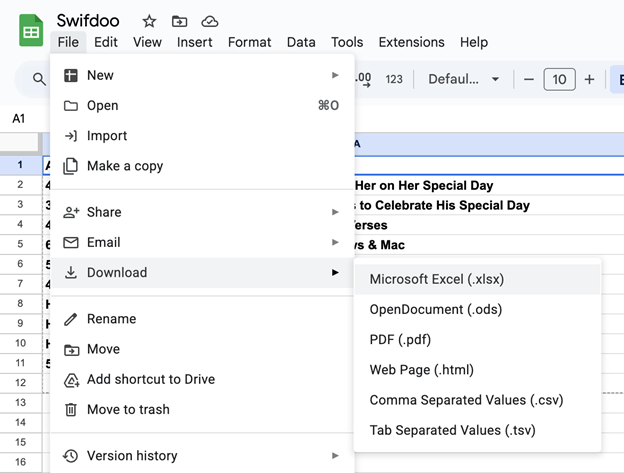
Once opened, navigate to the File section in the menu bar at the upper-left corner of the page.
Step 2. Select Download from the list of displayed options. And select the Microsoft Excel (.xlsx) option.
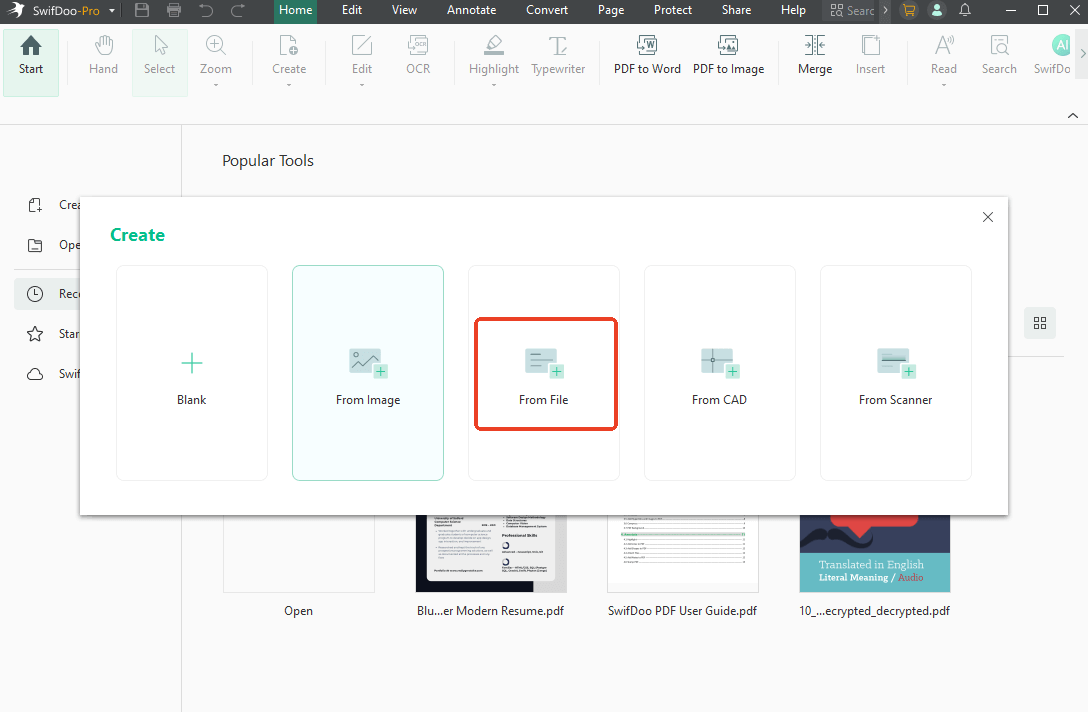
Step 3. Next, download and install SwifDoo PDF. Launch the program, then click New PDF > From File.
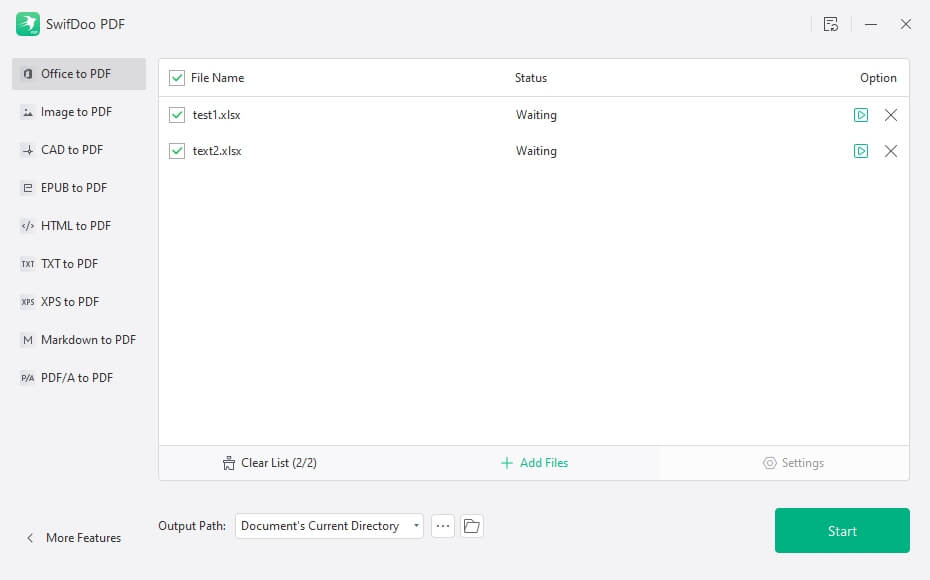
Step 4. Browse to the downloaded Excel file and open it in the tool. SwifDoo PDF automatically converts Excel files to PDF without losing formatting.
SwifDoo PDF also lets you convert multiple Excel files to PDF simultaneously.
Simply, launch the app and tap Batch Process to open the toolbox panel. Select Convert to PDF to open the converter dialog box. Don’t forget to pick Office to PDF from the left-hand pane. Upload your Excel files to the converter and choose where to save them. Once done, press Start to begin.
2. How to Download Google Sheets as PDF
Using Google Sheets’ Download feature, you can efficiently save Google Sheets as PDF. This method lets you export your spreadsheet directly from Google Sheets while preserving the basic layout, data structure, and page settings. This method works well for quick sharing, printing, or storing without further adjustments.
Learn how to download Google Sheets as PDF in a few clicks.
Step 1. Open Google Drive on your device. Then, select the Google Sheet you wish to convert to PDF.
Once selected, right-click and choose Open With. Then, select Google Sheets.
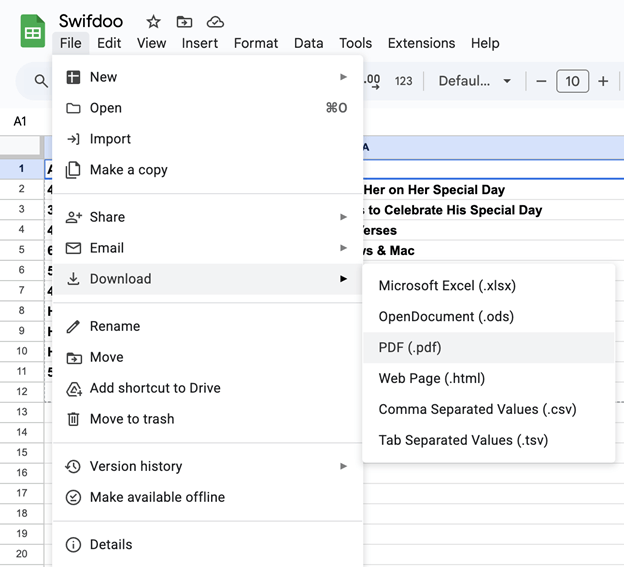
Step 2. Once opened, browse to the File section at the upper-left corner of the page. From the displayed options, hover over the Download option. And select the PDF (.pdf) option.
3. How to Export Google Sheets to PDF via Print
The Print feature allows flexible PDF exports from Google Sheets, perfect for managing several sheets. This method allows you to adjust page layout, scaling, and orientation before saving the output as a PDF. It’s effective when you wish to combine PDFs into one, merging multiple sheets or documents into a single, easily shareable PDF for simpler handling.
Let’s learn how to export Google Sheets to PDF using the Print option.
Step 1. In Google Drive, find the Google Sheet you plan to save as a PDF. Once opened, right-click and select Open With, then choose Google Sheets.
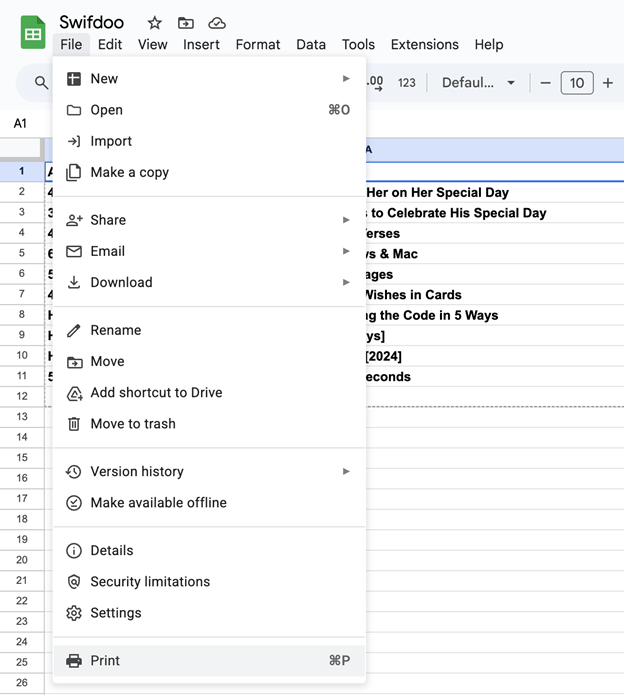
Step 2. While viewing the Google Sheet, click on File and select Print. Adjust the necessary print settings on the page shown.
You can choose the desired page orientation, paper size, margins, headers and footers, and formatting. Once you are done, hit Next.
Step 3. On the next screen, tap the Destination drop-down icon and select Save as PDF. Tailor the settings and other options to meet your specific needs. Click Print to proceed.
Final Wrap Up
Converting spreadsheets to shareable files becomes simple when you pick the right approach. This guide has shown how to convert Google Sheets to PDF using simple, practical methods, whether you need quick exports, better formatting control, or advanced PDF editing. By selecting the method that matches your workflow, you can create polished, reliable PDFs with ease. Hope this guide is helpful.



