


Why Print a ChatGPT Conversation
A printed ChatGPT conversation helps preserve important information for long-term reference. For professional, academic, or personal purposes, keeping a hard copy or PDF simplifies referencing and organization.
Users may choose to print their ChatGPT conversations for the following key reasons.
- Academic research and assignments
- Record keeping and documentation
- Sharing insights with colleagues or classmates
- Offline access for study or review
- Proof of generated content for work or projects
Method 1. Print ChatGPT Conversation Directly from Browser
The easiest and quickest way to print a ChatGPT conversation is via your browser. This method enables you to save your conversation in its original format quickly, without any additional software. It works best for those who need an instant, hassle-free print of their chat.
Let us learn how to print ChatGPT conversations directly from the browser.
Step 1. Open ChatGPT. And log in with your credentials.
Go to Search Chats and select any conversation history you need to print and save.
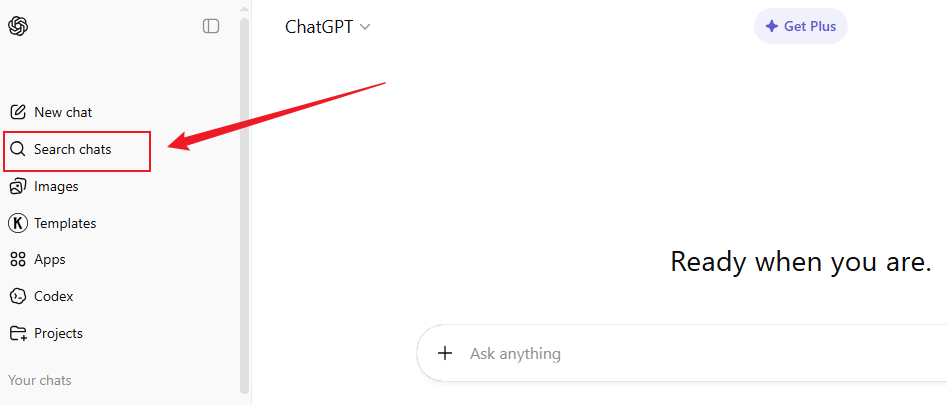
Step 2. Once opened, scroll up to ensure the entire chat history loads up. You can also press Ctrl + A on Windows or Cmd + A on Mac to select the entire conversation.
Step 3. Once selected, press Ctrl + P on Windows or Cmd + P on Mac.
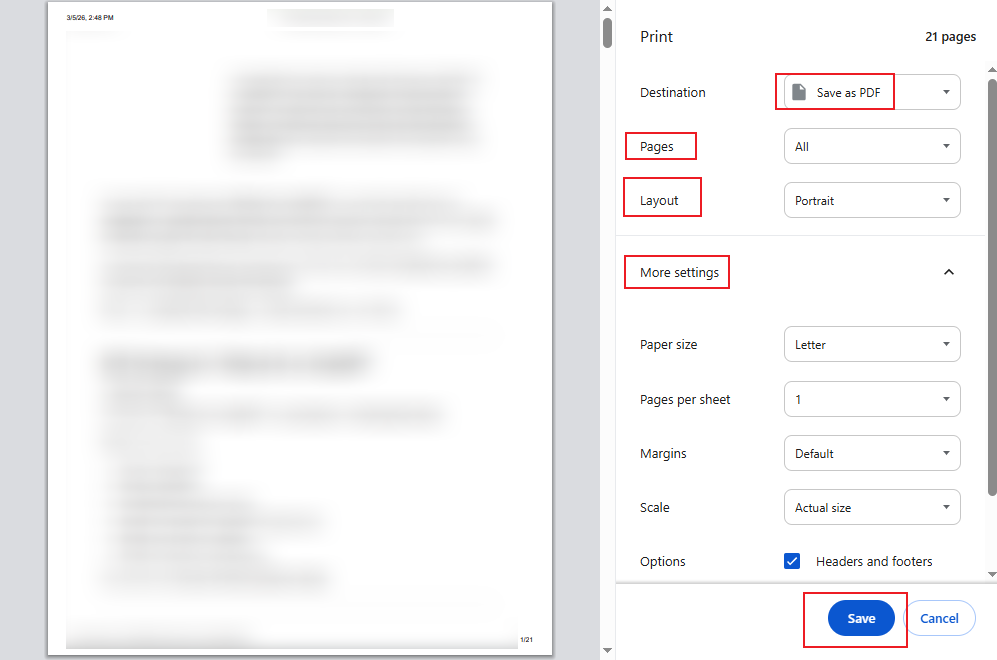
In the Print window that opens, configure the settings.
- Destination. Choose your printer or select "Save as PDF".
- Pages. Select All.
- Layout. Choose Portrait or Landscape.
Step 4. Then tap More Settings. And select Paper Size, and set Pages per Sheet.
Choose Margins and select "None" or "Minimum" to prevent text from being cut off.
Similarly, choose the Scale and Options.
Check Headers and Footers if needed. To maintain the ChatGPT theme colors, don’t forget to select Background Graphics.
Step 5. Once satisfied with all the settings, tap Save. Set the file name and tap Save again.
Method 2. How to Print ChatGPT Conversation as PDF
Using PDF format to save your chat is another way to maintain important discussions. This method allows you to create a clean, shareable, and easily storable copy of your conversation. It's perfect for archiving, emailing, or maintaining digital copies without the need for printing.
Here, we'll discuss two straightforward ways to save and print a ChatGPT conversation as a PDF. First, use your browser’s print menu and select the “Save as PDF” option. For improved formatting, copy the chat into an editor and save or print it as a PDF.
Option 1. Use “Save as PDF” in the Print Menu
Using the “Save as PDF” option directly in the app's print menu, regardless of the browser, is also one of the quickest ways to preserve a ChatGPT conversation. This approach lets you save your chat as a clean, well-formatted PDF without needing extra software. It makes it easy to save, share, or print your conversation whenever you need it.
Let us learn how to use the Save as PDF option in the Print Menu from ChatGPT in just a few clicks.
Step 1. Go to ChatGPT.com. And log in with your credentials.
Step 2. Go to Search Chats in the left sidebar and select the chat history you wish to print.
Step 3. Once opened, right-click anywhere on the main interface. And tap Print…
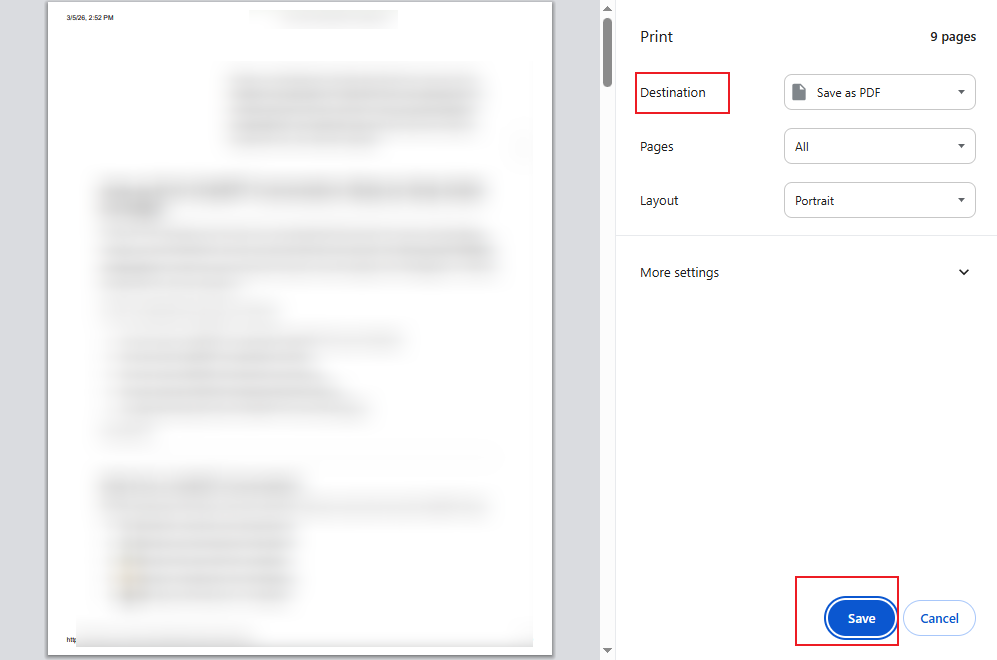
Step 4. In the Print window that opens, choose Save as PDF as the Destination.
Also, select the Pages and Layout.
Step 5. When your settings are ready, select Save to print and save the ChatGPT conversation.
Option 2. Copy and Paste into an Editor
Another effective method is to copy your entire ChatGPT conversation into a document editor. For instance, you can use Microsoft Word, Google Docs, or SwifDoo PDF. You can format the text— changing fonts, spacing, margins, and layout— after pasting it, before printing. This approach gives you full control over formatting, making the final printout look organized and professional.
As a professional-grade software, SwifDoo PDF delivers a versatile, reliable, and highly flexible printing experience. You can efficiently edit, arrange, and format your document using this tool before printing. You can even print PDF as booklet, making it ideal for reports, study materials, or presentations that require a polished layout.
Let us find out how to print the ChatGPT conversation using the copy and paste method without hassle.
Step 1. Open ChatGPT and select the ChatGPT conversation you need to print.
- Log in with your email ID and password.
- Go to Search Chats in the left sidebar and select the conversation you need to print.
- Select, open, and copy the entire conversation using Ctrl + A on Windows or Cmd + A on Mac.
Step 2. Now, copy the entire conversation into SwifDoo PDF.
- Open SwifDoo PDF.
- Click Create and select the Blank
- Paste the copied ChatGPT conversation into SwifDoo PDF.
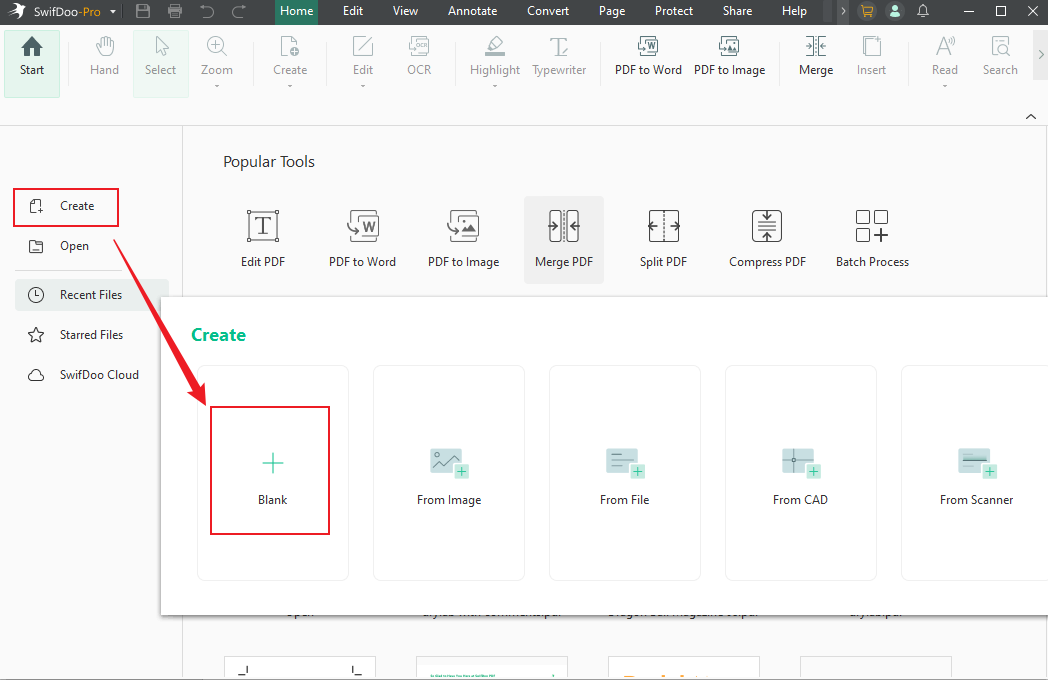
Step 3. Print or save the ChatGPT conversation as a PDF.
- Click the Print icon in the top-left corner to enable the Print dialog.
- Set Microsoft Print to PDF as the Printer and adjust other settings.
- Click the Print
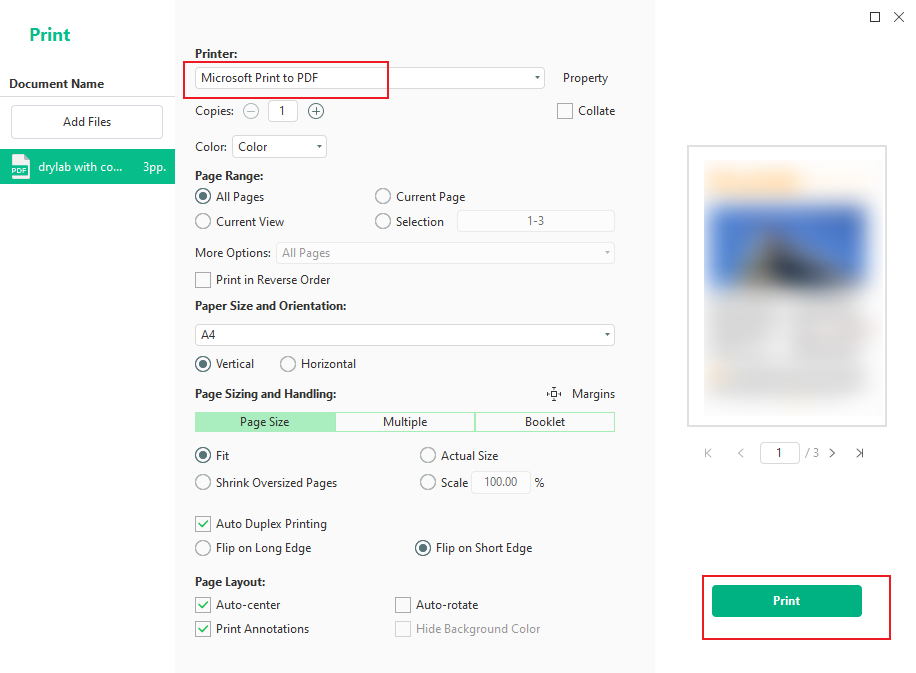
If the Microsoft Print to PDF is not working, directly click the Save icon to save the conversation as a PDF file.
Method 3. Export ChatGPT Data and Print
Another method is to download your ChatGPT data via account settings and then print the chat. This approach is ideal if you want a complete record of your old chats in an organized file format. After exporting, you can open the file and print the specific conversation you need.
Check out how to export ChatGPT data and print it directly from your account settings.
Step 1. Open ChatGPT.com. And click your profile icon in the bottom-left corner of the desktop site or the menu icon in the app.
Note. Ensure that your active account credentials are being used to sign in.
Step 2. Next, access Settings and select the Data Controls option from the menu.
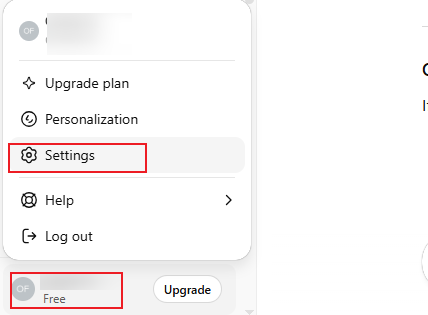
Step 3. Scroll down to Export Data and select Export. Afterwards, click Confirm Export to download your data as a JSON or HTML file.
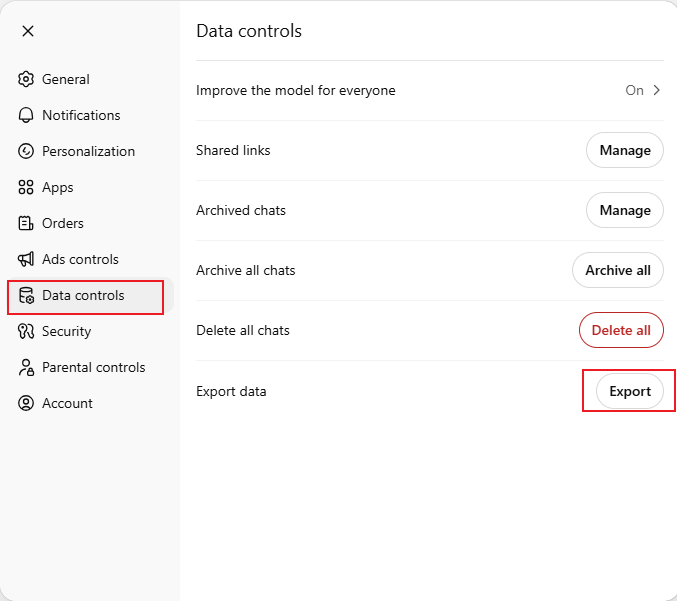
Within 24 hours, you will receive an email from OpenAI with a link to download a .zip file.
Step 4. After unzipping, open chat.html in your browser to see all your exported conversations.
Alternatively, analyze your data directly using the exported JSON files.
How to Print ChatGPT Conversation on Mobile
Using your mobile to print a ChatGPT conversation is both simple and convenient. With your phone’s share or print feature, you can save the chat as a PDF or send it to a printer. This approach is perfect for users who need fast access to their chats without using a desktop.
Let us see how to print ChatGPT conversations on your iPhone and Android devices.
Step 1. Head to the ChatGPT app on your iOS or Android device and select the conversation you want to print.
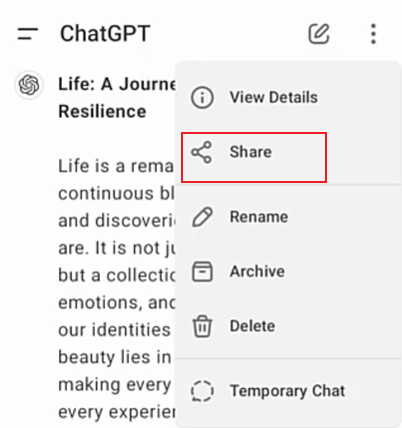
Step 2. Click the three-dot icon in the top right corner and select the Share icon.
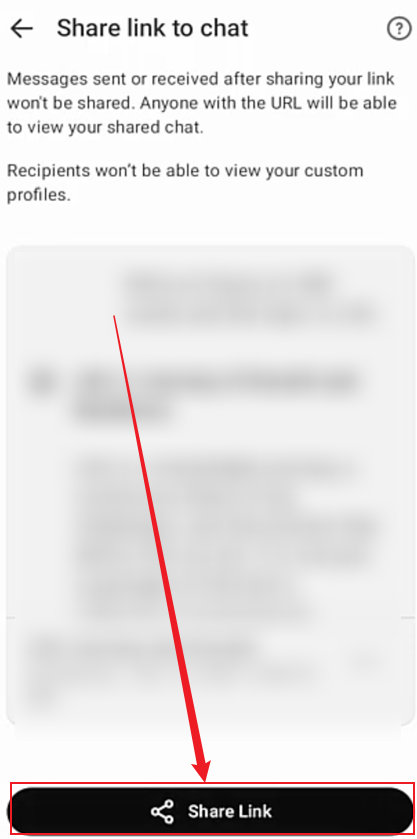
Tap Share Link and copy the generated link.
Step 3. Now go to any browser, such as Chrome or Safari. And paste the copied link.
As soon as the link loads and chat opens in the browser, click the three-dot icon in the top-right corner and select the Share icon.
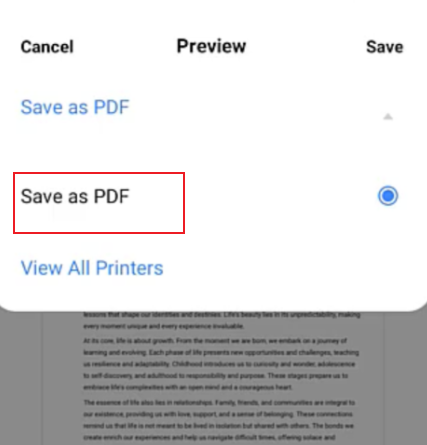
Step 4. Click the Print icon in the context menu that opens at the bottom. Tap Save as PDF and select Save to keep it locally on your mobile phone.
Note. If needed, you can rename the saved file.
Final Thoughts
Printing your ChatGPT chats becomes simple when you understand how to print ChatGPT conversations the right way. Whether you choose browser printing, PDF saving, data export, or mobile, each approach lets you handle chats flexibly. For better formatting and advanced print features, tools like SwifDoo PDF can enhance the final output. Choose the method that works best for you and keep your important conversations well organized.



