


Why Is ChatGPT Not Loading?
If ChatGPT won't open or gets stuck on the loading screen, several technical or connection-related issues may be to blame. Identifying these common causes can assist you in quickly understanding why ChatGPT isn’t loading and taking the correct action.
Here’s a list of some of the common causes.
- Server overload or temporary downtime.
- Slow (weak) or unstable internet connection.
- Corrupted browser cache or cookies.
- Outdated browser or app version.
- Conflicting browser extensions are interfering with the page.
- VPN or firewall restrictions are blocking access.
- Brief glitches or software bugs within the ChatGPT platform.
Quick Fix Checklist – Try This First
Prior to using advanced troubleshooting methods, it helps to start with a few easy, quick checks. These common steps can usually resolve the issue within minutes without requiring technical knowledge. Go over the checklist below to rapidly detect and address the issue before exploring detailed fixes.
1. Refresh the Page
Occasionally, the page doesn’t load correctly because of a temporary glitch or incomplete request. Refreshing the page prompts the browser to reload all content and often fixes small loading problems. Simply, press Ctrl + F5 (Windows) or Cmd + Shift + R (Mac) to force-refresh the page.
2. Restart Your Browser or App
Temporary software glitches may cause pages to stop loading. Restarting your browser or mobile app clears temporary processes and helps the system reload everything correctly. Simply shut down the browser or app, wait a few moments, and reopen it.
3. Check Your Internet Connection
Websites may fail to load properly if your internet connection is slow or unstable. Ensuring your network is stable may immediately resolve the issue and restore normal access. Simply restart your Wi-Fi router, reconnect to your network, or switch to mobile data to check the connection.
4. Log Out and Log Back In
Session errors can sometimes prevent services from loading properly. Signing out and then back in refreshes your account session and can resolve temporary access problems. You can select your profile icon, click Log out, and re-enter your account credentials to sign back in.
5. Disable VPN Temporarily
At times, VPNs can block website access because of server routing or security settings. Turning off your VPN may reveal whether it’s causing the page to load slowly. Simply disable your VPN through its app or browser extension, then reload the page to fix the issue.
When ChatGPT loads after trying these methods, the issue was probably local and brief.
Is ChatGPT Down Right Now – Check It
Sometimes the issue isn’t on your device or network. Developed and maintained by OpenAI, ChatGPT may experience brief downtime due to maintenance, unexpected server load, or infrastructure problems. During these times, numerous users might face loading errors or connection problems until the service returns.
How to Check If Servers Are Down
- Open your web browser and go to the official OpenAI status page.
- Verify whether the ChatGPT service is operational.
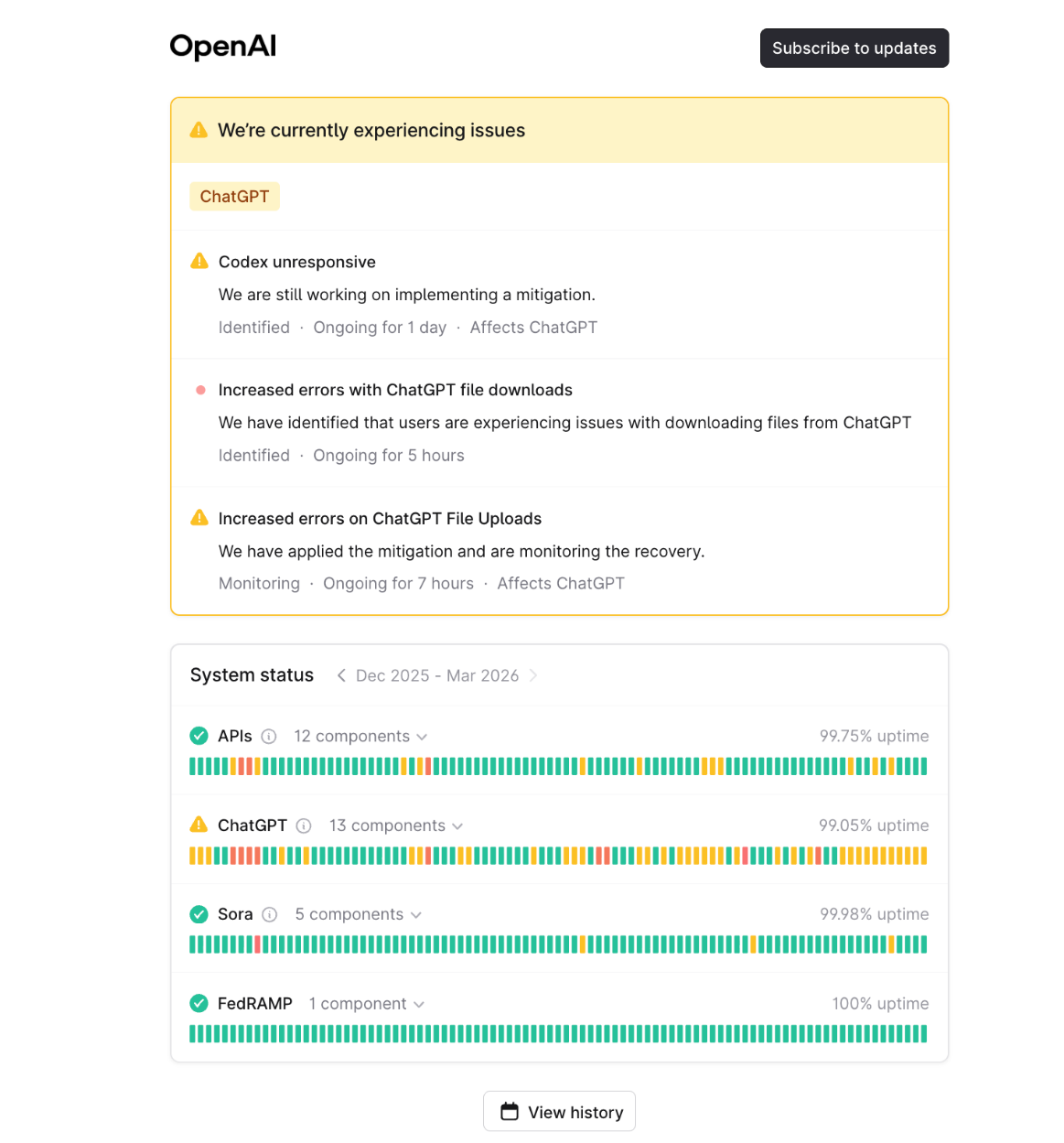
- A status of Operational means ChatGPT is operating normally.
When servers are down, you can’t resolve it yourself. Simply wait for normal operation to resume.
How to Fix ChatGPT Not Loading on Chrome
When ChatGPT is stuck loading on Chrome, conflicting extensions, cache, or browser settings could be responsible. Trying a few browser-specific troubleshooting steps can help resolve the problem and quickly restore normal access.
Clear Cache and Cookies
Clearing the cache and cookies removes old data that might block ChatGPT. This step commonly resolves issues related to loading pages and logging in. Let us learn how to erase cache and cookies in Google Chrome.
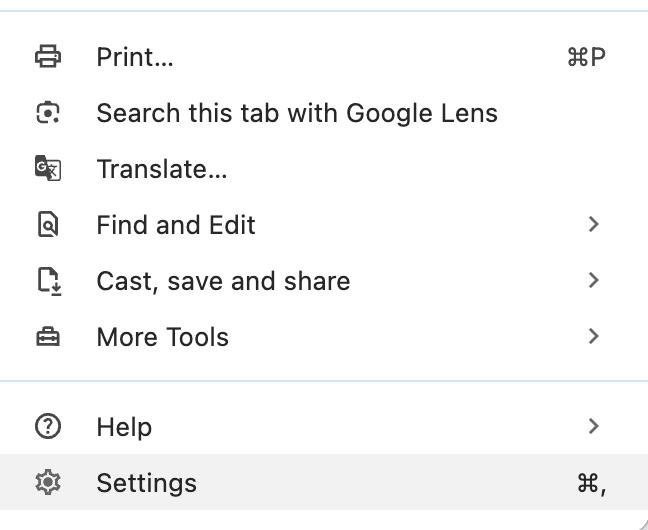
- Open Chrome and hit the three dots in the top-right corner. And select "Settings" to start clearing data.
- In Settings, go to "Privacy and security" and click "Delete browsing data" to open the cleanup options.
- Choose "All time" in the More section to remove all cached files and cookies that could cause problems with ChatGPT.
- Check mark "Cookies and other site data" and "Cached images and files." Then click "Delete data" to complete the process.
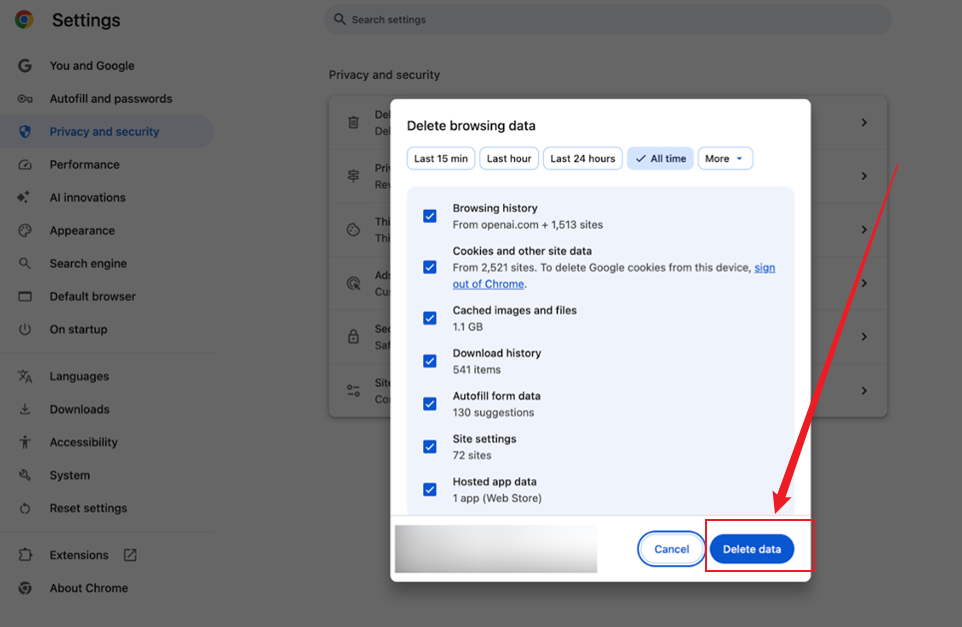
After clearing, restart Chrome and try using ChatGPT again to see if the issue is resolved.
Disable Problematic Extensions
Some browser extensions can interfere with JavaScript or page rendering, causing ChatGPT to be stuck loading. Common culprits include ad blockers, script blockers, privacy filters, and VPN-related extensions.
Learn how to disable the problematic extensions temporarily and reload ChatGPT.
- Open the Chrome browser. And then hit the three vertical dots in the screen’s top right corner.
- Hover the cursor over Extensions. And select "Manage Extensions" to view all installed extensions.
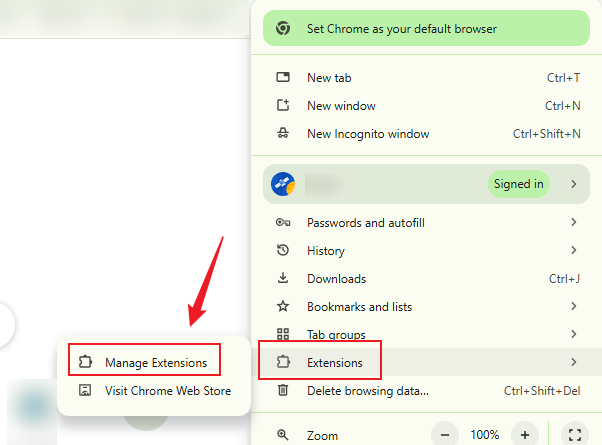
- Use the toggle switches to disable extensions one by one, especially ad blockers or script blockers.
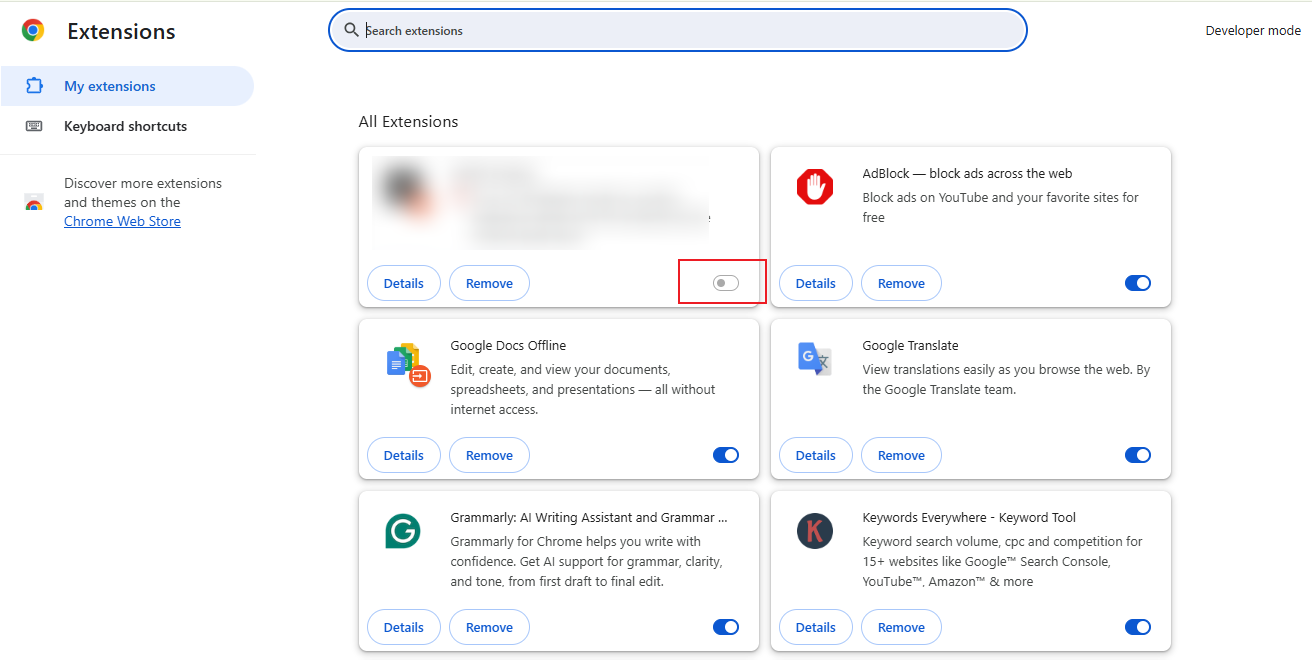
- Once you disable each extension, reload ChatGPT to see whether it works properly without interference.
Note. If an extension causes problems, tap "Remove" to remove it and avoid any future conflicts.
Disabling extensions allows you to troubleshoot issues without deleting your saved settings.
Update or Reset Chrome
Running the latest version of Chrome ensures compatibility and security. Updates often fix bugs that affect websites like ChatGPT. In addition, resetting Chrome returns all settings to their original state. This removes unwanted changes that may block ChatGPT. Learn how to update or reset Chrome.
Update Chrome
- Open your Chrome browser. And then press the three dots in the top-right corner.
- Navigate to "Help." And choose "About Google Chrome" to see if an update is available.
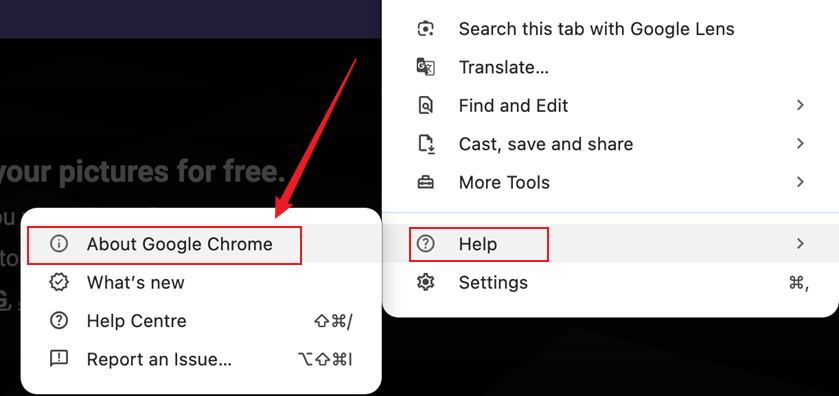
Note. The Chrome browser will check for updates and download them automatically when they are available.
- After the update downloads, click "Relaunch" to apply changes and refresh Chrome’s system files.
- Confirm you are running the newest version by revisiting the "About Google Chrome" page after a restart.
A regularly updated Chrome browser helps reduce issues like ChatGPT loading problems.
Reset Chrome
- Open Chrome, tap the three dots, and select Settings to access Chrome’s configuration options.
- Scroll down to Reset settings in the new window. And go to the "Restore settings to their original defaults” option.
- Tap the arrow and select Reset settings to confirm and start the reset process.
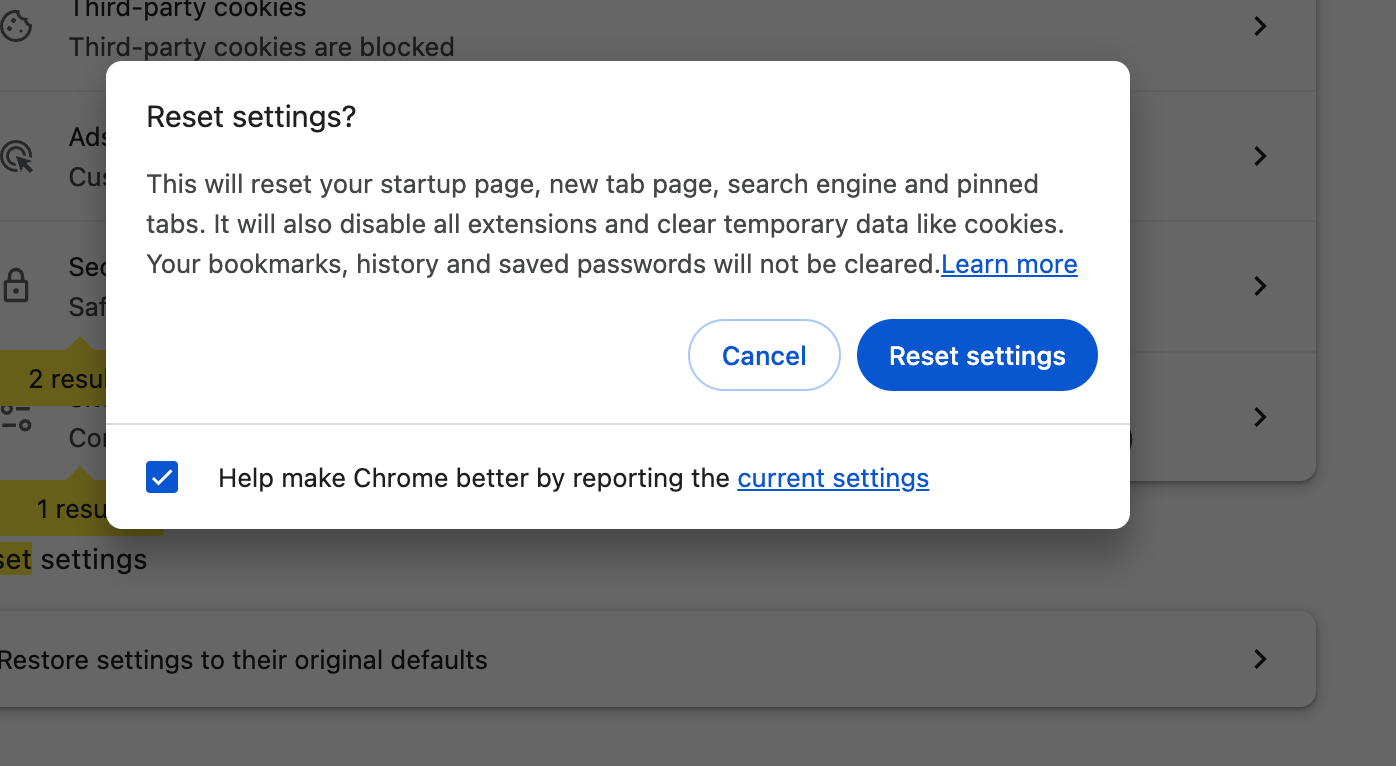
- After resetting, close and reopen Chrome, then try using ChatGPT again to check if the issue is fixed.
Resetting Chrome is a last resort, but it often solves persistent problems affecting ChatGPT.
Try Incognito Mode
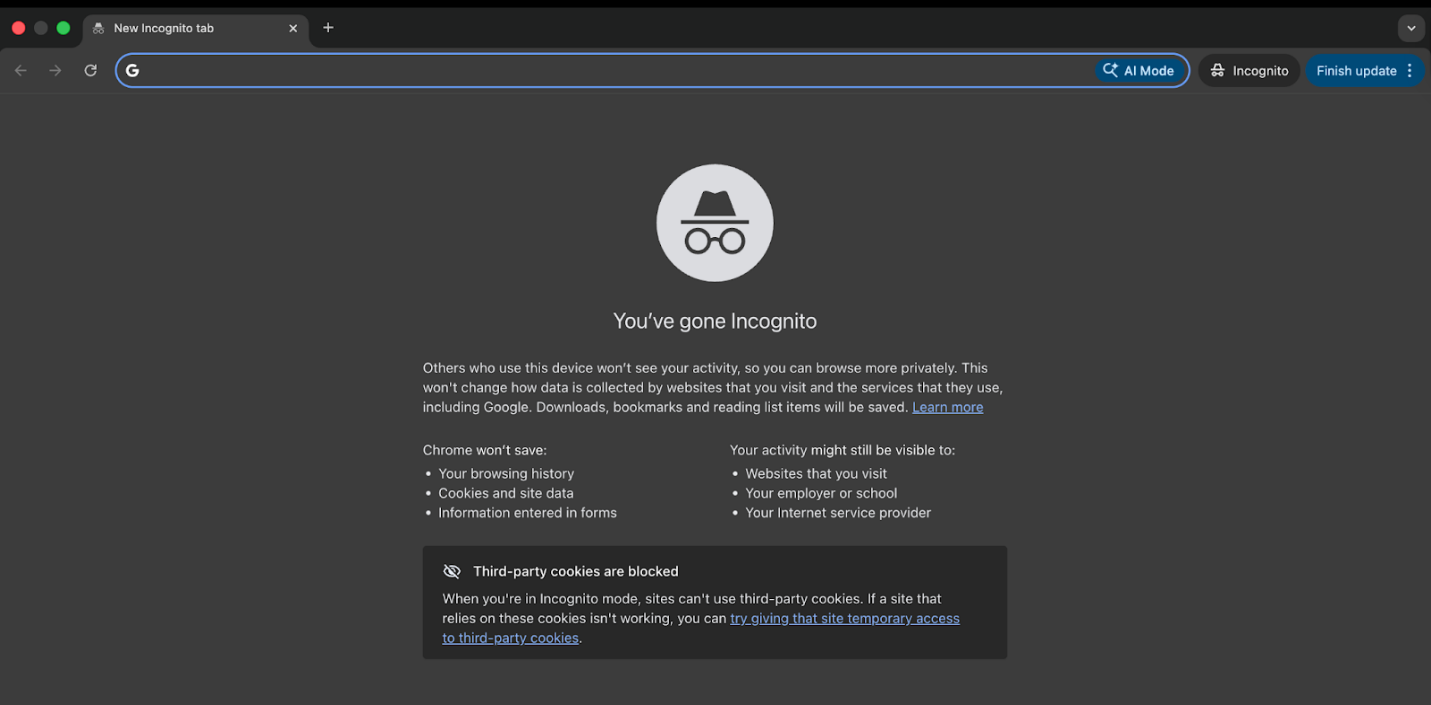
Opening Chrome in Incognito Mode disables most extensions and prevents cached data from interfering with page loading. This can help determine if extensions or stored data are causing ChatGPT to be stuck loading. Simply press Ctrl + Shift + N (Windows) or Cmd + Shift + N (Mac) to launch an Incognito window and access ChatGPT. Navigate to the ChatGPT website and try logging in or using the chat features in this mode.
How to Fix ChatGPT Not Loading on iPhone & Android
If the ChatGPT app is not responding properly, it can prevent you from accessing its features smoothly. When ChatGPT keeps loading or won’t open, following a few simple troubleshooting steps on your iPhone or Android can help fix the issue quickly.
Update the ChatGPT App
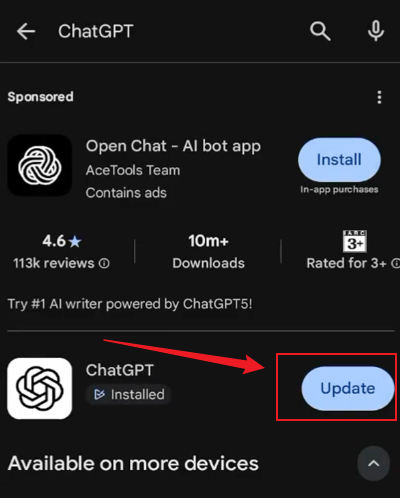
Keeping the app updated ensures you have the newest bug fixes and performance improvements, which can resolve loading issues. Here’s how.
- Open the Apple App Store (iOS) or Google Play Store (Android).
- Type ChatGPT in the search bar.
- Tap Update if an update button is visible, tap it to install the latest version.
Reinstall the App
Uninstalling and reinstalling the app can clear corrupted files or settings that may prevent it from opening properly. Check out how.
- Long-press the ChatGPT icon.
- On iPhone, select Remove App > Delete app.
- On Android, select Uninstall and confirm.
- Redownload the app from the App Store or Play Store.
Reset Network Settings (iPhone)
Resetting network settings can fix connectivity issues that cause the ChatGPT app to get stuck while loading. Find out how.
- Locate and access the Settings app on your iPhone.
- Tap General, tap Transfer or Reset iPhone, then tap Reset.
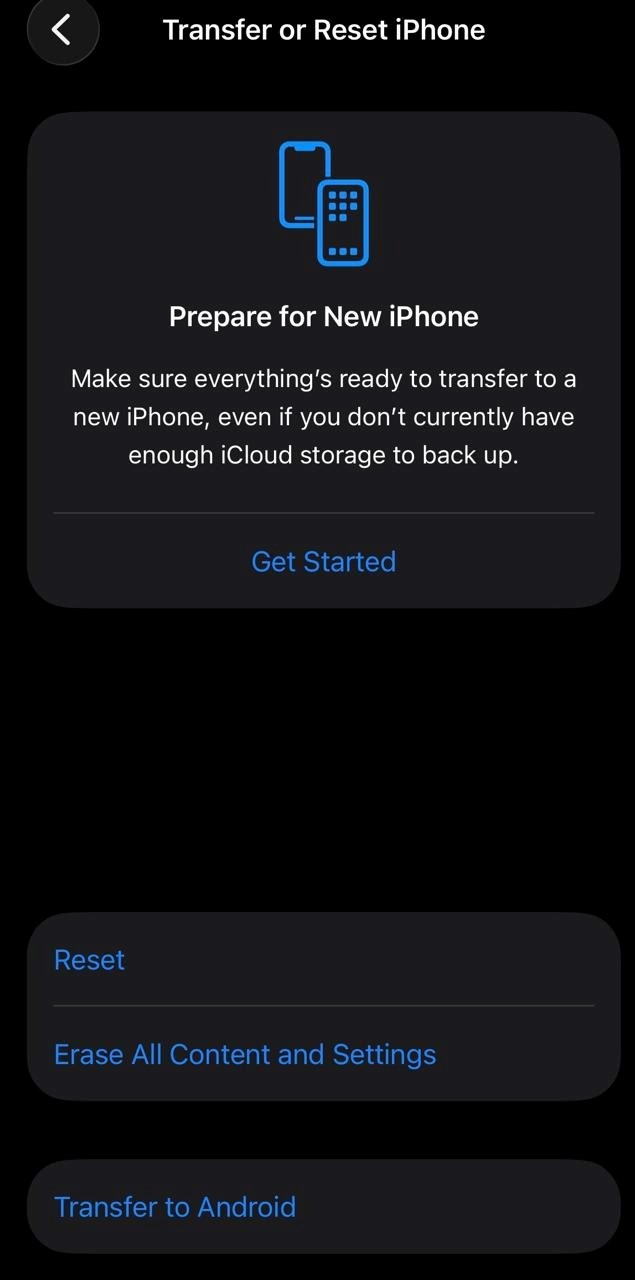
- Choose Reset Network Settings to remove all the network settings.
Note. This action clears saved Wi-Fi networks/passwords, cellular settings, and VPN/APN configurations. Your phone will restart, which will require you to re-enter network passwords.
Clear App Cache (Android)
Clearing the app cache removes temporary data that may be causing glitches, helping the app load correctly. Let’s see how.
- Open the Settings app on your Android-powered device
- Navigate to “Apps” or “Applications” (depending on your Android version).
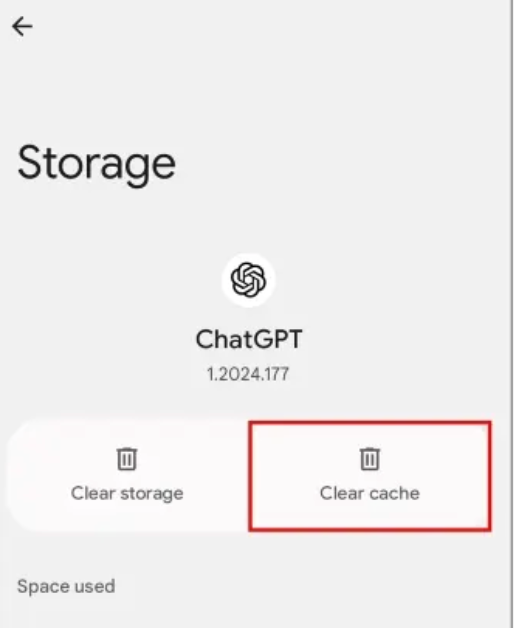
- Select App management and tap the ChatGPT app to clear the cache.
- Once opened, tap “Storage usage.”
- Click “Clear cache.”
ChatGPT Stuck on Loading Screen
When ChatGPT is stuck on the loading screen, it often indicates a temporary glitch, a connection problem, or a browser/app conflict. Identifying the accurate cause is key to getting the service to load properly again.
Flush DNS (Windows)
Clearing your DNS cache can resolve network-related issues that prevent ChatGPT from loading by forcing your system to fetch fresh server information. Here’s how.
- Press the Windows + R keys. And open the Run dialog.
- Type cmd. And press Enter to open Command Prompt.
- Type: ipconfig /flushdns.
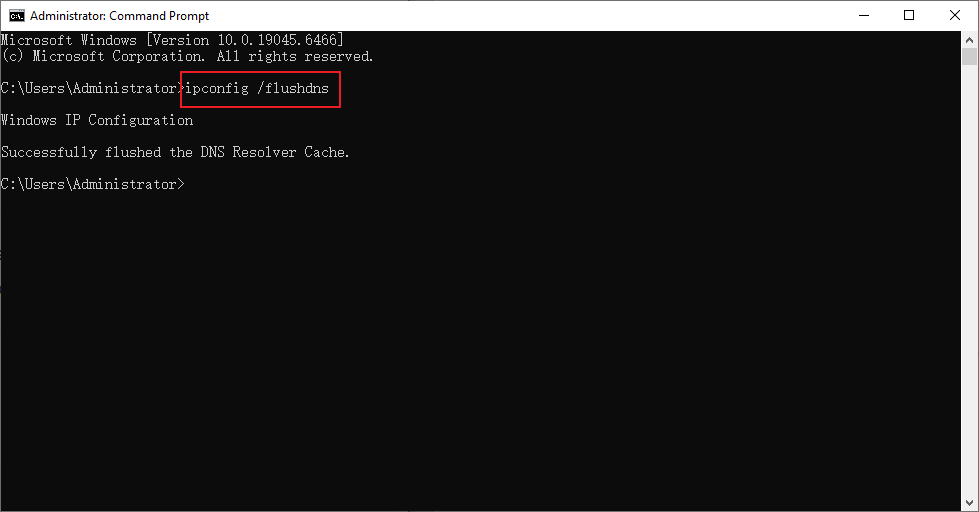
- Press Enter. You’ll see a confirmation message: “Successfully flushed the DNS Resolver Cache.”
- Restart your browser and try loading ChatGPT again.
This clears the DNS cache that may block access.
Change DNS to Google DNS
Switching to Google DNS can improve connectivity and resolve loading issues if ChatGPT is stuck due to DNS problems. Find out how.
- Open Control Panel > Network and Internet > Network and Sharing Center.
- Click your active connection. And press Properties.
- Choose Internet Protocol Version 4 (TCP/IPv4) > Properties.
- Press Use the following DNS server addresses and enter the details below.
- Preferred DNS: 8.8.8.8
- Alternate DNS: 8.8.4.4
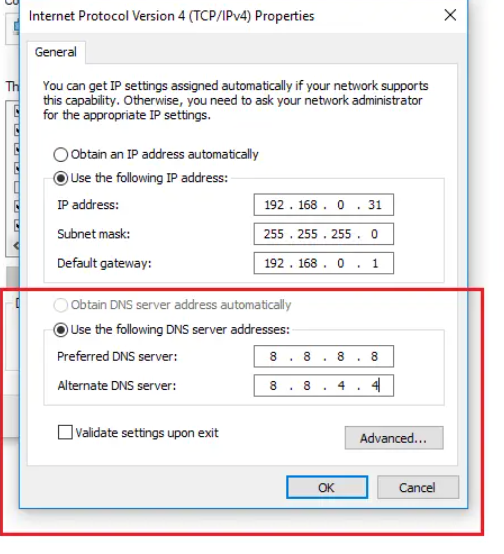
- Click OK and restart your browser.
Restart Router or Modem
Power cycling your router or modem can fix network glitches and improve connectivity, often resolving loading issues with ChatGPT. Simply turn it off, wait 30 seconds, and turn it back on.
ChatGPT Blank Screen Issue
A blank screen in ChatGPT usually occurs when the page fails to render content due to browser, app, or network issues. Identifying the cause helps apply the right fix and restore normal functionality quickly.
Enable JavaScript
JavaScript is essential for websites like ChatGPT to function properly. If it’s disabled, the page may show a blank screen. Here’s how you can quickly enable JavaScript in Chrome (desktop).
- Open Chrome. And hit the three-dot menu in the top-right corner.
- Select Settings and navigate to Privacy and Security in the left menu.
- Click Site Settings.
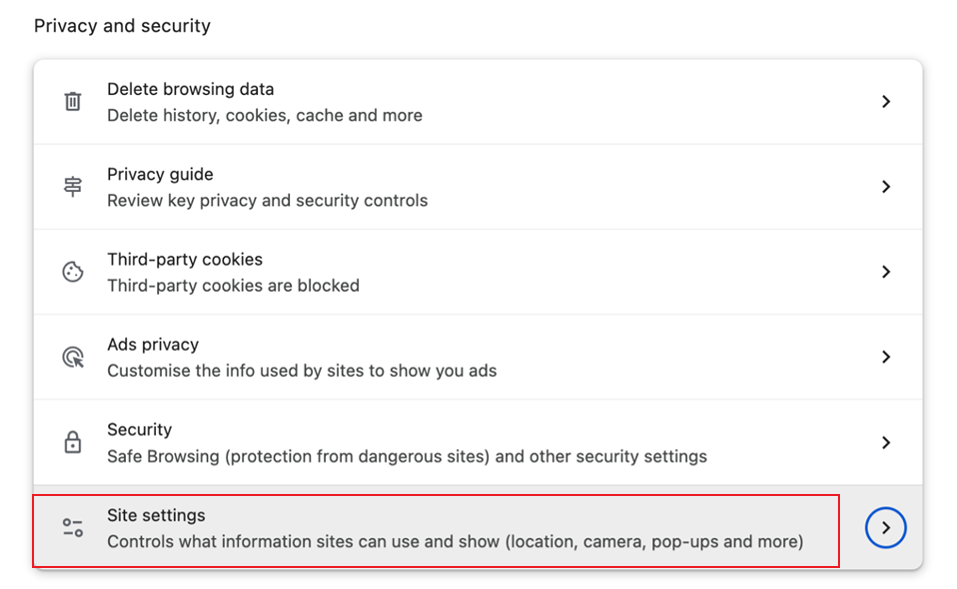
- Scroll down to JavaScript under the Content section.
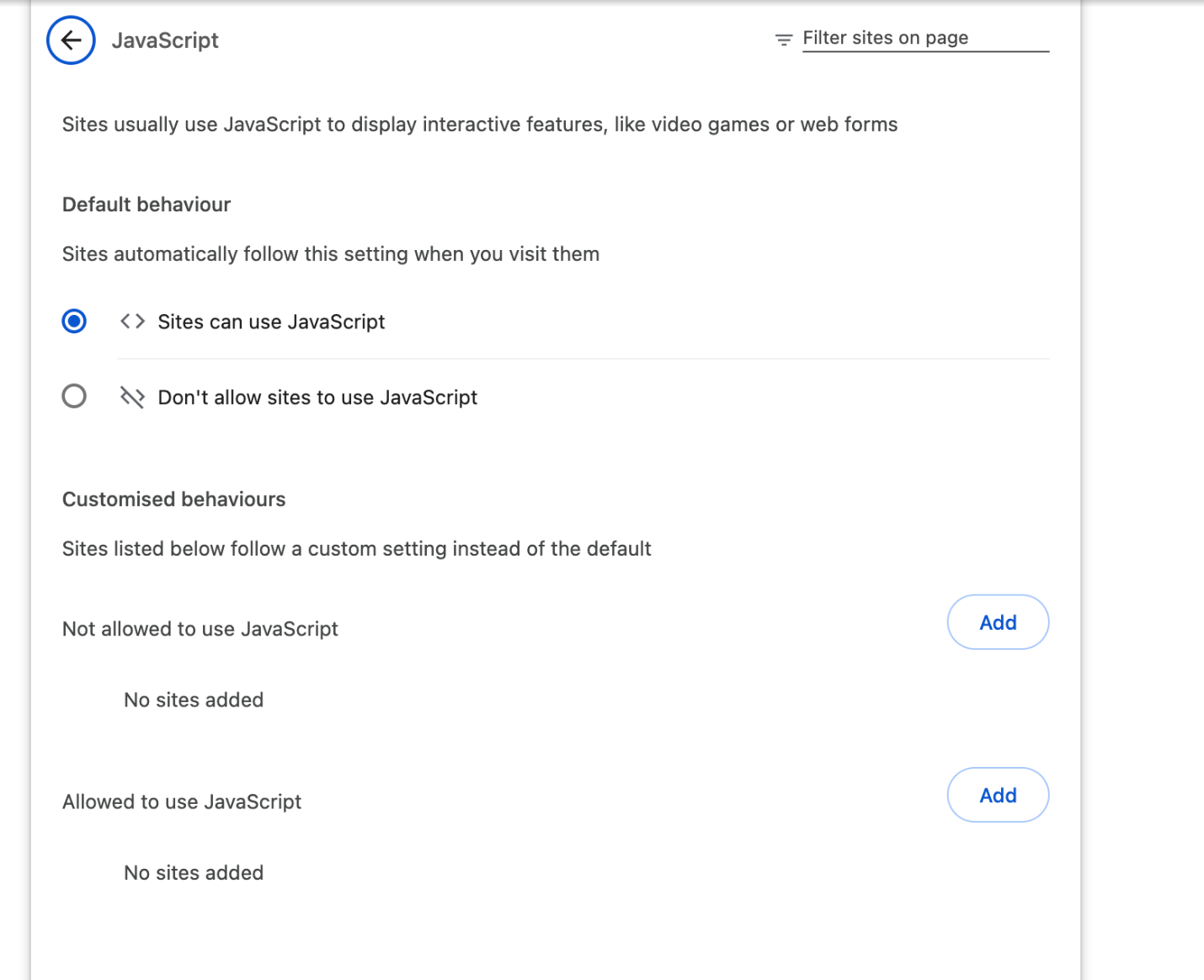
- Make sure the “Sites can use JavaScript” (or “Allow all sites to run JavaScript”) option is enabled.
- Refresh and reload the ChatGPT page to see if it loads correctly.
Disable Firewall or Antivirus Temporarily
Sometimes, firewalls or antivirus programs block certain website scripts, causing ChatGPT to fail to load or to display a blank screen. Temporarily turning them off can help you identify if they are the cause. Learn how.
- Press Windows + S, type Windows Security, and open it.
- Go to Firewall & network protection.
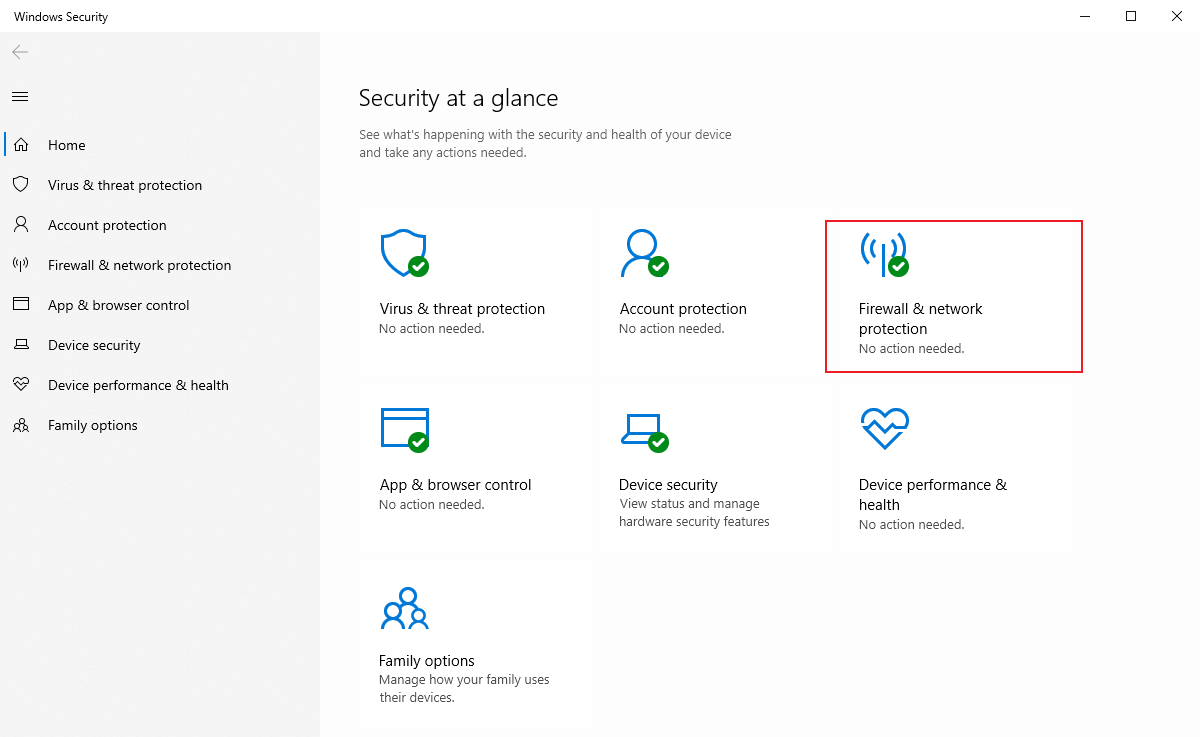
- Select your active network and toggle Microsoft Defender Firewall off temporarily.
- Refresh ChatGPT to check if it loads.
Note. Remember to turn the firewall or antivirus back on after testing.
Try a Different Browser
At times, the ChatGPT loading issues may also occur due to browser-related errors. Turning to another browser may help bypass these problems. You may consider browsers such as Mozilla Firefox, Microsoft Edge, Brave, or Safari on desktop and mobile devices. This step helps quickly verify whether the issue is caused by the browser.
Final Wrap Up
Experiencing ChatGPT not loading can be frustrating, but most issues can be quickly resolved with some simple troubleshooting steps. Whether it’s a browser glitch, app error, or network problem, following the methods above often restores normal access. If you find ChatGPT unable to load conversation, checking updates, clearing the cache, or adjusting settings usually helps. By understanding the common causes and fixes, you can get back to using ChatGPT smoothly on any device.



