


Why Won’t My PDF Print?
PDF printing issues can be caused by many reasons. Why can’t I print a PDF file? Below are the most common causes.
- Damaged or corrupted PDF files
- Outdated PDF viewer software
- Print connection problems
- Incorrect printer settings
- Complex or large PDF files
- Outdated or missing printer drivers
- Layer or font compatibility issues
- The PDF is protected or has restrictions
- System spooler errors
Understanding the causes of “PDF won’t print” can make troubleshooting much easier. In the following content, let’s discuss the causes and learn workable solutions.
#1. The PDF File Is Corrupted
File corruption or damage is one of the most common reasons a PDF won’t print. If the PDF document was not downloaded correctly or completely, transferred improperly, or partially damaged, your PDF reader may fail to process it for printing.
How to Fix It?
- Download the PDF again
- Ask the sender to resend the PDF file
- Save a new copy of the PDF
Sometimes, you can rebuild the PDF structure by opening and re-saving the file with another PDF editor. In that case, you can try tools like SwifDoo PDF to repair or reprocess problematic PDFs while preserving formatting. It is useful when standard PDF readers fail to print the PDF correctly.
#2. Your PDF Reader Is Outdated
Compared to the latest PDF readers, older PDF readers may struggle with newer PDF standards, annotations, embedded fonts, and other advanced graphics.
When you try to open PDFs in an old PDF reader, it may have the following common symptoms:
- Can’t enable the print dialog
- The PDF reader crashes during printing
- Certain PDF pages fail to print
- Printing takes unusually long
Solutions:
- Update the PDF reader
- Restart the PDF reader
- Clear temporary files
- Use an alternative PDF reader, like SwifDoo PDF or Adobe Acrobat
#3. The Print Connection Is the Problem
Sometimes the “PDF won’t print” issue isn't caused by the file itself. If the printer is disconnected or unavailable, the PDF may fail to print. Hence, you need to check the following things first:
- Is your printer powered on?
- Is Wi-Fi connected?
- Is the USB cable loose?
- Are there pending print jobs stuck in the queue?
- Is the printer set as the default?
Quick Fixes:
- Restart the printer and your computer
- Remove paused print jobs
- Reconnect your printer and Wi-Fi
Meanwhile, try to print another file format. If Word documents can be printed normally but PDFs cannot, the issue likely lies with the PDF software or with how the document is rendered.
#4. Large or Complex PDFs Overload the Printer
Your printer may fail to print a PDF if it is large or complex. When your PDF contains high-resolution images, interactive elements, transparent layers, or embedded fonts, the older printer may not have enough memory to process the file.
How to Fix Large PDF Printing Issues?
- Reduce image quality
- Flatten PDF layers
- Print fewer pages at once
- Save the PDF as an optimized version
- Print the PDF as an image
Whether you need to flatten PDF layers, reduce PDF file size, or print a PDF as an image, SwifDoo PDF is an excellent PDF tool that can help you complete these tasks. Below are simple instructions for your reference.
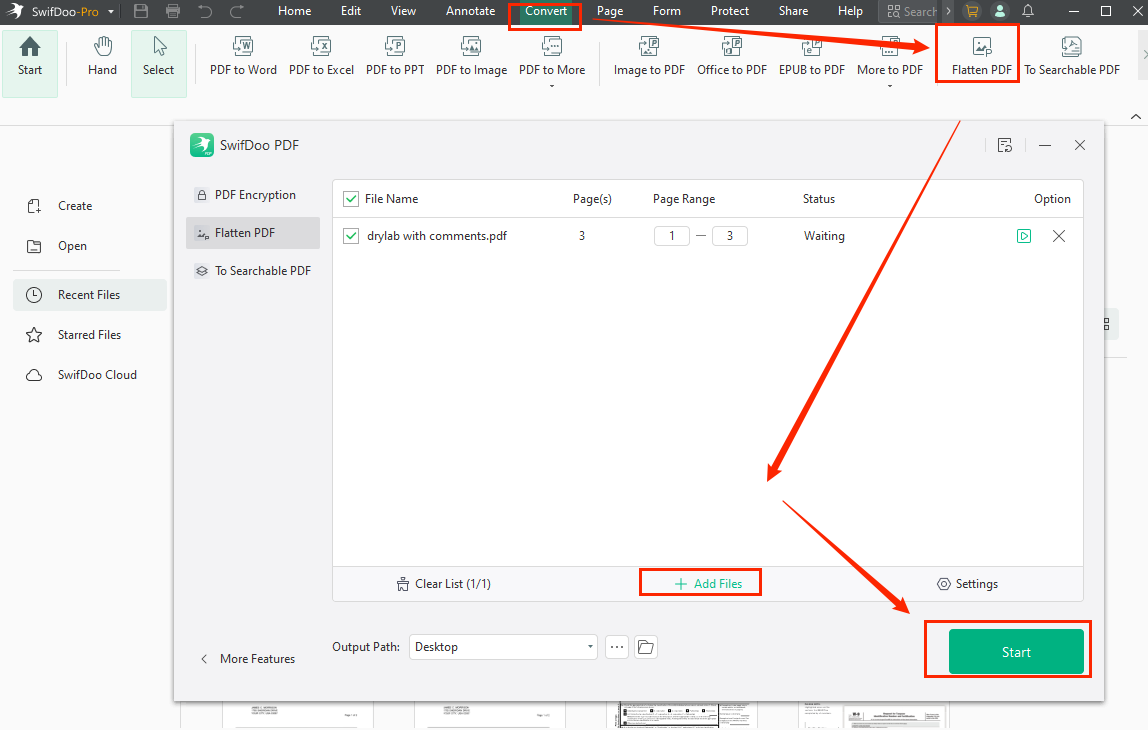
Flatten a PDF:
Open SwifDoo PDF, go to Convert, and click the Flatten PDF option. Click Add Files to import the target PDF, then click Start to flatten it.
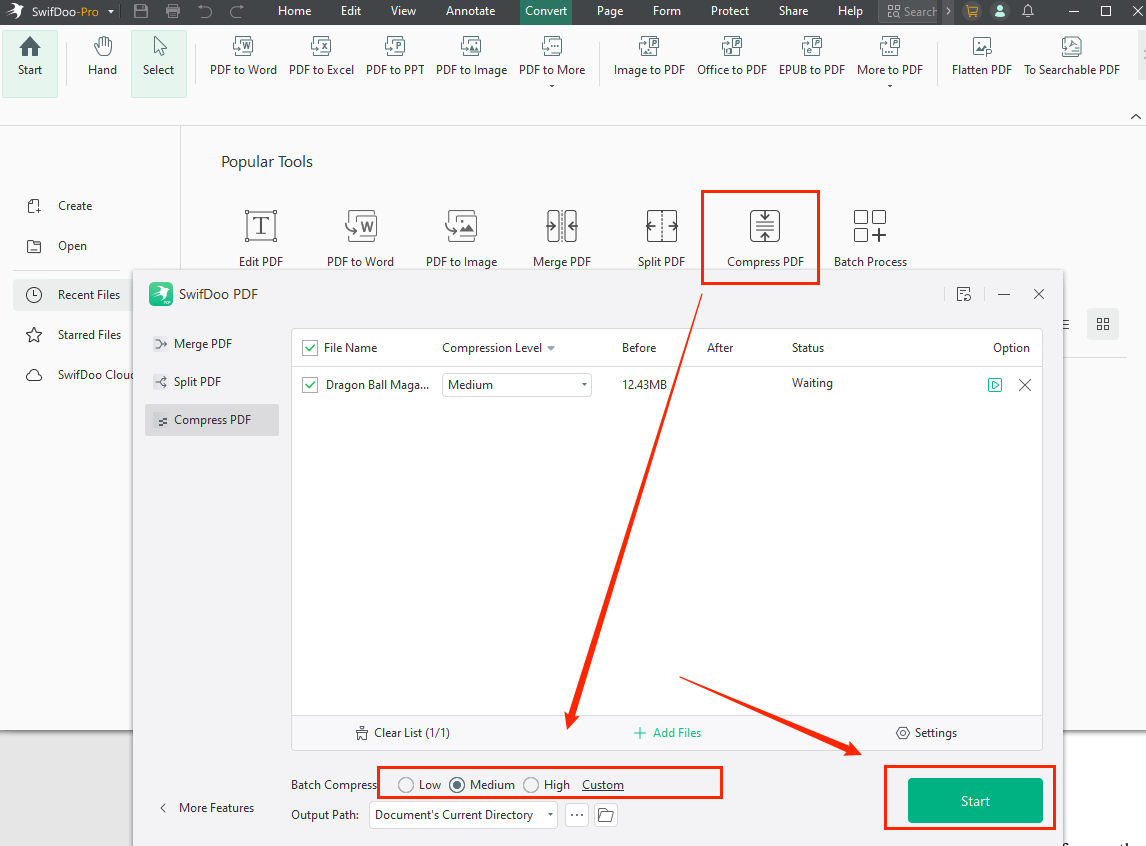
Compress a PDF:
After launching SwifDoo PDF, click Compress PDF, import your large PDF file, select the desired compression level, and then click Start.
#5. Printer Drivers Are Outdated
Printer drivers allow your computer and printer to communicate correctly. Outdated drivers frequently cause PDF printing failures. In that case, you need to update the printer drivers. How to update printer drivers? Follow the steps below:
- Right-click the Start button and click Device Manage
- Expand the Printer
- Right-click your printer and click Update driver.
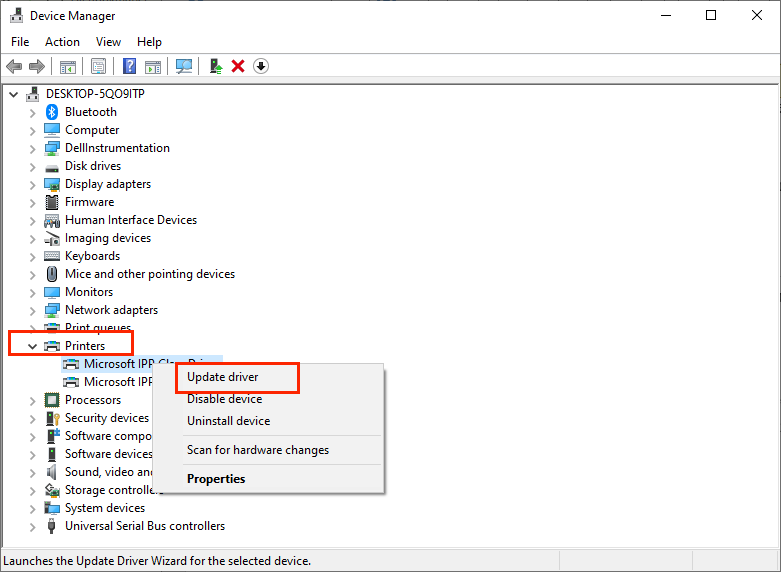
Then, select “Search automatically for drivers” and let Windows find and install updates. Alternatively, you can download from the manufacturer’s website.
#6. The PDF Has Printing Restrictions
Some PDF files are protected from printing. To print protected PDF files, you can request permission from the file owner. Or, you can use a trick to remove permission passwords. SwifDoo PDF is a useful tool that can help you unlock a PDF for printing. Keep in mind: you can use the unlocked PDF only for personal use, not for any commercial purposes.
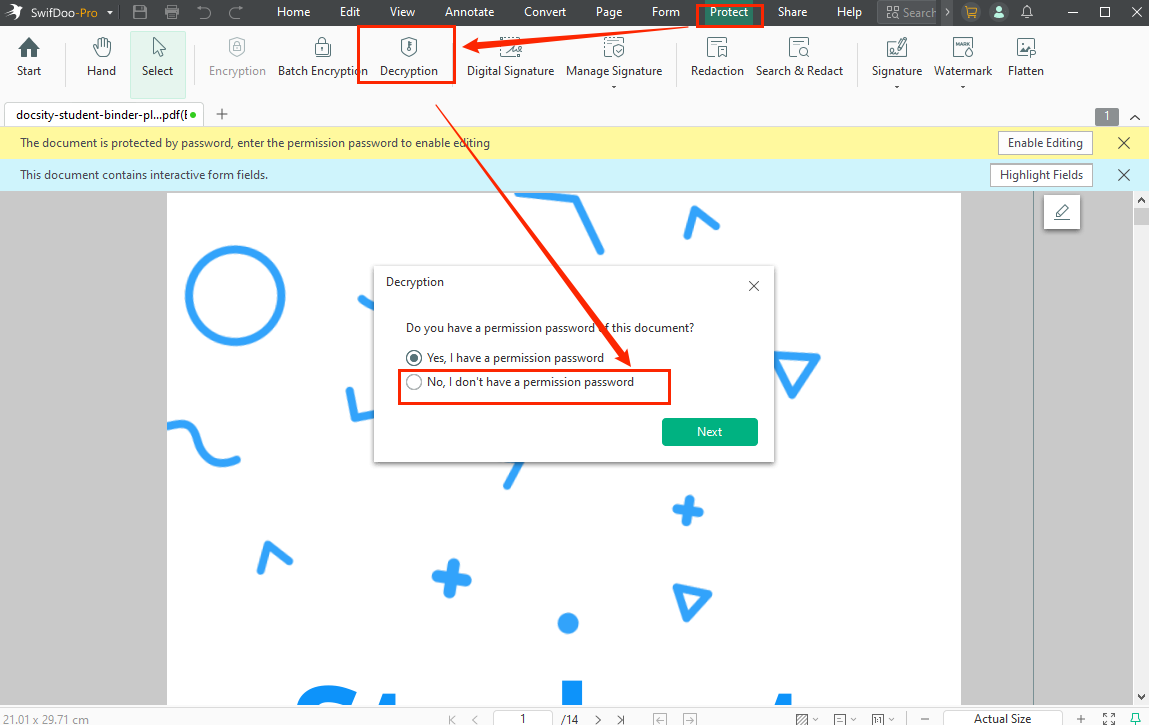
How to remove printing restrictions from a PDF? Here’s the detailed guide:
- Download and install SwifDoo PDF and then launch it.
- Click Open to import your PDF and switch to the Protect tab.
- Click Decryption and select “No, I don’t have a permission password”. Click Next and hit Remove to confirm the operation.
#7. The Windows Print Spooler Is Stuck
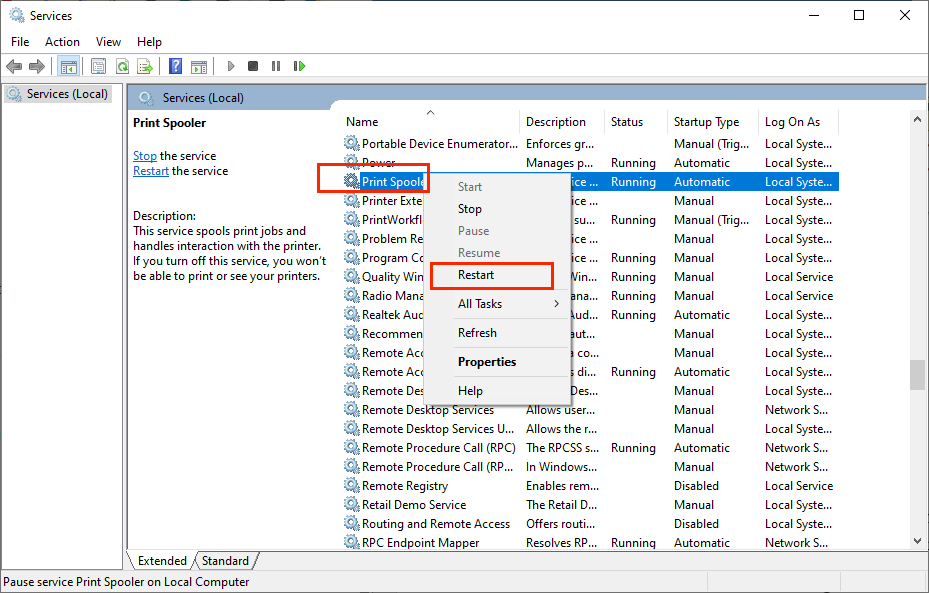
You need to know that the print spooler manages print jobs in Windows. Hence, if the print spooler crashes, PDFs may fail to print entirely. To resolve the “PDF won’t print” issue, you can try to restart the print spooler.
- Press Windows + R to enable the Run dialog.
- Type in msc and press Enter.
- Scroll down to find Print Spooler.
- Right-click and select Restart. Then try printing the PDF again.
#8. Fonts or Layers Are Not Compatible
Some PDFs use uncommon fonts or layered design elements that older printers cannot interpret correctly, causing them to fail to print. How to fix that?
- Convert text to outlines
- Flatten layers
- Save as a simplified PDF
- Export the PDF again
Most modern PDF software, such as SwifDoo PDF and Adobe Acrobat Pro, can automatically rebuild fonts and improve compatibility during export.
#9. Browser Printing Problems
Nowadays, most browsers, such as Chrome or Edge, offer a built-in PDF viewer. You can also directly print a PDF from a browser. However, it can also cause a PDF printing issue. When you fail to print a PDF via a browser, try the following instead:
- Download the PDF file first.
- Open the PDF in a dedicated PDF tool, such as SwifDoo PDF.
- Print the PDF from the PDF tool rather than in the browser.
Dedicated PDF tools usually offer more reliable print rendering and advanced print settings.
Best Practices to Avoid PDF Printing Problems
To avoid future printing errors, refer to the best practices.
- Keep PDF reader or printer drivers up to date
- Use reliable PDF software
- Optimized large PDF files
- Save important files locally
- Test print first
Final Thoughts
If you’ve been asking, “Why can’t I print a PDF?”, the problem is usually easier to solve than it first appears. In the content above, I provide solutions according to different causes. In most cases, updating your software, restarting the print spooler, or repairing the PDF can resolve the issue quickly. Additionally, using a dedicated PDF program like SwifDoo PDF can improve compatibility with complex files and reduce printing failures.



