


How to Compress PDF to ZIP on Windows?
When you need to compress PDF to ZIP on Windows, the most effective approach is a two-step workflow. First, reduce the actual PDF file size using PDF compressors. Then, package the compressed file into a ZIP archive. This method ensures your final ZIP file is significantly smaller than simply zipping the original PDF.
Many users search for a PDF to ZIP converter free solution built into Windows. While Windows does have a built-in ZIP function, it doesn't compress PDFs; it only packages them. For genuine file size reduction before you convert PDF to ZIP, you need a dedicated PDF compression tool first.
![How to Convert ZIP to PDF[Windows/Mac/Online]](https://img.swifdoo.com/image/convert-zip-to-pdf.png)
How to Convert ZIP to PDF[Windows/Mac/Online]
Wondering how to convert ZIP to PDF to make your files more accessible? This article will show you how to do that on Windows, Mac and online.
READ MORE >Stage 1: Compress Your PDF Before Zipping
The most critical step in any PDF to ZIP workflow is reducing the PDF's core file size. SwifDoo PDF is built for this exact purpose. It's a Windows desktop PDF editor that compresses PDFs on your computer.
Step 1: Download and install SwifDoo PDF and launch it.
Step 2: Click Open to choose the large PDF file you want to zip.
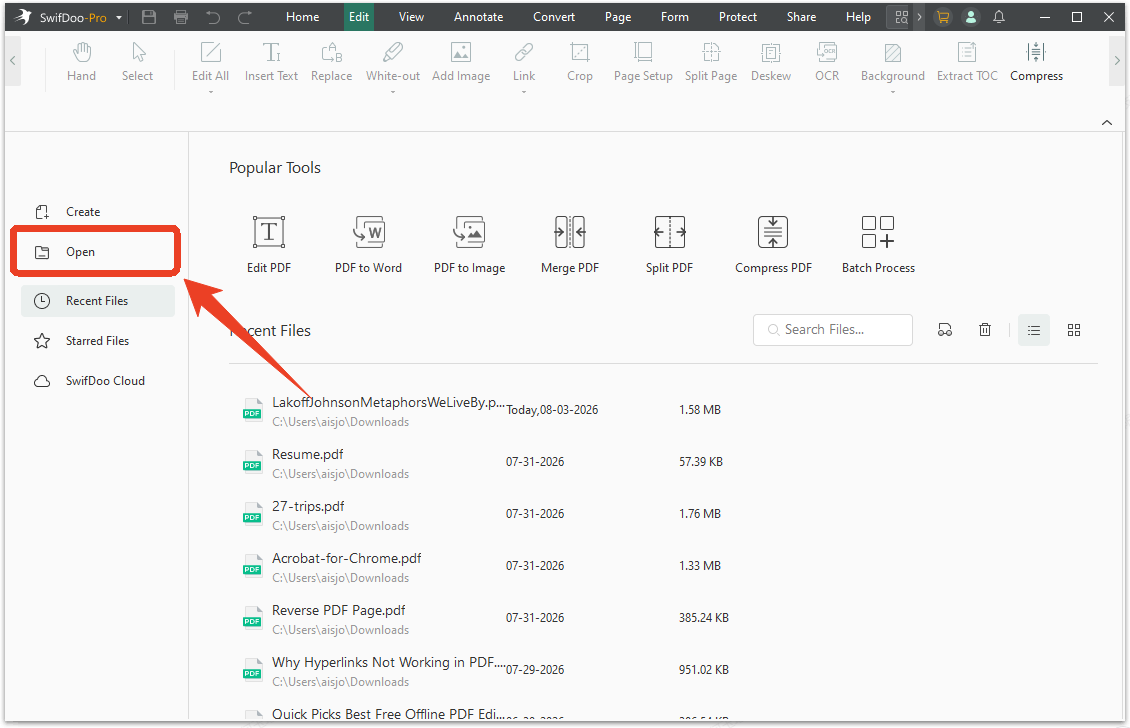
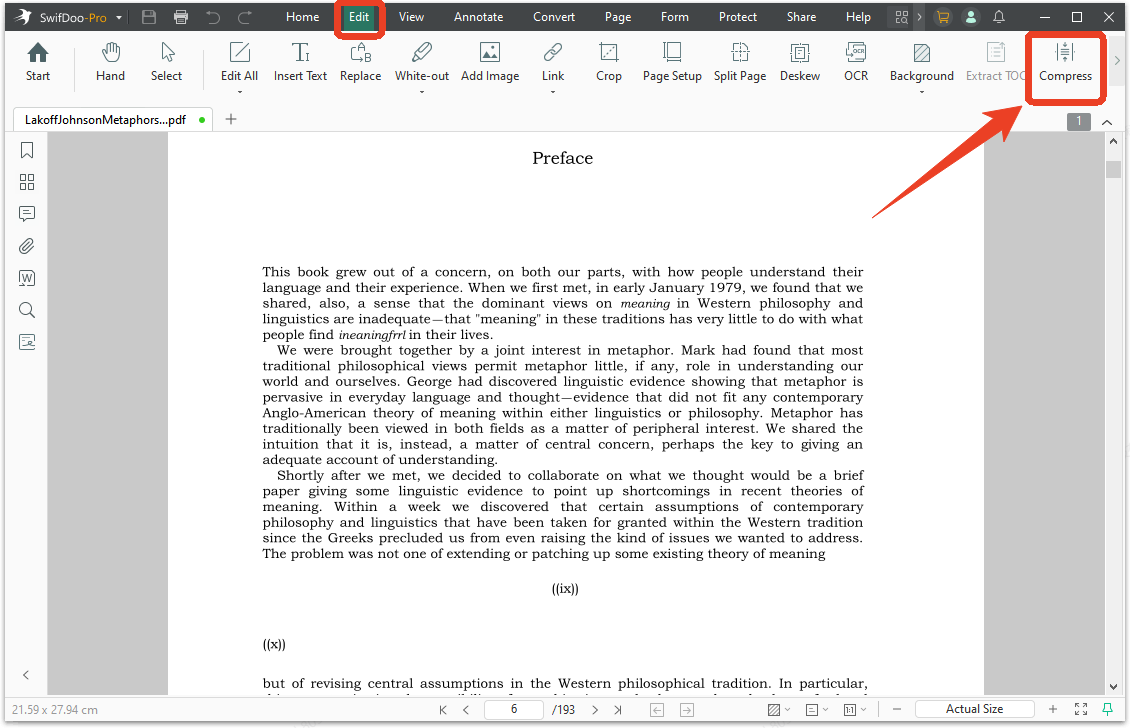
Step 3: In the Edit tab, click Compress in the navigation bar.
Step 4: You'll see multiple compression levels:
-
"High" drastically reduces file size for email attachments
-
"Medium" balances quality and size for documents you'll frequently access.
Select your preferred level and click Start.
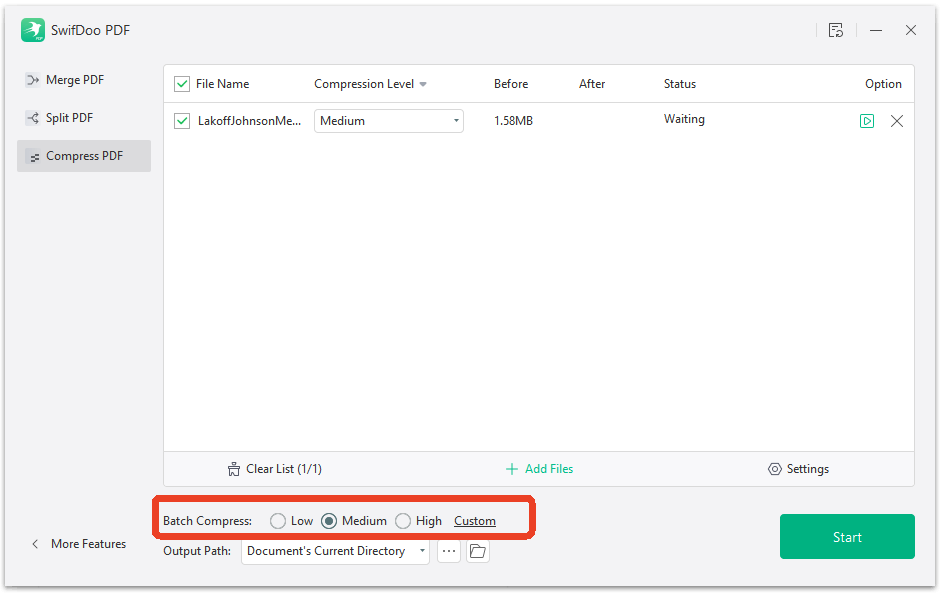
The software processes your file in seconds, and you'll see the size reduction immediately. A 25MB PDF can shrink to 5MB or less without noticeable quality loss. For users who need to convert PDF to ZIP file archives for multiple documents, SwifDoo PDF supports batch processing. It can load all your PDFs at once, apply the same compression settings, and process them in one go.
Stage 2: Convert PDF to ZIP File
Once SwifDoo PDF has minimized your PDF, packaging it into a ZIP archive takes seconds using Windows' built-in tools. This is the simplest part of the PDF to ZIP converter.
Step 1: Open File Explorer and navigate to your compressed PDF file.
Step 2: Right-click on the file and then choose Send to from the context menu.
Step 3: Click Compressed (zipped) folder from the drop-down menu.
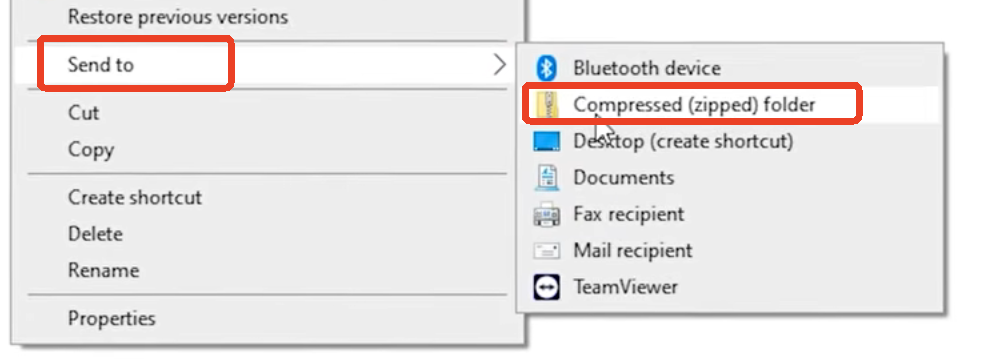
Windows instantly creates a new ZIP archive in the same folder. You can rename it immediately by typing a new name.
For anyone learning how to zip a PDF file on Windows, this right-click method works across all modern versions, including Windows 10, Windows 11, and even older systems. The resulting ZIP file contains your already-compressed PDF, making the total package dramatically smaller than if you had zipped the original uncompressed document.
How to Convert PDF to ZIP File on Mac?
Mac users often need to convert PDF to ZIP file on Mac for sharing via AirDrop, Mail, or iCloud. The built-in macOS tools make zipping simple, but like Windows, they won't compress the PDF itself. You need to handle compression before the zip step.
SwifDoo PDF is also available on MacOS, so you can follow the same steps to compress large PDF files or batch compress your PDF documents. Alternatively, Mac users can use Apple's Preview app for basic compression. Open your PDF in Preview, click "File" > "Export," and choose the "Reduce File Size" filter from the Quartz Filter dropdown. Save the compressed version and then compress PDF to ZIP on Mac.
Step 1: Once your PDF is compressed, open Finder and navigate to the file.
Step 2: Select one or multiple compressed PDFs by holding Command and clicking each file.
Step 3: Right-click or hold Control and click the selected files.
Step 4: From the context menu, choose Compress [number] Items. Your Mac creates an "Archive.zip" file in the same folder immediately. Click the file name twice slowly to rename it.
![Compress [number] Items](https://img.swifdoo.com/image/pdf-to-zip-swifdoo-pdf-5.png)
Here is how Mac users efficiently convert PDF to ZIP file for sharing. The compression step determines the final file size; the zip step simply packages the result.
How to Convert PDF to ZIP File in Mobile?
Smartphones have become essential work tools, and knowing how to convert PDF to ZIP file in mobile saves time when you're away from your desk. Both Android and iPhone include built-in file management tools that handle ZIP creation without additional apps. However, mobile devices have limited PDF compression capabilities, so for very large files, desktop compression before transferring to mobile is the smarter workflow.
How to Convert PDF to ZIP File in Android?
How to convert PDF to ZIP file in Android? Android makes zipping files straightforward through the built-in Files app or manufacturer-provided file managers. You can use the tools already on your device to convert PDF to ZIP.
Step 1: Open your file manager app, such as, Google Files, Samsung My Files, or whichever app your phone uses to browse storage.
Step 2: Navigate to the folder containing your PDF files. To select files, long-press the first PDF until a checkmark appears, then tap each additional PDF you want to include in the ZIP archive.
Step 3: Once all desired files are selected, look for a menu button. This is usually three dots in the upper-right corner, a three-line hamburger menu, or a "More" option at the bottom of the screen.
Step 4: Tap this menu and find the Compress or Create ZIP option. On Samsung devices, it's typically labeled Compress. On Google Files, you'll find it under the three-dot menu.
Step 5: A dialog appears asking you to name the ZIP file and sometimes choose a compression level. Just enter a name and tap OK. The ZIP file appears in the same folder as your original PDFs.
For Android users who need to convert PDF to ZIP for sharing, tap and hold the newly created ZIP file, then use the Share button to send it via Gmail, WhatsApp, Google Drive, or any installed app.
How to Convert PDF to ZIP File for iPhone/iPad?
Apple's iOS and iPadOS make zipping files remarkably simple through the built-in Files app. Here's the process to convert PDF to ZIP on iPhone or iPad.
Step 1: Open the Files app and navigate to the location of your PDFs.
Step 2: Tap the three dots in the upper-right corner of the screen and choose Select from the dropdown menu.
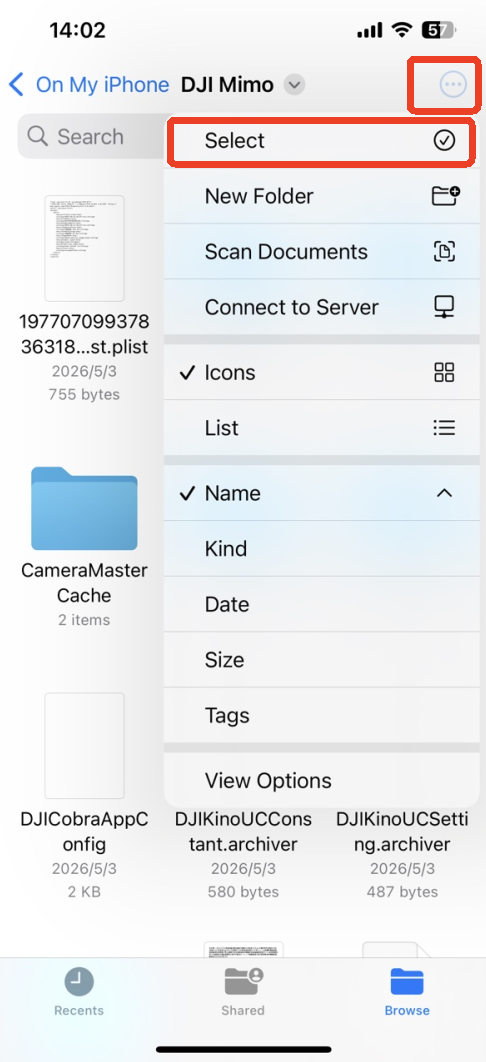
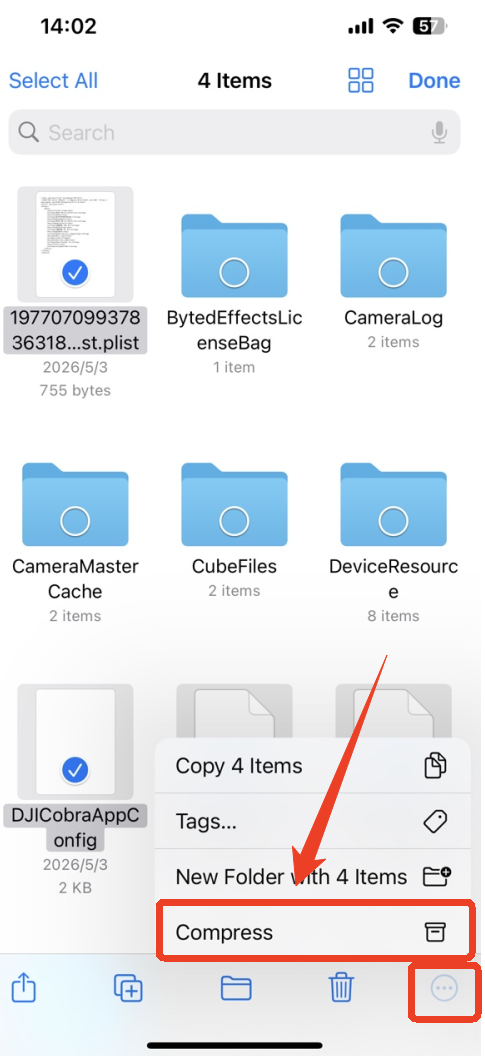
Step 3: Tap each PDF file you want to include in the ZIP archive and then tap the three dots button again.
Step 4: From the menu, choose Compress. iOS instantly creates an "Archive.zip" file in the same folder.
Step 5: Tap and hold the ZIP file to bring up the context menu. From here, you can rename it, share it via Mail or Messages, save it to another location, or AirDrop it to a nearby Mac or another Apple device.
For users who need to convert PDF to ZIP file in mobile Apple devices, this built-in method covers all basic needs.
How to Convert PDF to ZIP with Password Protection?
Adding password protection to your ZIP file is essential when sending sensitive PDFs. Neither Windows nor Mac built-in ZIP tools offer password encryption. You need dedicated archive software to create a secure PDF to ZIP with a password file.
Use 7-ZIP to Convert PDF to ZIP with Password Protection on Windows
7-ZIP is a free, open-source archive tool that adds powerful encryption to the ZIP creation process. Download it from 7-ZIP.org and install. The software integrates directly into your Windows right-click menu.
Step 1: Navigate to your compressed PDF files in File Explorer and select the PDFs you want to protect.
Step 2: Right-click on any selected file and hover over "7-ZIP" in the context menu..
Step 3: From the submenu, choose Add to archive.
Step 4: The 7-ZIP archive window opens. In the Archive format section, select ZIP from the dropdown menu.
Step 5: On the right side of the window, find the "Encryption" section to enter your password and re-type it. For the strongest protection, select AES-256 from the encryption method dropdown.
Step 6: Click OK to create the encrypted ZIP file.
Use Keka to Password Protect PDF to ZIP on Mac
Keka is a free archive tool for macOS available from the Mac App Store or keka.io. After installation, launch Keka. Follow the next steps to convert PDF to ZIP with password protection:
-
Drag your compressed PDF files onto the Keka window.
-
In the format selector, choose ZIP.
-
Enter your password in the password field and confirm it.
-
Click Compress to create an encrypted ZIP file.
-
Choose a strong password - mix uppercase and lowercase letters, numbers, and symbols.
-
Share the password through a different channel than the ZIP file itself. For example, email the ZIP but text the password.
For anyone who needs a PDF to ZIP converter with security features, 7-ZIP on Windows and Keka on Mac provide professional-grade encryption. Combined with SwifDoo PDF's compression, your workflow delivers both reduced file sizes and robust protection.
Final Verdict
Zipping PDFs is the smartest way to organize, share, and store multiple files. Whether you're archiving projects or sending batches via email, compressing PDFs into one ZIP saves time and space. Convert PDF to ZIP today for a clutter-free digital workflow.


