How to Print Black and White on Mac from a PDF with SwifDoo PDF
SwifDoo PDF is where you can print a PDF on a Mac, and view, edit, and secure your documents easily. It also lets you make annotations, manage, and add pages. It offers various printing settings to adjust page size, orientation, flipping method, and more. You can print in booklet format, print on both sides, or print multiple pages on one sheet if needed.
Let’s see how to print black and white on a Mac from a PDF.
Step 1: Download SwifDoo PDF for Mac, install it, and open it.
Step 2: Import the PDF you’d like to print black and white on a Mac.
Step 3: Choose the File tab and click Print in the drop-down to open the printing dialog box.
Step 4: Check the box labeled Black & White, and set other printing options.
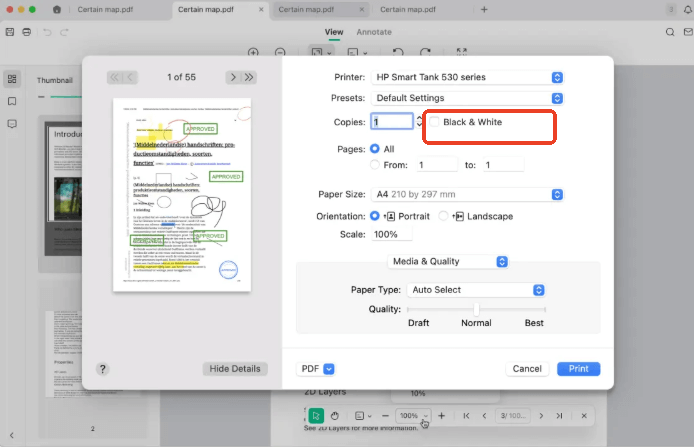
Step 5: Click Print so you can print in black and white on a Mac on the PDF at once.
How to Make a PDF Black and White on Mac with Preview
Preview lets you print black and white on a Mac from a PDF without external software. It is considered the most convenient PDF editor and viewer native to Mac. It provides simple editing options and precise annotation tools. You can add text, draw shapes, and sign names with it. However, some versions of Mac Preview may hide the option to print and convert PDF to black and white. So, it can be curving to reach it.
Learn the instructions below to discover how to print a PDF in black and white on a Mac in Preview.
Step 1: Open the PDF you desire to print from color to black and white in your Mac Preview.
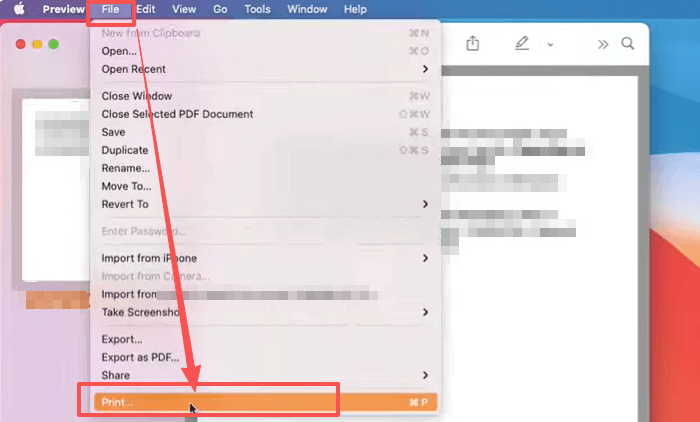
Step 2: Go to the top menu bar to choose File, and select Print.
Step 3: Check the Black & White box. If not, click the Presets drop-down and select the Black and White option.
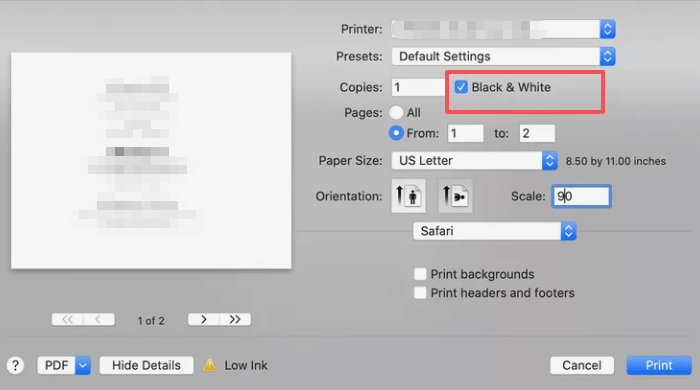
Step 4: Change any other necessary settings, then click Print to convert the PDF to black and white on the Mac in Preview.
Or, you can click the drop-down under Orientation to choose Quality & Media and check the Grayscale Printing box to convert your PDF to grayscale on Mac.
How to Print in Black and White on a Mac in Chrome
A convenient way to print black and white on a Mac from a PDF is to use the Chrome browser. Google Chrome offers a built-in PDF viewer and printer. It lets you print a PDF multiple pages per sheet or print a double-sided PDF. You can save only the pages specified by page numbers and resize the pages. No hassle of downloading commercial software.
Simple steps on how to make a PDF print in black and white on a Mac using Chrome.
Step 1: Right-click your PDF, select Open with, and choose Chrome as the file opener.
Step 2: Press Command + P or click the printer icon to open the print dialog.
Step 3: Select your printer, then click the Color drop-down button and choose Black and white.
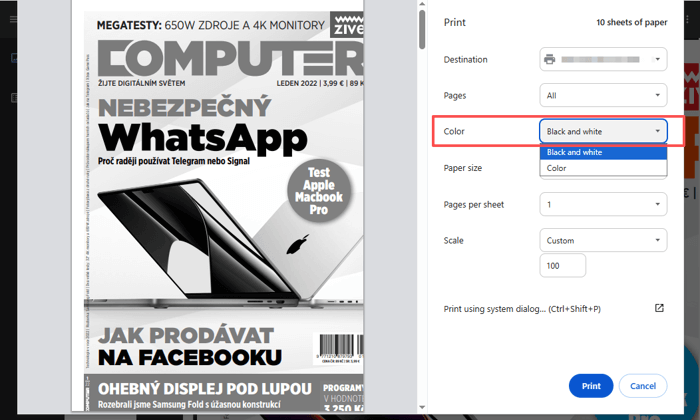
Step 4: Customize other printing settings, and press Print to convert the color PDF to black and white on a Mac.
No Option to Print in Black and White on Mac?
Mac users have many ways to print a PDF in black and white, but can encounter some annoying problems. If you can’t find the black-and-white printing option, troubleshoot it using the reasons and solutions below.
No black & white option in Preview print dialog box: Perhaps the option is saved as a preset, and you should click the “Presets” drop-down to select it. For Canon printers, you should click the "Quality & Media" drop-down button, select "Custom" under the "Print Quality" menu, and then tick the "Grayscale Printing" checkbox. If you run the latest version of macOS Sierra, you can click the “Preview” drop-down menu to select print settings and the grayscale option.
Try the solution to print black and white on a Mac from a PDF.
Your printer doesn’t support black-and-white printing: Ensure your printer is configured for monochrome printing. Otherwise, switch to another printer and try again.
Your printer is disconnected: Check the connection status between your printer and the device that opens your PDF. Ensure your Mac recognizes the printer before you print a PDF on a Mac in black and white.
Outdated printer driver: An outdated printer driver may not display printing options correctly. You can go to “Device Manager” > “Printers”, right-click the printer and choose the “Update driver” option.
Printer is installed incorrectly or conflicts with other software: Remove and reinstall the printer to resolve this. Open “System Settings” to choose “Printers & Scanners”, select the printer, and remove it. After re-installing the printer properly, you can print and save a color PDF in black and white on a Mac again.
Conclusion
Perhaps you need to turn a PDF into black and white on a Mac for everyday stuff. With the best PDF editors for Mac, such as SwifDoo PDF, you can perform a lot more PDF tasks than just printing. It includes PDF conversion, content modification, compression, merging, and page organization. For basic document handling, the native PDF reader on your Mac is enough. To work with large documents or advanced editing workflows, solid software is essential.