


Best Sites to Download EPUB Books for Free
Knowing where to download EPUB books is important for readers to choose an actual library. These six platforms have been tested and consistently deliver quality free EPUB files.
Project Gutenberg
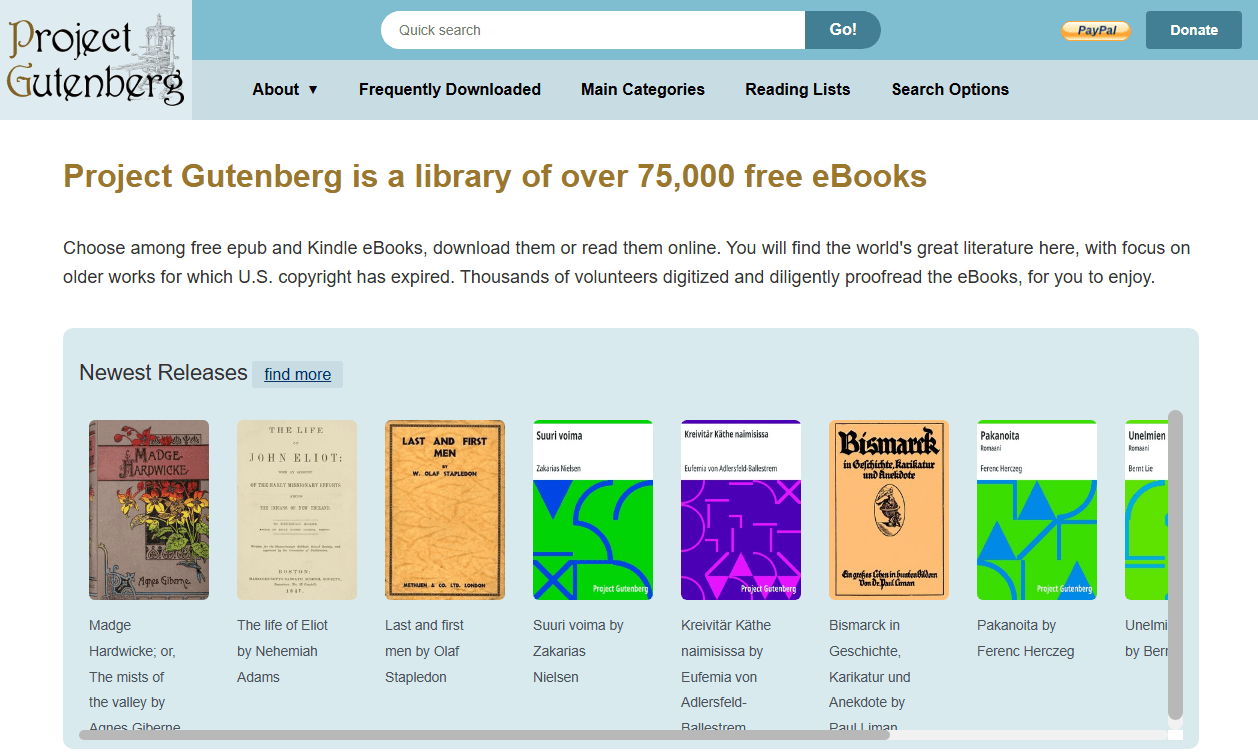
Project Gutenberg hosts over 70,000 free ebooks, all content sourced from public domain works whose copyrights have expired. Every book is available in EPUB format alongside Kindle and plain text versions. The collection spans classic literature, philosophy, history, and science. Because all content is legally in the public domain, there are no restrictions on downloading or sharing. For anyone starting their journey with free EPUB downloads, this is the gold standard.
Standard Ebooks
Standard Ebooks takes public domain texts from sources like Project Gutenberg and gives them professional-grade typographic treatment. Every book is individually proofread, styled with carefully designed covers, and formatted to modern EPUB3 standards. The result feels closer to a commercial ebook than a volunteer digitization project. If you've ever been put off by the basic formatting of free ebooks, Standard Ebooks solves that problem entirely.

Open Library (Internet Archive)
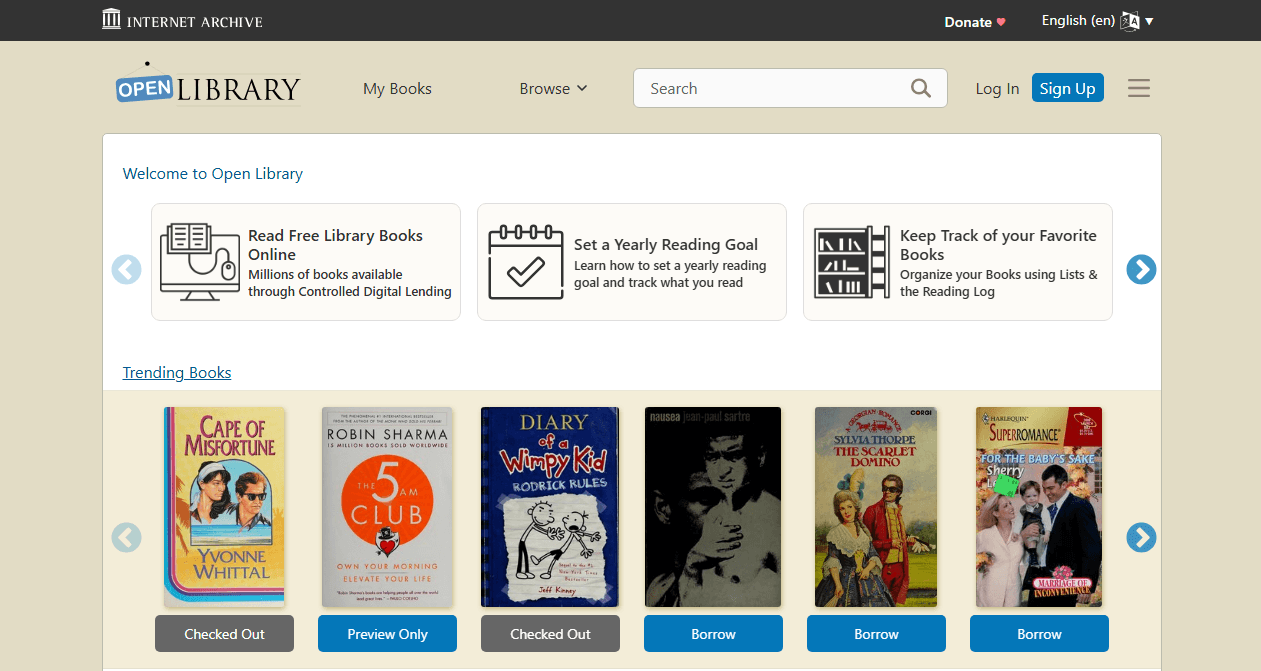
Open Library, operated by the Internet Archive, offers millions of books through a digital lending model. Many titles are available for direct EPUB download, while others operate through controlled digital lending. You borrow the book for a limited period, just like a physical library. The collection extends beyond public domain into more recent decades, making it one of the most comprehensive free EPUB book sites for readers who need books published after 1928.
ManyBooks
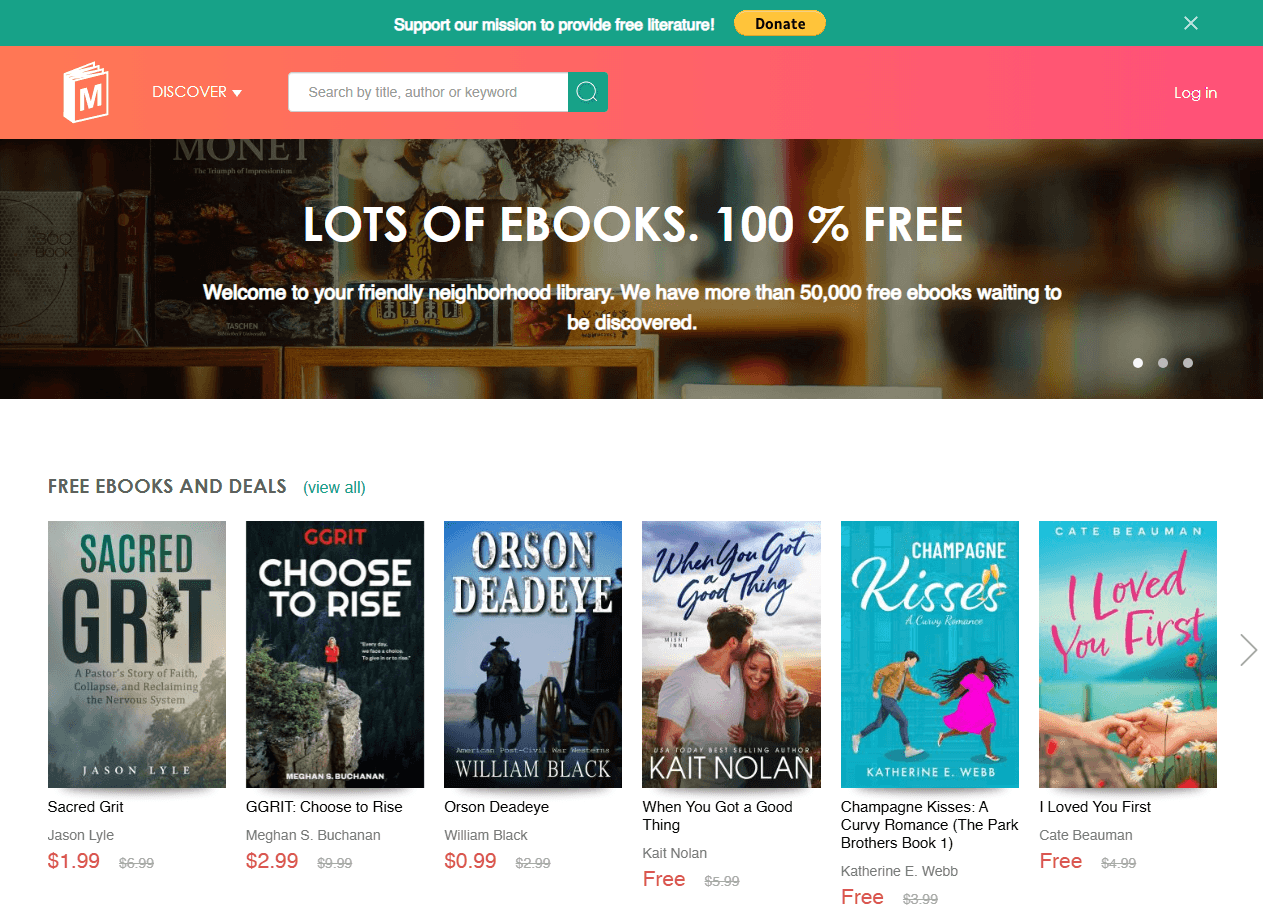
ManyBooks curates over 50,000 free ebooks with a modern, genre-driven browsing experience. Categories include romance, science fiction, mystery, fantasy, and non-fiction, each subdivided into subgenres. Every book page lists available formats, almost always including EPUB, along with reader ratings and summaries. The recommendation engine suggests similar titles based on what you've browsed, making it a good EPUB book site for discovering new reads.
Feedbooks
Feedbooks maintains a dedicated public domain section with carefully formatted EPUB downloads. The selection emphasizes literary fiction, short stories, and essays. Books are organized by author, genre, and popularity, with a clean download process that doesn't require account creation. For readers who prefer curated selections over massive unfiltered databases, Feedbooks hits the sweet spot.
Z-Library (Access via Proxies)
Z-Library is one of the world's largest free ebook repositories, containing millions of titles across every imaginable subject. EPUB, PDF, and MOBI formats are available for most listings. Access requires finding a currently working domain or proxy; these change frequently, so a quick search for the latest Z-Library URL is often necessary. For academic books, technical manuals, and titles not found on public domain sites, it fills the gap.
If your goal is to download EPUB books for free and build a lasting library, start with Project Gutenberg and Standard Ebooks for their legal clarity and format quality. Supplement with Open Library and ManyBooks for a broader selection, and use Z-Library when you need something those platforms don't cover.
How to Download EPUB Books: Step-by-Step Guide
The process of how to download EPUB books is straightforward once you know the flow. Here's the universal method that works across all the sites listed above.
Step 1: Choose Your Source Site
Pick a platform from the recommendations listed above. If you're new to free ebooks, Project Gutenberg is the safest starting point. It's completely legal, standard format, and no registration is required. Bookmark two or three EPUB book sites so you have backups when one is temporarily down.
Step 2: Search or Browse for Your Book
Use the search bar with the book title or author name. Alternatively, browse by category, genre, or language. Most public domain sites offer multiple navigation paths, such as by author last name, by subject, by popularity, and by recent additions. If you're browsing rather than searching for a specific title, the genre pages on ManyBooks and Feedbooks are particularly well-organized.
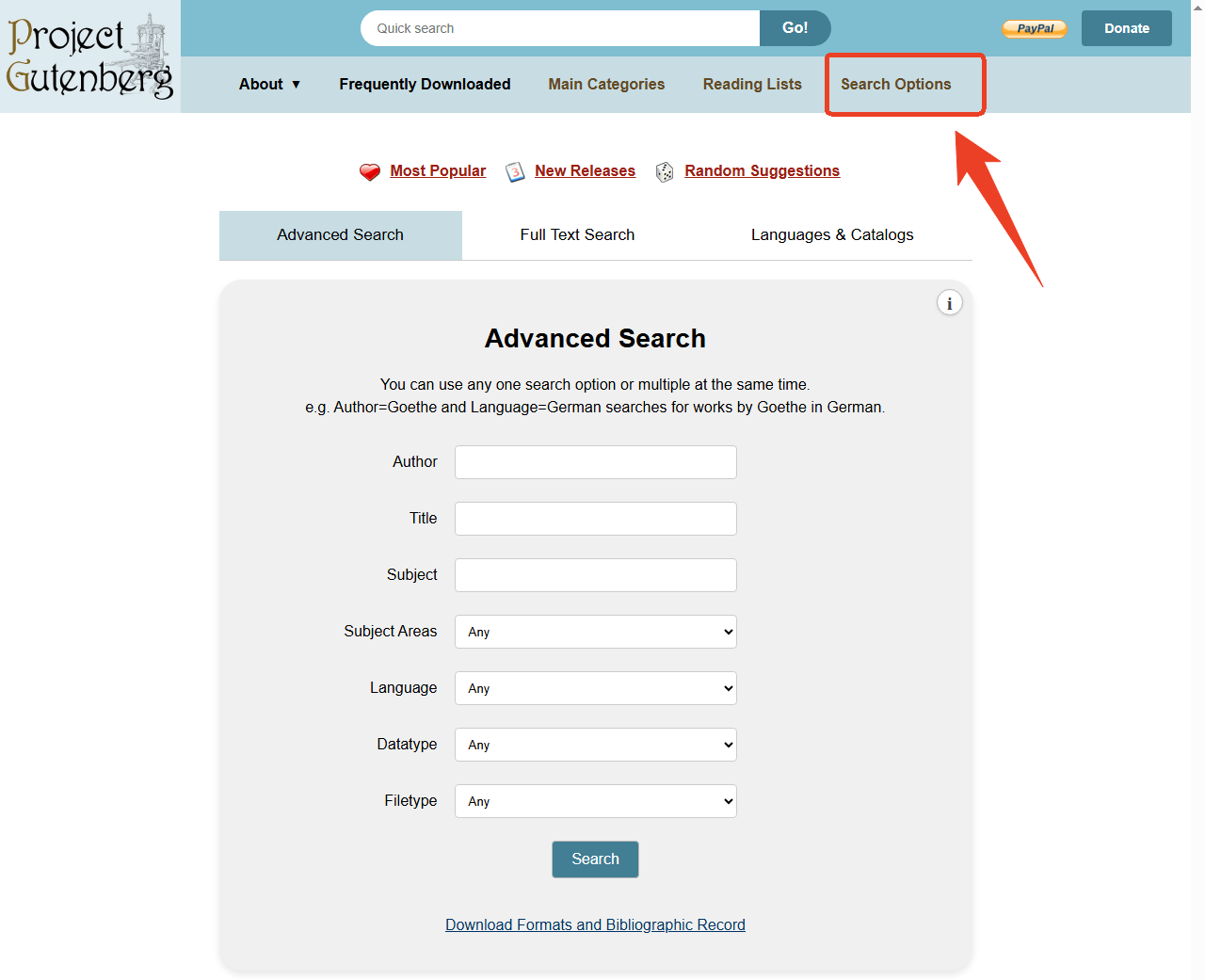
Take Project Gutenberg as an example, you can go to the official site and choose Search Options to do an advanced search.
Step 3: Select the EPUB Format
Once you land on the book's detail page, you'll see download options. Look for "EPUB," "EPUB3," or "EPUB (no images)." Some sites offer EPUB with and without the original illustrations, which means that the "no images" version produces a smaller file. Select your preferred option. This is the moment when you complete an EPUB book download - one click and the file starts transferring.
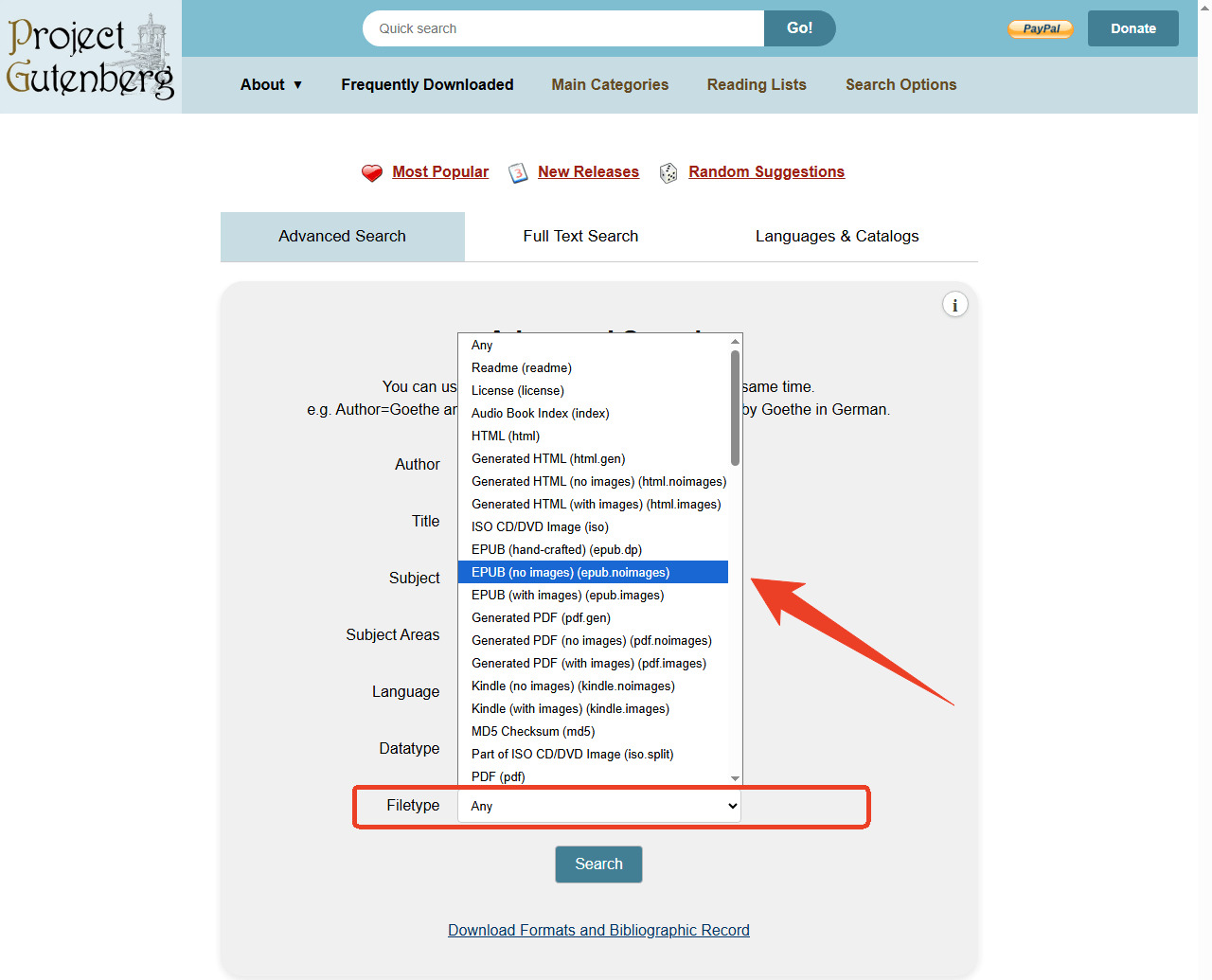
Still, in the Project Gutenberg search interface, you can check the Filetype section to choose EPUB book. It gives you three different types of EPUB to choose from.
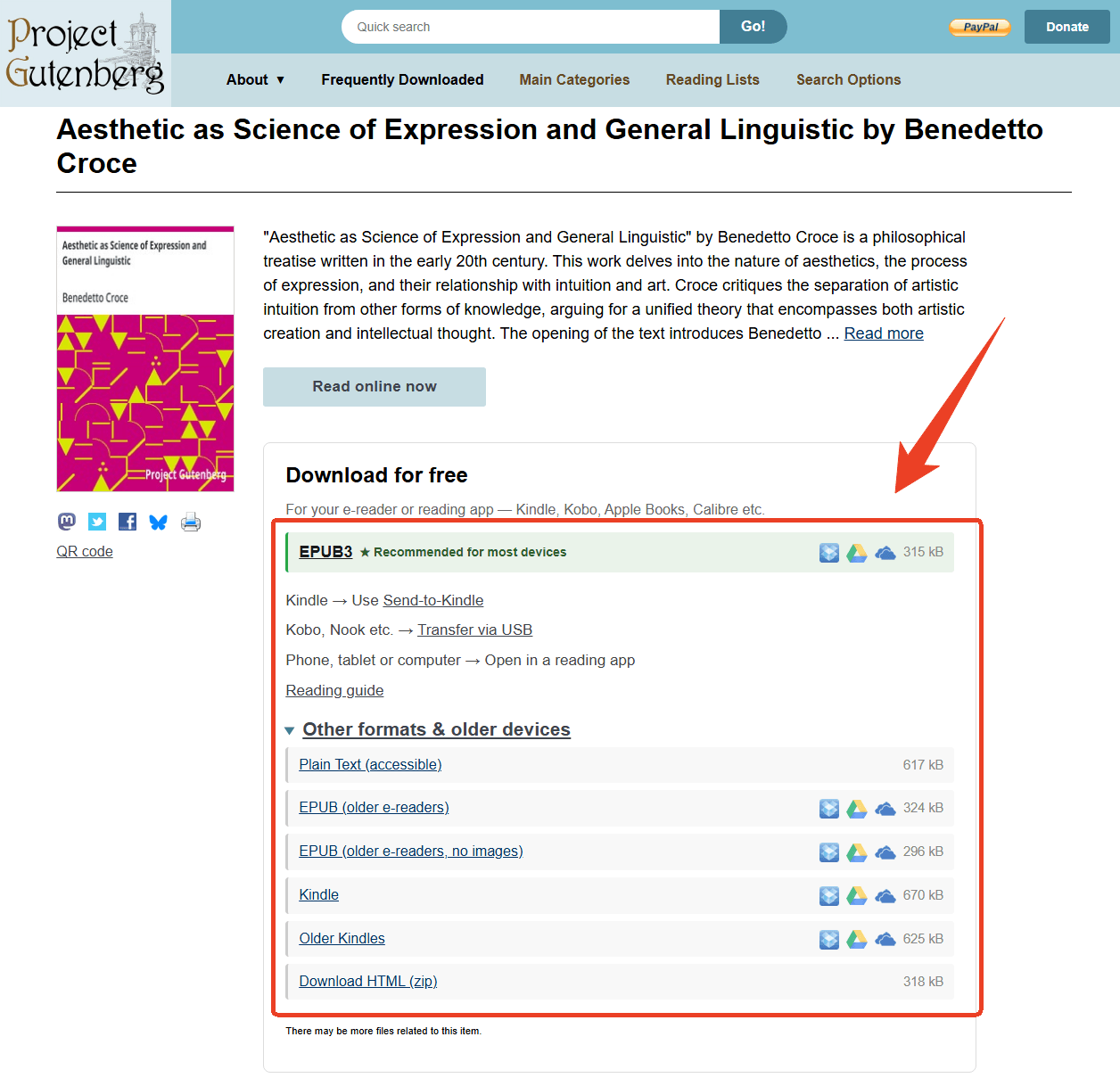
Alternatively, you can directly search the book name and choose the wanted one from the results. In the Download for free section, it gives you different formats to choose.
Step 4: Save the File to Your Device
The .epub file downloads to your default download location. File sizes for text-heavy books typically range from 500KB to 5MB. It's small enough to store thousands of titles on even modest storage. Create a dedicated "Ebooks" folder and move downloaded files there to keep your digital library organized from the start.
Step 5: Build a Consistent Folder Structure
After you download EPUB book files regularly, organization becomes essential. Create subfolders by author, genre, or reading status. For example: /Ebooks/Fiction/Sci-Fi/ or /Ebooks/Academic/History/. A small upfront investment in organization prevents the headache of scrolling through hundreds of unsorted files later.
How to Open EPUB Files on Any Device
Once you've completed your EPUB book download, you need software that can actually open the file. Most modern devices have built-in support for EPUB, but the experience varies by platform.
Open EPUB Files on Windows PC
Windows does not include a built-in EPUB reader. Double-clicking an .epub file on a fresh Windows 11 or Windows 10 install typically prompts you to search the Microsoft Store for a compatible app.
Microsoft Edge, the default browser, can open PDFs but does not support EPUB files. This means every Windows user needs a third-party EPUB reader for Windows to open their downloads.
The two strongest free options are Calibre and Thorium Reader.
-
Calibre is the most comprehensive: it opens EPUB files, manages your entire library, edits metadata, and converts between formats.
-
Thorium Reader is a dedicated reading app with a clean, modern interface and EPUB3 support, ideal for users who just want to read without library management features.
Both are open-source and free of advertisements.
Open EPUB Files on Mac
Apple Books comes pre-installed on every Mac. It opens EPUB files natively. Simply double-click the .epub file, and it imports into your Books library automatically. From there, you can read, bookmark pages, highlight passages, and add notes.
If you use iCloud, your books, bookmarks, and reading progress sync across your Mac, iPhone, and iPad. For most Mac users, Apple Books is the only EPUB tool needed.
Open EPUB Files on iPhone and iPad
Apple Books is also the built-in EPUB reader on iOS and iPadOS. When you download EPUB book files through Safari, tapping the downloaded file opens it directly in Books. The app automatically adds it to your library and syncs reading progress via iCloud.
The Files app also provides a quick preview of EPUB content without importing, useful for checking a book's contents before committing it to your permanent library.
Open EPUB Files on Android
Android's built-in support for EPUB depends on the manufacturer and version. Google's Files app can preview EPUB files on some newer Android versions, but the experience is basic: text display only, no bookmarking or annotation. Most Android devices work best with a dedicated reader.
How to Convert Your EPUB Books into PDF - SwifDoo PDF
SwifDoo PDF is a Windows desktop PDF editor that also handles EPUB files. For readers who download EPUB book files but occasionally need PDF formatting, it closes the gap between the two most common document formats without requiring multiple tools or online uploads.
Beyond the EPUB-to-PDF conversion detailed below, SwifDoo PDF includes a full suite of PDF editing tools:
-
Text and image modification
-
OCR for scanned documents
-
Page merging and splitting
-
Format conversion to Word and Excel
But for the purposes of managing a digital book collection, the conversion workflow is what matters most.
How to Convert EPUB to PDF with SwifDoo PDF
When you need to convert an EPUB to PDF, the process takes three steps.
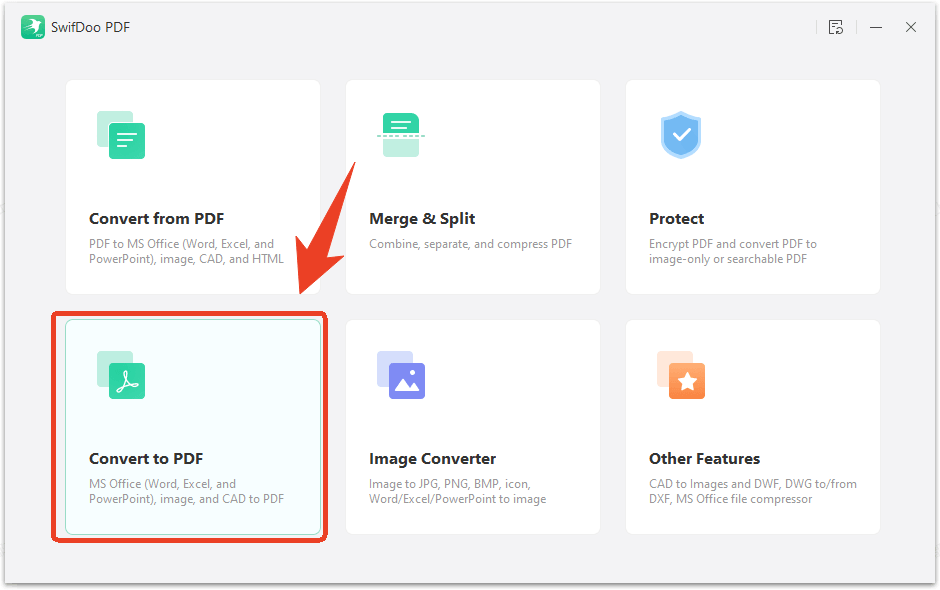
Step 1: Open SwifDoo PDF on your Windows desktop and click Batch Process > Convert to PDF.
Step 2: Go to the EPUB to PDF tab in the new window and upload the EPUB file you downloaded from any free EPUB book sites.
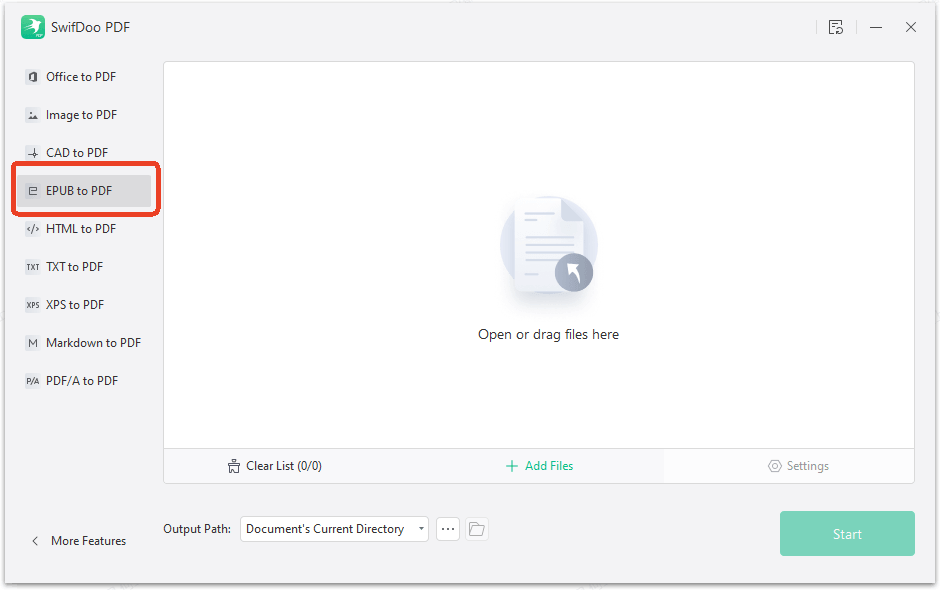
Step 3: Choose the output path and click Start to convert EPUB to PDF.
Once converted, you can immediately edit the PDF within SwifDoo PDF. Correct a typo in the text, add a note in the margin, merge the converted file with other PDFs, or apply OCR if the EPUB contained embedded scanned pages.
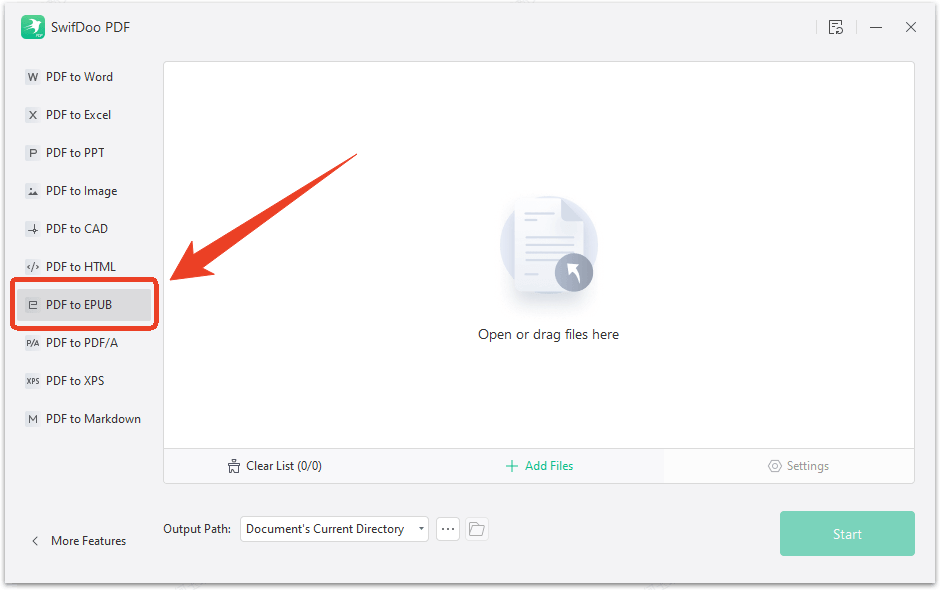
SwifDoo PDF also allows you to convert PDF to EPUB file. Just choose the Convert from PDF section from the Batch Process tools and go to the PDF to EPUB tab. Here you can convert any PDF files to EPUB.
![6 Best PDF to EPUB Converters [Offline & Online]](https://img.swifdoo.com/image/pdf-to-epub-converter.jpg)
6 Best PDF to EPUB Converters [Offline & Online]
Trying to find a good-to-use PDF to EPUB converter? This article introduces several best converters to help convert PDF to EPUB offline and online.
READ MORE >How to Build and Manage Your Digital Book Library
After you download EPUB book files regularly from multiple sources, the collection grows faster than expected. Without a management strategy, your library becomes a folder full of cryptically named files you can't remember downloading.
- Create a consistent folder hierarchy. Decide on a system, such as by author last name, by genre, by language, by academic discipline, and stick to it. A structure like /Library/Fiction/Sci-Fi/Asimov, Isaac/ makes any book findable in seconds.
- Use Calibre for metadata management. Downloaded EPUB files sometimes arrive with incomplete or inconsistent metadata, such as missing author names, generic titles, absent covers. Calibre lets you batch-edit metadata, download covers from online sources, and standardize your library's presentation. A well-organized Calibre library is searchable, sortable, and visually browsable.
- Back up your collection. EPUB files are small. A single 128GB USB drive holds tens of thousands of books. Set a calendar reminder to copy your entire library to an external drive or cloud storage every few months.
- Handle mixed formats gracefully. Your library will inevitably contain EPUB, PDF, and possibly MOBI files from different sources. SwifDoo PDF converts EPUB to PDF when you need fixed layouts. Calibre converts PDF to EPUB for reflowable reading. Together, they ensure every file in your collection is usable in your preferred format.
Solutions: How to Convert PDF to MOBI on Windows and Mac
MOBI is a friendly file format for reading. But what if the original document is a PDF? You need to know how to convert PDF to MOBI. Find answers in this post.
READ MORE >Final Verdict
Learning to download EPUB book files is the entry point to building a digital library that costs nothing. The best free EUPB book sites - Project Gutenberg's unmatched public domain collection, Standard Ebooks' typographic polish, Open Library's borrowing model, and Z-Library's sheer scale - ensure you'll never run out of material worth reading. If you ever need it as a PDF, SwifDoo PDF makes the conversion simple.


