


Compared to colored or dark PDF backgrounds, white backgrounds offer the highest contrast for black text, reducing eye strain during long reading sessions. Additionally, changing the PDF background color to white can improve printing results by avoiding unnecessary ink. How to change PDF background color? In the following content, let’s explore and try the 4 workable methods.
Method 1: Change PDF Background Color to White with SwifDoo PDF
SwifDoo PDF is a full-featured PDF editor that can handle PDF background color changes in a few clicks. Additionally, it enables you to add or remove background from a PDF effectively. In a word, SwifDoo PDF is particularly useful when you need to change the background color of multiple PDFs to white or when the original PDF is a scan with an uneven background. Here, let’s learn how to change a PDF background color to white with SwifDoo PDF.
Step 1. Click the button below to download and install SwifDoo PDF on your Windows PC. Next, launch it and access its free trial.
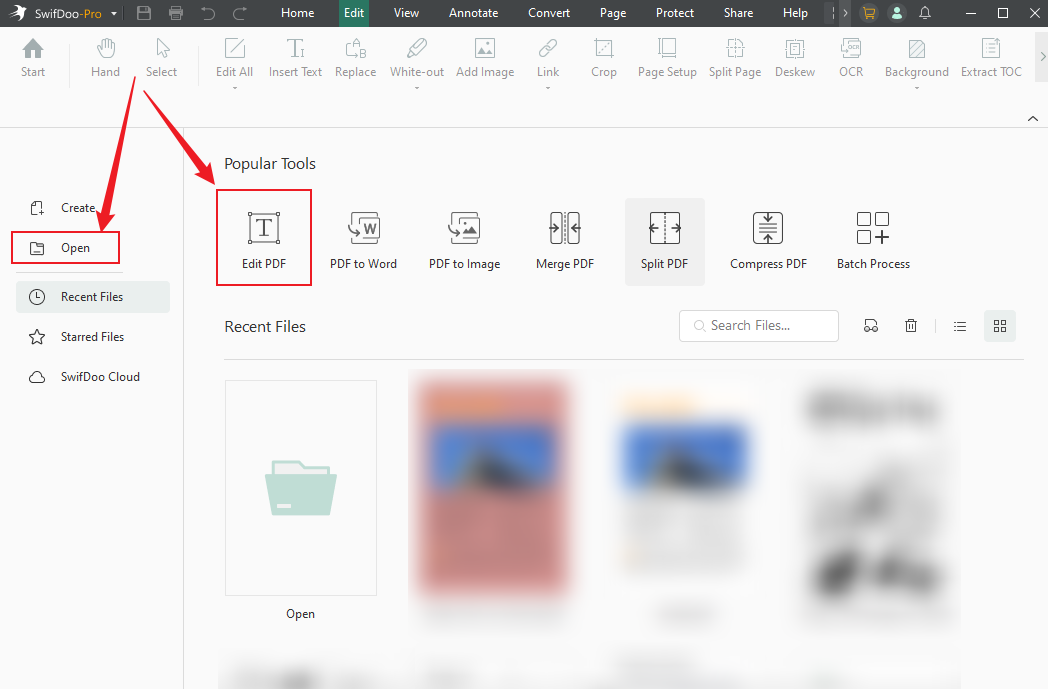
Step 2. Click Open or Edit PDF to import the target PDF file into SwifDoo PDF.
Step 3. Under the Edit tab, click to open the Background list. Here are 2 available options for you:
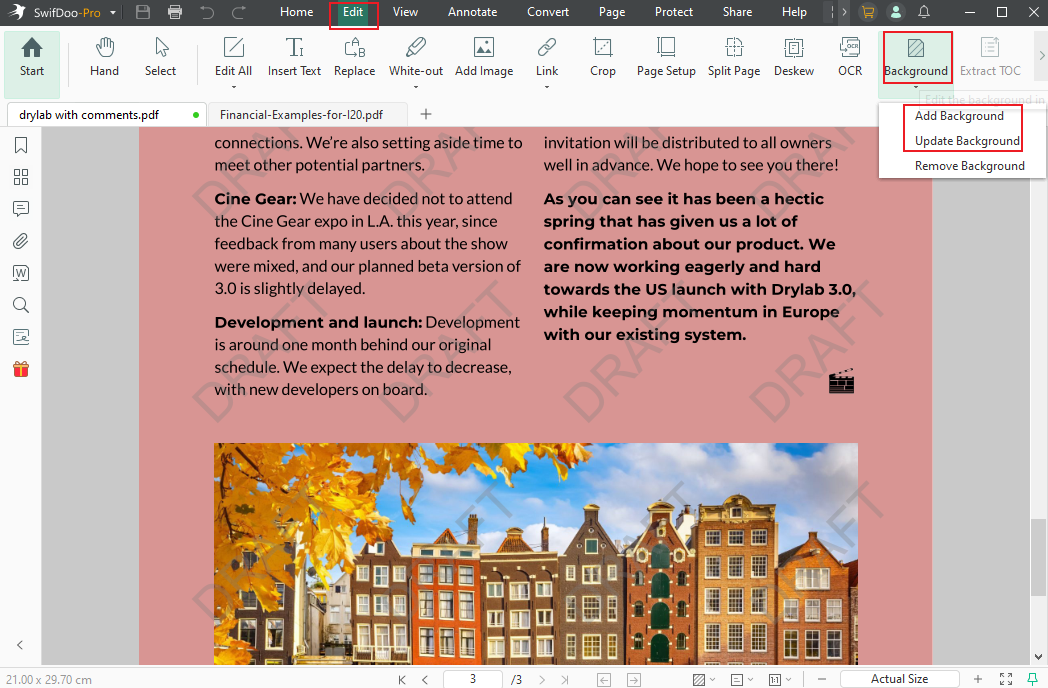
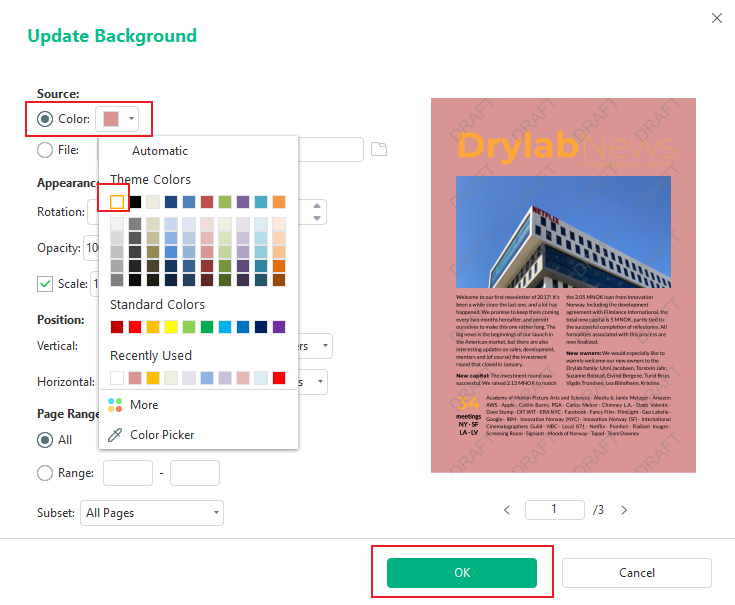
Update Background: If your PDF already has a colored or image background, select the Update Background option. Click the Color option and select White. Then, click OK to confirm the operation.
Add Background: Or, you can select the Add Background option to place a white layer behind the content. In the new window, select White from the Color list, adjust opacity, and personalize other settings as needed.
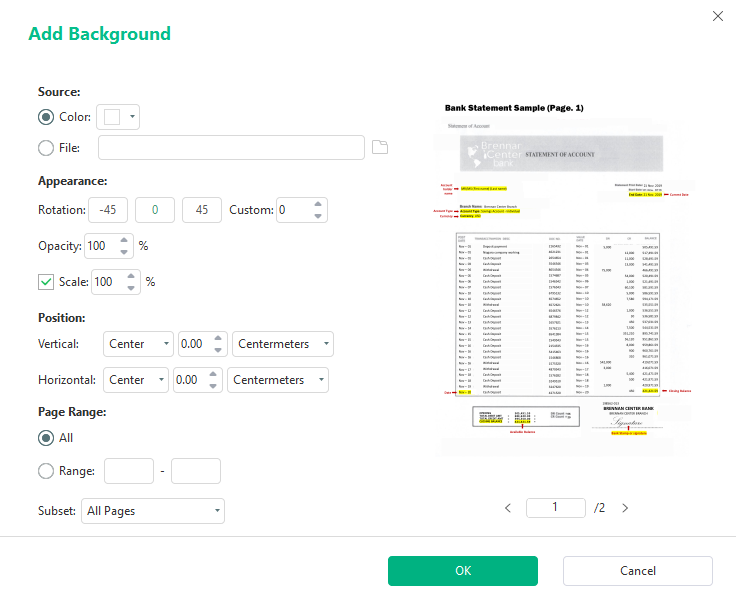
Step 4. Later, you can optionally edit the PDF file, such as editing PDF text or removing PDF watermarks. Once you are satisfied, save the modified PDF file.
Method 2: How to Change PDF Background Color to White Online
If you don’t want to install anything, an online PDF editor is your first choice. To change PDF background color to white online free, you can try the following reliable, safe online PDF editors:
- Smallpdf
- iLovePDF
- Online2PDF
- Canva
Those online PDF editors are an ideal choice, especially when you are in a hurry or need to handle PDFs occasionally. But you’d better use offline tools if your document contains personal data.
Below is a step-by-step guide on how to change a PDF background color to white online using Smallpdf
Step 1. Open your browser and go to Smallpdf’s Edit PDF tool.
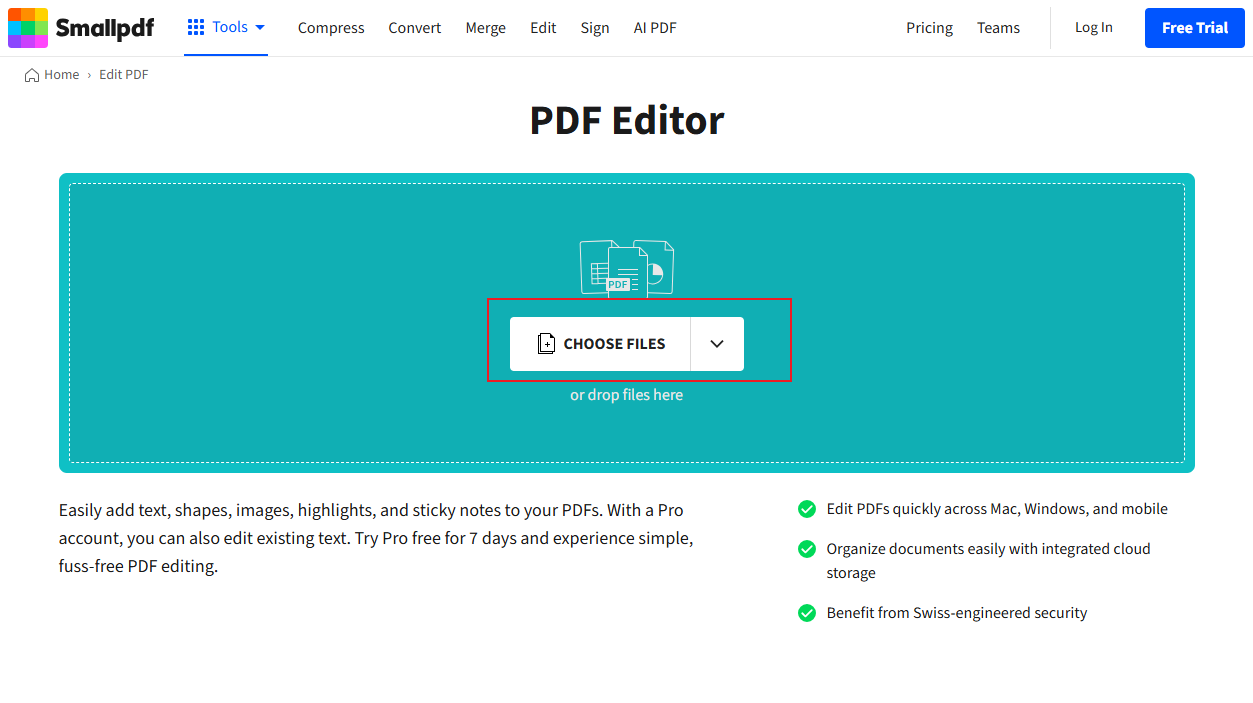
Step 2. Click CHOOSE FILES to upload your PDF file. Or you can directly drag and drop the PDF file into Smallpdf.
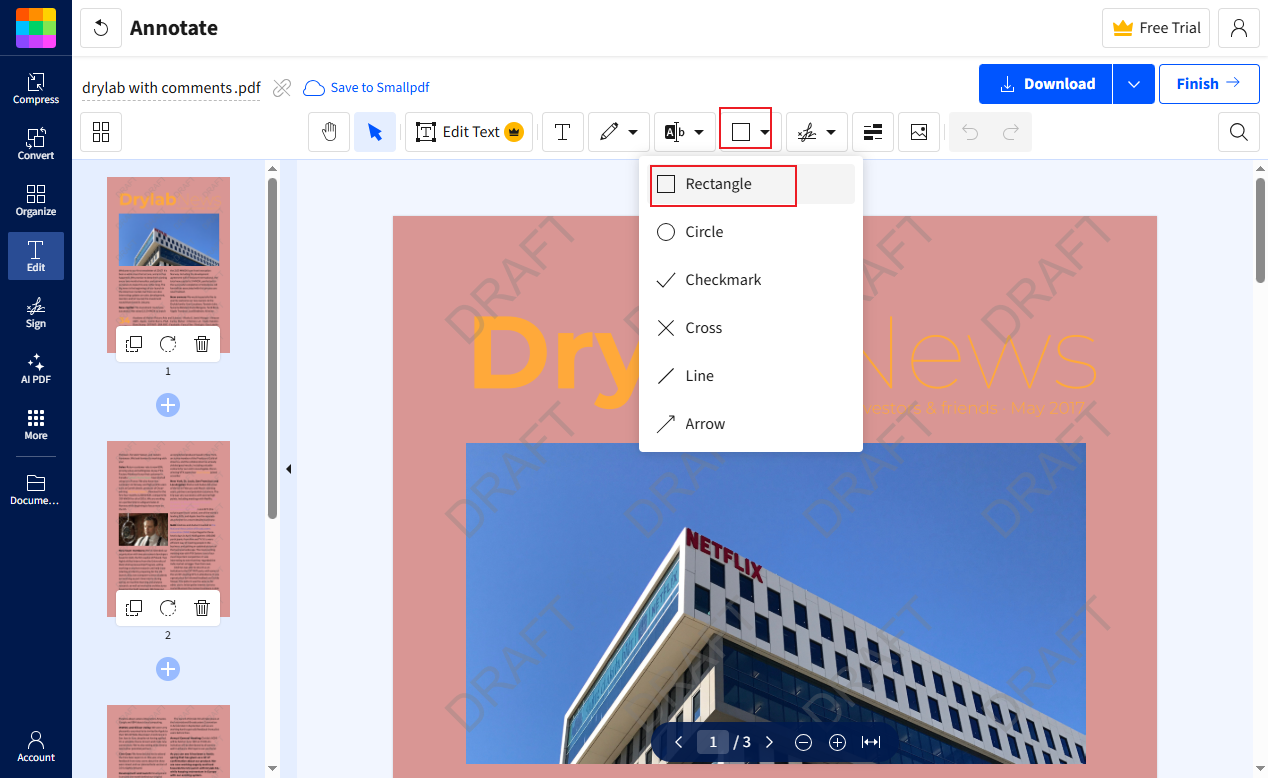
Step 3. Then, the Edit window will appear. Click the Shapes option from the top toolbar and select the Rectangle tool. Next, click and drag to draw a rectangle that covers the entire page.
Step 4. Here, set the Fill color to white and set the Border color to white.
Step 5. Right-click the rectangle and select Send to Back to place the white background beneath the existing text, images, and content. Optionally, you can edit the PDF in Chrome. Finally, click the Download button.
Method 3: Change PDF Background Color to White Using Adobe Acrobat Pro
If you need precise control over the background change, try Adobe Acrobat Pro. It enables you to permanently modify the PDF background color. As a professional PDF editor, Adobe Acrobat Pro offers both basic and advanced features for editing, annotating, organizing, and converting PDFs. How to change a PDF background color to white in Adobe Acrobat Pro? Here’s how:
Step 1. Run your Adobe Acrobat Pro and open your target PDF file.
Step 2. Click Tools from the top menu and select the Edit PDF option.
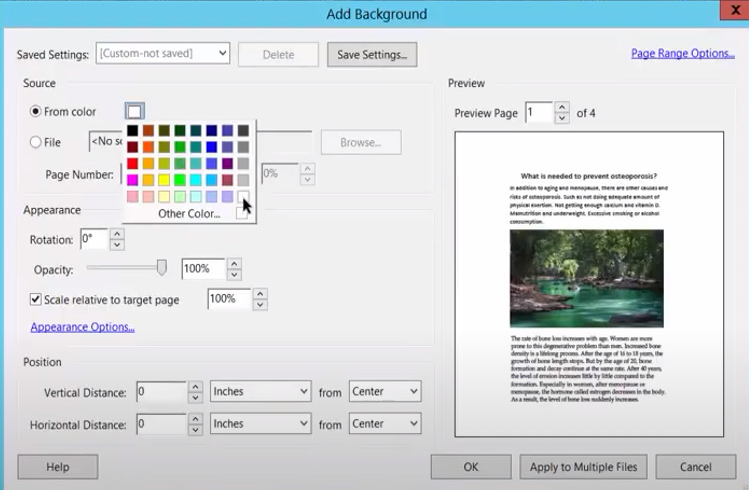
Step 3. Click More (a three-dot icon), select Background, and click the Add/Update option.
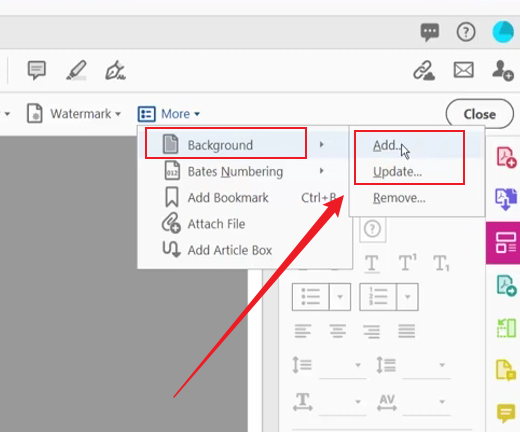
Step 4. In the pop-up window, click the Color icon and select white from the color palette. Customize other settings and click OK to save the changes. Finally, save the modified PDF document.
If you need a cost-effective way to change PDF background color, SwifDoo PDF is a good choice.
Method 4: Change PDF Background Color to White with a Browser Extension
Sometimes, you just want to read PDFs comfortably in Chrome browser, but don’t need to alter the original files. In that case, a browser extension can be a good choice to change the PDF background color to white. How to use a browser extension to get a temporary white background for reading? Follow the steps below.
Step 1. Open your Chrome browser and visit the Chrome Web Store.
Step 2. Then, search for “PDF background changer”. Next, choose the one you need, such as PDF Dark Mode or PDF Reader and Editor, and click the Add to Chrome button.
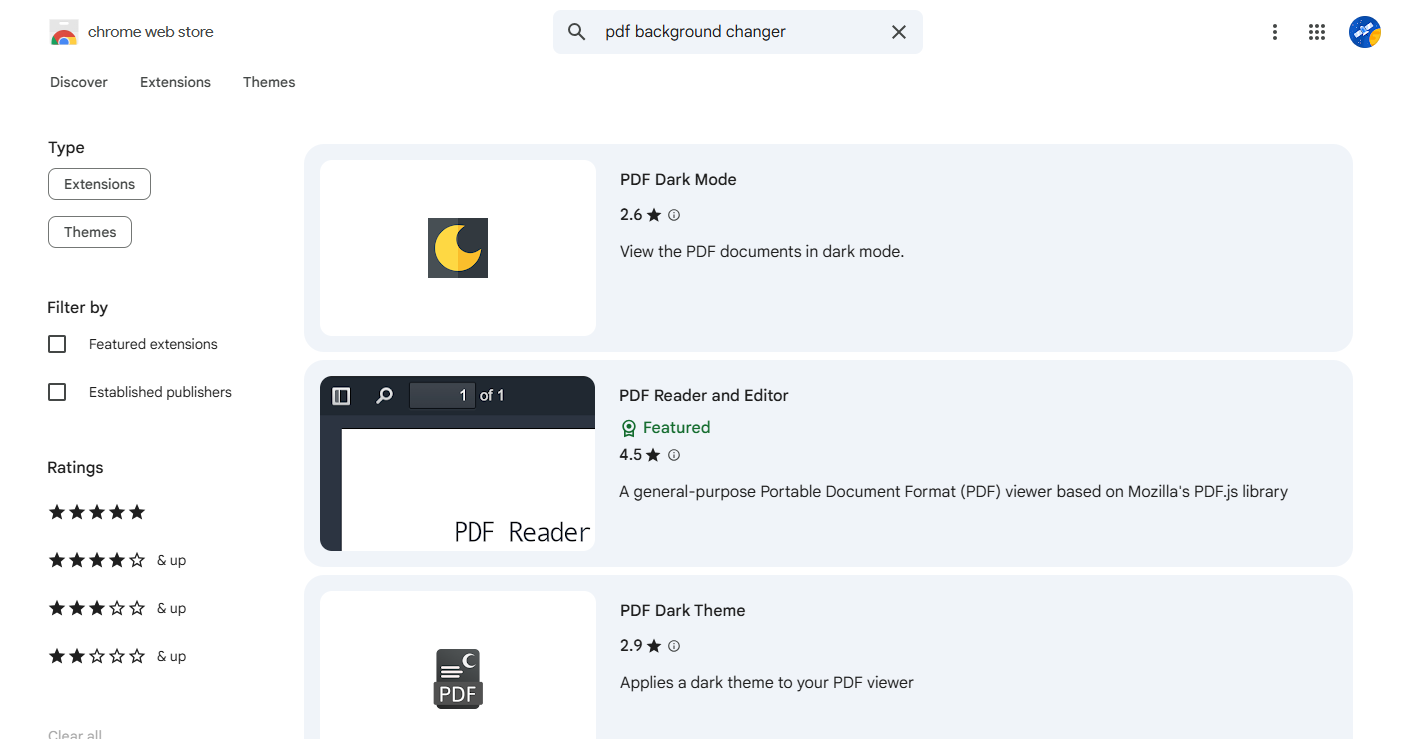
Step 3. Next, open your PDF file in Google Chrome, click the extension icon, and toggle the white background on.
Method Comparison: Which Method Fits Your Situation
|
Your Need |
Recommended Method |
Permanence |
Cost |
Privacy Level |
|
One urgent change, public document |
Online tool |
Permanent |
Free (often with limits) |
Low – file leaves your computer |
|
Professional, permanent fix |
Adobe Acrobat Pro |
Permanent |
Paid |
High – local processing |
|
Versatile, private, and affordable |
SwifDoo PDF |
Permanent |
Free trial / low‑cost license |
High – local processing |
|
Just want to read comfortably |
Browser extension |
Temporary (display only) |
Free |
Medium – depends on extension |
Wrapping Up
When the PDF background is dark or colored, it can negatively affect reading and printing. In that case, the white PDF background is better. How to change PDF background color to white? Adobe Acrobat Pro is a professional choice. If you have a limited budget, try SwifDoo PDF or online tools. If you just need to change PDF background color for temporary viewing, use a browser extension.



