


Common Bluebeam Print to PDF Problems
Bluebeam printing issues can show up in several ways, often without a clear warning, making it hard to pinpoint the exact cause. Below are the most common symptoms users encounter when trying to print to PDF in Bluebeam.
- The Bluebeam PDF printer is missing from the Print dialog.
- Bluebeam Revu crashes or freezes while printing.
- Printing jobs hang in the queue or cannot create a PDF file.
- Printed PDFs are blank, incomplete, or corrupted.
- Bluebeam shows printing errors or stops responding during the process.
Why Is Bluebeam Print to PDF Not Working
Many users ask themselves, “Why is Print to PDF not working in Bluebeam?”, particularly when the problem arises unexpectedly. In most cases, the problem is linked to system settings, software conflicts, or outdated components. Knowing the root causes helps you apply the correct fix more easily. Let’s take a look at the possible reasons adding to the misery.
- Bluebeam PDF printer driver is corrupted: A corrupted or faulty Bluebeam printer driver prevents file conversion to PDF, resulting in printing issues or absent printer choices.
- Windows Print Spooler issues: Problems with the Windows Print Spooler service can interrupt print jobs, prevent the PDF printer from responding, or cause Bluebeam to freeze during printing.
- Permission or administrator conflicts: Lack of proper permissions or running Bluebeam without administrator rights may block access to printer services.
- Conflicts with other PDF printers: Having more than one PDF printer on your system may create conflicts. This lets another virtual printer take precedence over the Bluebeam PDF printer.
- Outdated or incompatible Bluebeam version: Using an older or unsupported version of Bluebeam may result in compatibility issues with Windows updates, resulting in Print to PDF stopping working.
How to Fix Bluebeam Print to PDF Not Working
Now that you’ve identified the common problems and understand the reasons behind them, it’s time to explore the solutions that can fix these issues effectively. These 6 fixes highlight practical ways to fix Bluebeam not printing issues and regain full Print to PDF functionality for uninterrupted work.
Fix 1. Reinstall the Bluebeam PDF Printer
A Bluebeam PDF printer not working problem usually occurs when the printer driver is corrupted or absent. In such a case, reinstalling the driver is often the most effective solution. This refreshes the printer components, repairs driver problems, and brings back the Print to PDF feature, allowing Bluebeam to run smoothly again. Here’s how.
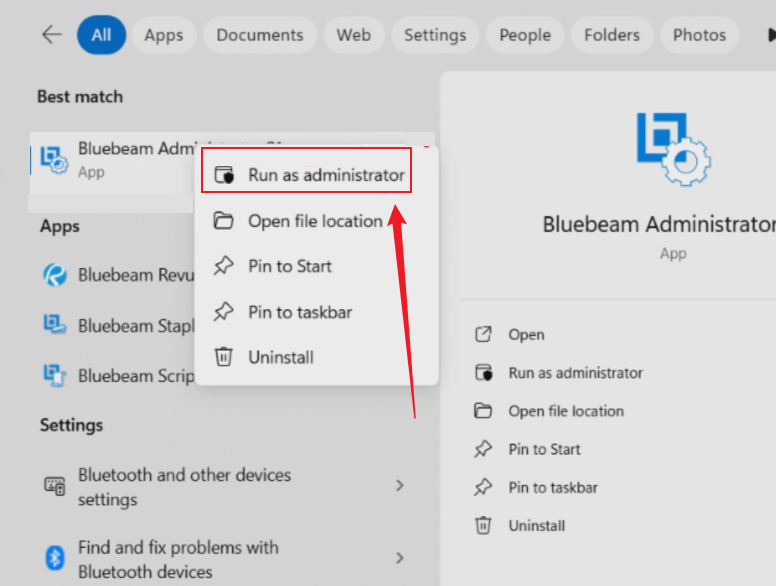
Step 1. On your Windows PC, tap the Start menu and type Bluebeam Administrator.
Step 2. Right-click Bluebeam Administrator and select Run as Administrator.
Step 3. If the printer Name field shows blank on the Printer tab, select Reinstall Printer.
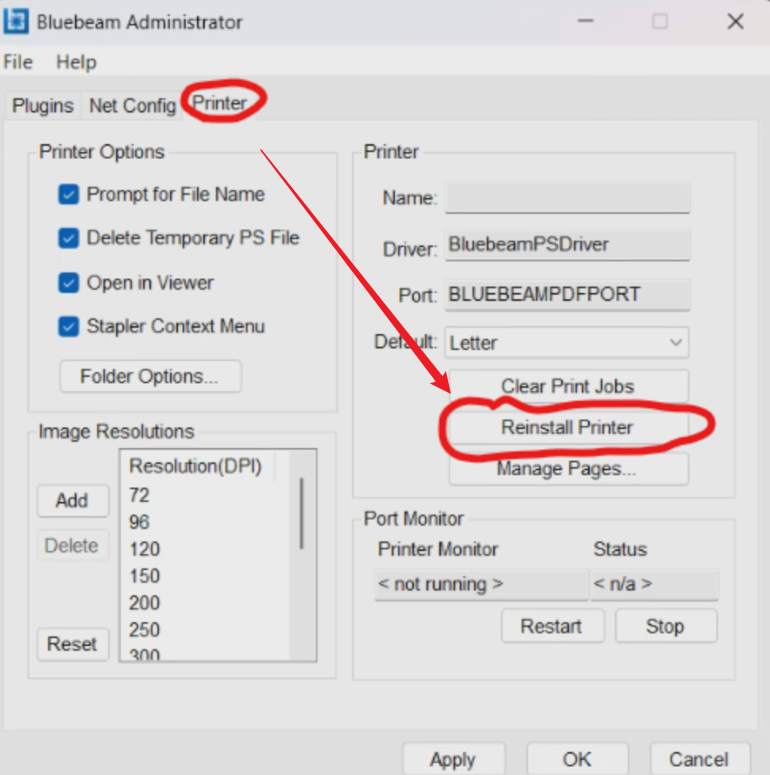
Step 4. Once the printer has been reinstalled, select Restart in Port Monitor and try using the Bluebeam PDF printer again.
By doing so, you can fix missing printers, stuck print jobs, and PDF creation errors.
Fix 2. Restart the Windows Print Spooler
Bluebeam may fail to print to PDF if the Windows Print Spooler, which handles all print jobs, stops or encounters issues. Restarting this service can swiftly clear stuck print jobs, refresh printer connections, and fix printing problems without complex troubleshooting. Here’s the quick process.
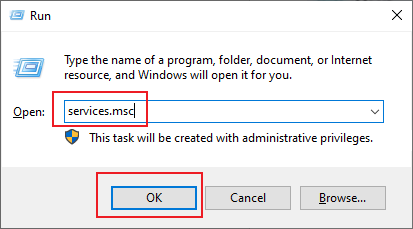
Step 1. Hold the Win + R keys, type services.msc, and click Enter.
Step 2. Look for Print Spooler.
Step 3. Right-click and hit the Restart button.
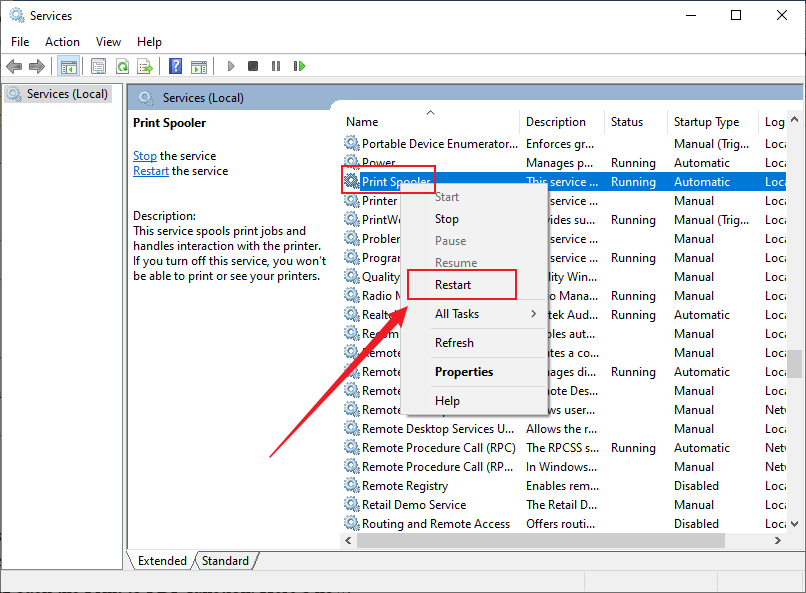
Step 4. Should the problem persist, stop the Print Spooler and delete the contents of:
C:\Windows\System32\spool\PRINTERS
Step 5. Restart the Print Spooler service now.
Fix 3. Run Bluebeam Revu as Administrator
There are times when Bluebeam Revu lacks sufficient permissions to access printer services or system resources. Opening Bluebeam Revu as an admin allows full access, resolving permission conflicts and bringing back the Print to PDF function. Here’s how.
Step 1. Right-click Bluebeam Revu.
Step 2. Select Run as administrator.
Step 3. Try to print again.
Fix 4. Disable Conflicting PDF Printers
Having more than one PDF printer on your system can result in conflicts, where a different virtual printer disrupts the Bluebeam PDF printer. Turning off or removing conflicting printers gives Bluebeam full access to its PDF printer, resolving errors and enabling Print to PDF to function properly. Here's how.
Step 1. Use Windows + R, type control printers, and press Enter.
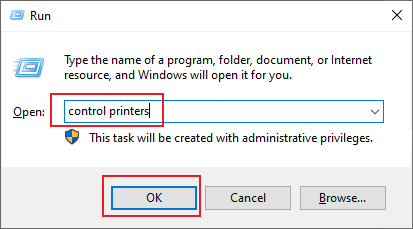
Look for PDF printers besides Bluebeam PDF, like Adobe PDF, Microsoft Print to PDF, or any other virtual printer.
Step 2. Right-click on the Bluebeam PDF printer and select Set as default printer to confirm it is the default.
Step 3. Right-click the conflicting printer and select Remove device to uninstall it.
To turn it off, right-click, open See what’s printing, and pick Cancel all documents and Pause printing.
Step 4. After finishing the changes, restart Bluebeam to make sure only the Bluebeam PDF printer is detected.
Fix 5. Repair or Update Bluebeam Revu
Using an outdated or corrupted Bluebeam Revu installation may trigger Print to PDF errors and other unexpected issues. Updating to the latest version or repairing the installation keeps all program files intact and compatible, improving performance and restoring functionality. Check out how to repair and update Bluebeam Revu.
Repair Bluebeam Revu
Step 1. Press Windows + R, type control, and hit Enter.
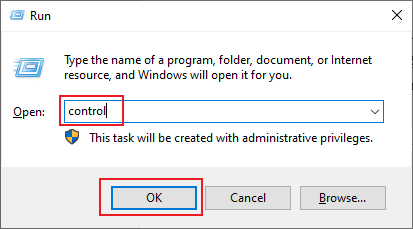
Step 2. Access Programs and then select Programs and Features.
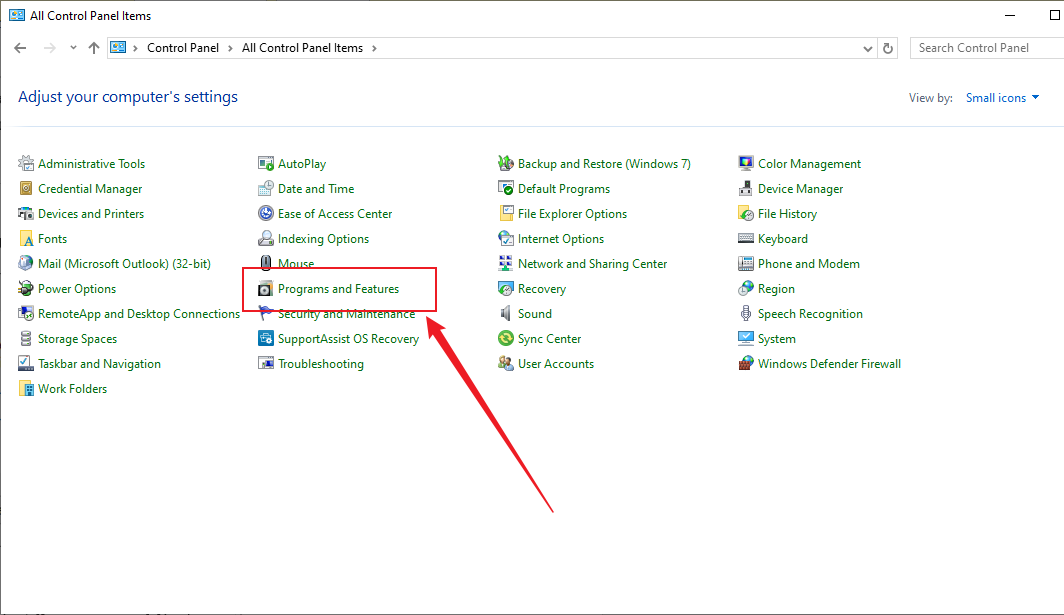
Step 3. Scroll through the list, find Bluebeam Revu, and right-click it.
Step 4. Click Repair (or Change > Repair, depending on your Windows version).
Update Bluebeam Revu
Step 1. Open and sign in to Revu. Then, go to Help > Check for Updates.
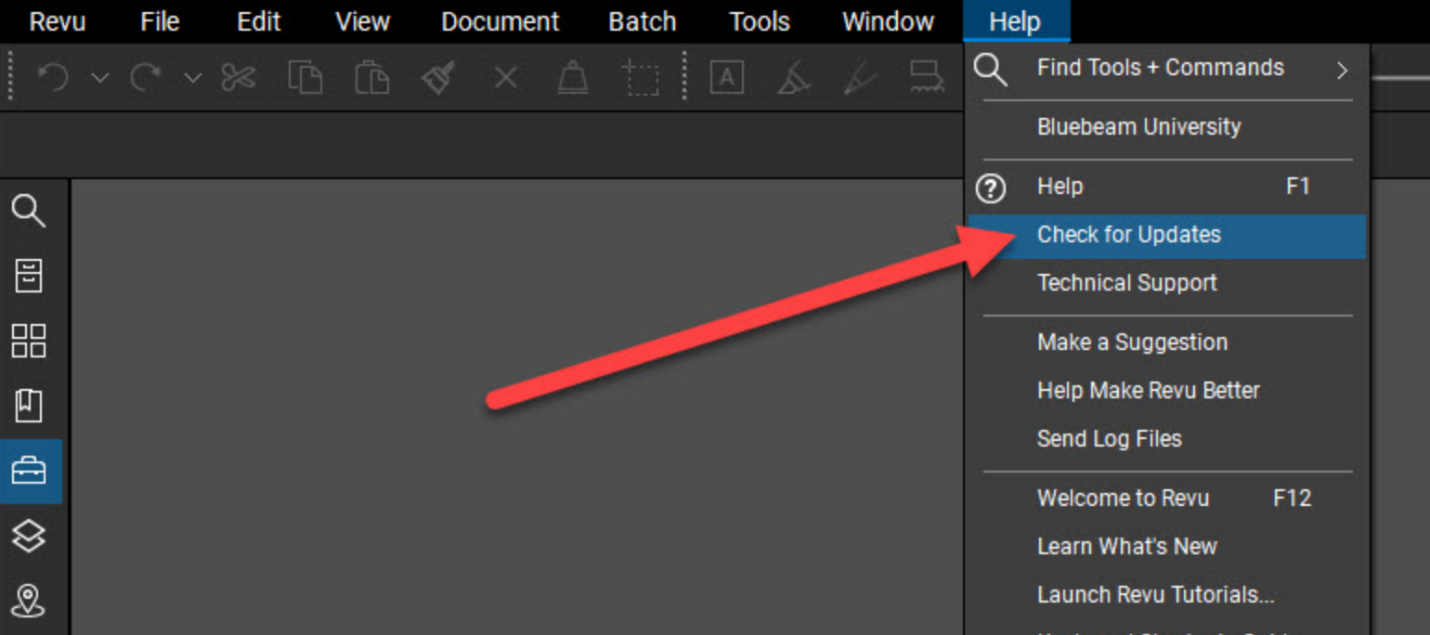
Note. If updates are available, the Update Review dialog appears, containing release notes for the latest version.
Step 2. Select Download.
Then, click Install and follow the on-screen prompts to save your work or to close any running applications (if necessary).
Step 3. In the InstallShield dialog, click Install.
Step 4. After the installation completes, click Finish.
Fix 6. Use Another PDF Tool
When everything else fails and Bluebeam print to PDF keeps malfunctioning, try bypassing the printer and using another PDF tool. Many trustworthy PDF applications let you print to PDF directly from any software, allowing you to create PDFs without using Bluebeam’s printer driver. This workaround allows your workflow to continue uninterrupted while you troubleshoot or update Bluebeam.
Alternative PDF software recommendations:
- SwifDoo PDF
- Adobe Acrobat
- Foxit PDF Editor
- Nitro PDF Pro
- PDF-XChange Editor
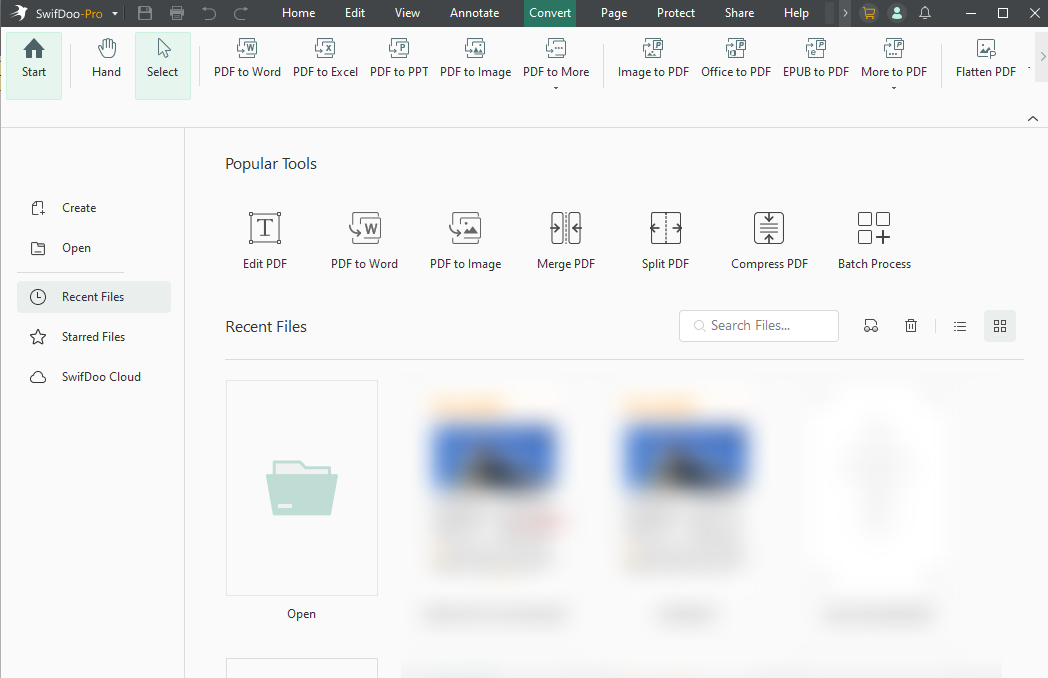
Of all these choices, SwifDoo PDF is considered one of the best PDF printers for personal and workplace tasks. SwifDoo PDF helps you create a PDF from a file, image, or scanner smoothly, offering a practical alternative when Bluebeam Print to PDF malfunctions. Thanks to its intuitive interface and dependable performance, SwifDoo PDF ensures your PDF tasks continue smoothly without any interruption.
Final Thoughts
Experiencing Bluebeam print to PDF not working can be frustrating, but most issues can be resolved with the right troubleshooting steps. From reinstalling the PDF printer and restarting the Print Spooler to updating Bluebeam or switching to alternative PDF tools like SwifDoo PDF, there are effective solutions for every situation. Implementing these fixes helps you restore seamless printing, preserve productivity, and keep your PDF workflows operating efficiently.



