


Can You Add PDFs to Apple Books?
The answer is a resounding yes.
Apple Books lets you import PDFs so that you can store, organize, and read them just like any ebook. Whether it originates in the Files app, Mail, Safari, or your Mac, you can save the file directly to your Books library. With this, you can quickly reach study, work, or personal files from any Apple device.
However, if you want more reading modes and also want to edit, split, and merge PDFs. Try a professional PDF tool like SwifDoo PDF!
For Mac:
For iPhone and iPhone:
How to Add PDFs to Apple Books on Mac
Adding PDFs to Apple Books on your Mac is simple and flexible. Easily open a PDF on Mac in the Books app, or add it to your library by dragging it in. After import, your file becomes accessible on all Apple devices, enabling smooth reading, annotation, and organization.
Learn how to import PDFs to Apple Books on Mac quickly and easily.
Step 1. Launch the Books app on your Mac computer.
Step 2. Choose File and click Import.
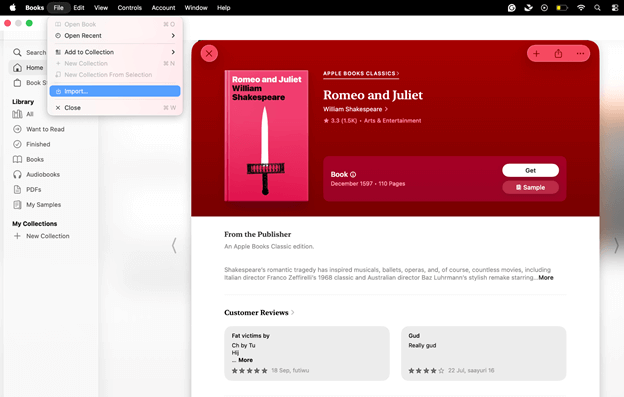
Step 3. Select the files—books, audiobooks, or PDFs—you want to add. Then, tap Import. You can also drag and drop books, PDFs, and some audiobooks into your library.
How to Add PDFs to Apple Books on iPhone/iPad
Adding PDFs to Apple Books on your iPhone or iPad is simple, and you can do it in two convenient ways. You can import files directly from the Files app or send them from apps like Mail or Safari. Both methods turn Apple Books into a powerful iPhone PDF reader, making organization effortless.
Import from Files App
When your PDFs are already stored in the Files app, bringing them into Apple Books becomes quick and seamless. You can access documents from iCloud Drive or local folders and move them into your library with just a few taps. It’s a smooth way to organize everything in one place.
Learn how to add PDFs to Apple Books on your iPhone.
Step 1. To begin, save the PDF to the Files app on your iPhone.
- Open the Files.
- Click Browse at the bottom-right corner.
- Open a location to find the desired PDF.
- Tap on a preferred PDF to open it up in the Files app.
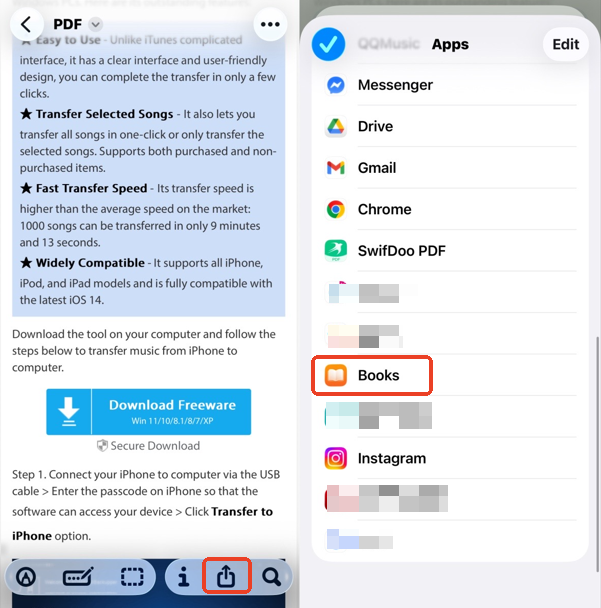
Step 2. Next, click on the Share icon (upward arrow) in the bottom-left corner. Then, in the appearing options menu, click on the three dots icon (...) for more.
Step 3. Locate the Books option from the list of apps. And click it. Your PDF will automatically add and open in the Books app.
Step 4. To read this PDF later, open the Books app. Tap Library in the bottom menu bar and click Collections. Then, select PDFs to open and read PDF.
Import from an App (Mail or Safari)
PDFs can be added to Apple Books directly from apps like Mail or Safari. When you open a PDF from an email or webpage, you can share it straight to the Books app for quick access. If the PDF is already in your device’s Files app, just open it to add it to your library.
Discover how to import PDFs to Apple Books using Mail and Safari.
From Mail:
Step 1. Access the email and select the PDF attachment to open it in preview mode.
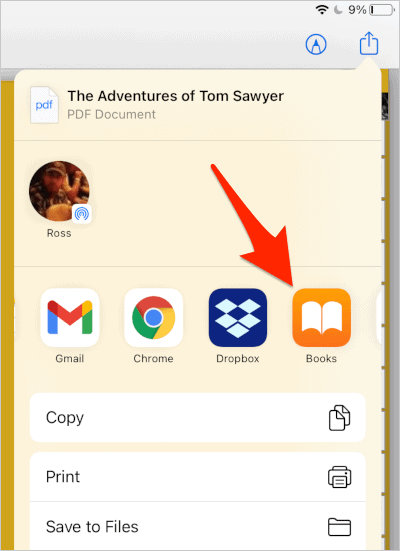
Step 2. Click the Share icon (upward arrow) in the top right corner.
Step 3. Scroll through the app list and hit Books.
From Safari:
Step 1. Hit the download link. Or, the PDF preview in Safari. This will likely open the PDF in a new view.
Step 2. Tap the Share icon (a square with an arrow pointing up).
Step 3. Scroll through the app list and click Books. Alternatively, if the PDF hasn't been downloaded yet, you can tap the Download icon in Safari. Next, choose Save to Files to save it to your device. Finally, navigate to the Files app to move the PDF into Books with the From Files app method.
Bonus Tip: How to Read, Edit and Manage PDFs on Mac, iPhone, iPad
With knowledge of how to import PDFs to Apple Books, you can also use SwifDoo PDF to manage and edit your PDF files easily.
SwifDoo PDF is a versatile and lightweight PDF reader for Mac, iOS, Windows, and Android. It lets you enhance PDF tasks in various ways. You can view, edit, annotate, read, encrypt, print, and more to make PDF work efficiently on your device. SwifDoo for Mac supports converting PDFs from many file formats without loss of quality.
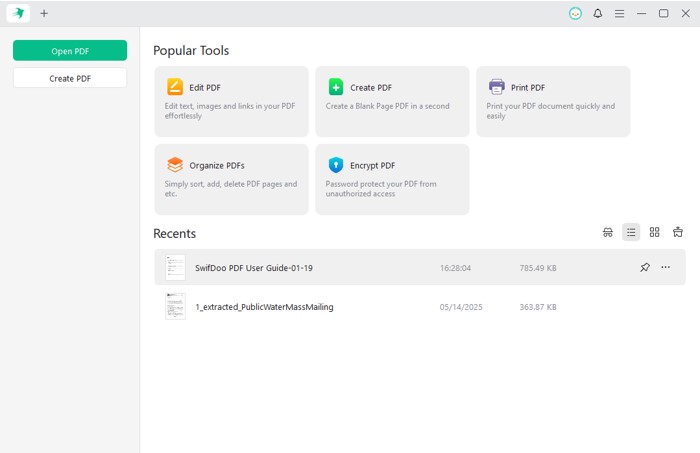
Key Features of SwifDoo PDF
- Effortlessly edit a PDF on Mac/iPhone/iPad with custom fonts and personalized styles
- Easily add or edit images via drag and drop; draw on the screen like painting
- Offers a powerful annotation toolkit to highlight, strikethrough, add shape, and more
- Insert hyperlinks to the PDF or specific pages within the document
- Organize PDFs on Mac to quickly rotate, insert, and delete PDF pages
- Add password protection to your documents
Give it a try!
If you want to use SwifDoo PDF on your iPhone or iPad, please click the download button below or go to the App Store to get the app.
Quick Wrap Up
Learning how to add PDFs to Apple Books on your Mac, iPhone, or iPad makes managing your documents effortless. With PDFs, you preserve layout accuracy, highlight key points, and access content offline anytime. Keeping your files in Apple Books boosts efficiency and ensures that study materials, work documents, or personal archives are all neatly organized and accessible. Hope this guide is helpful!



