


How do you currently read and handle PDF files? If your current software is not user-friendly, or if you don't have such software yet, then you can click the button below to obtain SwifDoo PDF. This is a simple yet feature-rich PDF reader, editor, and manager.
1. Download View-only PDF from Website via Save AS
If you want to view PDF online and are looking to download the view-only PDF file, you can opt for the ''save as'' option of the web browsers.
Here's how to download view-only PDFs from any website.
Step 1: Once you have navigated to the correct webpage, right-click on the PDF file.
Step 2: Tap the Save link or Save links as a button after visiting the context menu.
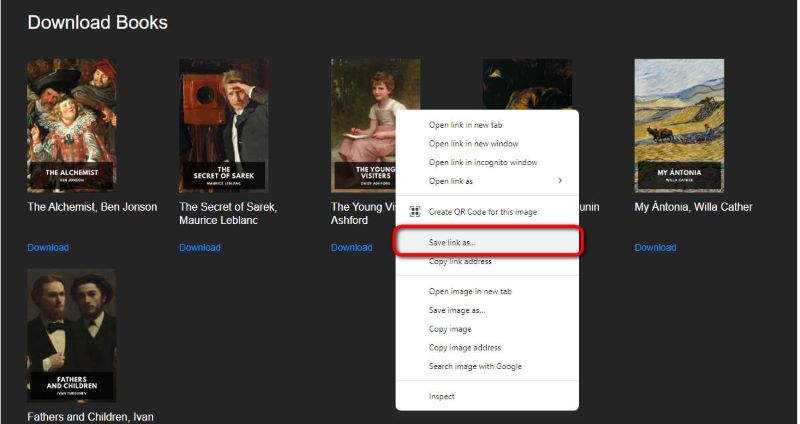
Step 3: In the pop-up Save as window, you'll need to ensure that the file name finishes with the PDF rather than .html, helping you to get the actual PDF file.
2. Download View-only PDF from Website via Print to PDF
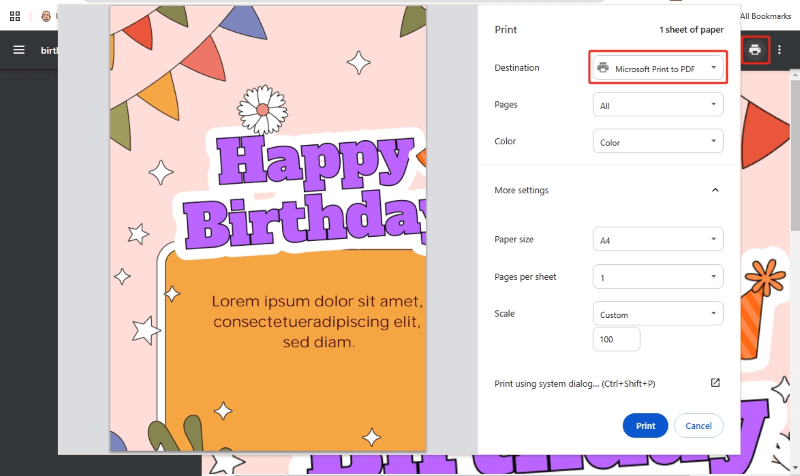
You can also save a webpage as a PDF courtesy of the Print to PDF feature. With this feature, you can download the PDF files from the link by turning the webpage into new PDF files.
Step 1: To download, go to the PDF website you downloaded. After opening it, click the Print button to launch the print window. You can also perform the same operation by hitting the Ctrl+P button.
Step 2: After changing the pages you wish to download, you'll need to press the Print or Save button before saving your file as a PDF file.
3. Download View-only PDF from Website via Inspect Element
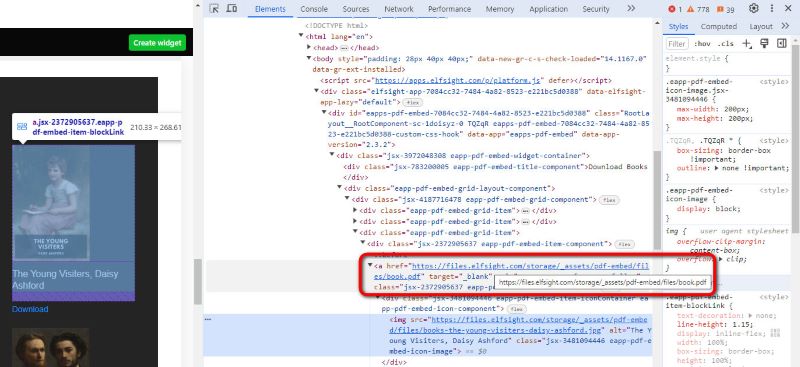
To download protected PDF files from a website, you can rely on the Inspect Element in web browsers like Firefox and Chrome.
Step 1: To open the browser's developer tools, right-click the embedded PDF file and select the Inspect Element or Inspect button.
Step 2: After looking for the object or iframe tags in the src attribute containing the URL address of the PDF file, you'll need to find the URL address containing the embedded PDF before passing it into the new browser.
Step 3: Now, download the PDF using the built-in viewer, then select the Save as button.
4. Download View-only PDF from Website via Extension
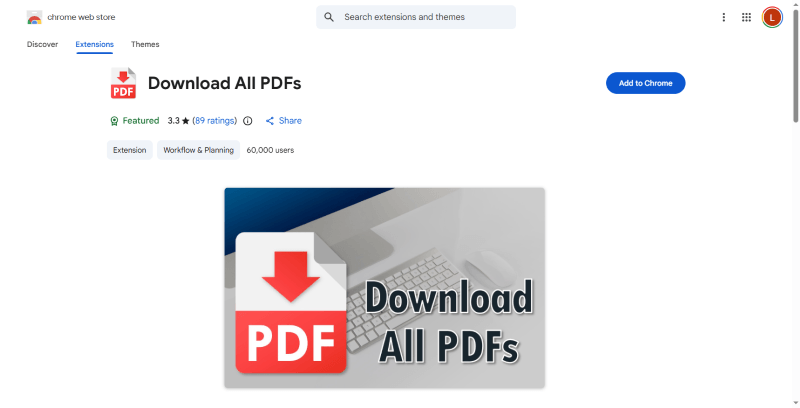
By providing specific tools for downloading, some of the best browser extensions also assist users in downloading PDFs from links. These extensions have the ability to detect PDFs within web pages and tend to offer a context menu option or a download button.
You can try this method to download the embedded PDF without having to search for its source or URL. Some of the most well-known browser extensions for Chrome and Firefox are GetThemAll, "Save as PDF," and "Download All PDFs."
5. Download View-only PDF from Website via Downloader
Downloading the protected PDF from the website is also possible through some downloaders. You can use several online view-only PDF downloaders, like PDFmyURL, iLovePDF, allinPDF, and w2p.
Here's how to download view-only PDFs from a website.
Step 1: Navigate to the official webpage of iLovePDF and navigate to the HTML to PDF page.
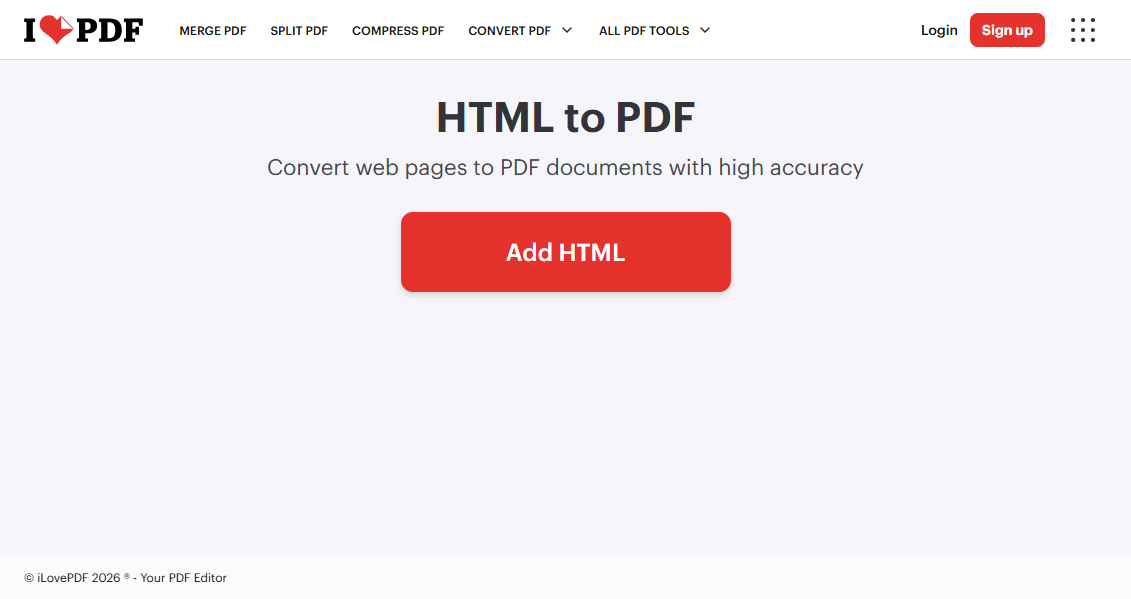
Step 2: Press the Add HTML button before pasting the URL of the PDF website into the box. Press the Add button before specifying some parameters, including the orientation, page, and screen size.
Step 3: After confirming the action, hit the Convert to PDF button to finish the conversion process.
Bonus Tip: Get the Best PDF Reader and Editor
If you're looking for an easy-to-use and feature-rich PDF reader, SwifDoo PDF comes in handy. With SwifDoo PDF, you've got the tools to explore a range of standout features, including editing, annotation, conversion, and protection.
The simple user interface of the SwifDoo PDF ensures you don't have to put in any extra effort to manage PDF credentials. You can put a PDF in full screen, have a PDF read to you, highlight important content, and more. Download SwifDoo PDF, and enjoy reading!
![The 7 Best AI PDF Readers in 2026 [Free Online & Desktop]](https://img.swifdoo.com/image/best-ai-pdf-reader.png)
The 7 Best AI PDF Readers in 2026 [Free Online & Desktop]
Get a list of the seven best AI PDF readers. Choose the top-performing reader with AI that reads PDFs, summarizes PDF content, and answers questions.
READ MORE >Final Thoughts
To protect the file, the author tends to make PDF read-only. However, you can download view only PDF from website by looking at this guide. We've listed some of the amazing ways to download read-only PDF documents in original quality. After downloading, you can use SwifDoo PDF to read or handle the PDF documents. It allows you to perform various editing operations on PDF documents.



