



Part 1. How to Add a Predefined Stamp in Adobe
Adobe Acrobat includes a built-in collection of predefined stamps. You can use it to add a stamp to a PDF and do not need to create stamps manually. It allows for the easy application of preset labels, such as “Approved,” “Draft,” or “Confidential,” saving time and promoting uniform document styles.
Learn the comprehensive steps on how to add a stamp in Adobe with a predefined library.
Step 1: Open a document. And go to the All Tools menu. Select View more and click Add a stamp.
Step 2: From the left panel, select Stamp. Then, select a desired stamp from the required category.
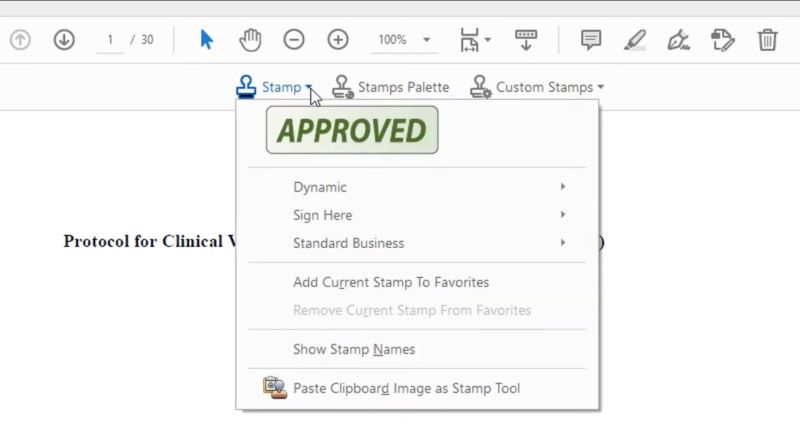
Step 3: Select the spot in the document where you want to apply the stamp.
Part 2. How to Add a Custom Stamp from an Image
By applying a custom stamp, such as your company logo or tailored text, you enhance the professionalism and cohesion of your PDFs. Adobe Acrobat allows you to create custom stamps from a wide range of formats, including PDF, JPEG, bitmap images, Adobe Illustrator, Photoshop, and AutoCAD files. Acrobat Reader permits custom stamp creation, but only from PDF documents.
Here are the detailed steps on how to add stamp in Adobe (create a custom stamp).
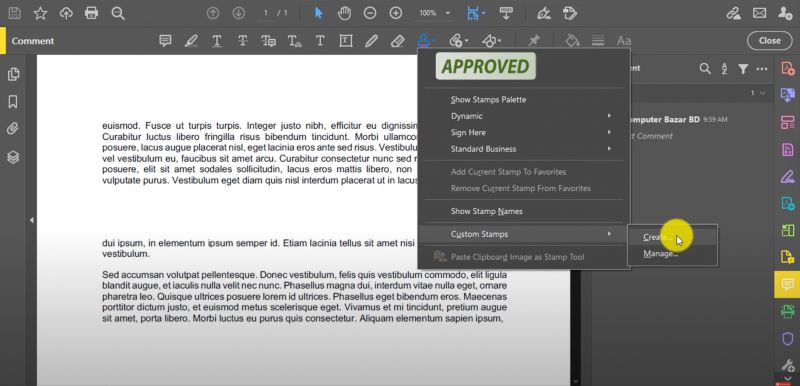
Step 1: Open Adobe. From the All Tools menu, select View more. Click Add a stamp and choose Custom stamps > Create.
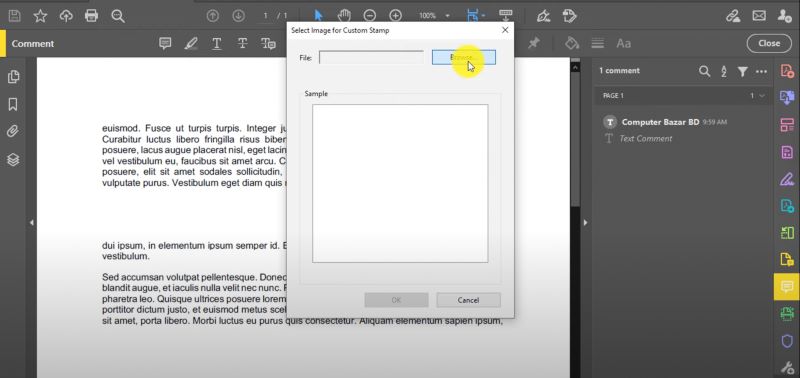
Step 2: Select Browse to locate and select the image file for your stamp. Then, select OK.
Step 3: When in the Create Custom Stamp dialog, use the dropdown menu to select a category.
- Dynamic
- Sign here
- Standard Business
- Type a new category name

Step 4: Click OK.
Part 3. How to Add a Dynamic Stamp in Adobe
Automatically updating with real-time information, dynamic stamps display the date, time, and username interactively. When you add dynamic stamps in a PDF, they help streamline tracking of reviews, approvals, and document status without manual effort. This ensures accuracy and efficiency.
Check out the simplified guide on how to add a dynamic stamp in Adobe.
Step 1: Open Adobe and select the All Tools menu. Choose Add a stamp.
Step 2: From the left pane, select Stamp. And then choose Dynamic.
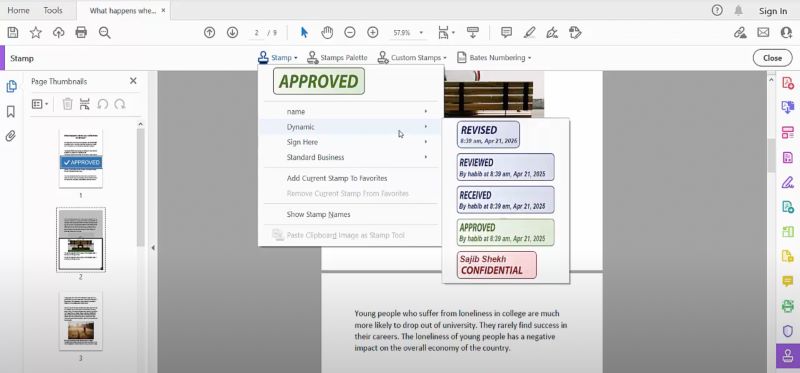
Step 3: Select the desired stamp from the options.
Step 4: Click on the document to place the dynamic stamp.
Part 4. Add a Stamp with the Best Adobe Alternative
You have seen the detailed steps on how to add a stamp in Adobe Acrobat Pro. Adobe is highly preferred by users invested in its ecosystem. However, it has its own share of limitations. For instance, it may not be preferable for users on a low budget. Those less familiar with technology may struggle to use Adobe efficiently and take longer to complete simple tasks. Under such circumstances, opting for a reliable Adobe Acrobat alternative, such as SwifDoo PDF, is a good choice.
SwifDoo PDF is a lightweight and versatile PDF stamp creator that simplifies the creation and addition of stamps to PDFs. It provides pre-designed dynamic stamps, including the person's name, stamp text, and date and time. SwifDoo lets you create and add stamps to PDFs from scratch.
Offering a broad range of static and dynamic stamps, it is a reliable choice to work with documents. Additionally, its unified platform handles all PDF-related activities with ease.
Benefits of using SwifDoo PDF
- Simple installation with no steep learning curve
- Pre-designed dynamic stamps with real-time time and date
- Runs seamlessly and flawlessly, even on older Windows computers
- Easily create and insert different stamp categories—including Standard, Sign Here, Dynamic, and Images
- Ensures document integrity by adding a time stamp to the PDF signature
- Provides a full-feature free trial to get a glimpse of its premium offerings
Check out the detailed steps to add a stamp with SwifDoo PDF.
Step 1: Download, install, and launch SwifDoo PDF.
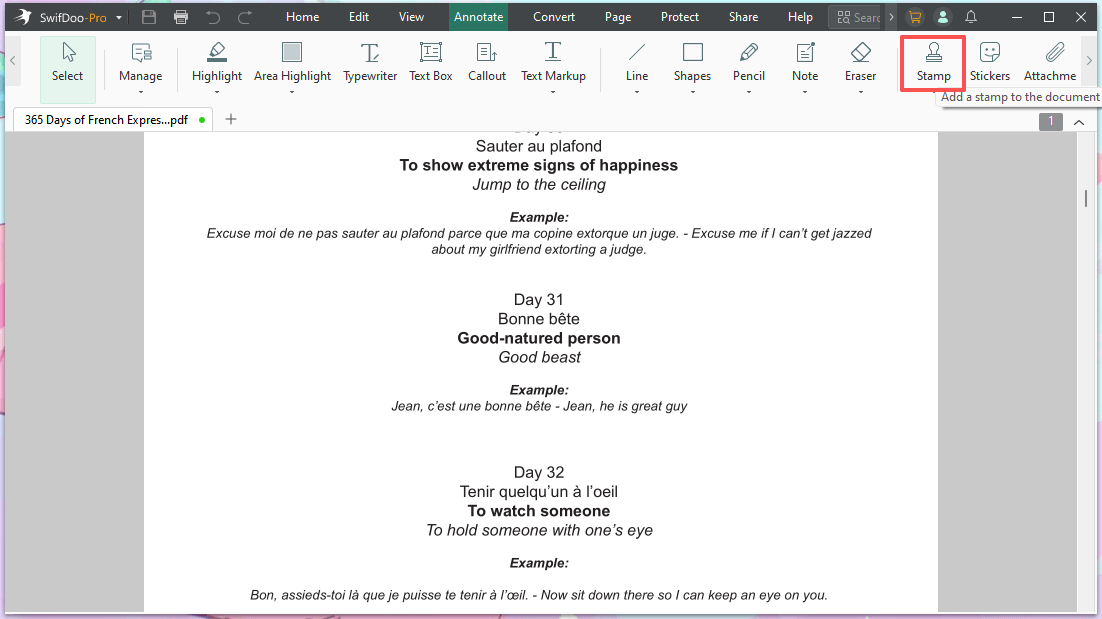
Step 2: Open the PDF document where you want to add the stamp. In the toolbar, navigate to Annotate and pick Stamp from the secondary options.
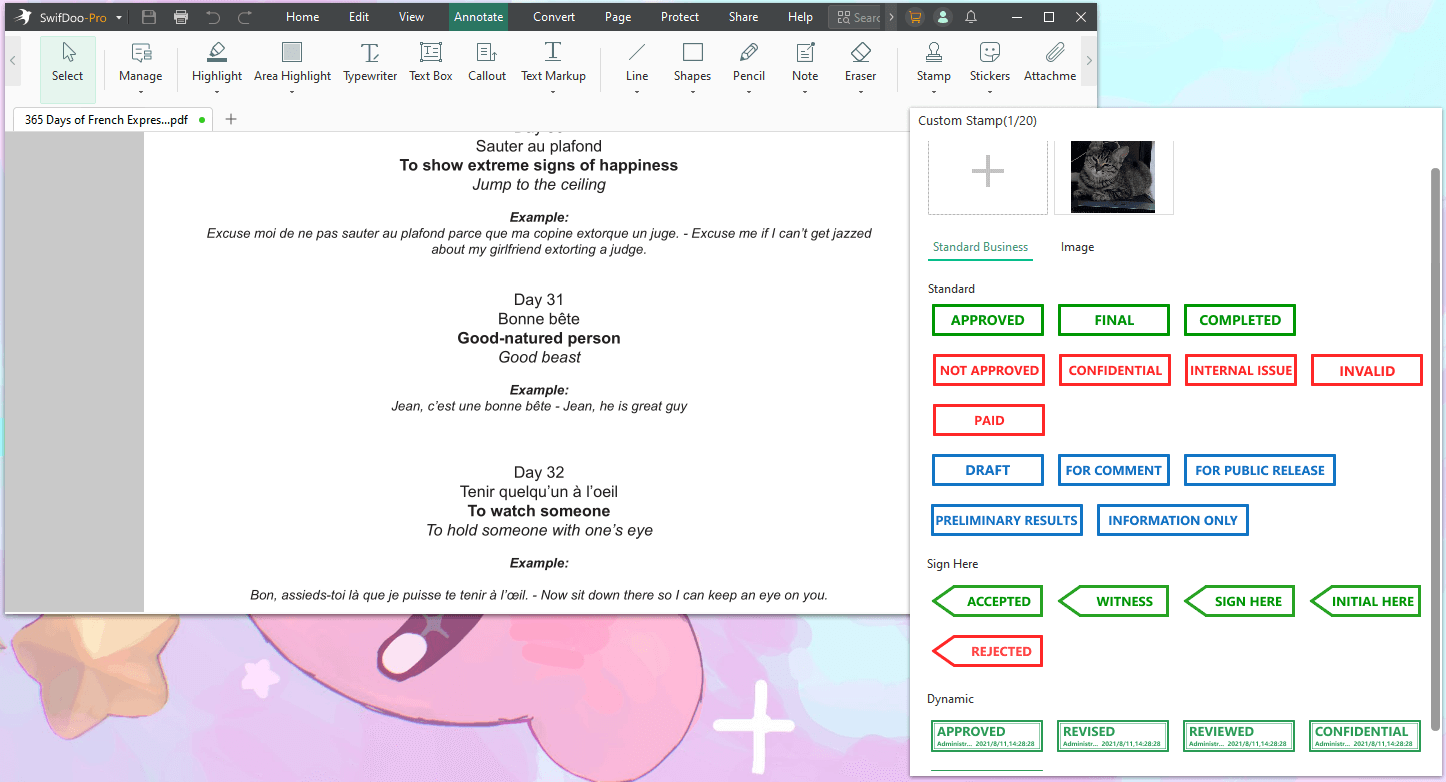
Step 3: Select from built-in templates, such as Standard, Sign Here, or Dynamic stamps, which automatically display the date and time. You can also import an image for use as a stamp.
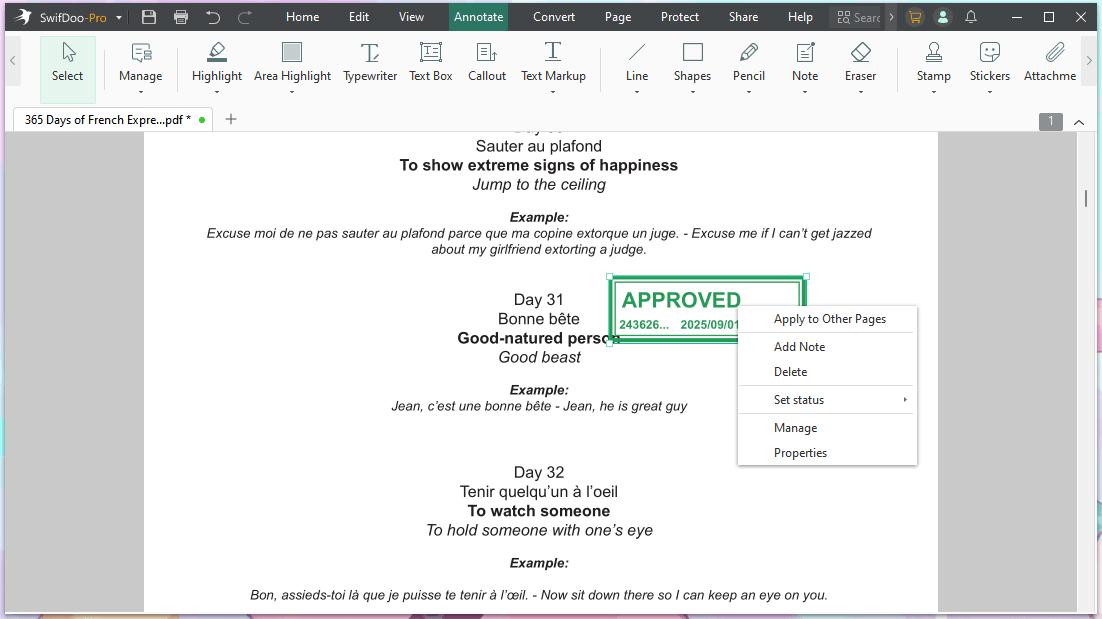
Step 4: Click OK. And place the stamp on the PDF.
Bottom Line
We have discussed all the various ways on how to add a stamp in Adobe. The detailed step-by-step guide will definitely help you create and add your desired stamps without hassle.
Should the interface seem confusing or the steps overwhelming, SwifDoo PDF is a great alternative. In addition to adding stamps, this user-friendly and lightweight tool offers PDF annotation, editing, conversion, compression, merging, splitting, and other PDF management functions.




