



Method 1. How to Delete ChatGPT Search History One by One
Sometimes, you want to delete just one or two specific search histories. Maybe you asked a silly question, and you don't want to see it anymore. Check to learn how to delete chats one by one.
On a Computer:
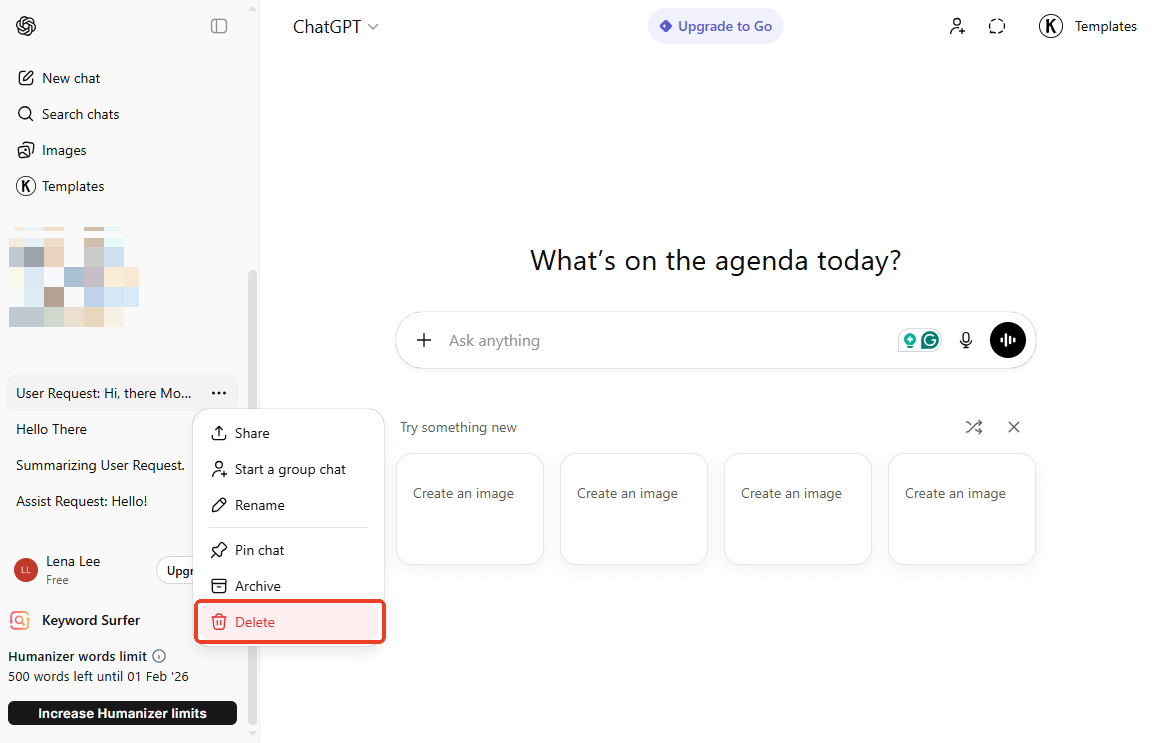
1. On the left side of your screen, you will see a list of all your past conversations.
2. Scroll down until you see the specific conversation you want to remove.
3. Hover your mouse over the title of that chat. You will see a small icon that looks like three dots (...). Click on it.
4. A small menu will pop up. Click the Delete icon.
5. Click Delete again on the pop-up window to confirm. It is now gone forever.
On an iPhone/Android phone:
1. Open the ChatGPT app on your iPhone or Android.
2. Tap the two lines in the top corner to see your history list.
3. Find the chat you want to remove.
4. Now, tap the Delete icon to delete that chat.
- iPhone Users: Swipe left on the chat name. Tap the red Delete button.
- Android Users: Press and hold the chat name until a menu appears. Tap Delete.
Method 2. How to Delete All ChatGPT Search History
If you have hundreds of old chats and you don't want to delete them one by one, there is a faster way. You can delete everything at once.
However, please be careful with this button. Once you do this, you cannot retrieve your conversations. If needed, you can save ChatGPT conversation in PDF format as a backup.
Steps to clear all ChatGPT history:
1. First, you should go to the Settings:
- On your computer, look for your name or profile icon at the bottom left of the screen. Click it, then click Settings.
- On a phone, open the sidebar menu, tap your name at the bottom, and look for Data Controls or Settings.
2. In the settings menu, go to Data controls.
3. You will see an option that says Delete all chats, please click the Delete all button next to it.
4. ChatGPT will ask you to confirm because this is a big action. If you are sure, click Confirm deletion.
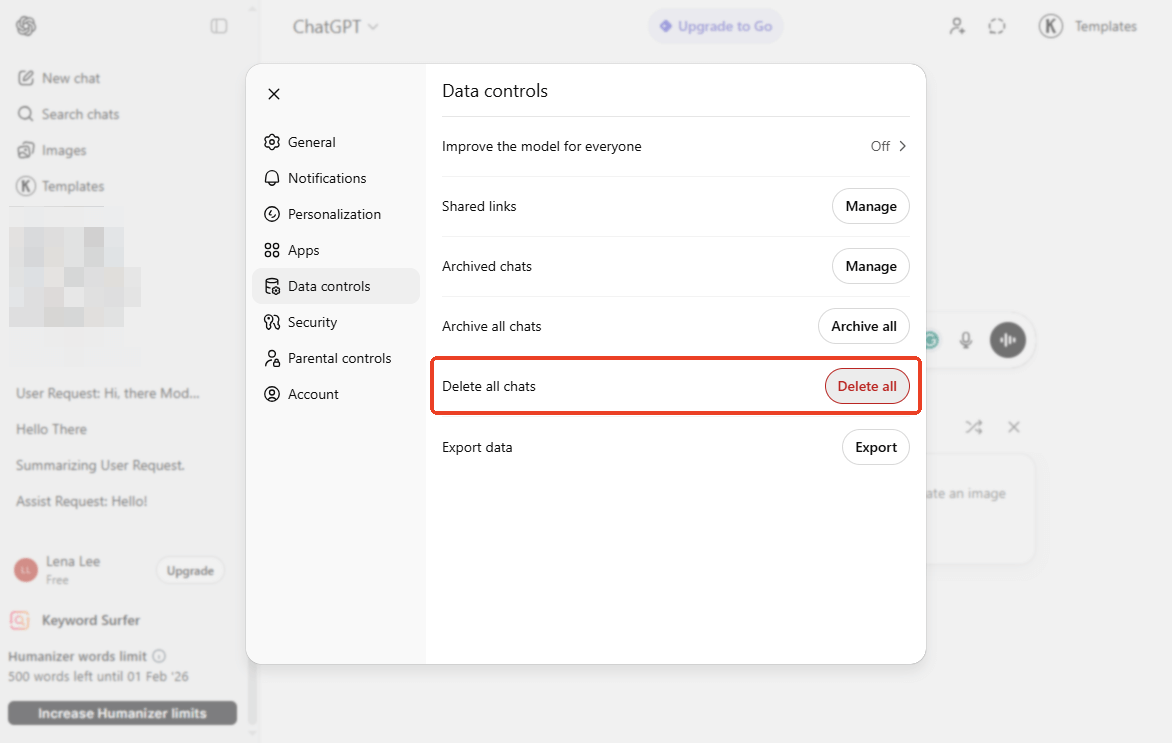
In this way, when you go back to your main screen, your history sidebar will be completely empty. It will look like a brand-new account. Note that this does not delete your account; it only deletes the text of your past conversations.
How to Avoid Search History in the Future
Deleting history is good, but preventing it is even better. You can use ChatGPT in a special "Incognito" mode so you don't have to worry about deleting things later. It is called Temporary Chat. When you turn it on, two things happen:
- Your chats will not appear in your sidebar list.
- OpenAI will not use these chats to train its advanced machine learning models.
Here is how to turn on Temporary Chat:
1. At the very top of the chat window, you will see a circle composed of dotted lines.
2. Click on this Turn on temporary chat button.
3. Click Continue to make it.
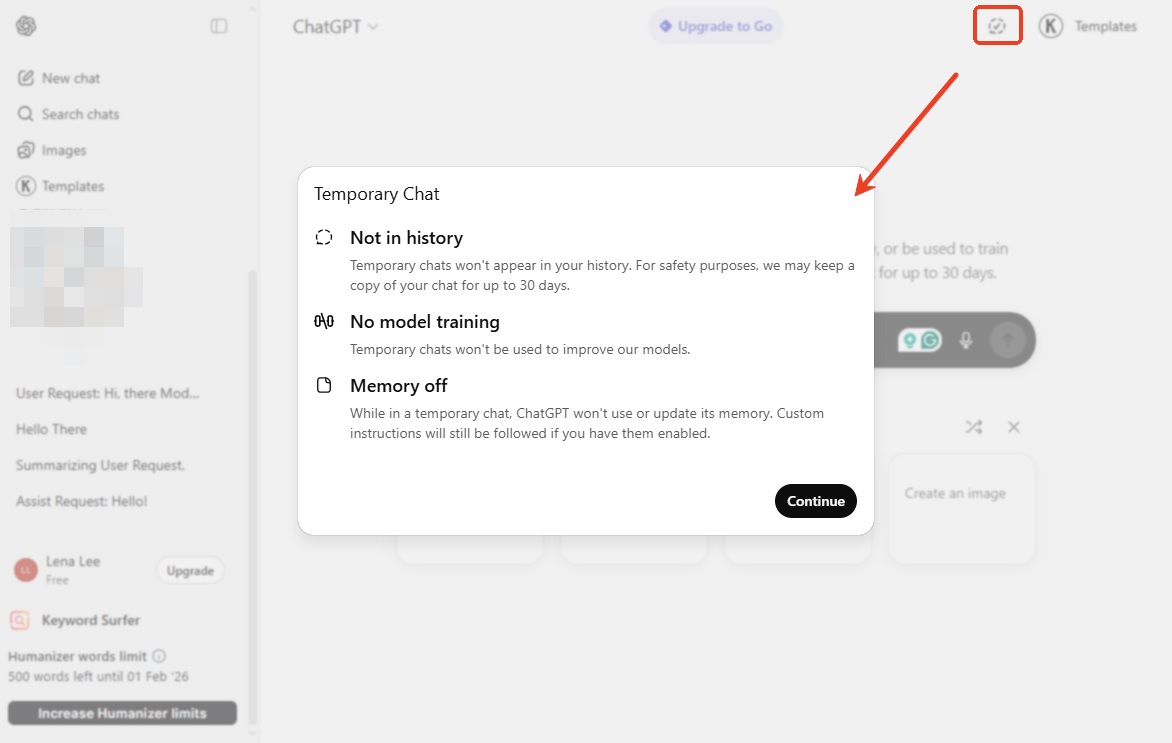
You will know it is working because the screen may turn dark grey or display a "Temporary Chat" label. Now, you can ask anything you want. When you close the window or refresh the page, that conversation will disappear from your view.
Bonus Tip: Unlock Next-Level PDF Efficiency with SwifDoo AI
With ChatGPT, we can process PDFs much faster than before. However, we need to first upload the PDF to PDF. If you think this is a bit troublesome, try SwifDoo PDF, a PDF reader and editor that integrates with ChatGPT.
With SwifDoo PDF, you can open a PDF document, go to SwifDoo AI, and ask anything.
In the chat box, you can enter your question, and SwifDoo AI will give you the answer immediately. It can be your AI PDF summarizer, analyzer, rewriter, and translator.
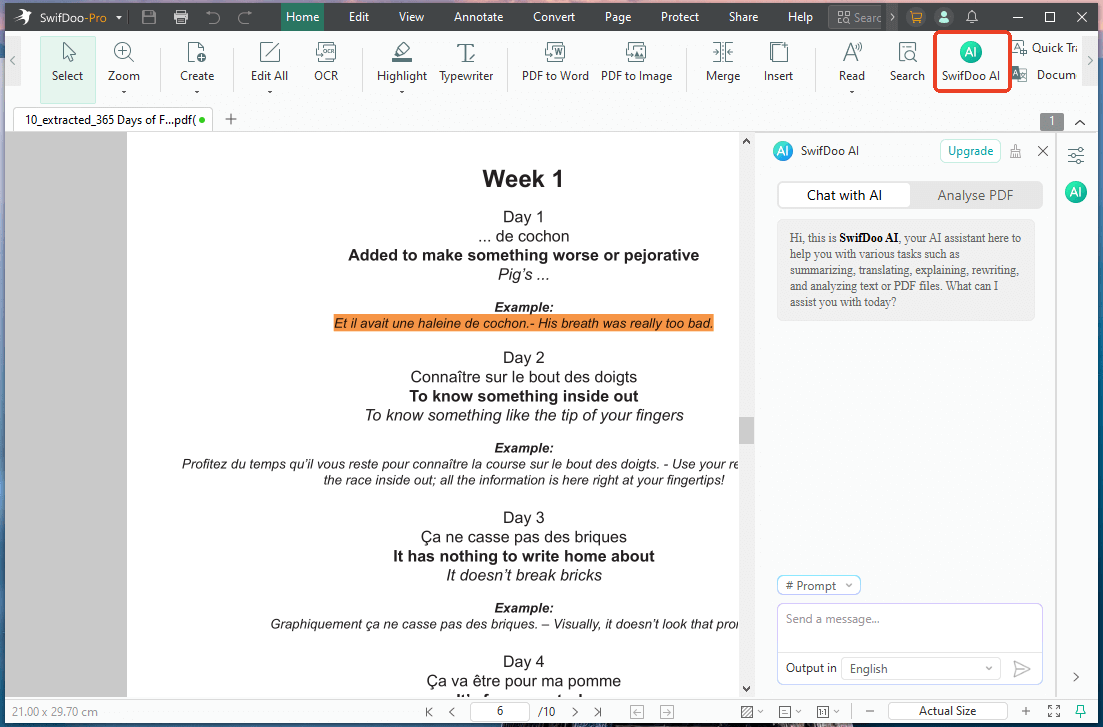
As a comprehensive PDF editor, it can also help you edit, annotate, merge, split, compress, and protect your documents. Why not download SwifDoo PDF today to work smarter? Perhaps SwifDoo PDF is the best PDF editor that you have been looking for.
Conclusion
That’s all about how to delete ChatGPT search history. Whether you want to remove just one silly question or wipe your entire history clean, the steps are simple. However, if you want to chat without leaving a trace, just turn on Temporary Chat. It is the easiest way to protect your privacy moving forward. Hope this guide is helpful!



