


Part 1. Can You Find and Replace in Adobe?
Many users wonder, “Is there a find and replace in Adobe Acrobat?” The answer is yes. Adobe Acrobat lets you find and replace text in PDF documents. Please note that this functionality is exclusive to Adobe Acrobat Pro and is not available in the free Adobe Reader. It simplifies applying consistent changes to text throughout a whole PDF, especially large ones.
One limitation is that it works only on actual text, not on scanned pages or image-based PDFs. It won’t work unless OCR has been run on the document first. Designed for big documents, it makes fixing typos and updating repeated or outdated text easy and efficient. If your PDF contains recognized text, Adobe Acrobat Pro makes finding and replacing both efficient and straightforward.
Part 2. How to Use Find and Replace in Adobe
Adobe Acrobat’s Find and Replace tool is pretty easy to use. However, you can only replace one word at a time using this method. So, it comes in handy working with smaller documents. But it can be time-consuming while working with larger documents.
This guide covers how to use Find and Replace in Adobe Acrobat effectively.
Step 1: Open Adobe Acrobat and add your PDF file.
Step 2: Press the magnifying glass button in the top-right area of the screen. Or, press Ctrl + F keys. Then, click the three dots and tap "Replace text."
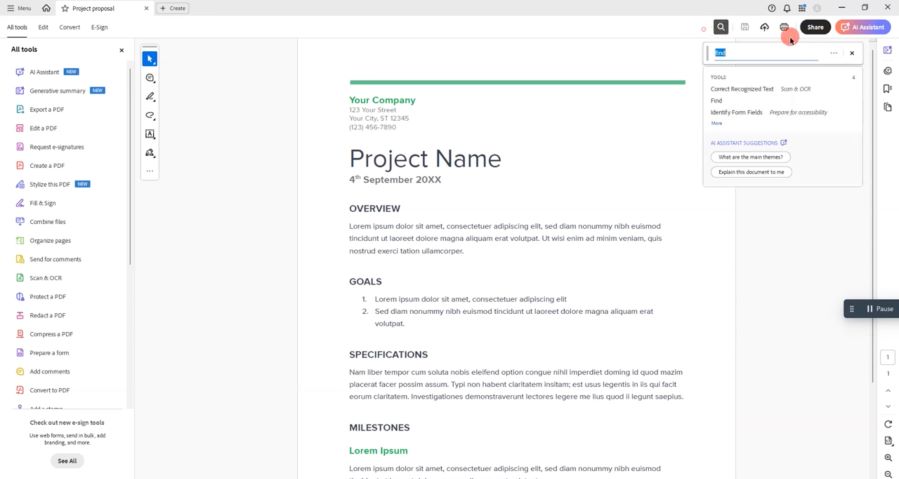
Step 3: Type in the word you wish to replace in the document.
Step 4: Place the replacement word in the box right below the original word.
Step 5: Click Replace. This will replace the first instance of the selected word. Tap Replace again to replace the next word.

Part 3. How to Find and Replace with Adobe Alternative
For some users, using Adobe Acrobat can be an expensive solution. Plus, it only enables replacing one word at a time. Hence, a more affordable Adobe Acrobat alternative, like SwifDoo PDF, is a better option.
SwifDoo PDF offers a Search and Replace tool that enables you to search for a particular text. And replace it with a different text with ease. In addition, it gives you the option to choose ‘whole words only’ or ‘case sensitive’ words to locate only the targeted words and phrases precisely. SwifDoo can recognize uppercase and lowercase letters and match entire words.
Additionally, it provides a comprehensive guide to help you complete all PDF-related tasks. Learn how to find and replace content with SwifDoo PDF.
Step 1: Start by downloading and installing SwifDoo PDF on your computer.
Step 2: Click the Open button to add your PDF file.
Step 3: Select "Search" from the Home tab. Then, press Replace.
Step 4: Now, enter the text you want to find and replace.
Step 5: Finally, click Replace All or Replace as needed
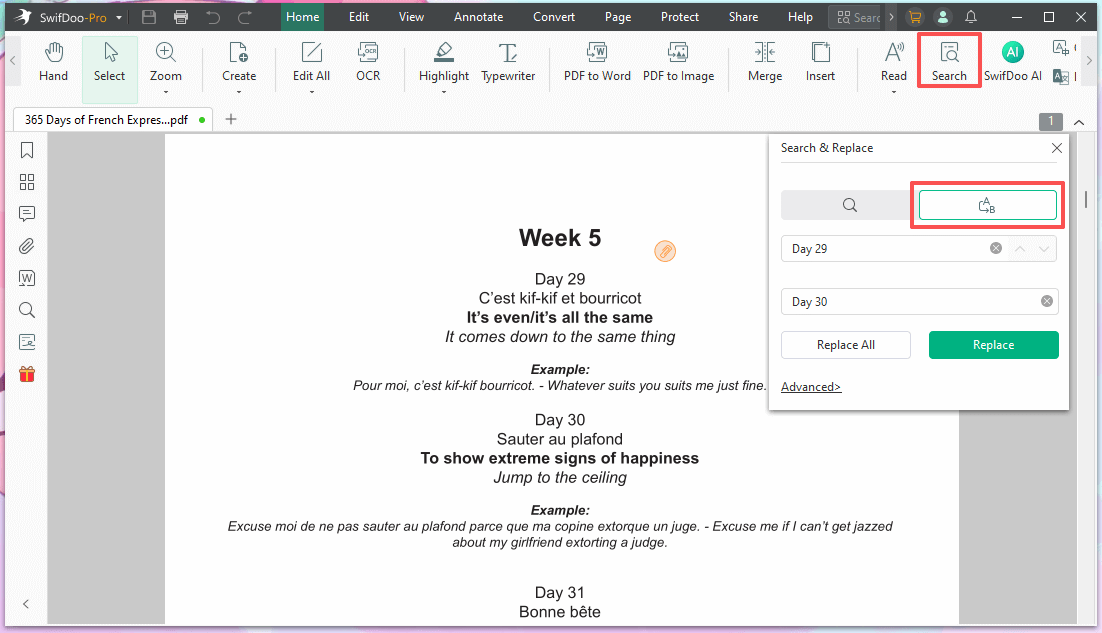
To conduct a more precise search, click on "Advanced". After that, you can choose "Whole Words Only" and " Case Sensitive" to find the content.

Part 4. Troubleshoot: Why Can’t I find Text in PDF?
Sometimes, you may not find text in a PDF. There may be several reasons for this. Here are the two most prominent ones.
1. Scanned Images
Some PDFs are scanned images and not text. You cannot edit them directly. Making these PDFs editable requires you to recognize text in PDF by applying Optical Character Recognition (OCR). Try SwifDoo PDF—it offers an OCR function to convert scanned PDFs into editable files without hassle.

2. Password-Protected PDFs
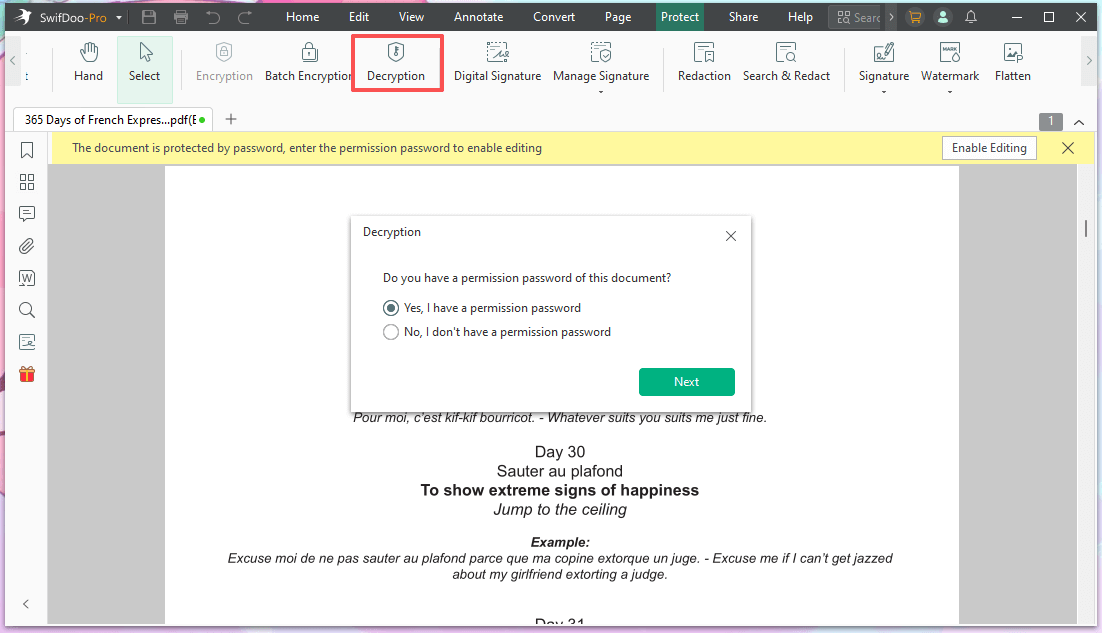
Some PDFs are password-protected or have editing restrictions. They prevent you from making any changes. If you face these restrictions, try SwifDoo PDF to unlock a PDF for editing with ease. Even if you don't know the password, SwifDoo PDF can help you unlock the document.
Final Wrap Up
That’s it. We have explained the complete functionality of Find and Replace in Adobe Acrobat Pro. You can use the tool to replace specific words. Now search for a character, word, number, or phrase and replace text in PDFs with ease. Another option is to use a cost-effective tool like SwifDoo PDF for improved management of your entire PDF document.



