


Is it possible to export Google Forms as PDFs? Of course, it is! Google Forms enables you to export your form into a PDF file with only a few clicks. In the following content, I will introduce the benefits of downloading Google Forms as PDFs first and then show you the exact steps to explore Google Forms as PDFs on both PCs and mobile phones. Now, let’s get started!
Reasons for Downloading a Google Form as a PDF
In general, Google Forms are designed for online use. But sometimes you may need to use a Google Form file for offline use or other reasons. Below are some reasons why you should download Google Forms as PDFs. Let’s have a look.
- The primary reason is to facilitate offline distribution for teachers or trainers who need to provide printed Google Form files to participants without Internet access.
- It is necessary to export Google Forms as PDFs if you need to maintain a static record of documentation.
- Instead of sharing a Google Form file link, it is better to export the Google Form file as a PDF file for easy presentation.
- It is a good choice to share a PDF file if you don’t want other people to edit your Form file.
How to Download Google Form as PDF on Desktop
In fact, Google Forms doesn’t offer a direct way to export forms as PDF files. Fortunately, there is still a way to export a Google Form as a PDF. Here are the steps.
Step 1. Open Google Chrome or other browsers on your PC and visit the Google Forms website. Sign in to your account and choose the form you want to download as a PDF file.
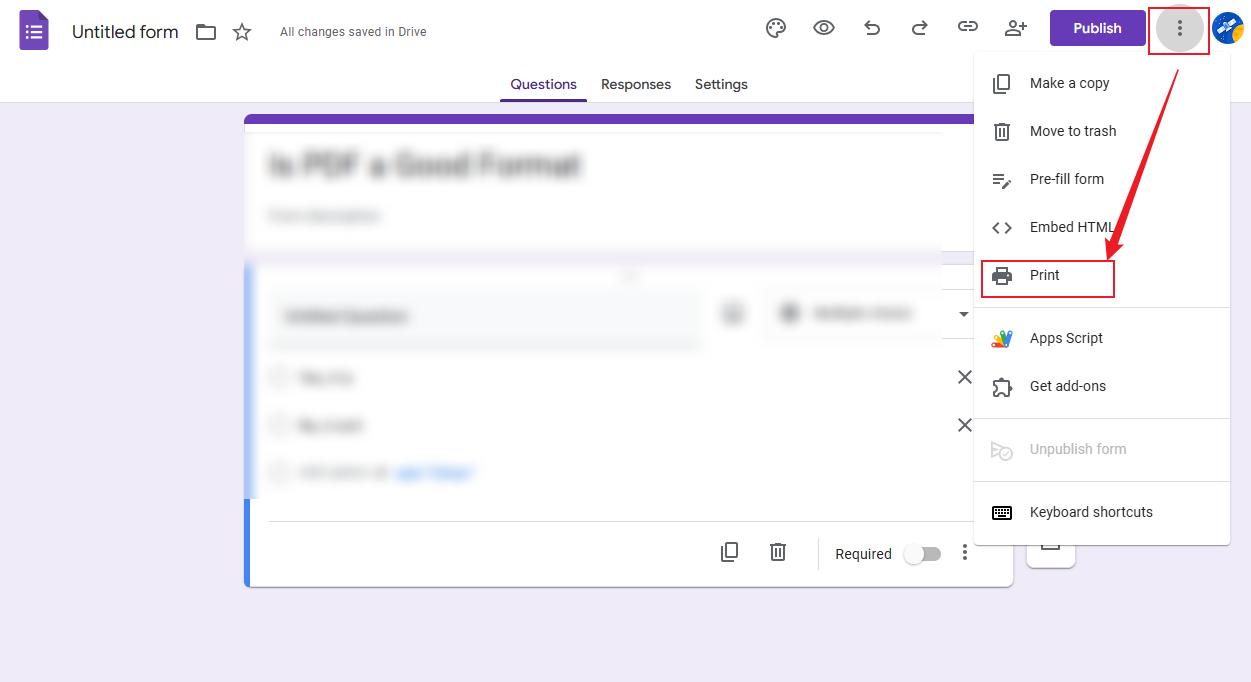
Step 2. Click the three-dot icon in the upper right and select Print from the list. Or, you can press the shortcut keys: Windows + P or Command + P.
Step 3. Then, the Print window will appear. Open the Destination list and select the "Save as PDF" option. Here, you can’t select your physical printer.
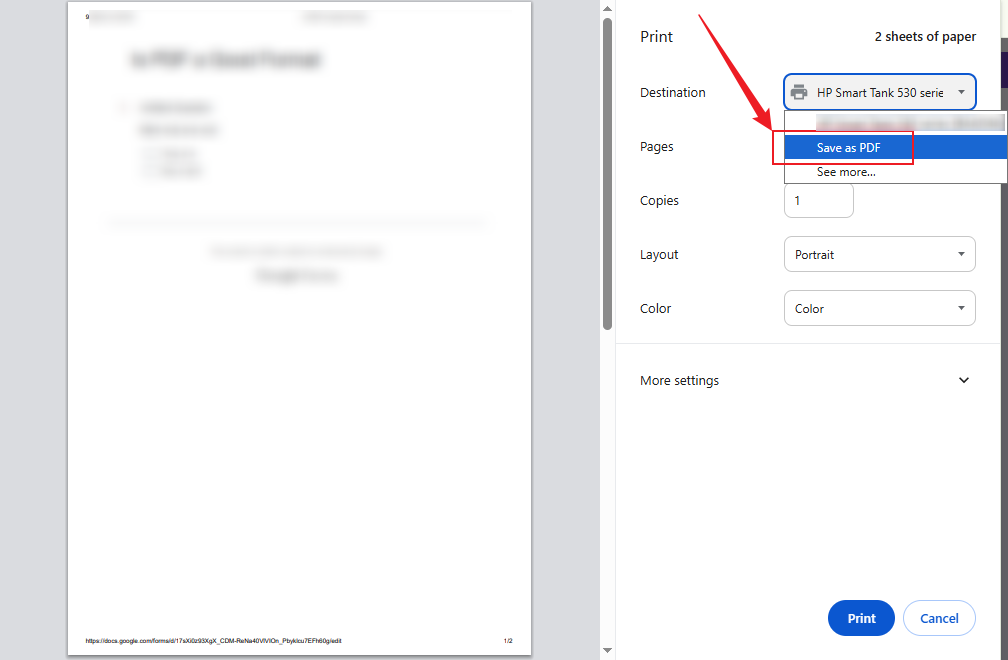
Step 4. Next, you can adjust other settings for the PDF file. For instance, you can expand the Layout list to change the PDF orientation. Or adjust the page size, margins, quality, scales, and more. Next, click the Save button. Name the file, choose a location to save the file, and click the Save button.
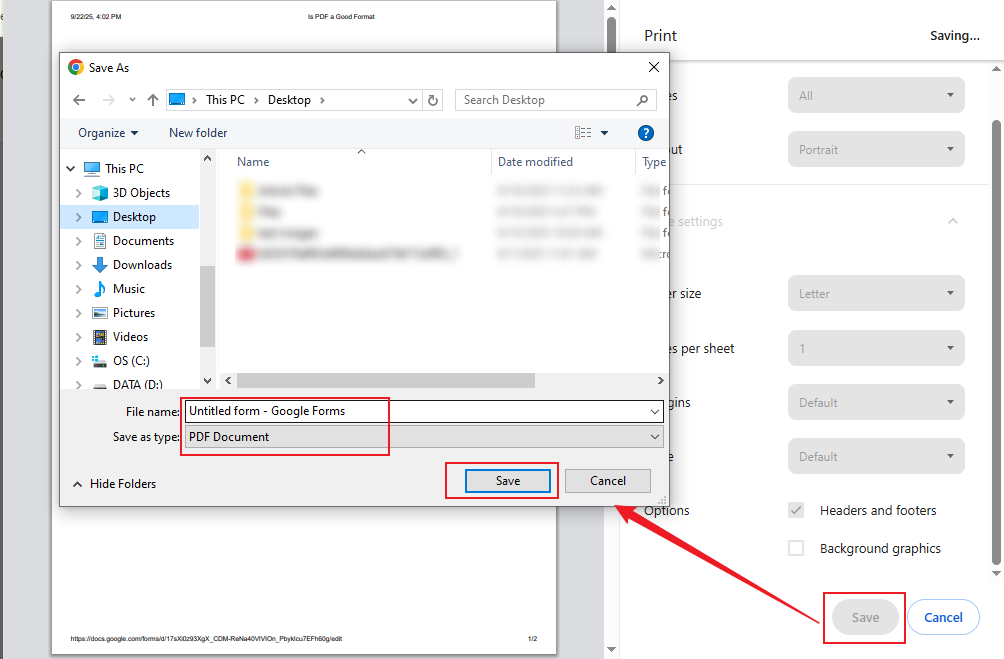
Now, you can go to enjoy the PDF version of your Google Form file.
How to Download Google Form as PDF on Mobile
According to the official, Google Forms is only available as a web application. It is also available on both iPhone and Android via web browsers. The process of downloading Google Forms as PDFs on mobile phones is similar to the process on desktops.
#For iPhone
Step 1. Choose to open your Google Form file in Safari or Chrome browser.
Step 2. Tap the Share option and scroll down to hit the Print option.
Step 3. Use the pinch-out gesture (spread two fingers outward) on the preview.
Step 4. Tap the Share icon again and select the Save to Files or Books option as a PDF.
#For Android
Step 1. Open the target Google Form file via any of the web browsers on your Android phone.
Step 2. Hit on the Three-dot icon in the top right and tap the Print option.
Step 3. Select the Save as PDF option from the printer options.
Step 4. Finally, tap the download icon to save the PDF file.
How to Convert Google Forms to PDFs
In addition to the above method to export Google Forms, there are other ways to export Google Form responses. In that way, you can get files in PDF, CSV, or XLSX format. What can you do to convert Google Forms to PDFs if you get a Google Form file in CSV or XLSX format? Use a PDF converter to convert these CSV or XLSX form files into PDF. SwifDoo PDF is one of the best PDF converters that can help you turn PDFs to and from a wide range of formats.
In other words, you need to convert Excel to PDF. Here, I’ll show you how to convert a Google Form file in CSV or XLSX format into a PDF using SwifDoo PDF.
Step 1. Click the button below to download this Google Form to PDF converter and install it on your PC.
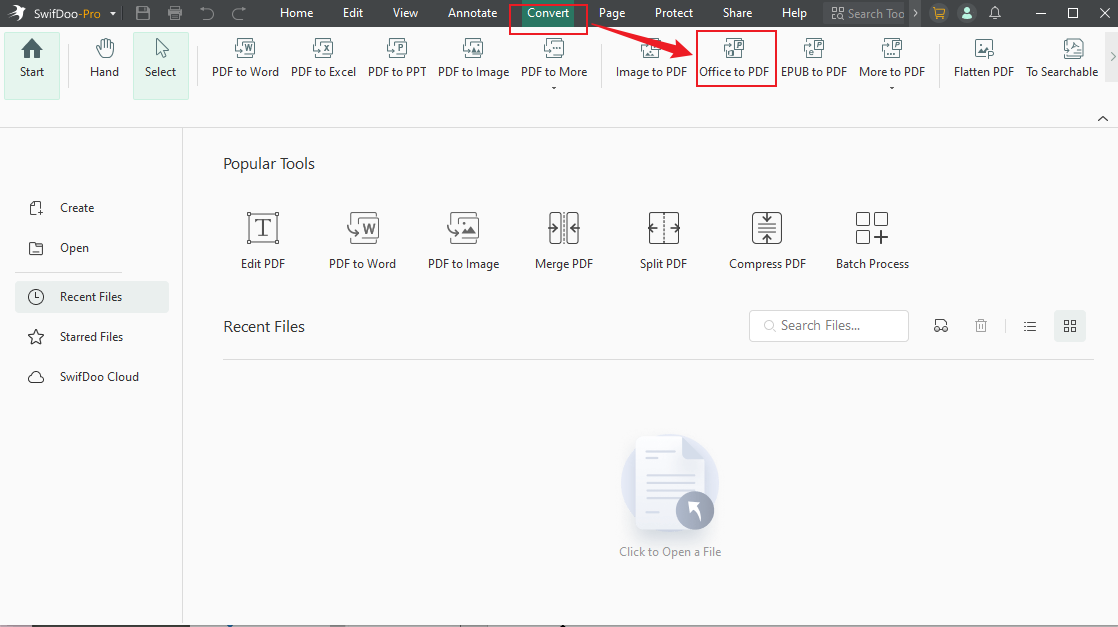
Step 2. Launch SwifDoo PDF and switch from the Home tab to the Convert tab. Click the Office to PDF option.
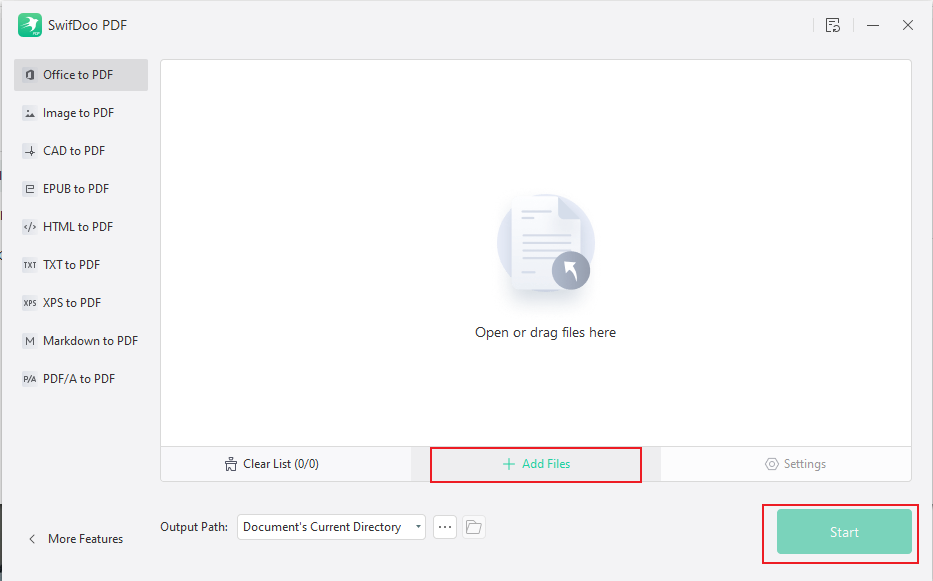
Step 3. Click + Add Files to import the target Google Form file and click the Start button to activate the conversion process.
Wrapping Up
Google Forms is an excellent tool to collect digital information, but sometimes you need an offline, shareable version. That's where downloading your form as a PDF comes in handy. How to download Google Form as PDF? Follow the above guidance, and you'll never have to worry about being limited to the online version again. With a PDF, you can easily and efficiently share, print, and archive your forms.




